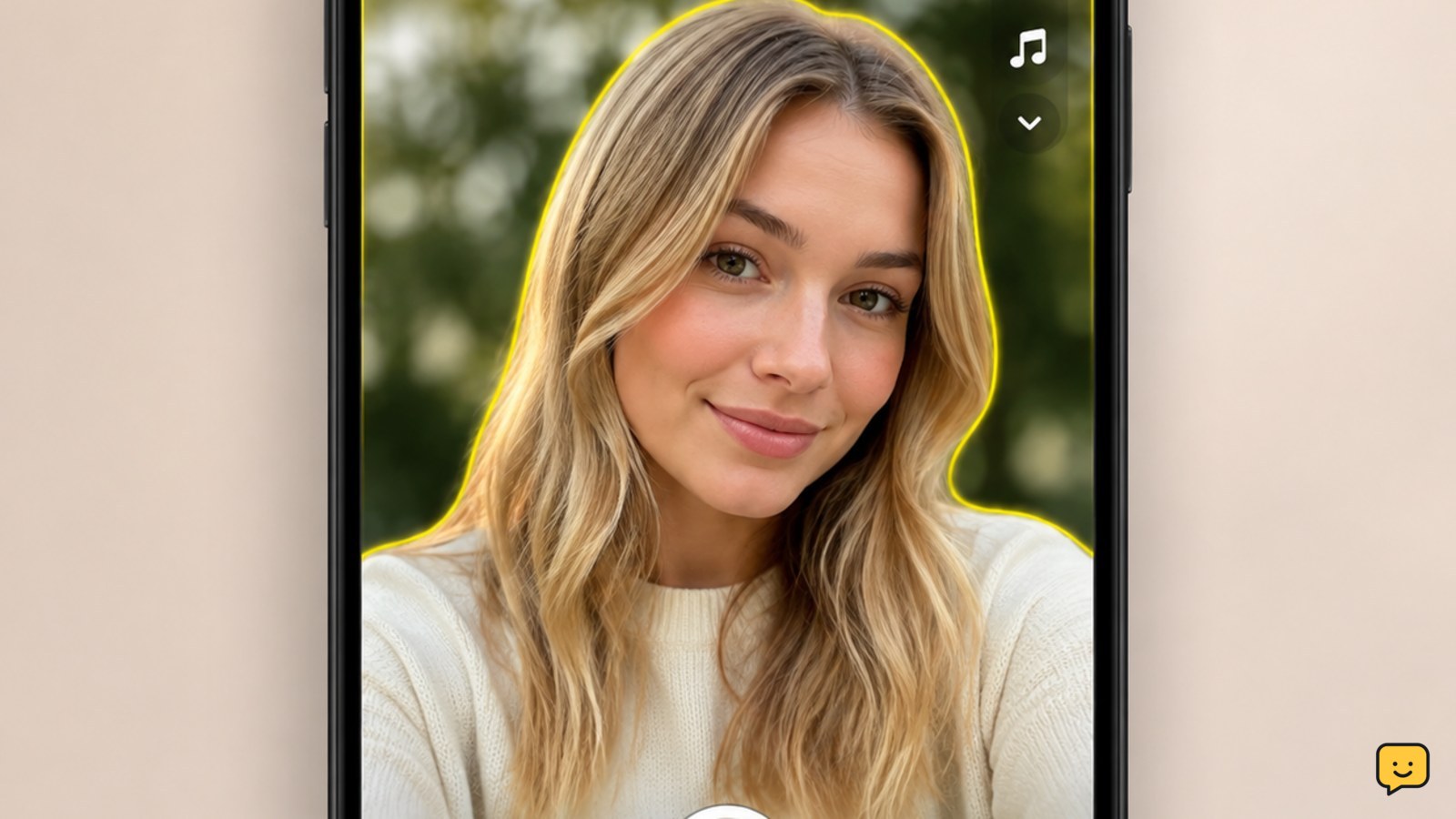
To get portrait mode on Snapchat, open the Snapchat camera and look for Focus near the capture controls. On an iPhone, you can also open Control Center while Snapchat is using the camera, tap Video Effects, and turn on Portrait if that option is available. Take a test snap and check that the background is visibly blurred.
Browse more Privacy & Online Safety guides
Find Focus on the Snapchat camera screen
Snapchat’s in-app portrait-style option may appear as Focus on the camera screen, commonly near the capture controls.
- Open Snapchat and remain on the camera screen.
- Switch to the front or rear camera, depending on the shot you want.
- Look for Focus or a face-shaped camera effect near the capture button or lens controls.
- Tap it, frame one person or object, and take a short test photo or video.
Verify the result: the subject should remain clearer while nearby background details appear softened or blurred. Snapchat’s official portrait-mode topic confirms that the feature is used for portrait-style video and selfie content, but labels and placement can vary by device and app version.
Turn on Portrait from iPhone Video Effects
On an iPhone that exposes camera effects to Snapchat, Portrait can be enabled from Control Center while Snapchat is actively using the camera.
- Open Snapchat and start viewing the camera preview.
- Swipe down from the top-right corner to open Control Center.
- Tap the camera or Video Effects control, if it appears.
- Choose Portrait, then close Control Center and return to Snapchat.
- Record a brief test video or take a photo.
Verify the result: the portrait effect should remain visible in the Snapchat preview or recorded video. This control is device- and iOS-dependent, so its absence does not mean your Snapchat account is restricted.
Check the blur before sending a snap
Snapchat portrait mode is working when the intended subject is separated from the background without obvious loss of focus around the face or object.
- Place the subject in good, even light.
- Keep the camera steady and leave visible space behind the subject.
- Move closer or farther away if the blur is weak.
- Review the preview before tapping Send To, My Story, or another sharing option.
Portrait effects can struggle with hair edges, glasses, moving subjects, low light, and busy backgrounds. A clean preview is the useful checkpoint; do not send the snap until you have confirmed the framing and effect.
Fix missing Focus or Portrait controls safely
If Snapchat does not show Focus and your iPhone does not show Video Effects, treat the missing control as a compatibility or interface issue rather than an account-security problem.
- Close and reopen Snapchat.
- Update Snapchat through the official app store.
- Restart the phone and test the camera again.
- Check that Snapchat has camera permission and that no other app is actively using the camera.
- Try both the front and rear cameras; some effects may appear only in one camera mode or on supported devices.
If the option still does not appear, use Snapchat’s available portrait-style lenses or take the photo with the phone’s native Camera app and share it only after reviewing the saved image. Do not use third-party unlockers, modified clients, or websites claiming to add the feature to your account.
Choose an alternative when Snapchat does not support the effect
When the Snapchat camera lacks portrait controls, the safest alternative is to create the blurred-background image with the phone’s built-in camera and then import it into Snapchat.
- Open the native Camera app and select its Portrait mode, if available.
- Take the photo and inspect the saved result.
- Open Snapchat, swipe up to Memories, and choose the image if you want to edit or share it.
This alternative does not add live portrait blur to Snapchat video. It only provides a portrait-style image that you can review before sharing.
Frequently asked questions
Why can’t I see Focus on Snapchat?
Focus may be unavailable because the app interface, camera mode, device, or app version does not support that control. Update Snapchat, restart the phone, check camera permission, and test both cameras. If it remains absent, use an available portrait lens or the phone’s native Portrait camera instead.
Does Snapchat portrait mode work on every phone?
No. Portrait controls can depend on the phone, operating system, camera support, and Snapchat version. If neither Focus nor a system Video Effects control appears, the feature may not be available for that device or camera mode.
Can I get portrait mode on Snapchat without downloading another app?
Yes. Use Snapchat’s Focus control when it is available, or use the phone’s built-in Portrait camera and import the finished photo into Snapchat. Avoid modified Snapchat apps and unofficial tools because they can expose your login or cause account problems.
How do I know portrait mode is working before I post?
Take a private test photo or short video and inspect the preview. The subject should look sharper than the background, with a visible but natural blur around distant details. Review the snap before choosing a recipient, Story, or public sharing option.