
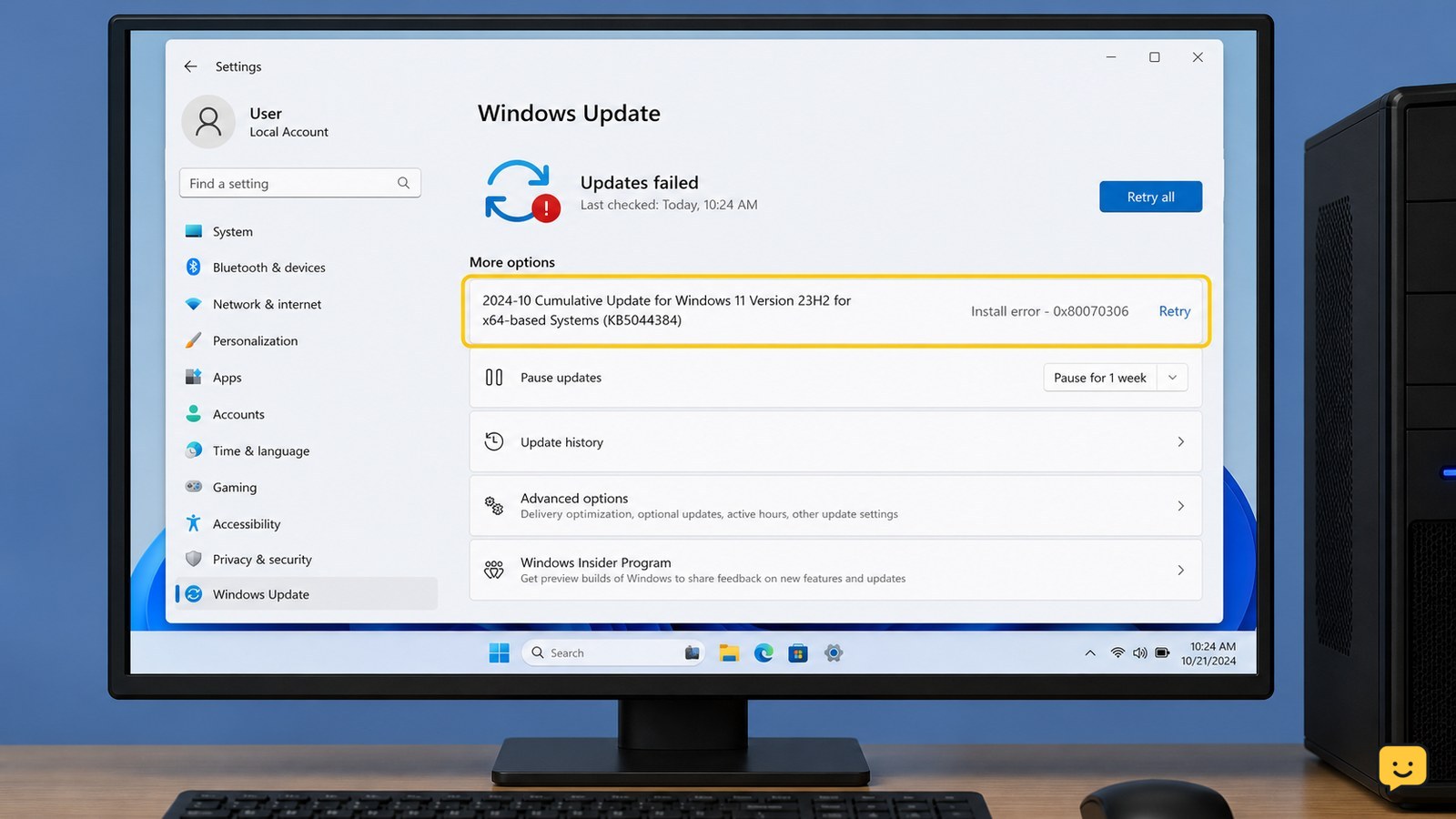
Install error 0x80070306 is commonly reported when Windows Update cannot complete a particular update. Restart Windows, run the Windows Update troubleshooter, and retry the update. If it still fails and your Windows 11 build shows it, use Settings > System > Recovery > Fix problems using Windows Update > Reinstall now. Stop before deleting system folders or using unofficial repair downloads.
Browse more Computers & Internet guides
Check which update is failing before changing Windows
Windows Update error 0x80070306 should be treated as an update-specific installation failure until you identify the affected update. Open Settings > Windows Update and note the update name, KB number, and whether the screen offers Retry or Restart.
A single failed cumulative or security update does not prove that the computer has a hardware fault. The error code alone does not identify one universal cause, so keep the KB number for later support or catalog lookup. If Windows reports that the update is already installed, restart once and check Update history before trying anything else.
Restart Windows and retry the update once
A full restart clears a pending update operation and is the safest first recovery step for 0x80070306. Close apps, choose Start > Power > Restart, wait for Windows to return to the desktop, then open Settings > Windows Update and select Check for updates.
- Leave the computer connected to power during the retry.
- Disconnect nonessential USB storage, docks, and peripherals temporarily.
- Retry only once after the restart; do not repeatedly force shutdown during installation.
Verify success: the update changes to Installed, Windows asks for a restart and completes it normally, or the failed item disappears from the pending list. If the same KB returns with 0x80070306, continue to the troubleshooter instead of repeating the retry cycle.
Run the Windows Update troubleshooter
The Windows Update troubleshooter is the first targeted repair recommended in the supplied reports for error 0x80070306. Its exact location can vary by Windows version, so use Settings search for troubleshoot or Windows Update troubleshooter, then open the matching system settings page.
- Open Settings and search for troubleshoot settings.
- Open Other troubleshooters if that page is available.
- Find Windows Update and select Run.
- Apply a repair only when Windows identifies the Windows Update component it wants to correct.
- Restart if prompted, return to Windows Update, and retry the recorded KB update.
Microsoft Q&A discussions also describe a Windows 11 recovery option called Fix problems using Windows Update. If the troubleshooter reports that it cannot repair the problem, use the recovery path in the next section when it is present.
Use Windows 11 repair reinstall when the option appears
On Windows 11 installations that display it, Settings > System > Recovery > Fix problems using Windows Update > Reinstall now reinstalls the current Windows version through Windows Update. Microsoft Q&A identifies this as a recovery route for persistent 0x80070306 cases, but the option is not shown on every edition, build, or managed computer.
- Open Settings > System > Recovery.
- Look for Fix problems using Windows Update and select Reinstall now.
- Read the confirmation screen carefully before starting.
- Keep the computer connected to power and the internet while Windows downloads and installs the repair.
- Allow every requested restart to finish normally.
Verify success: Windows returns to the desktop without a recovery error, and the original update can be checked again under Settings > Windows Update. If the option is missing, do not substitute a random ISO or third-party repair program; move to the failure path below.
What to do if 0x80070306 returns after repair
If the same KB update still fails after the troubleshooter and an available repair reinstall, record the exact KB number, Windows edition, version, and the text shown beside the error. This information distinguishes a repeatable update failure from a broader Windows servicing problem.
- Open Settings > Windows Update > Update history and confirm the failed KB.
- Check whether other updates install successfully. If only one KB fails, wait for Microsoft to revise or replace that update rather than forcing system changes.
- If several updates fail, or Windows reports corrupted system files, use Microsoft Support or the computer manufacturer’s support channel.
- For advanced repair, Microsoft-support personnel may direct you to system-file repair tools such as SFC or DISM. Use the exact command and order they provide for your Windows version.
Community reports mention resetting Windows Update components and running SFC or DISM, but those reports are not a substitute for a version-specific Microsoft procedure. Avoid copying commands from an unattributed video or forum post.
Confirm the update is installed before stopping
The fix is complete when Windows Update no longer shows the recorded KB as pending or failed, and Update history lists it as successfully installed. Restart once more if Windows requests it, then check the update page again.
If the update remains failed but the computer is otherwise working, leave the system unchanged and contact Microsoft Support with the error code and KB number. Stop immediately for BitLocker recovery prompts, repeated failed boots, disk warnings, or abnormal restarts; those symptoms need recovery or hardware guidance rather than more update troubleshooting.
Frequently asked questions
What does Windows Update error 0x80070306 mean?
It means Windows could not complete an update installation, but the code does not identify one confirmed cause by itself. The affected KB number, update history, and whether other updates install successfully provide more useful diagnostic information.
Should I delete the SoftwareDistribution folder for 0x80070306?
No. Do not delete or rename Windows Update folders unless an official, version-specific support procedure tells you to. An incorrect reset can create additional update or servicing problems and may remove useful troubleshooting information.
Can I ignore install error 0x80070306 if Windows still starts?
You can continue using Windows temporarily if it starts normally, but do not assume the failed update is harmless. Check whether the failure is a security update, record its KB number, and seek support if retries, the troubleshooter, or the available recovery reinstall do not resolve it.
What if the Reinstall now option is missing?
That option is not available on every Windows 11 installation. Run the Windows Update troubleshooter, check Update history, and contact Microsoft or the device manufacturer if multiple updates fail. Do not replace the missing option with an unofficial repair utility or download.


