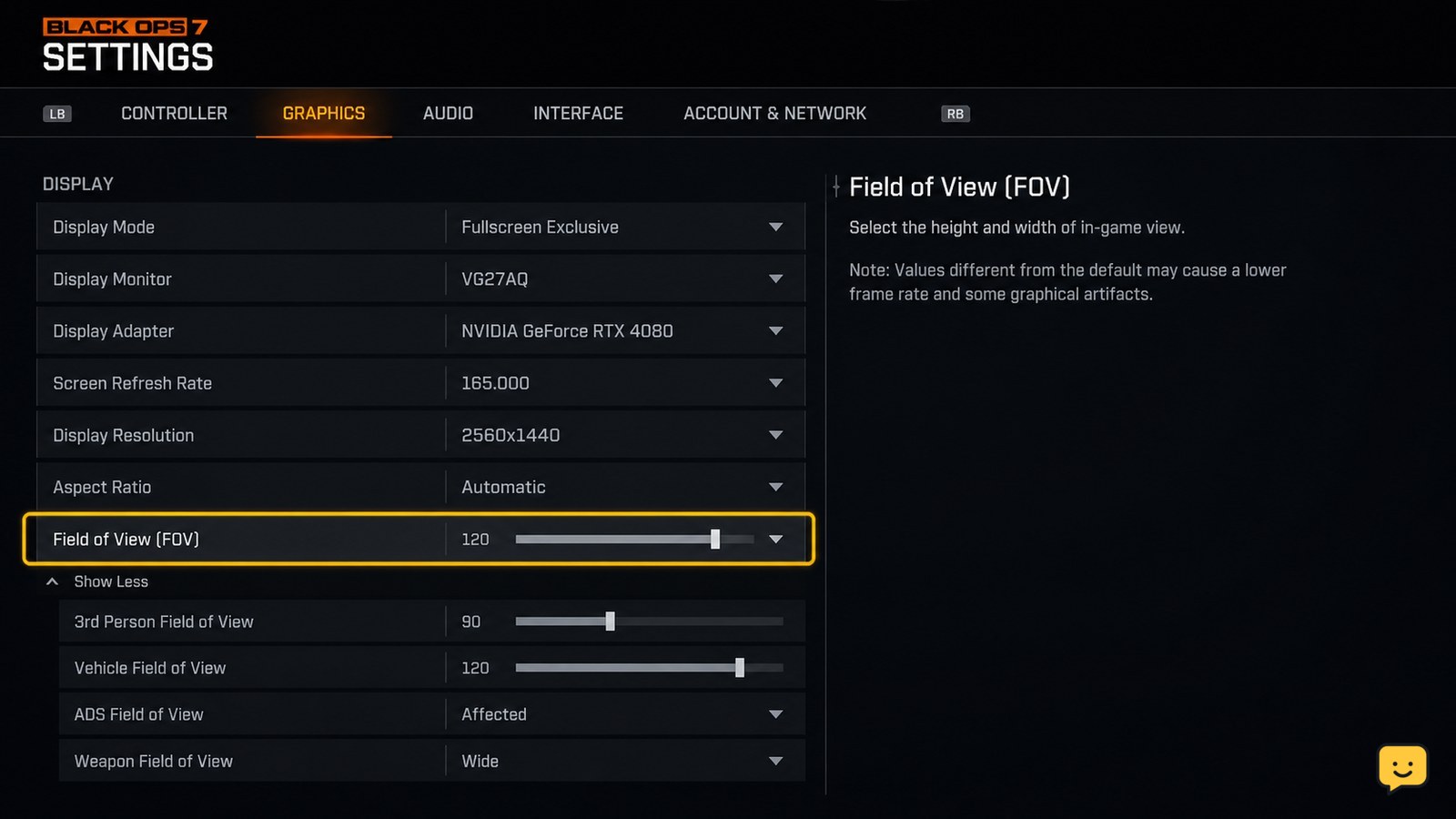
Open Call of Duty: Black Ops 7’s Settings from the gear icon, find the Field of View option in the graphics or view settings, adjust the slider, and apply the change. A higher FOV shows more of the area beside you but can make distant targets appear smaller; a lower FOV narrows the view and enlarges the scene.
Browse more Call of Duty: Black Ops 7 guides
Find the Field of View setting in Black Ops 7
Call of Duty: Black Ops 7 places the Field of View control in the in-game Settings menu rather than in Loadouts. From the main menu or lobby, select the gear icon to open Settings, then check the graphics or view-related settings for Field of View or FOV.
- Open the main menu or lobby.
- Select the gear icon.
- Open the settings page containing visual or graphics options.
- Scroll until you find the Field of View slider.
Current Black Ops 7 gameplay guides demonstrate changing FOV through the settings interface, while third-party settings guidance places the control with the game’s visual options. Menu groupings can change between platforms or updates, so use the visible Field of View label as the checkpoint rather than relying on a fixed tab name.
Adjust the slider for a wider or narrower view
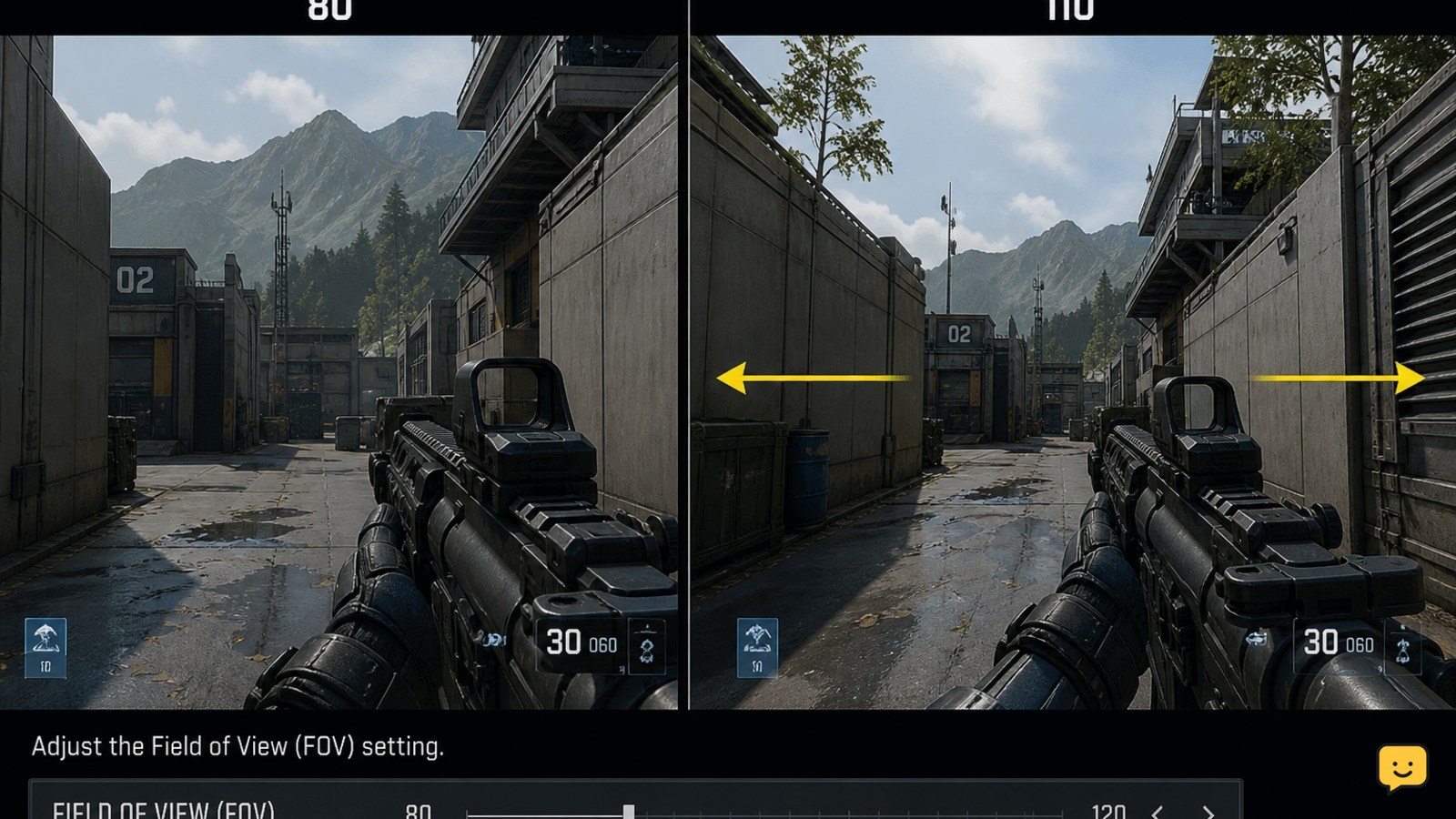
Black Ops 7’s Field of View slider changes how much of the surrounding area appears on screen. Move the slider to a higher value for a wider view, or move it lower for a narrower view.
- Higher FOV: shows more of the area to your sides and can make movement feel less zoomed in. Distant players and objects may appear smaller.
- Lower FOV: shows less of the surrounding area and makes the scene appear more zoomed in. Targets can look larger, but threats outside the narrower view are easier to miss.
There is no single value that suits every display, distance from the screen, or play style. Change only the FOV first, then use the same mode and similar movement to judge the result. Select the on-screen apply, confirm, or back option if Black Ops 7 presents one.
Verify the new FOV in a live match
Black Ops 7 applies the useful FOV check in gameplay: enter a match and compare the amount of environment visible at the left and right edges of the screen.
- Join a safe practice area or a normal match.
- Stand still and compare the side edges of the view with your previous setting.
- Move, turn, and aim down sights to check whether the view feels comfortable.
- Keep the setting if the wider or narrower perspective matches your preference.
Do not judge the change only from the settings menu. The clearest confirmation is that the live game shows a visibly different amount of surrounding scenery after the slider is changed.
Fix a missing or ineffective FOV control
If the Field of View option is missing or the screen looks unchanged, first determine whether the problem is the menu location or the setting failing to save.
| What you see | Likely cause | What to do |
|---|---|---|
| No FOV option in the first settings page | The control is grouped under another visual or gameplay tab. | Check every settings page that contains graphics, camera, view, or gameplay options. Stop if the label is absent everywhere. |
| The slider moves but the view does not change | The change may not have been applied, or the current screen is not displaying gameplay. | Confirm the setting, leave the menu, and compare the view in a match. |
| The value returns to its previous position | The setting may not have saved correctly. | Change it again from the main menu, apply it, then restart the game once to check whether it persists. |
| The wider view feels distorted or uncomfortable | The chosen value may be too high for your display or viewing distance. | Lower the FOV in small increments. Stop if discomfort continues. |
Third-party recommendations may suggest particular FOV ranges, but those values are preferences rather than a requirement. Use the live-match comparison and your own comfort as the final verification.
Frequently asked questions
Does a higher FOV make Black Ops 7 show more of the map?
Yes. A higher Field of View displays more of the scene at the sides of the screen. The trade-off is that distant enemies and objects can appear smaller, which may make them harder to identify quickly.
Why does my Black Ops 7 FOV look unchanged?
Make sure you applied the slider change and checked the result in a live match rather than only in the settings menu. If the view still looks identical, return to the main menu, change the value again, apply it, and restart the game once to test whether it saves.
Can I change FOV during a Black Ops 7 match?
The safest method is to change it from the main menu or lobby before joining a match. If the current mode blocks settings changes, leave the match or wait until the post-match screen, then adjust the setting from the main menu.
What should I choose if a wide FOV makes aiming uncomfortable?
Lower the FOV gradually instead of switching straight to the minimum value. A narrower view reduces the amount shown at the screen edges and may feel easier to track, but it also reduces peripheral visibility.