
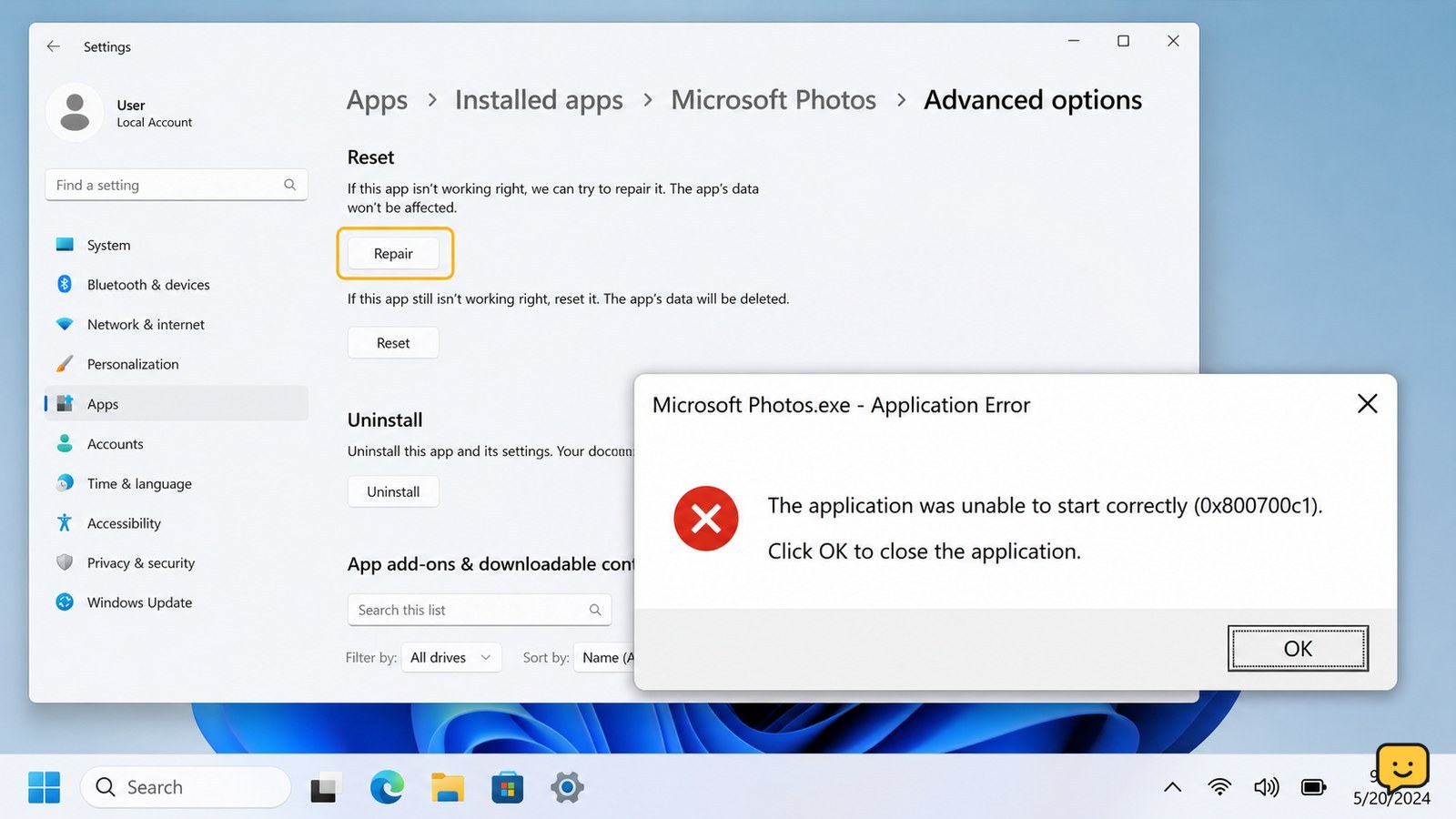
Error code 0x800700c1 usually means Windows cannot load a valid executable or DLL, often because an app or system file is damaged. For an Xbox, Game Pass, or Microsoft Store app, try Repair or Verify and Repair first, install pending updates, then run DISM and SFC. If only one app fails, reinstall it; if many programs fail, stop before deleting system files.
Browse more Computers & Internet guides
Check whether 0x800700c1 affects one app or Windows broadly
Error code 0x800700c1 is usually an application-loading error, but the safest fix depends on its scope. If one game or app fails while Notepad, Settings, and another trusted program open normally, the installation is the leading suspect. If several unrelated programs fail, damaged Windows components or storage problems become more likely.
- Restart the PC and try the same app once.
- Open a simple built-in program such as Notepad.
- Record the exact wording, including whether the error appears while launching, installing, updating, or signing in.
Microsoft Q&A describes this code as commonly associated with a corrupt or invalid EXE or DLL, but the code alone does not identify which file is responsible.
Repair the affected Windows app before reinstalling it
Windows can repair many installed apps without removing their main installation. This is the lowest-risk software fix when only one app shows 0x800700c1.
- Open Settings.
- Choose Apps, then Installed apps or Apps & features, depending on your Windows version.
- Find the affected app, select its three-dot menu, and choose Advanced options.
- Select Repair, wait for it to finish, and launch the app again.
A successful repair opens the app without the code and preserves its installation. If the app still fails, return to the same screen and consider Reset only after checking its local-data warning. Reset can remove settings or locally stored data.
For an Xbox or PC Game Pass title, open the Xbox app and look under the game’s management or files controls for a repair or verification option, if your current app version provides one. The process may check damaged game files without downloading the entire title again.
Update Windows, Microsoft Store, and the affected game
Pending updates can leave a Store-delivered app, Xbox component, or game with mismatched files. Updating the related components is useful when the error began after an interrupted update or firmware change.
- Open Settings > Windows Update and install available updates. Restart when requested.
- Open Microsoft Store, select Library, and choose Get updates or the available update control.
- Open the app or game launcher and install any update shown for the affected title.
- Try the launch again after all updates finish.
Success means the app reaches its normal start screen instead of returning 0x800700c1. If the Store itself will not open or several Store apps fail, skip repeated Store resets and continue with the Windows component checks below.
Run DISM, then System File Checker as administrator
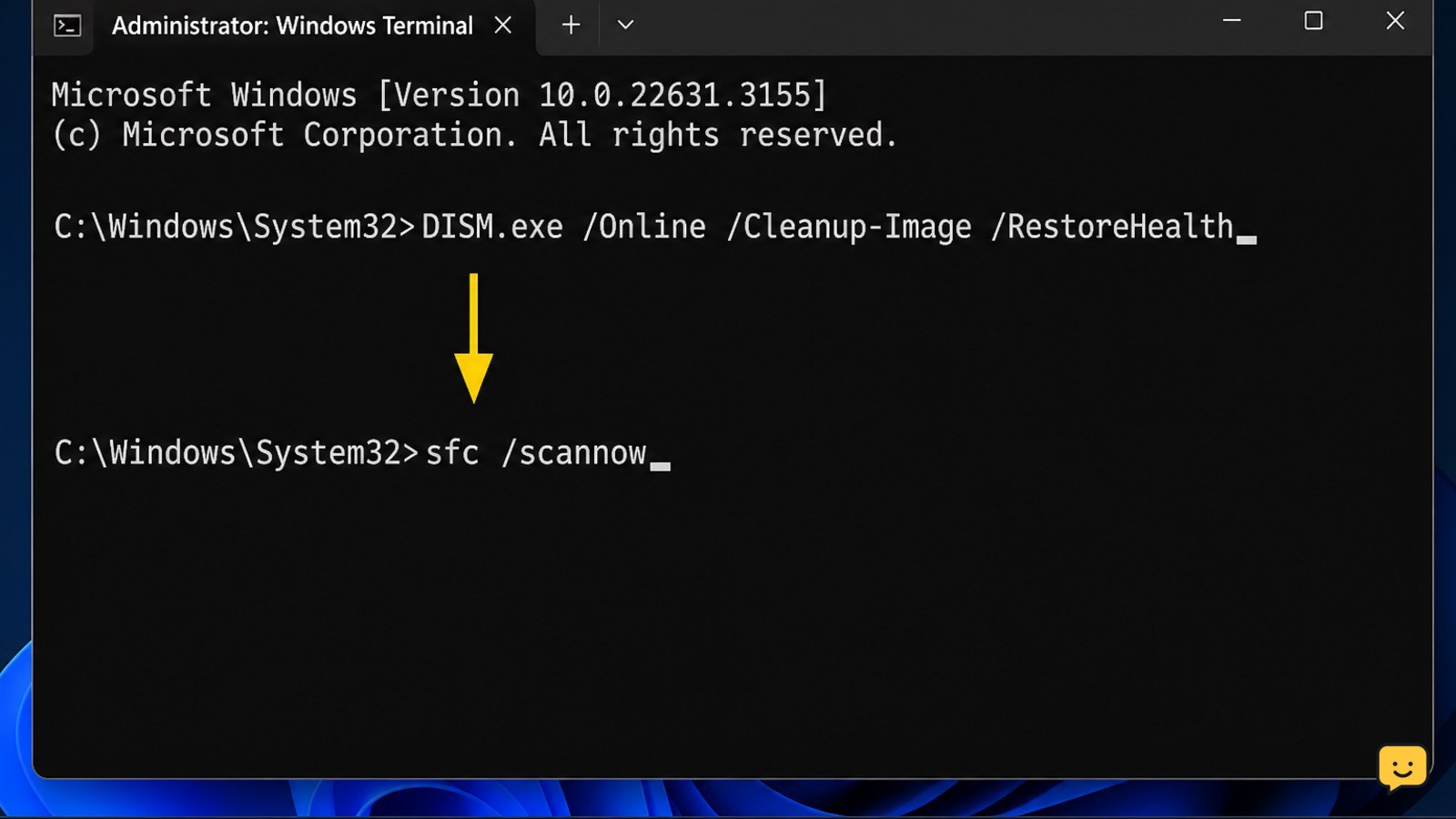
DISM repairs the Windows component store, while System File Checker checks protected system files against available Windows components. Microsoft documents both commands for repairing Windows image and system-file problems.
- Right-click Start and choose Terminal (Admin), Windows PowerShell (Admin), or Command Prompt (Admin).
- Run this command and wait for it to reach 100%:
DISM.exe /Online /Cleanup-Image /RestoreHealth
- When DISM finishes, run:
sfc /scannow
- Restart Windows, then test the original app.
If SFC says it found and repaired corrupted files, test the app after restarting. If it says no integrity violations were found, the issue is more likely limited to the app, its permissions, or its installation. If DISM cannot complete, connect to a reliable network, confirm that Windows Update is working, and do not interrupt the scan.
Reinstall only the affected app when repair does not work
Reinstalling is appropriate when one app continues to report 0x800700c1 after repair, updates, and system-file checks. Remove the app through Settings > Apps > Installed apps, restart, and install it again from its official publisher, Microsoft Store, Xbox app, or another trusted source.
- Check the app’s account, license, and saved-data behavior before uninstalling.
- Uninstall the affected app and restart Windows.
- Install a fresh copy from the same legitimate distribution channel.
- Launch it before adding modifications, overlays, or third-party extensions.
If the fresh installation works, add optional extensions one at a time and test after each change. If the new copy fails immediately while other applications still work, contact the app publisher with the exact code and the installation log if available.
Choose the safe next step when several programs fail
When 0x800700c1 appears across multiple unrelated programs, treat it as a Windows or storage problem rather than an individual app problem. Back up documents, photos, and other irreplaceable files before making deeper changes.
Check Settings > System > Storage for a nearly full system drive, and review Windows Security for malware warnings. Do not disable security software simply to force an executable to run. If the drive reports errors, Windows cannot repair its components, or built-in tools also fail to open, use Windows recovery options or qualified support instead of replacing system DLLs manually.
A repair installation may preserve personal files and apps, but its exact choices vary by Windows version and edition. Confirm the backup and read every data-retention screen before proceeding.
Frequently asked questions
What does Windows error code 0x800700c1 mean?
It usually means Windows cannot load a valid executable or DLL. The file may be damaged, incomplete, incompatible, or part of a damaged Windows component. The code is not specific enough to identify one file by itself, so first determine whether one app or several programs are affected.
How do I fix 0x800700c1 when launching an Xbox or Game Pass game?
Repair the game from its available Xbox or Windows app management controls, then update the Xbox app, Microsoft Store, Windows, and the game. If the title still fails, reinstall it from the official app after confirming that saved progress is synchronized or backed up.
Can SFC fix error 0x800700c1?
SFC can fix the error when protected Windows files are damaged, but it cannot repair every broken third-party app. Run DISM first, then run <code>sfc /scannow</code> in an administrator terminal, restart, and test the original program.
Should I download a replacement DLL to fix 0x800700c1?
No. Random DLL-download sites can provide the wrong version or unsafe files. Repair or reinstall the affected application, then use Microsoft’s DISM and SFC tools for Windows components.


