
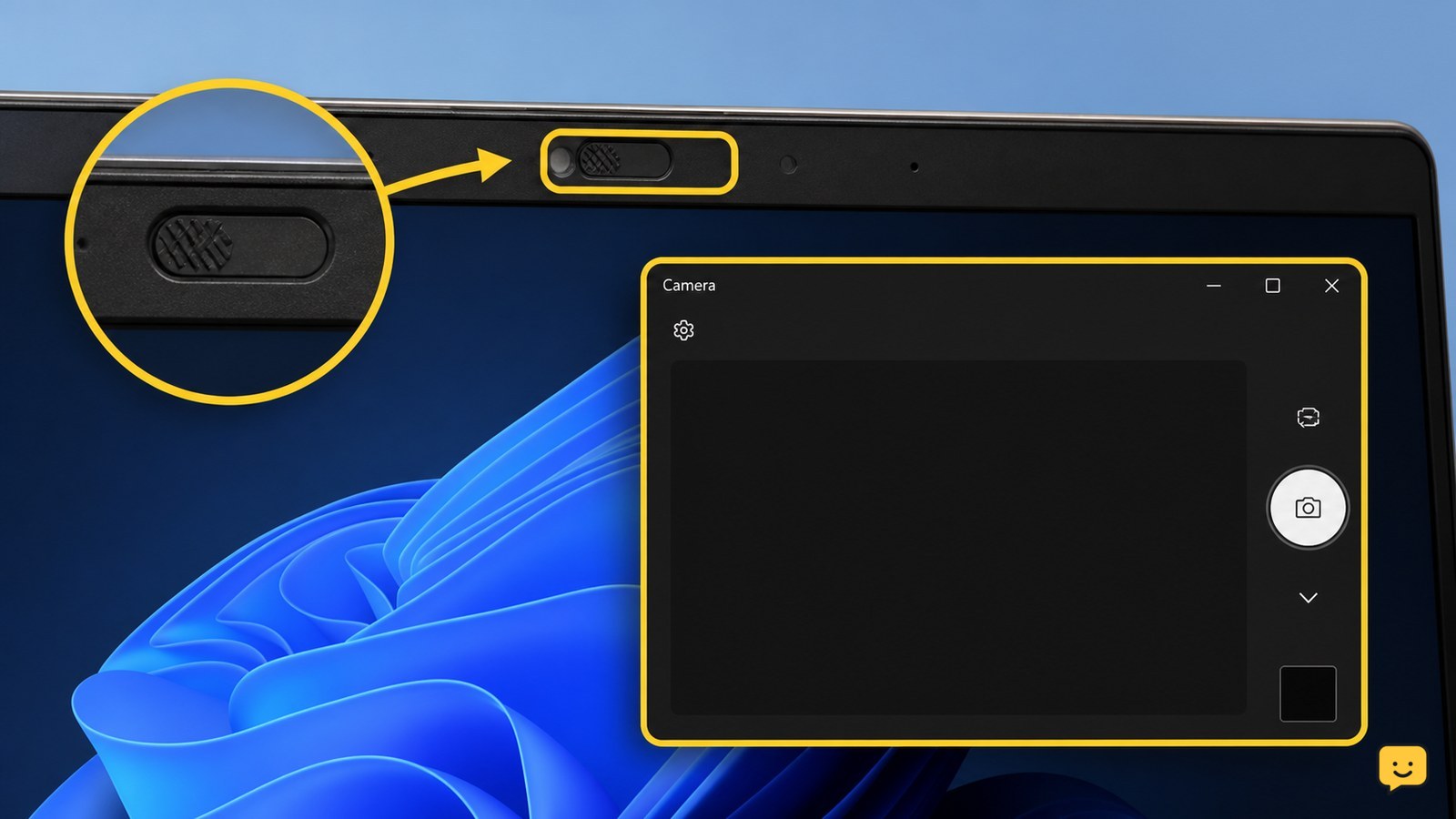
Your laptop webcam is usually unavailable because its privacy shutter or camera key is off, Windows camera access is blocked, another app has control, the driver is damaged, or the camera has failed. Open the built-in Camera app to test it, then check the physical cover, permissions, app conflicts, drivers, and hardware detection in that order.
Browse more Computers & Internet guides
Check the webcam shutter, camera key, and lens
The laptop webcam cannot produce an image when a physical privacy shutter, camera key, or manufacturer privacy switch disables it.
- Look directly at the webcam above the display. Slide open any cover until the lens is visible.
- Look for a camera icon on the function keys. Press the key once, or press it with Fn if your laptop requires that combination.
- Remove tape, stickers, or anything covering the lens, then wipe the lens gently with a dry microfiber cloth.
Open the Windows Camera app from the Start menu. A live preview means the physical camera is working, so stop here and select this camera inside the affected app. If the preview is still black, continue.
Verify Windows camera permissions
Windows can detect a laptop webcam but show a blank image when camera access is disabled for the device, apps, or desktop programs.
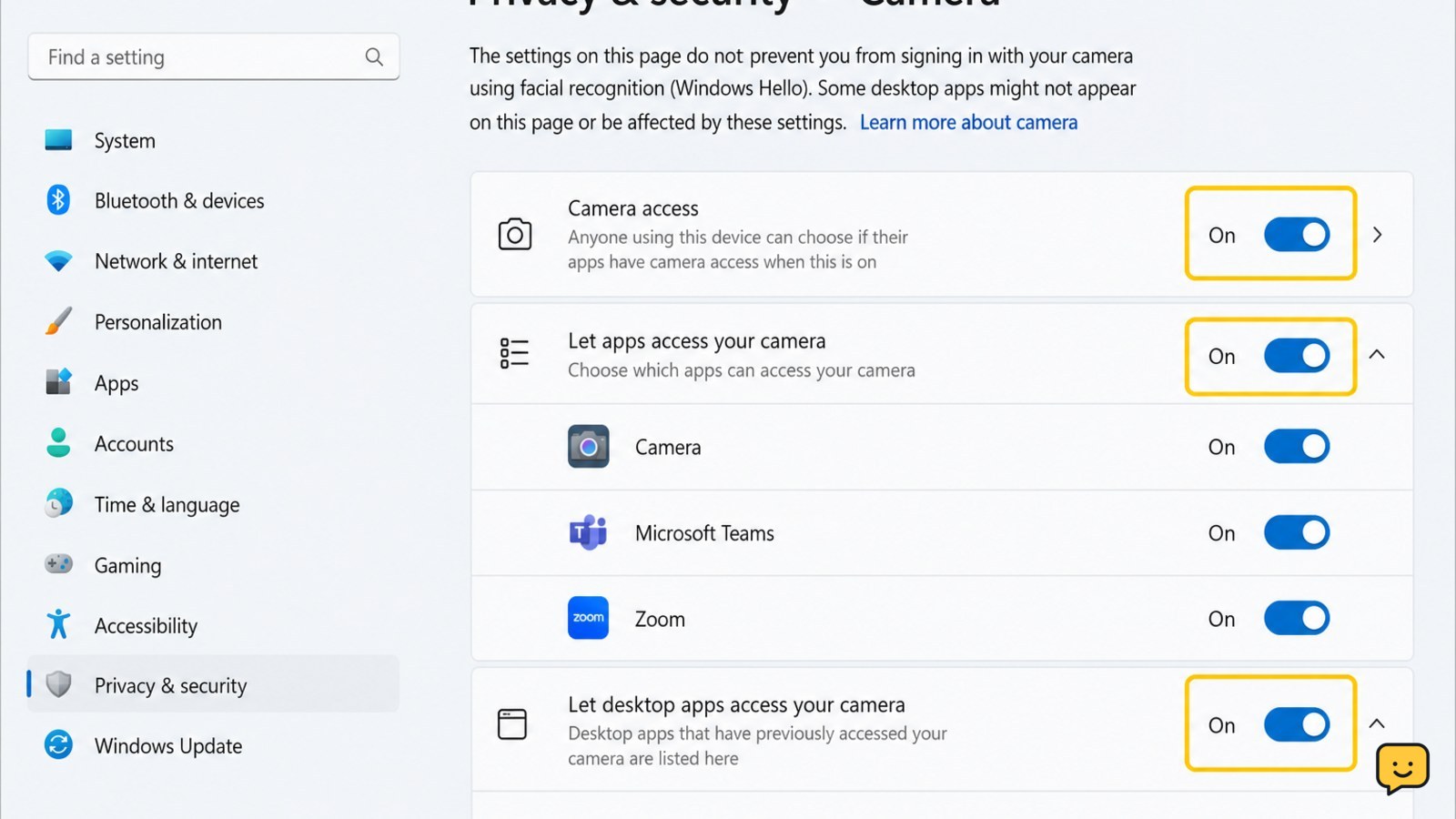
- Open Settings and choose Privacy & security, then Camera.
- Turn on device camera access if Windows shows that control.
- Turn on Camera access and Let apps access your camera.
- Enable access for the app you need. For browsers and video-call programs, also enable Let desktop apps access your camera.
Microsoft Support lists restrictive privacy settings as a common cause of camera errors. Reopen the Camera app after changing access. If the settings are unavailable or locked, do not try to bypass them; contact the administrator.
Test the camera outside the affected app
The Windows Camera app separates a webcam problem from an individual app, browser, or account setting.
- Close video calls, browser tabs, recording software, and any other program that might use the camera.
- Open Camera from Start and wait for the preview.
- If more than one camera is listed, use the switch-camera control to test the built-in webcam.
If Camera works but a meeting app stays blank, open that app’s video settings and choose the built-in webcam instead of an external camera or virtual camera. Then check the app’s own permission request. If Camera also fails, continue to the driver check.
Close camera conflicts and security blocks
A second program or security control can keep the laptop webcam unavailable even when permissions are correct.
- Leave the Camera app open only for testing, and close every other program that could display video.
- Quit the affected app completely, restart the laptop, and test Camera before opening other video software.
- Check your security software for a camera-protection setting that blocks webcam access. Allow camera access only for applications you recognize and trust.
Microsoft Support identifies antivirus blocking and app-specific problems among possible causes. If the webcam works after the restart but stops when one program opens, update or repair that program rather than changing more Windows settings.
Find the webcam in Device Manager and repair its driver
Windows may show an unavailable or blank webcam when its camera driver is missing, disabled, or damaged after an update.
- Right-click Start and open Device Manager.
- Expand Cameras, Imaging devices, or a similarly named category.
- If the built-in webcam appears disabled, right-click it and choose Enable device.
- If it has a warning icon, use Update driver and restart Windows when prompted.
- Run Camera again and check for a live preview.
If the webcam is not listed, choose Action > Scan for hardware changes, then restart. Do not download drivers from random websites. Use Windows Update or the laptop manufacturer’s support page for the exact model. If the camera remains absent from Device Manager, the fault is more likely firmware, a disconnected internal cable, or failed hardware; arrange qualified service instead of opening the display.
Verify the repair and choose the next action
The repair is confirmed only when the built-in Camera app shows a stable live image and the target app can use the same webcam.
- Close and reopen Camera, then move a hand in front of the lens to confirm the preview updates.
- Open the affected calling or recording app and select the same camera.
- Make a short private test recording or use the app’s preview without starting a public call.
If Camera works but the target app does not, the remaining problem is app selection, app permission, or an app conflict. If every app shows a blank image and Device Manager reports an error, use the manufacturer’s model-specific support instructions. If the camera is missing entirely after the checks, stop software troubleshooting and seek service.
Frequently asked questions
Why does my laptop camera work in Camera but not Zoom or Teams?
The other app is usually using the wrong camera or lacks permission. Open its video settings, select the built-in webcam, and confirm that desktop-app camera access is enabled in Windows Privacy & security settings. Close other video programs before testing again.
Why is my laptop webcam light on but the screen black?
A lit indicator usually means an application has opened the camera, not that it is producing a usable image. Check the privacy shutter, close competing camera apps, select the correct camera, and test the Windows Camera app. Persistent black video across every app can indicate a driver or hardware problem.
Can a Windows update make a laptop webcam stop working?
Yes. Microsoft Support lists missing or changed drivers after an update as a possible cause. Check Device Manager for the camera, enable it if disabled, install an appropriate driver through Windows or the laptop manufacturer, and restart before testing again.
What does it mean if my webcam is missing from Device Manager?
The camera may be disabled at a hardware level, not detected because of a driver or firmware issue, or affected by an internal connection fault. Scan for hardware changes and restart once. If it remains absent, use model-specific support or arrange service; do not open the display unless you are qualified.


