
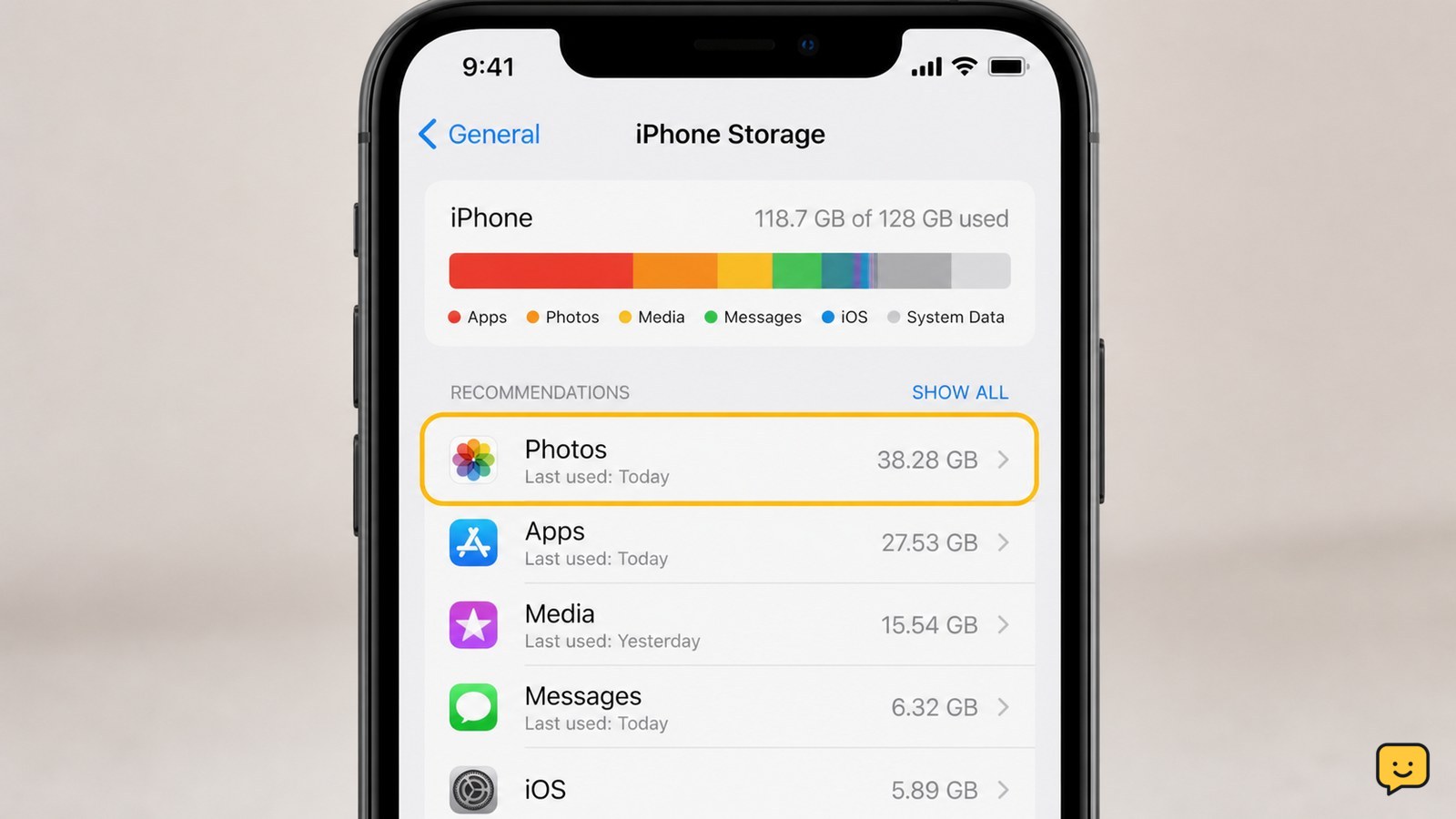
Open your phone’s storage settings and sort the breakdown by category or size. On Android, use Settings > Storage; on iPhone, use Settings > General > iPhone Storage. Check apps, photos and videos, downloads, messages, and recently deleted items. Back up anything important before deleting it, then reopen storage settings to confirm the available space increased.
1. Identify the phone’s operating system and storage screen
Android and iPhone show storage usage in different settings screens, so identify the phone before removing files.
- On most Android phones, open Settings and search for Storage. Open the storage page or choose Storage from the settings list.
- On an iPhone, open Settings > General > iPhone Storage.
- Wait for the phone to calculate the categories. If the numbers are still loading, do not start deleting items based on the temporary totals.
Android Help describes storage as the place for data such as music and photos, while memory is used to run programs. This guide concerns storage capacity, not available RAM.
2. Check which category is using the most space
The largest category on the storage screen is the best starting point because removing a small file will not solve a phone that is full of videos or app data.
- Write down the total capacity, used space, and free space shown by the phone.
- Compare Apps, Photos and videos, Downloads, Messages, and any category named System or Other.
- Open the largest category when the phone provides a drill-down list. On iPhone, the app list normally shows apps and their document or data usage; on Android, the labels and grouping depend on the manufacturer and Android version.
Use the category totals as a diagnosis, not as permission to erase everything in that category. System or Other storage may contain operating-system data that cannot be safely removed manually.
3. Find large apps, videos, downloads, and message files
Large apps and personal media usually provide the clearest space savings because their sizes can be reviewed item by item.
- Apps: open the largest app entry and check its size and stored data. Uninstall apps you no longer use. If the phone offers an offload option, use it only when you understand whether documents or settings will remain.
- Photos and videos: review long videos, screen recordings, downloaded clips, and duplicates first. Back up or transfer anything you want to keep before deleting it.
- Downloads: open the Files or Downloads app and remove installers, exported videos, PDFs, and other files you have already used.
- Messages: inspect conversations with many video clips, photos, or voice recordings. Delete individual attachments when the messaging app supports that choice instead of removing an entire conversation.
- Offline media: check downloaded music, movies, podcasts, maps, and social-media content inside the relevant app. Remove downloads from the app’s own download screen when possible.
Do not confuse an app’s download cache with your original files. If you are unsure whether an item is synced or locally stored, leave it in place until you verify a backup.
4. Delete or move data without losing the original
Safe cleanup means confirming the copy you want to keep before removing the local copy from the phone.
- Back up important photos, videos, contacts, and documents to a trusted cloud service or computer.
- Open the backup service or computer and verify that representative files actually open. A backup indicator alone is not enough if the upload is still pending.
- Delete selected files from the phone’s gallery, Files app, or the app that created the download.
- Review Recently Deleted, Trash, or Bin in the relevant app. Deleted items may continue using storage until that folder is emptied, but permanently removing them eliminates the normal recovery option.
- Return to the storage screen and wait for the totals to recalculate.
Google’s Android storage guidance recommends opening Settings, choosing Storage, and using the available free-space controls; menu names can vary by phone maker. Use automatic cleanup only after checking what it selects.
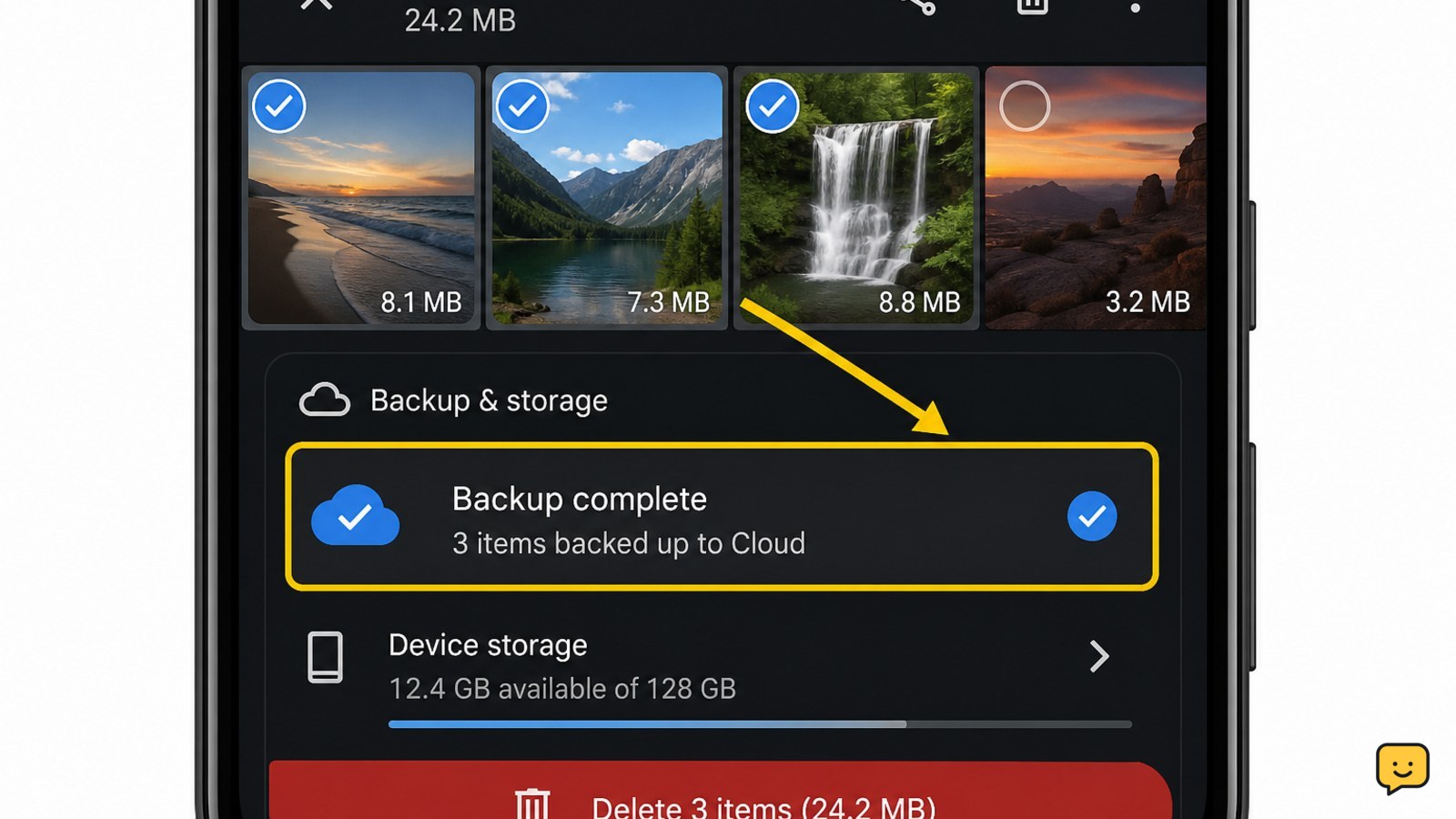
5. Verify the space increase and handle a misleading total
A successful cleanup shows more available space after the storage screen finishes recalculating, but the total may not change immediately.
- Close the storage page, reopen it, and compare the free-space figure with the number you recorded.
- If you deleted photos or files, empty the correct trash or recently deleted folder and check again.
- If an app still occupies most of the space, open that app’s storage details and remove downloads from inside the app. Avoid clearing app data unless you have confirmed that the app syncs its settings and local files.
- If the displayed total is unchanged, restart the phone once, wait for storage indexing to finish, and check again.
If the phone reports that System or Other is the main user and no category explains the increase, do not delete random system folders. Preserve a backup and contact the phone manufacturer or platform support. A factory reset is a last resort because it erases local data; it should not be attempted until the backup and account recovery details are verified.
Frequently asked questions
Why is my phone storage full when I have deleted photos?
The photos may still be in Recently Deleted, Trash, or Bin, or another category may be larger than expected. Reopen the storage screen after deletion, check the relevant trash folder, and inspect videos, app downloads, offline media, and message attachments. If the number still does not change, restart once and allow the storage totals to recalculate.
What usually takes the most space on a phone?
Large videos, downloaded movies or music, photo libraries, messaging attachments, and apps with offline content commonly use substantial storage. The storage screen provides the reliable answer for your device. Open the largest category first, then review individual items rather than deleting an entire category without checking its contents.
Is it safe to clear an app’s data to free storage?
Not always. Clearing app data can remove sign-ins, downloaded content, drafts, settings, or files stored only on the phone. Prefer the app’s own cleanup or download controls first. Clear app data only after confirming that the app synchronizes everything you need and that you can sign in again.
Why does System or Other storage take up so much space?
System or Other can include operating-system files, temporary data, indexes, and content that the phone does not classify clearly. It is not a normal folder to delete manually. Check the visible app and media categories first, restart once after cleanup, and seek manufacturer support if the unexplained amount remains unusually high.
Browse more Mobile Devices guides for help with this topic.


