
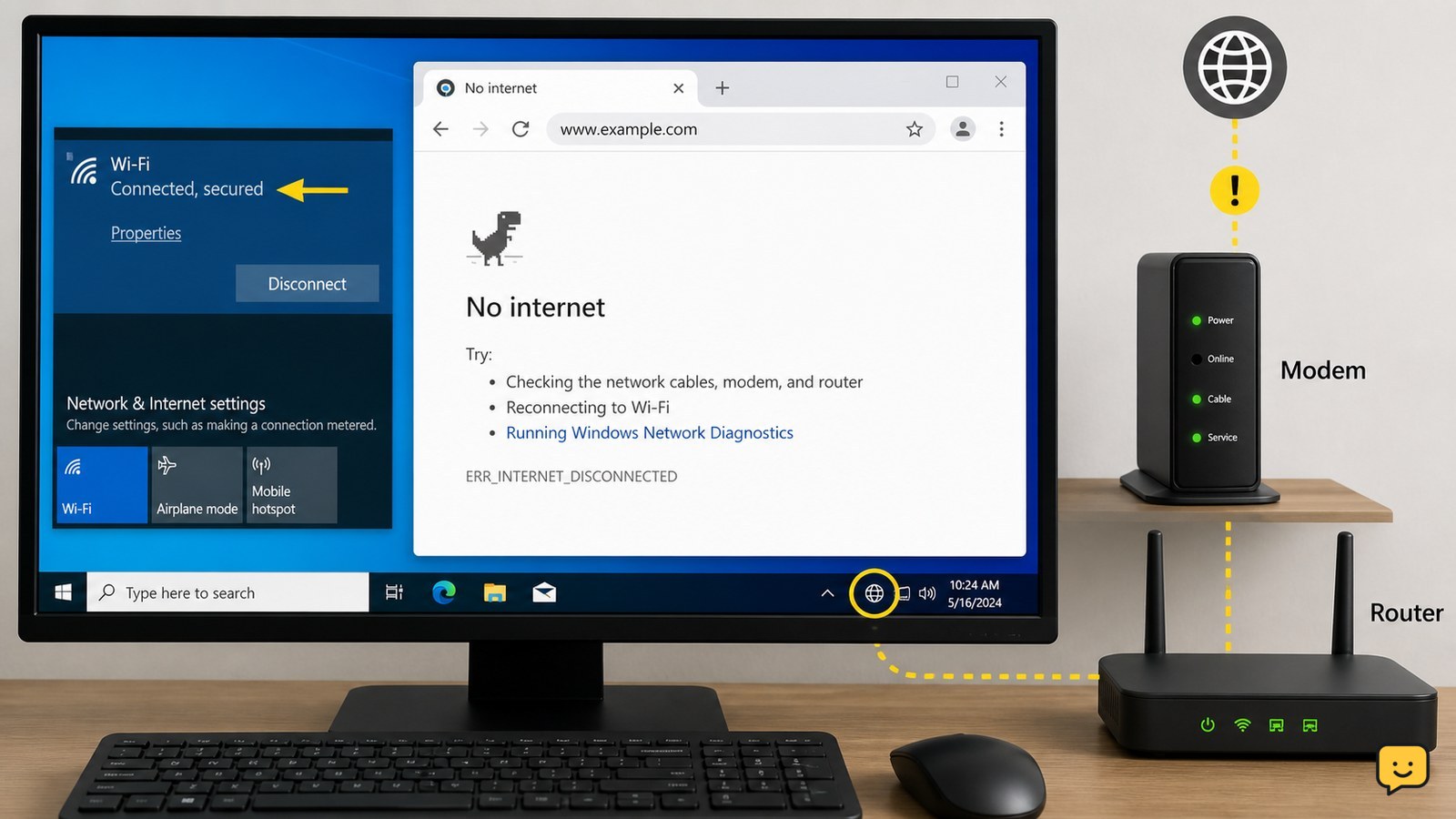
First test another device on the same Wi-Fi. If every device is offline, restart the modem and router, checking the modem first and the router second. If only Windows is affected, move closer to the router, reconnect Wi-Fi, restart the PC, and check DNS or network settings. Stop changing Windows settings when other devices also fail; contact your internet provider or network administrator.
Check whether the outage affects Windows or every device
The first diagnosis is whether the internet failure affects one Windows PC or the entire Wi-Fi network. Connect a phone or another computer to the same Wi-Fi and open a familiar website.
- If other devices also cannot load pages, treat the problem as a modem, router, service, or account issue rather than a Windows issue.
- If other devices work normally, continue with the Windows-specific checks below.
- If only one website fails while other sites open, the Wi-Fi connection is probably working; test again later or check that website separately.
Do not reset Windows networking yet when every device is offline. That would change the wrong device and cannot repair an ISP or router outage.
Restart the modem and router in the correct order
Restarting the network equipment can clear a temporary connection failure. TP-Link recommends unplugging the modem and router, waiting 30 to 60 seconds, then powering the modem first and the router second.
- Unplug the modem and router from power. If they are combined in one unit, unplug that single device.
- Wait at least 30 seconds.
- Reconnect the modem first and wait for its normal connection indicators to return.
- Reconnect the separate router and wait for its Wi-Fi network to appear.
- Reconnect Windows and open two different websites.
If the modem continues showing a service warning, or every device remains offline after startup, stop troubleshooting Windows and contact the ISP or network administrator. Do not press the router’s reset button unless you have permission and the details needed to set it up again.
Improve the Windows Wi-Fi signal before changing settings
A weak or obstructed signal can leave Windows associated with Wi-Fi while internet traffic fails or becomes unreliable. Microsoft recommends moving the device closer to the router and reducing obstructions.
- Move the Windows PC closer to the router, especially if the problem occurs in only one room.
- Remove obvious physical obstructions between the PC and router where practical.
- Turn Wi-Fi off and back on from the Windows network controls, then reconnect to the same network.
- Restart the Windows PC and test a known working website.
If the connection works near the router but fails in the original location, the likely cause is signal coverage rather than a broken internet account. Use a better router position or approved coverage equipment instead of repeatedly changing Windows settings.
Check DNS when Wi-Fi connects but website names fail
DNS converts website names into network addresses, so a DNS problem can make browsers fail even though Windows still reports a Wi-Fi connection. Microsoft specifically includes checking the DNS server among its Windows Wi-Fi troubleshooting actions.
- Compare results from a familiar website with another site. If several sites fail by name, but some network services still respond, DNS is a reasonable suspect.
- Review the DNS setting supplied by the router or network administrator in Windows network settings.
- If the setting is managed by work, school, or another organization, do not replace it with a public DNS service without approval.
- After correcting an incorrect or unavailable DNS setting, disconnect and reconnect Wi-Fi, then test more than one website.
If changing DNS has no effect, restore the network’s approved setting and continue with the router, signal, or Windows-device checks. DNS changes do not fix a network that has no service at all.
Separate a Windows-only fault from a router fault
When other devices have internet but one Windows PC does not, compare the affected PC with a second network if one is available, such as a phone hotspot that you are authorized to use.
- If Windows works on the alternate network, the home or office router, its DNS assignment, or its compatibility with that PC is the more likely cause.
- If Windows fails on both networks while other devices work, the problem is more likely local to the PC’s Wi-Fi connection or network configuration.
- Reconnect to the original Wi-Fi and verify that Windows shows the intended network name, not a nearby network with a similar name.
- Test again after each single change so you know which action affected the result.
Microsoft’s guidance covers signal, DNS, router restart, and other Windows connection checks, but menu names can vary by Windows release. Use the current Network and Internet settings available on the PC rather than following a version-specific path that is not present.
What to do if Windows still shows connected
If Windows remains connected but no browser or app can reach the internet, use the result of the earlier tests to choose the next action instead of repeating the same restart.
- Every device is offline: check the modem and router indicators, then contact the ISP or network administrator.
- Only this PC is offline: review its DNS and Wi-Fi settings, reconnect, restart Windows, and check the PC’s network adapter support through the device manufacturer or Windows support.
- Only one room is affected: treat the issue as signal coverage and reposition the router or PC.
- Only one website is affected: test other sites before making network changes.
Verify the repair by opening at least two unrelated websites and, if possible, checking another online app. If the connection fails again immediately after a successful test, record which networks and devices are affected before seeking support.
Frequently asked questions
Why does Windows say connected but no internet?
Windows can be connected to the router without receiving usable internet service. The fault may be the modem, ISP, router, weak signal, DNS, or the individual PC. Test another device on the same Wi-Fi first; that result tells you whether to troubleshoot the network or Windows.
Should I restart the router or the Windows PC first?
Test another device first, then restart the modem and router if multiple devices are offline. If the problem affects only Windows, restart the PC after toggling Wi-Fi off and on. Restarting the router cannot fix a Windows-only configuration problem, while restarting Windows cannot restore an ISP outage.
Can changing DNS fix connected Wi-Fi with no internet?
It can help when website names fail because the assigned DNS server is unavailable or incorrect. It will not repair a modem outage, weak signal, or an ISP service failure. On a managed network, use only the DNS settings supplied by the administrator and restore them if a change does not help.
What if other devices have internet but my Windows PC does not?
Treat it as a Windows or device-specific network problem. Reconnect to the intended Wi-Fi, move closer to the router, restart the PC, and review DNS or network settings. If the PC also fails on an authorized alternate network, seek help for its Wi-Fi adapter or network configuration.
Browse more Computers & Internet guides for help with this topic.


