Open your account provider’s connected-apps, third-party access, or apps-and-integrations page. Review each app’s name, purpose, and permissions, then remove access for apps you no longer use or cannot identify. Confirm that the app disappears or shows no active access. If an app is unfamiliar, secure the account separately and stop before approving any new request.
Find the account’s connected-app access page
Your account provider’s connected-apps page is usually located under Security, Privacy, Sign-in, or Apps and integrations settings. Search those settings for labels such as “third-party access,” “linked apps,” “connected apps,” or “apps with access.” The exact label and location can change between providers and account types, so use the provider’s current support documentation if the setting is not visible.
For a personal Google Account, Google says you can review or remove linked apps that have access to Google Account data. For a managed Google Workspace account, administrators can go to Admin console > Security > Access and data control > API controls > Manage App Access, according to Google Workspace Help.
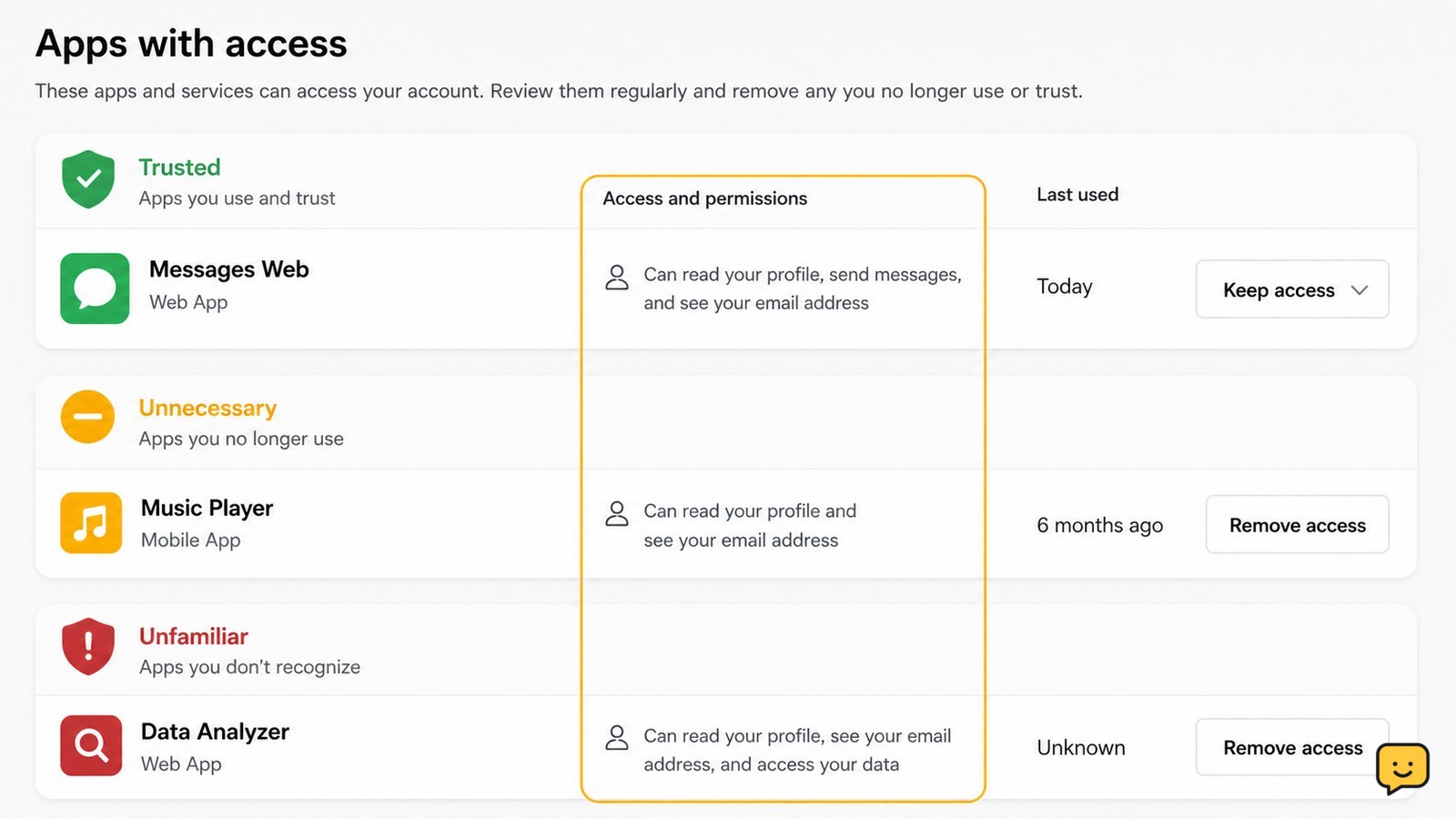
Expected result: you should see a list of apps, services, or integrations connected to the account. If you see only devices or browser sessions, you are in the sign-in activity area, not the third-party app access area.
Check each app’s purpose and permissions
The connected-app list identifies which services have some level of access to your account data, so review the app name and permission details before making changes. Check whether you still use the app, whether the developer name matches what you recognize, and whether the requested data fits the app’s purpose.
- Start with apps you no longer use, duplicate integrations, and services with unclear names.
- Open the app’s details if the provider shows individual permissions or data categories.
- Pay closest attention to access involving email, cloud files, contacts, calendars, photos, or account profile information.
- Mark each entry as keep, remove, or verify first.
An old app is not automatically unsafe, and a familiar name is not proof that the entry is legitimate. If the developer, purpose, or permission scope does not make sense, choose verify first rather than approving a new sign-in or reconnecting the service.
Revoke access for apps you no longer need
Use the connected-app entry’s Remove access, Disconnect, Revoke, or equivalent control for apps you have deliberately marked for removal. Google’s account help confirms that linked app access can be removed, while Google Workspace administrators can manage app access from the API controls area.
- Select one unnecessary app and open its access details.
- Read the confirmation message, including any warning that a feature or integration will stop working.
- Confirm the removal only when you understand which service will be disconnected.
- Repeat the process for other unused or unclear apps, one entry at a time.
Revoking an authorization is not a confirmation that a developer deleted information it may already have received. If you need deletion, review the developer’s official privacy or data-deletion process separately. Do not grant access again simply because an app stops working.
Verify that the app no longer has active access
After removal, return to the connected-app list and verify that the app is gone, marked as disconnected, or no longer shows active permissions. This check distinguishes a completed revocation from closing a details panel without saving a change.
Test only the service you intentionally kept or disconnected. If an essential app stops syncing, first confirm that it was the app you removed and that the account provider shows no active authorization. Then decide whether to restore access from the app’s official settings. Do not restore access if the app is unfamiliar or its permissions are broader than necessary.
Also review recent sign-ins or security alerts when an app was unfamiliar, unexpectedly added, or connected around the time of suspicious activity. An app-access audit does not replace checking sessions, password security, recovery details, or two-factor authentication.
What to do if the access list is missing or suspicious
If you cannot find the access list, use the account provider’s official help center and search for third-party apps, linked applications, or app permissions. A work or school account may require an administrator, and Google Workspace documents a separate administrator control for managed app access.
If an unfamiliar app appears alongside an unfamiliar sign-in, do not investigate by signing into the app from a message or search advertisement. Change the account password through the official provider, end unknown sessions, check recovery details, and turn on two-factor authentication. If you cannot receive a verification code or access the account, use the provider’s official recovery process.
Success condition: every remaining app has a known purpose, an expected developer, and permissions appropriate to that purpose. If you cannot reach that state because the provider hides or locks the control, stop and contact the provider or account administrator rather than authorizing another connection.
Frequently asked questions
Does removing an app’s access delete the app?
No. Removing account access normally disconnects the authorization between the account and the app; it does not necessarily uninstall the app from your device or delete the app’s own account. If the service may already hold your information, use its official privacy or data-deletion process separately.
What should I do with an app I do not recognize?
Do not reconnect or sign in to it to investigate. Remove its access if you are certain it is unnecessary, then check recent sign-ins, active sessions, recovery details, password security, and two-factor authentication through the account provider’s official settings. Treat an unfamiliar app plus an unfamiliar sign-in as a possible security incident.
Why can’t I remove a connected app from my account?
The account may be managed by an employer or school, the provider may have moved the control, or the app may be administered centrally. Check the provider’s official help center. For managed Google Workspace accounts, an administrator controls app access from the Admin console, so contact that administrator instead of repeatedly approving the app.
How often should I review third-party app access?
Review it whenever you stop using a service, receive an unexpected access alert, change an important account, or notice an app with broader permissions than needed. A periodic review is also useful after removing old software or closing online services, but there is no single schedule that applies to every provider.
Browse more Privacy & Online Safety guides for help with this topic.