To change operators in Black Ops 7, return to the main lobby, open the Operators menu, select an available operator, and use the on-screen equip command. Open that operator’s customization option if you only want a different skin. Verify the equipped checkmark or updated lobby character before entering matchmaking.
Browse more Call of Duty: Black Ops 7 guides
Open the Operators menu from the main lobby
Black Ops 7 operator changes begin in the main-lobby Operators menu, not in a weapon loadout. Back out of matchmaking or an active match until you reach the screen that shows your player profile and game modes. Look through the lobby navigation for Operators, then open it.
The supplied gameplay references show operator selection and skin customization from an in-game Operators area. Menu placement can move as the lobby interface changes, so use the visible Operators label rather than relying on a tab position from an older video or another Call of Duty game.
- Return to the main lobby.
- Open Operators.
- Wait for the operator roster or character tiles to load.
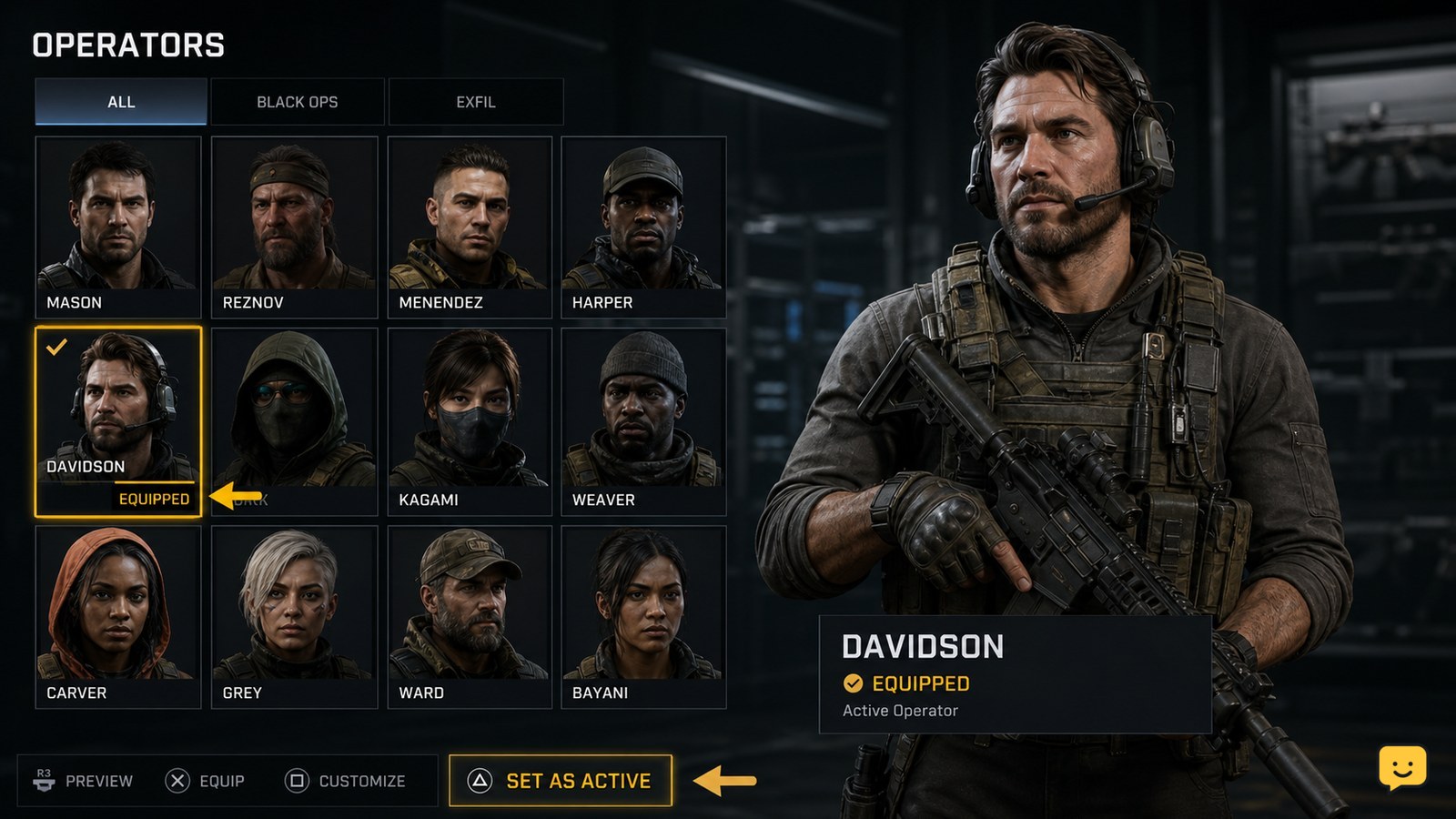
Check: You should see selectable characters, operator portraits, or a current operator panel. If you only see weapon, perk, equipment, or Field Upgrade options, you are in Loadouts rather than operator customization.
Select and equip a different operator
Choose an operator with no unavailable restriction, then confirm the game’s Equip or Select command. Highlight the character you want in the operator roster and open the selection panel if needed. Use the prompt shown on your screen to make that operator active.
Do not assume that highlighting a portrait equips it. Look for an equipped indicator, such as a checkmark, active state, or the operator becoming the displayed lobby character. The character model or portrait should change after the selection is accepted.
- Highlight the operator you want to use.
- Open the operator tile if it has a separate details screen.
- Choose Equip, Select, or the equivalent displayed command.
- Back out to the lobby and inspect the active character display.
Stop here when: the selected operator has an active marker and the lobby reflects your choice. You do not need to change a multiplayer class for an operator change to save.
Change an operator skin without changing the character
Black Ops 7 skin changes are made from the selected operator’s customization view, while the operator remains the same character. Select the operator already equipped, then look for a skin, appearance, customize, or similar option within that operator’s panel.
Choose a skin that is available to your account and use the equip command. Return to the operator roster or lobby afterward to verify that the appearance changed while the character selection remained active.
A locked skin is not a menu error. A lock icon, requirement text, or store notice means the appearance is unavailable. Leave it unequipped and choose another available skin rather than repeatedly selecting it.
Verify the operator change before you queue
The lobby’s active operator display is the safest confirmation that Black Ops 7 saved your choice. After equipping an operator or skin, leave the customization screen once and check the lobby character model, portrait, or active-selection marker.
If the display changes, your selection has been saved for the lobby context. Enter matchmaking only after that check. This avoids mistaking a highlighted but unequipped operator for an active one.
Some modes can present characters differently from the lobby because of mode-specific presentation or assigned teams. If the lobby shows the correct operator but a match does not, treat the lobby selection as successfully saved and check whether that mode permits your selected appearance.
Fix an operator selection that will not save
If Black Ops 7 returns to the previous operator, first confirm that you used the final Equip command and not only the preview screen. Reopen Operators, select the character again, and watch for the active marker before leaving the menu.
| What you see | Likely cause | What to do |
|---|---|---|
| The operator is visible but does not become active. | The selection was previewed but not equipped. | Open the tile and use the displayed Equip or Select command. |
| The operator or skin has a lock icon. | It is not available on the account. | Read the listed requirement or choose an unlocked option. |
| The lobby still shows the previous character after equipping. | The menu did not refresh or the change did not register. | Exit Operators, reopen it, equip once more, and verify the active marker. |
| The lobby is correct but a match looks different. | The mode may use its own presentation or restrictions. | Do not keep re-equipping; check the mode’s operator behavior after the match begins. |
If the Operators menu is missing entirely after returning to the main lobby, stop rather than applying instructions from prior Call of Duty releases. Use the current in-game support options or official support channel for the version and platform you are playing.
Keep operator cosmetics separate from your loadout
Operators control character appearance, while loadouts control gameplay equipment and class choices. Changing an operator should not replace your weapons, attachments, equipment, Field Upgrade, or Scorestreak setup. Those items are managed in their respective loadout menus.
If your goal is to change how your character looks, stay in Operators. If your goal is to change what you carry into multiplayer, leave Operators and open Loadouts instead. This distinction prevents an unnecessary class reset while you are only changing cosmetics.
Frequently asked questions
Can I change my Black Ops 7 operator while I am in a match?
Usually, return to the main lobby to change your operator. If the Operators entry is not available from an in-match menu, finish or leave the current match according to its normal menu options, then make the selection from the lobby before queuing again.
Why is my Black Ops 7 operator skin locked?
A locked skin is unavailable to your account until its displayed condition is met. Check the skin tile for a progression, ownership, purchase, or other access message. Select an unlocked skin if you want to change appearance immediately.
Does changing operators change my weapons or perks in Black Ops 7?
No. Operator selection is cosmetic character customization, while weapons, attachments, perks, equipment, Field Upgrades, and Scorestreaks belong to your loadout. Open Loadouts separately if you also need to change match equipment.
Why does the lobby show my operator but the match shows someone else?
The lobby display confirms your saved lobby selection. A mode may show a different appearance because of its own presentation, team assignment, or restrictions. Avoid repeatedly changing your operator if the lobby already shows the correct active selection.