New batteries do not rule out a Roku remote problem. First reset the remote and check its battery contacts, then identify whether it is an IR simple remote or a paired voice remote. Clear the path to the Roku for IR remotes; restart and re-pair voice remotes. Use the Roku mobile app as a temporary controller when possible.
Start by identifying your Roku remote
Look at the remote before changing settings. A simple Roku remote usually has no microphone button and sends commands by infrared (IR). It must point toward the Roku device or, on many Roku TVs, toward the TV’s IR receiver.
A voice remote has a microphone or search button and communicates wirelessly after it is paired. It does not need a clear line of sight, but it can lose its pairing or fail to connect after a restart.
Quick check: press Home while standing close to the Roku and aiming a simple remote directly at it. If it works only at close range or only when aimed carefully, skip to the IR-path checks below. If nothing happens, continue with the battery reset.
Reset the remote and inspect the battery compartment
- Remove both batteries from the remote.
- With the batteries out, press any two remote buttons together for a moment. Roku recommends this step to reset the remote.
- Check that the metal battery contacts are clean, dry, and springy. If you see light residue, gently wipe the contacts with a dry, lint-free cloth.
- Install a fresh, matching pair of batteries in the direction marked inside the compartment, then refit the cover.
- Press Home and Volume Up. Watch for any response from the Roku or TV.
If the remote works now, the prior batteries may have been weak, installed incorrectly, or not making reliable contact. If it still does nothing, test the correct connection method for its type.
Fix a simple IR Roku remote
An IR remote needs an unobstructed route to the receiver. Move within a few feet of the Roku device or TV and point the front of the remote directly at it. Remove items that may block the receiver, such as a soundbar placed in front of the TV, cabinet doors, or decorations.
- Confirm the TV is on and displaying the Roku input.
- For a separate Roku player, make sure its front is not hidden behind the TV or inside a closed cabinet.
- Aim the remote at the receiver and press Home several times, pausing briefly between presses.
- Try the remote from different angles and distances.
Verification: If it works when pointed at the device but not from your normal seat, the problem is IR placement or an obstruction. Reposition the Roku player or remove the blockage. If it never works at any distance after the battery reset, use the mobile-app test or try a compatible replacement remote.
Restart and re-pair a Roku voice remote
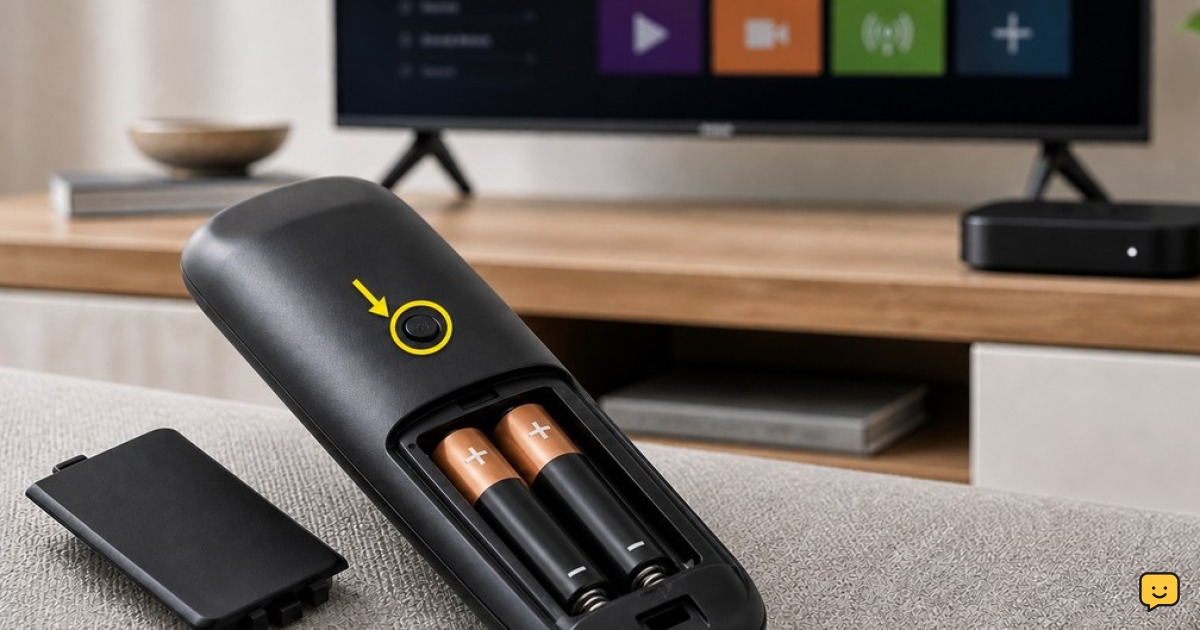
Use these steps only for a voice remote with a pairing button in or near the battery compartment. Keep the Roku device powered during the process.
- Restart the Roku device. If you cannot use its menus, disconnect its power cable, wait a few seconds, and reconnect it.
- Wait until the Roku home screen is visible.
- Open the remote’s battery cover and locate the pairing button.
- Press and hold the pairing button until the remote’s status light begins flashing.
- Keep the remote near the Roku device and wait for the pairing process to complete.
Do not hold the button indefinitely or cycle through repeated attempts. If no pairing light appears after you install known-good batteries, recheck the contacts and battery direction. If the light flashes but the Roku never responds, restart the Roku once more and make one further pairing attempt.
Verification: A successfully paired voice remote should control the Roku without being aimed at it. Test Home, directional buttons, and volume controls if your remote is set up to control TV volume.
Use the Roku mobile app as a temporary remote
The Roku mobile app can restore navigation while you decide whether the physical remote needs replacement. Install the official Roku app on a phone or tablet, then connect the phone to the same home network as the Roku device.
- Open the Roku app and allow it to search for Roku devices.
- Select your Roku device when it appears.
- Open the Remote control in the app and test the Home and directional controls.
- Use the app to navigate to Roku settings if you need to check the device’s network connection or add a compatible remote later.
If the app cannot find the Roku, first confirm the phone is on the same home Wi-Fi network. A phone using mobile data, a guest network, or a different router band that cannot communicate with the Roku may not find it. If the Roku is offline and you have no working controller, use a compatible physical remote rather than changing network settings blindly.
Decide whether the remote or Roku device is at fault
A working mobile app is a useful dividing line: it shows that the Roku player can receive controls over the network. In that case, focus on the physical remote, its IR path, or its wireless pairing.
If neither the app nor a compatible known-working remote can control the Roku, check that the Roku has power, the TV is on the correct input, and the Roku is showing its normal home screen. Restart the Roku player once. If it remains unresponsive after that, contact Roku support or replace the affected hardware.
Do not continue: if a remote has physical damage or never shows a pairing light with fresh batteries, further button presses are unlikely to restore it. Replace it with a Roku-compatible remote suited to your Roku model.
Frequently asked questions
Why is my Roku remote not working even with brand-new batteries?
New batteries can still leave the remote unresponsive if the contacts are dirty, the batteries are installed the wrong way, an IR signal is blocked, or a voice remote has lost pairing. Remove the batteries, reset the remote by pressing two buttons, reinstall a matching fresh pair, and then test the appropriate IR or pairing steps.
How can I tell whether my Roku remote needs to be paired?
A voice remote with a microphone or voice-search button is typically the type that can require pairing. Look for a pairing button inside or near its battery compartment. A basic simple remote normally uses IR instead, so it must be pointed at the Roku device or TV receiver and does not use a wireless pairing process.
Can I control Roku without the physical remote?
Yes, the official Roku mobile app can work as a temporary remote when the phone and Roku device are connected to the same home network. Open the app, choose the detected Roku device, and use its Remote control. This option will not help if the Roku is offline and no controller is available to reconnect it.
Why does my Roku remote work only when I point it at the TV?
That behavior indicates an IR simple remote, which needs a clear path to its receiver. Move closer, point the remote directly at the Roku or TV, and remove objects blocking the receiver. If the Roku player is tucked behind the TV or inside a cabinet, reposition it where the remote signal can reach it.
Should I factory-reset my Roku because the remote stopped working?
No. A factory reset removes Roku settings and accounts but does not fix a damaged remote, blocked IR path, weak battery contact, or lost remote pairing. Reset the remote, restart the Roku device, try pairing a voice remote, and test the Roku mobile app or a compatible replacement remote first.
Browse more Home Electronics guides for help with this topic.