
To uninstall a Windows program completely, first save its files and close it. Open Settings > Apps > Installed apps, choose the program, and select Uninstall. If it is missing, use Control Panel > Programs and Features. Restart Windows, then check only the program’s own leftover folders or data; do not delete shared system files or registry entries.
Save the program’s files and close it
Before uninstalling a Windows program, save any files or settings that you may need later. Removing the program can also remove its local data, depending on how the developer designed the uninstaller.
- Save open documents, projects, exports, and downloads.
- Close the program.
- Check the notification area near the clock for a related background app, updater, or sync window and close it if available.
If Windows says the program is still running, return to the desktop and close the named app. Do not end an unfamiliar Windows process just to continue.
Uninstall the program from Windows Settings
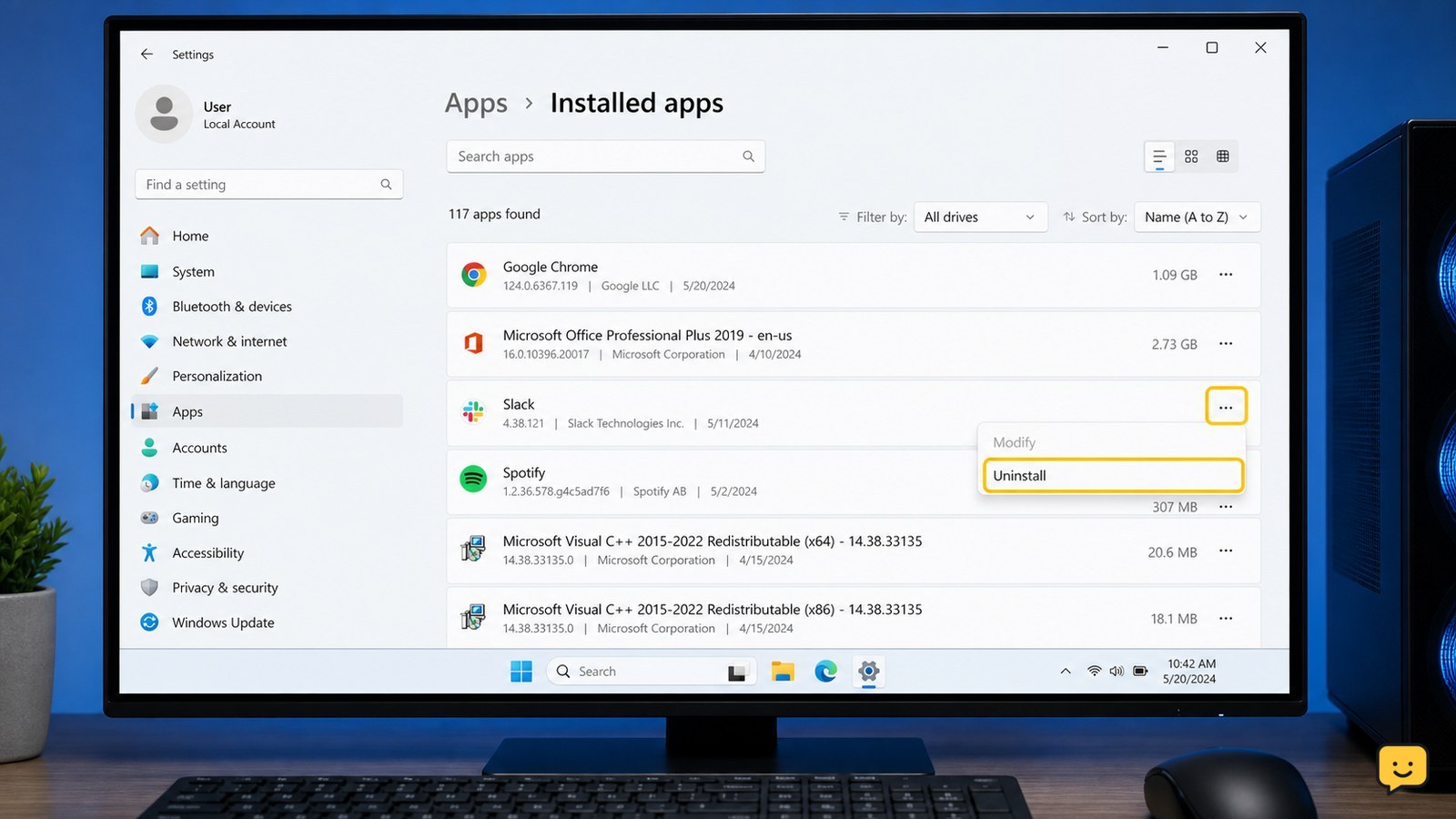
Windows 11 lists most removable applications under Settings > Apps > Installed apps, which is also the current Settings route identified by Microsoft Support.
- Open Start > Settings.
- Select Apps, then Installed apps.
- Find the program by name, or use the search box.
- Select the program’s three-dot menu and choose Uninstall.
- Confirm the choice and complete the program maker’s uninstaller.
Some Windows 10 screens use Apps > Apps & features instead. The label can vary by Windows version, but the program’s own uninstall wizard should be allowed to finish.
Expected result: the program disappears from the installed-app list, or Windows reports that the uninstall completed. If the button is missing or disabled, use Control Panel instead.
Use Control Panel when Settings cannot remove it
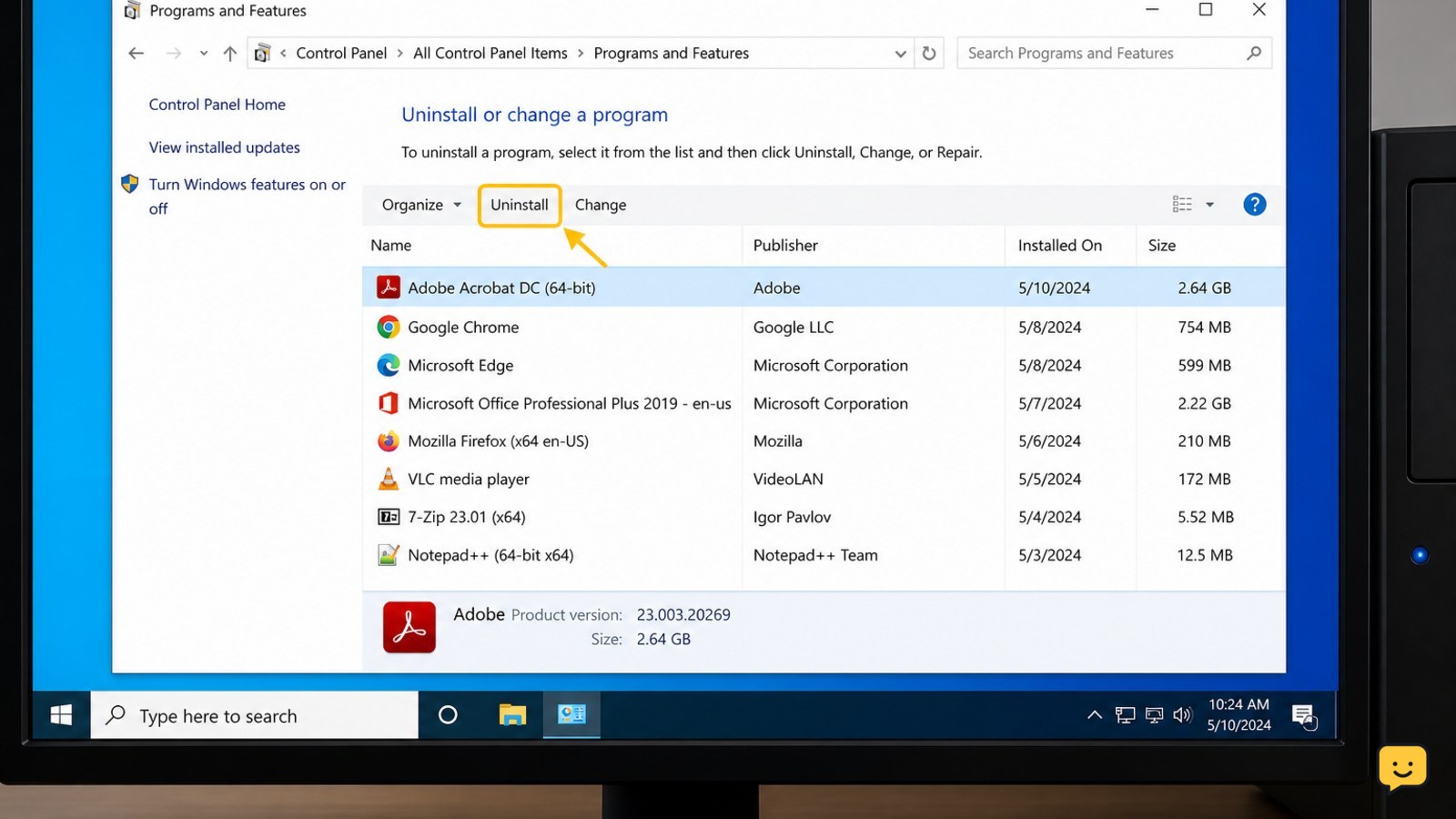
Control Panel is the fallback for traditional desktop programs that do not appear correctly in Windows Settings.
- Open Start and search for Control Panel.
- Choose Programs, then Programs and Features.
- Select the program once in the list.
- Choose Uninstall or Change and follow the program’s uninstall wizard.
University of Michigan’s Windows 10 and 11 instructions also identify the Installed apps menu as a direct uninstall route. If neither Settings nor Programs and Features lists the program, do not manually erase system folders. Find the program maker’s official removal instructions instead.
Remove only identifiable leftover app data
After the official uninstaller finishes, check for leftovers only when you can clearly identify them as belonging to the removed program.
- Restart Windows if the uninstaller requests it, or if files were reported as in use.
- Check the desktop, Start menu, and taskbar for shortcuts that still point to the removed program.
- Use File Explorer search for the exact program name or publisher name.
- Delete an abandoned folder only when its name and location clearly match the removed program and it contains no files you need.
Personal settings may remain in user profile folders, and some programs intentionally share components with other software. Do not delete folders merely because they contain a similar word. Never remove unknown items from Windows or shared system directories to make the uninstall appear complete.
Safe boundary: if you cannot confidently connect a folder to the removed program, leave it in place and use the developer’s removal instructions.
Verify that Windows removed the program
A complete, safe verification checks the program’s listing, launch points, and clearly identifiable files rather than relying on registry cleanup.
- Open Settings > Apps > Installed apps, or Control Panel > Programs and Features, and search for the program again.
- Check that its Start menu entry and desktop shortcut no longer launch it.
- Open Task Manager with Ctrl + Shift + Esc and confirm that the program is not running after a restart.
- Check File Explorer for an unmistakable leftover folder, then leave uncertain folders untouched.
If Windows still lists the program, try its uninstall command again after restarting. If the uninstaller is missing or fails repeatedly, stop manual cleanup and use the software maker’s official removal tool or support instructions. If the goal was to free storage, check available space after the restart rather than assuming every leftover file is safe to delete.
Frequently asked questions
What is the safest way to uninstall a program on Windows 11?
The safest method is Settings > Apps > Installed apps, followed by the program’s own uninstall wizard. Save your files first, close the app, and approve only expected Windows permission requests. Restart afterward if the uninstaller asks or if files were in use.
Why is a program missing from Windows Installed apps?
Older desktop software may not appear correctly in Settings. Search Control Panel for Programs and Features and select the program there. If it is missing from both lists, do not delete random folders; use the software maker’s official removal instructions.
Should I delete the program folder after uninstalling it?
Only if the folder is clearly abandoned, has the removed program’s exact name, and contains no files you need. Shared components and personal data can remain in locations that look similar. Leave uncertain folders alone rather than risking another program or Windows.
Does uninstalling a program remove its saved files and settings?
Not always. Some uninstallers remove personal data, while others leave settings, projects, downloads, or preferences behind. Back up anything important before uninstalling, then inspect leftover data by the program name before deciding what can be removed.
For more current help, browse all Computers & Internet guides.


