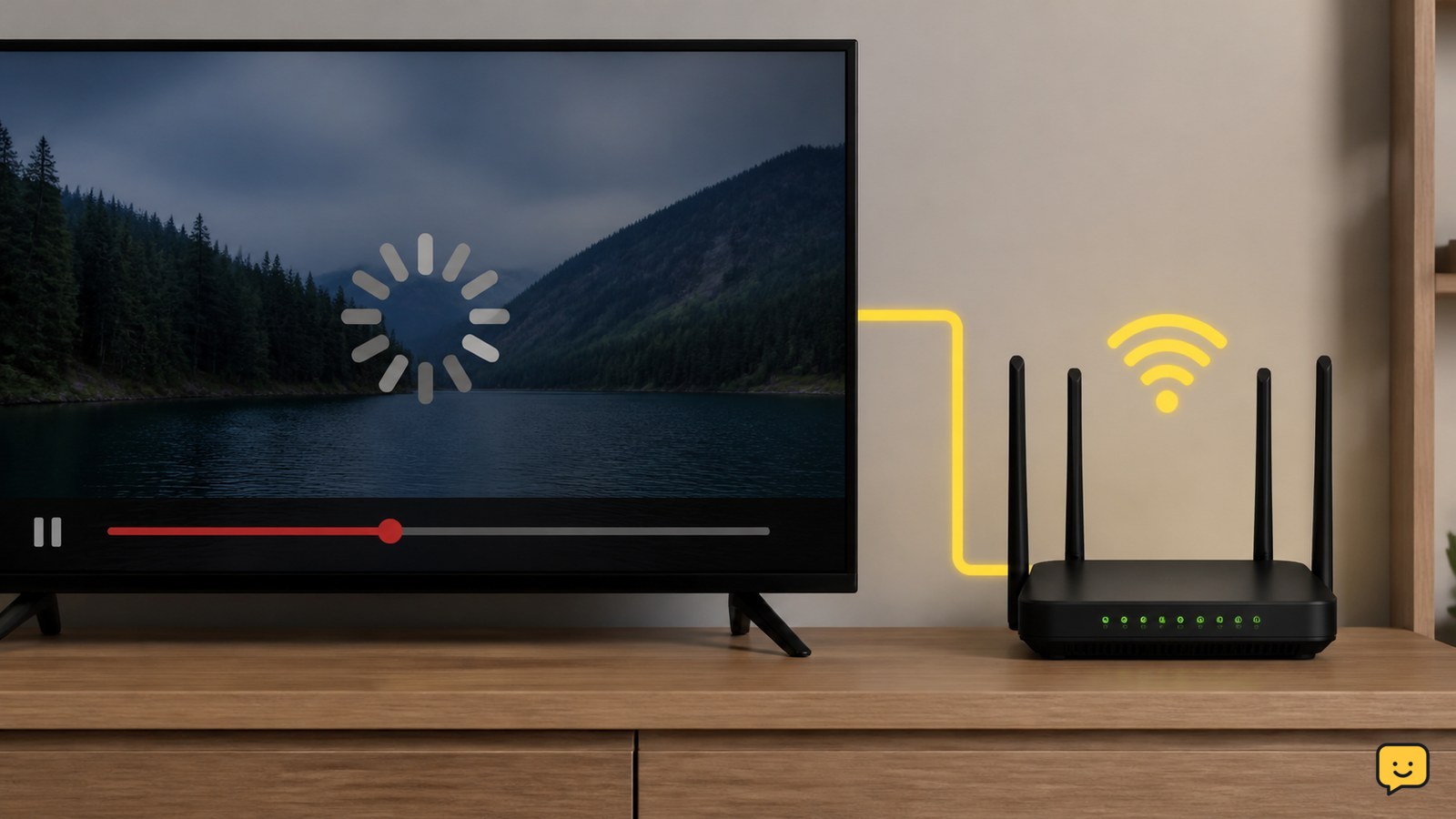
To stop a smart TV from buffering, first check whether every streaming app is affected. Restart the TV and router, move the router into a clear central position, reduce other network traffic, install TV and app updates, and lower streaming quality temporarily. If buffering continues in every app, test Ethernet or contact your internet provider.
Check whether one app or every app buffers
A smart TV that buffers in one app has a different likely cause from a TV that buffers in every app.
- Open a second streaming service and play a different video.
- Check whether the same app buffers on a phone or computer connected to the same network.
- Pause the video for 30 to 60 seconds, then resume it.
If only one app buffers, close and reopen that app, install its available update, and check the service’s status page from another device. If every app buffers but other devices stream normally, focus on the TV’s connection or software. If every device buffers, focus on the router, internet service, or household network traffic.
Verify: the problem is isolated when another TV app plays continuously for several minutes. If the second app also stops, continue with the network checks below.
Restart the TV and router in the correct order
Restarting both devices clears a temporary connection failure without deleting apps, accounts, or saved settings.
- Stop playback and turn off the smart TV.
- Unplug the router and modem, if they are separate devices.
- Wait at least 30 seconds.
- Reconnect the modem first, wait for its normal connection lights, then reconnect the router.
- Turn on the TV and reopen the streaming app.
Use the TV’s normal power button or remote first. Unplug the TV only if it remains unresponsive; do not repeatedly disconnect it during a software update.
Verify: play the same or another title for at least 10 minutes. If buffering returns immediately while other devices are stable, continue with Wi-Fi placement and TV connection checks rather than repeating the restart.
Improve the TV’s Wi-Fi signal and reduce interference
Wi-Fi placement can affect streaming stability even when another device in the home appears to work normally.
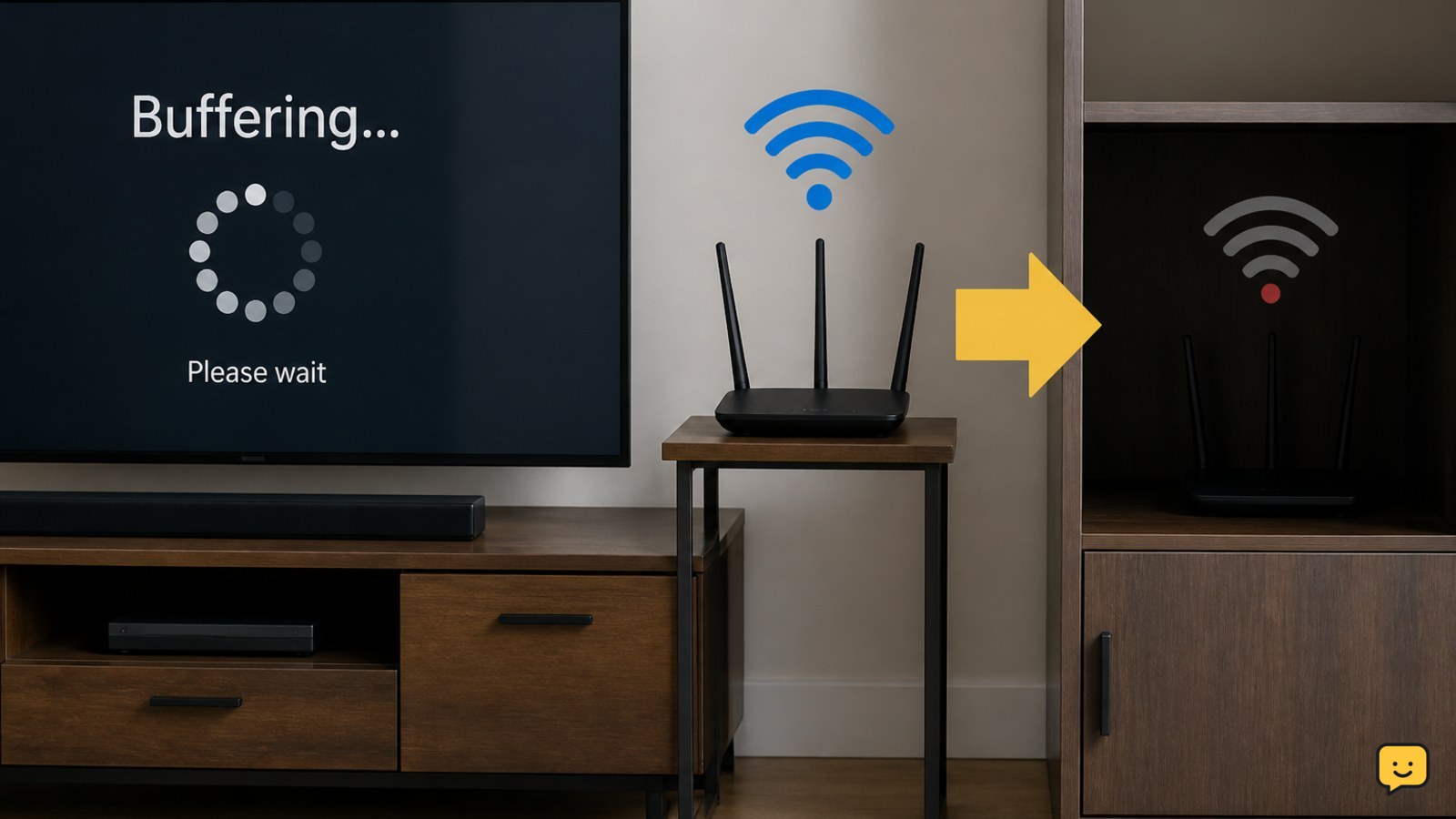
- Place the router in a central, open location rather than inside a cabinet or behind large objects.
- Move the TV or router closer together for a test, if practical.
- Remove avoidable obstructions between the router and TV.
- If the TV supports the 5 GHz Wi-Fi band and is near the router, try that network. Spectrum specifically recommends keeping 5 GHz available, using a central router location, and avoiding obstructions.
Do not assume the fastest-looking network name is best at every distance. Test the TV after each change so you can identify which position or band is more stable.
Failure path: if the TV cannot see the network after switching bands, reconnect it to the previous network. If the TV frequently disconnects while nearby devices remain connected, install TV updates before considering a network reset.
Reduce competing network traffic while streaming
Other activity on the home network can leave less capacity for the TV’s video stream.
- Pause large downloads, cloud backups, game updates, and high-resolution streams on other devices.
- Stop unused video calls or live streams.
- Test the TV when fewer devices are active.
TCL lists reducing network traffic as a way to address TV buffering. This test also helps separate a busy home network from a weak TV connection.
If the TV plays smoothly when other activity stops, the durable fix is to schedule large downloads outside viewing time, reduce simultaneous high-bandwidth use, or upgrade the router or internet plan if your household regularly needs more capacity. A faster plan will not correct poor Wi-Fi placement or a failing router.
Verify: repeat the test during the usual busy period. If buffering returns only when several devices are active, the network-load diagnosis is more likely than an app fault.
Update the TV, app, and streaming quality
Outdated TV or app software can cause playback problems, while a lower stream quality can confirm that the connection cannot sustain the selected resolution.
- Open the TV’s Settings and look for a general Software Update, System Update, or Support section. Menu names vary by manufacturer.
- Open the TV’s app store or app management screen and update the affected streaming app.
- Start playback and temporarily choose a lower quality such as HD instead of 4K, when the service provides that control.
TCL identifies equipment updates and choosing lower streaming quality as buffering remedies. Treat lower quality as a diagnostic and temporary workaround, not proof that the TV is defective.
If only one app remains affected after updating, sign out and back in only if you know the account credentials, then reinstall the app if the TV offers that option. Do not factory-reset the TV for a single-app problem.
Verify: the update completes without an error, the app opens normally, and playback remains stable at the chosen quality. If the TV cannot install updates because it is offline, fix its connection first.
Test Ethernet before replacing the TV
A wired Ethernet test can show whether the TV’s Wi-Fi link is the main cause of buffering.
- Connect an Ethernet cable from an available router port to the TV’s Ethernet port.
- In the TV’s Network settings, confirm that the wired connection is active.
- Play content from at least two streaming apps.
This test applies only to TVs with an Ethernet port and a cable that can reach the router safely. Keep the cable away from walkways and do not force a connector into a port.
If wired playback is stable but Wi-Fi still buffers, improve router placement, use a suitable mesh or access-point arrangement, or keep the wired connection. If wired playback also buffers in every app, check the internet provider’s service status and contact the provider. If only one service fails, contact that service instead.
Stop: do not replace the TV until you have separated a one-app fault, a home-network fault, and an internet-service fault.
Frequently asked questions
Why does my smart TV buffer while my phone works normally?
A phone may be closer to the router, use a different Wi-Fi band, or have a stronger Wi-Fi radio than the TV. Test the TV near the router, reduce other network traffic, and try the 5 GHz network if the TV supports it. If Ethernet works normally, the TV’s Wi-Fi path is the likely weak point.
Should I lower the streaming quality to stop buffering?
Yes, lower quality is a useful test and temporary workaround. If HD plays smoothly but 4K repeatedly buffers, the connection may not be sustaining the selected stream at that time. Keep the lower setting if it solves the problem, then improve Wi-Fi or reduce network traffic before deciding whether a faster internet plan is necessary.
Why does only one streaming app keep buffering?
One-app buffering usually points to that app, its service, or a title-specific problem rather than the whole TV connection. Test another app, update the affected app, check the service status, and reinstall the app if available. Do not factory-reset the TV unless multiple apps remain affected after network testing.
Will restarting the router permanently fix TV buffering?
Usually, a restart fixes a temporary connection problem but not a recurring weak signal, overloaded network, outdated TV, or service fault. After restarting, test playback for several minutes and repeat the test when the household network is busy. If the issue returns, continue with placement, traffic, update, and Ethernet checks.
Browse more Home Electronics guides for help with this topic.