
To speed up a Windows laptop that runs slowly after startup, first disable unnecessary startup apps, then use Task Manager to find processes consuming unusually high CPU, memory, or disk activity. Restart after each major change, keep Windows updated, free storage space, and stop if the laptop overheats, shows drive errors, or remains slow in Safe Mode.
Check whether startup apps cause the delay
Windows laptops commonly slow down after sign-in when several apps launch together and continue using background resources.
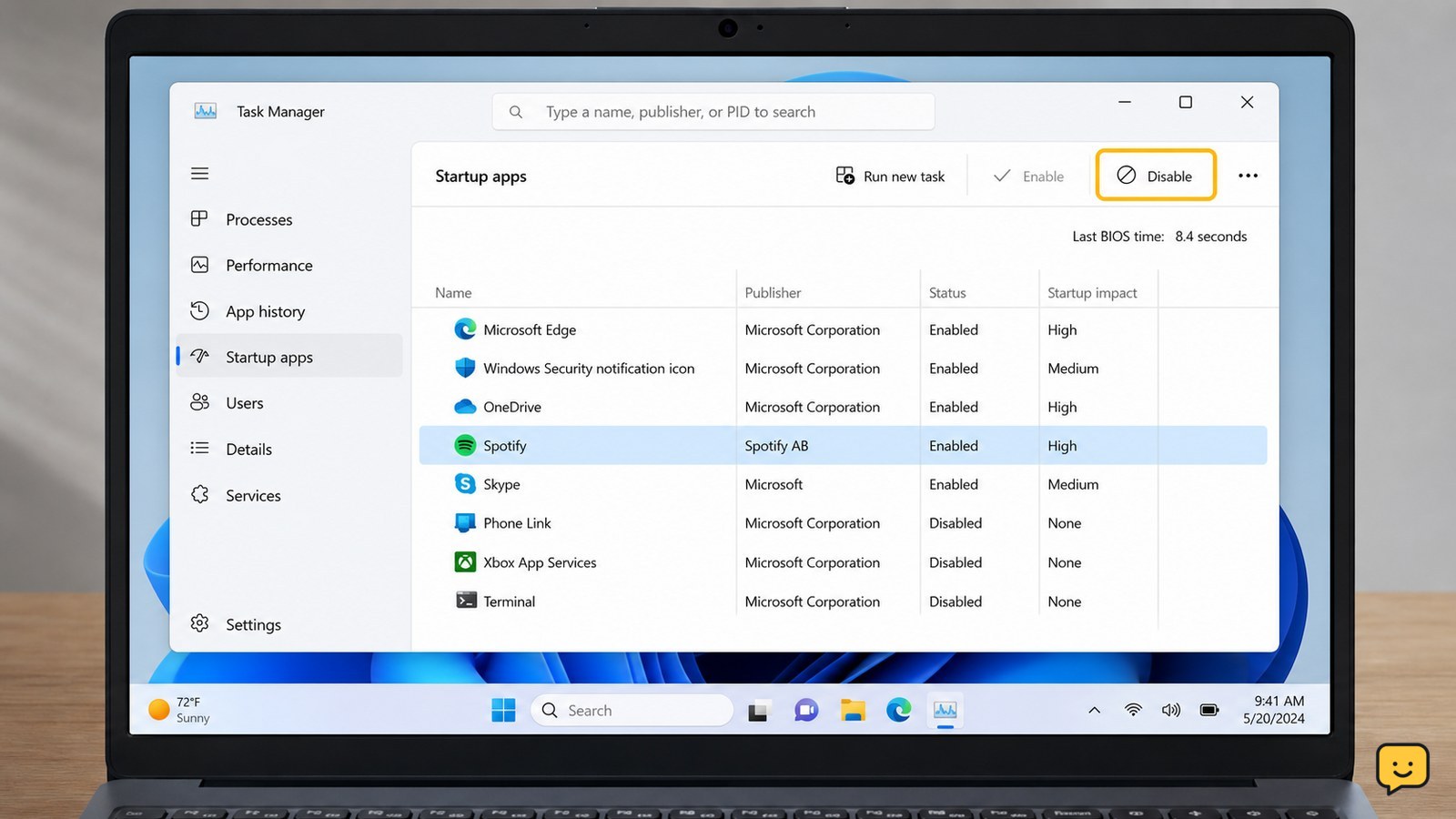
- Press Ctrl + Shift + Esc to open Task Manager.
- Select Startup apps. If the list is not visible, select More details first.
- Review the Startup impact column and select an app you do not need immediately.
- Select Disable. Leave drivers, security tools, and hardware utilities enabled unless you can identify them confidently.
Microsoft lists disabling unnecessary startup apps as a way to reduce boot-time background activity and improve Windows performance. Restart the laptop and check whether the desktop becomes responsive sooner. If the delay remains, continue to the resource check instead of disabling more entries at random.
Find the process using CPU, memory, or disk
Task Manager can show whether the slowdown is caused by processor load, limited memory, or sustained disk activity.
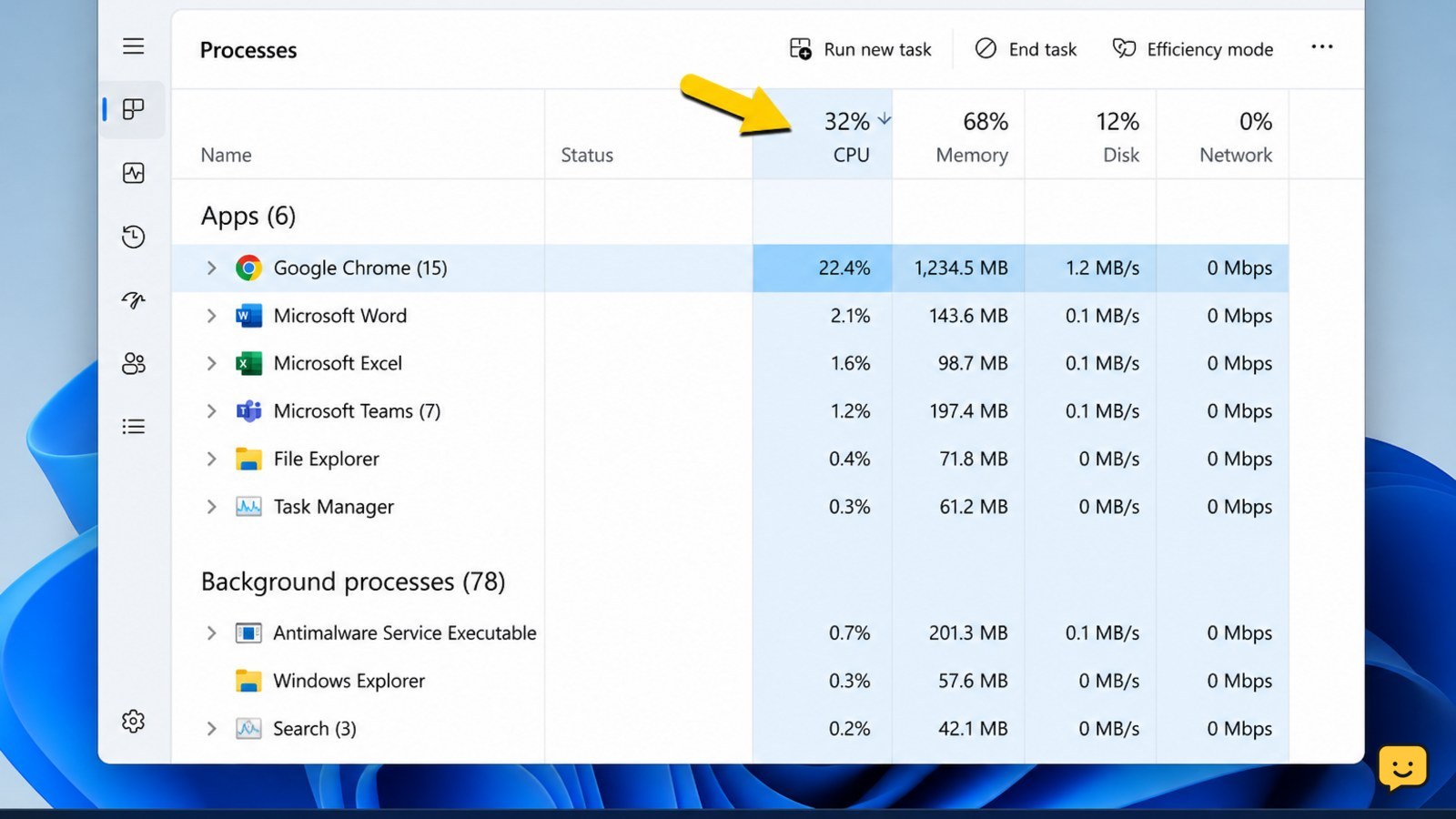
- Open Task Manager with Ctrl + Shift + Esc and select Processes.
- Wait until the laptop has finished signing in, then select the CPU, Memory, or Disk column to sort the list.
- Identify the app or process that remains near the top for several minutes and matches something you recently opened or installed.
- Close the related app normally. Use End task only for a nonessential app that has stopped responding.
A process that drops after a few minutes may be completing a normal update or sync. If the same unknown process repeatedly consumes resources after every restart, uninstall the related recent program through Settings > Apps > Installed apps, then restart. Do not end Windows system processes simply because they use resources.
Free storage space on the Windows system drive
A nearly full system drive can leave Windows with less room for temporary files, updates, and routine background work.
- Open Settings > System > Storage.
- Review the categories using the most space, especially temporary files, downloads, applications, and large personal files.
- Remove temporary files only after checking the items Windows has selected.
- Move large photos, videos, or installers to a trusted external drive or cloud location after confirming the copies open correctly.
Empty the Recycle Bin only when you are sure you will not need those files. If an external drive is not visible while moving files, stop the transfer and resolve that connection problem first. After freeing space, restart Windows and check whether startup activity settles more quickly.
Install Windows and hardware updates
Pending Windows updates can keep the laptop busy after sign-in, so check for updates before treating every background process as unwanted.
- Open Settings > Windows Update.
- Select Check for updates and install available updates when the laptop is connected to power.
- Restart when Windows requests it, even if the laptop appears usable.
- Test startup again before changing additional settings.
Microsoft’s performance guidance includes keeping Windows current and reducing unnecessary background activity. If the slowdown began immediately after a specific driver or program update, note the change and use the manufacturer’s supported recovery or driver option rather than downloading drivers from an unknown site.
Check heat, power mode, and the startup pattern
A Windows laptop that is hot, unusually loud, or slow only while unplugged may be limiting performance to control temperature or battery use.
- Place the laptop on a hard, flat surface and make sure its ventilation openings are not blocked.
- Close demanding apps and allow the fan to settle for several minutes.
- Open Settings > System > Power & battery and review the available power mode.
- Compare performance while connected to the charger and after a normal restart.
If the laptop is slow only during the first few minutes, a startup app, update, or sync task is more likely than a permanent performance fault. If it stays slow after the background activity ends, becomes hot without heavy use, or shuts down, stop troubleshooting and arrange a hardware inspection.
Verify the result and choose the next repair
Verify the fix by restarting the laptop twice and checking the same symptoms: sign-in delay, frozen desktop, slow app launches, and sustained CPU, memory, or disk activity.
- Confirm that the desktop responds normally after sign-in.
- Open Task Manager and check whether resource use falls after startup activity finishes.
- Re-enable one disabled startup app at a time if a needed feature no longer works.
- If only one application is slow, repair or update that application instead of changing all Windows startup settings.
If performance is still poor before you open anything, test whether the issue continues in Windows Safe Mode. If it does, startup software is less likely to be the cause. Back up your files and use Windows recovery options or professional service. Do not reset or reinstall Windows until important data is protected.
Frequently asked questions
How many startup apps should I disable on a Windows laptop?
There is no safe fixed number. Disable only apps you recognize and do not need immediately after sign-in. Keep security software, hardware controls, and essential drivers enabled. Restart after a small change so you can identify which app affected the startup delay.
Why is my Windows laptop slow only for a few minutes after startup?
A short delay is often caused by startup apps, Windows updates, cloud synchronization, or another background task. Use Task Manager to see which process is using CPU, memory, or disk resources, then wait briefly to see whether the activity falls before ending or removing anything.
Will deleting temporary files make a Windows laptop faster?
It can help when the system drive is nearly full, but deleting temporary files is not a universal speed fix. Check Settings > System > Storage first, remove only the categories you understand, and back up important files before moving or deleting personal data.
What should I do if the laptop is still slow after disabling startup apps?
Check Task Manager for sustained CPU, memory, or disk use, install pending Windows updates, review available storage, and check for overheating. If the laptop is slow before apps open or remains slow in Safe Mode, back up your files and arrange hardware or Windows recovery support.
Browse more Computers & Internet guides for help with this topic.


