Go to myaccount.google.com, open Security, and select Manage all devices under Your devices. Choose each phone, computer, browser, or session you want to end, select Sign out, and confirm. Google does not provide a dependable single button for every session, so repeat the process for every listed device. If access may be compromised, change your password and review 2-Step Verification after signing out.
Open Google Account security settings on a trusted device
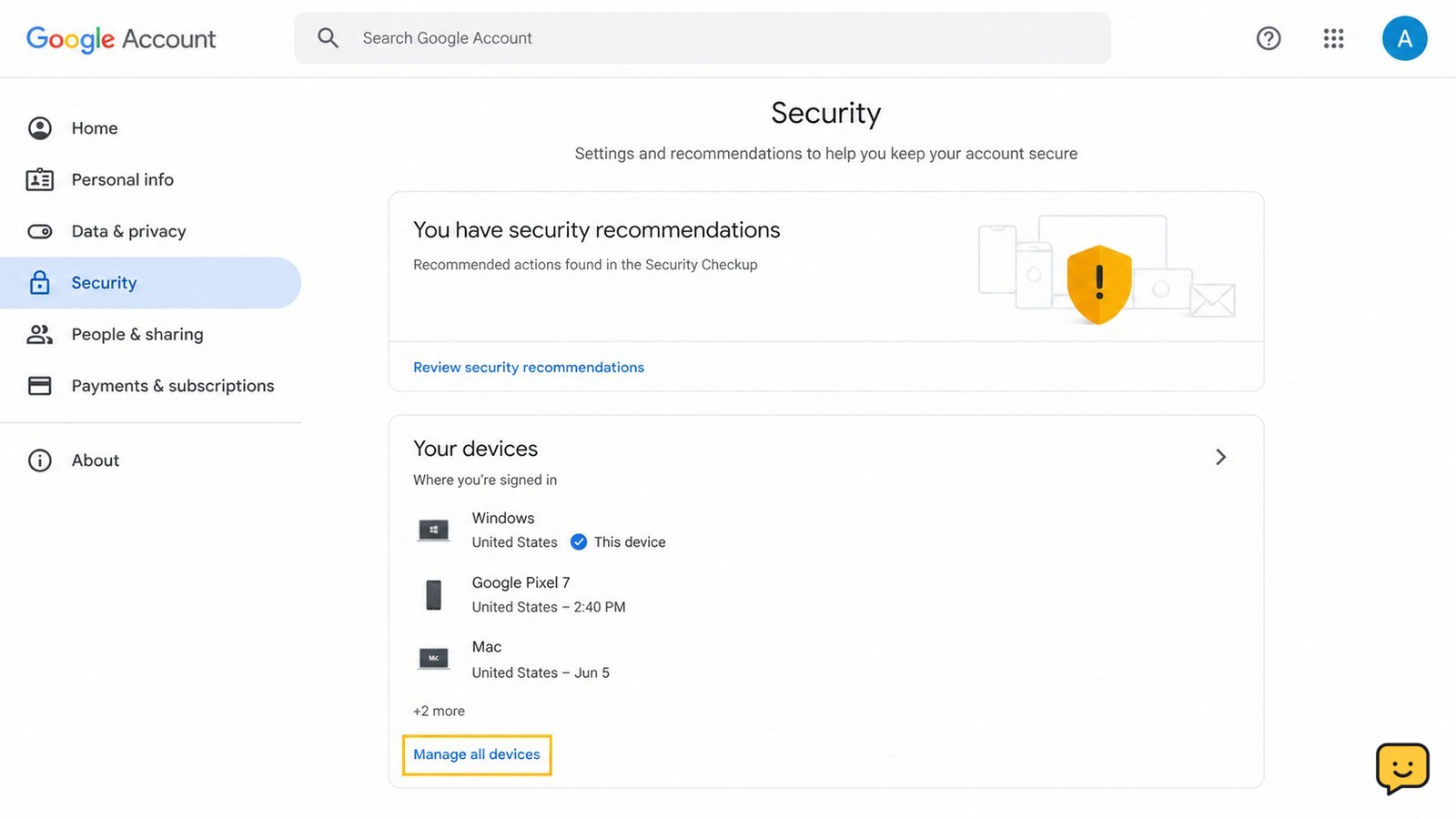
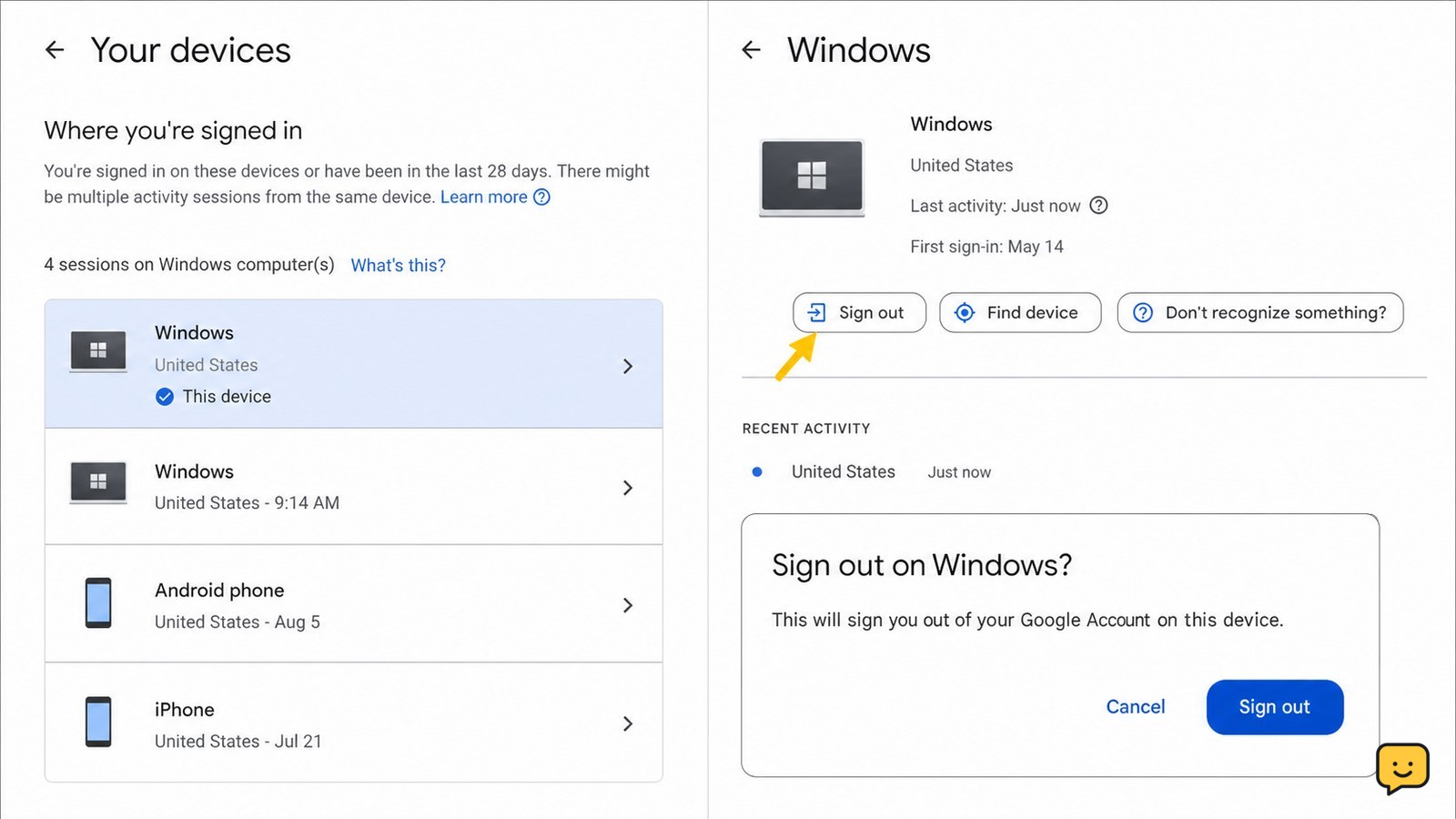
Open myaccount.google.com and sign in. Select Security from the left-side menu, then find Your devices and choose Manage all devices.
This page lists phones, tablets, computers, browsers, and other places where the selected Google Account is signed in. Check the account name or profile image before continuing if more than one Google Account is used in the same browser.
Identify every device or session that should be ended
Review the complete device list rather than signing out only the session you recognize as suspicious. Open each entry to check its device type, approximate location, and recent activity. These details can help distinguish your current phone from an old browser session or a device you no longer control.
- Start with devices you lost, sold, returned, or no longer recognize.
- Check for duplicate entries with the same device type; they may represent separate browser or app sessions.
- Keep a trusted recovery device signed in only if you still need it to receive or approve verification requests.
A location may be approximate, especially on mobile networks. Treat an unfamiliar device or activity pattern as the stronger warning sign.
Sign out of each Google Account device remotely
Select a device or session, choose Sign out, and confirm the action. Return to the device list and repeat these steps for every entry you want to remove. If Google shows several sessions for the same computer or browser, open each one and sign out separately.
Remote sign-out ends the selected account session, but it does not remove the device from your physical possession or erase local files. A person who controls the device may still have information stored locally, such as downloaded mail or browser data.
Success check: reopen the device entry and look for a signed-out state or a sign-in requirement. If it still appears active, select the entry again and repeat the sign-out action once.
Secure the account when a session was unfamiliar
Signing out is the right first action when you find an unknown session, but it may not be enough if someone knows your password or has changed account settings. From Security, review Recent security activity, confirm your recovery phone and email, and check your 2-Step Verification methods.
- Change the Google Account password to a unique password that is not used elsewhere.
- Review recent security events for password, recovery, or verification changes you did not make.
- Remove unfamiliar devices and review third-party access that you do not recognize.
- Keep 2-Step Verification enabled and confirm that its prompts, passkeys, or authenticator methods belong to you.
Changing the password can force additional sign-ins, but it is not a substitute for reviewing devices and security settings. Some services, apps, or devices may require separate sign-out or reauthorization.
What to do if remote sign-out does not appear to work
If the sign-out control is missing, confirm that you opened a device entry under the correct Google Account and that the page has finished loading. Sign out of the Google Account in the browser, sign back in from a trusted device, and check the list again.
If the device remains active after the account page confirms sign-out, change the password immediately, review recent security activity, and remove any unfamiliar recovery or verification method. Do not use links from unexpected emails or messages to perform these actions.
Stop and use Google’s official account-recovery process if you cannot sign in, cannot complete identity verification, or no longer control the recovery methods. Do not keep trying random passwords, because repeated failed attempts can create additional verification checks.
Frequently asked questions
Can I sign out of every Google device with one button?
Usually, no. Google Account security settings let you open device and session entries and select Sign out for each one. Repeat the action for every listed device, browser, or session that you want to end. If you are responding to a suspected compromise, change the password afterward and review security activity because remote sign-out alone may not address changed recovery settings or third-party access.
Does changing my Google password sign me out everywhere?
Changing the password can end many existing sign-ins, but it should not be treated as a complete device-session inventory. Review Your devices and sign out entries individually, then check recent security activity, recovery methods, 2-Step Verification, and third-party access. Some apps, services, or devices may require their own sign-out or reauthorization.
Why is an old phone still listed in Google Account security?
An old phone can remain listed because the device record and its active session are separate pieces of account information. Open the phone’s entry and select Sign out if that control is available. If you no longer control the phone and the session appears active, change your password and review security activity. Do not rely on deleting the device record alone.
Will remote sign-out delete files from the device?
No. Remote sign-out ends the Google Account session; it does not erase files, downloaded email, photos, or browser data already stored on the device. If the device was lost or stolen, use the device manufacturer’s location, lock, or erase features separately, and change your Google Account password from a trusted device.
Browse more Privacy & Online Safety guides for help with this topic.