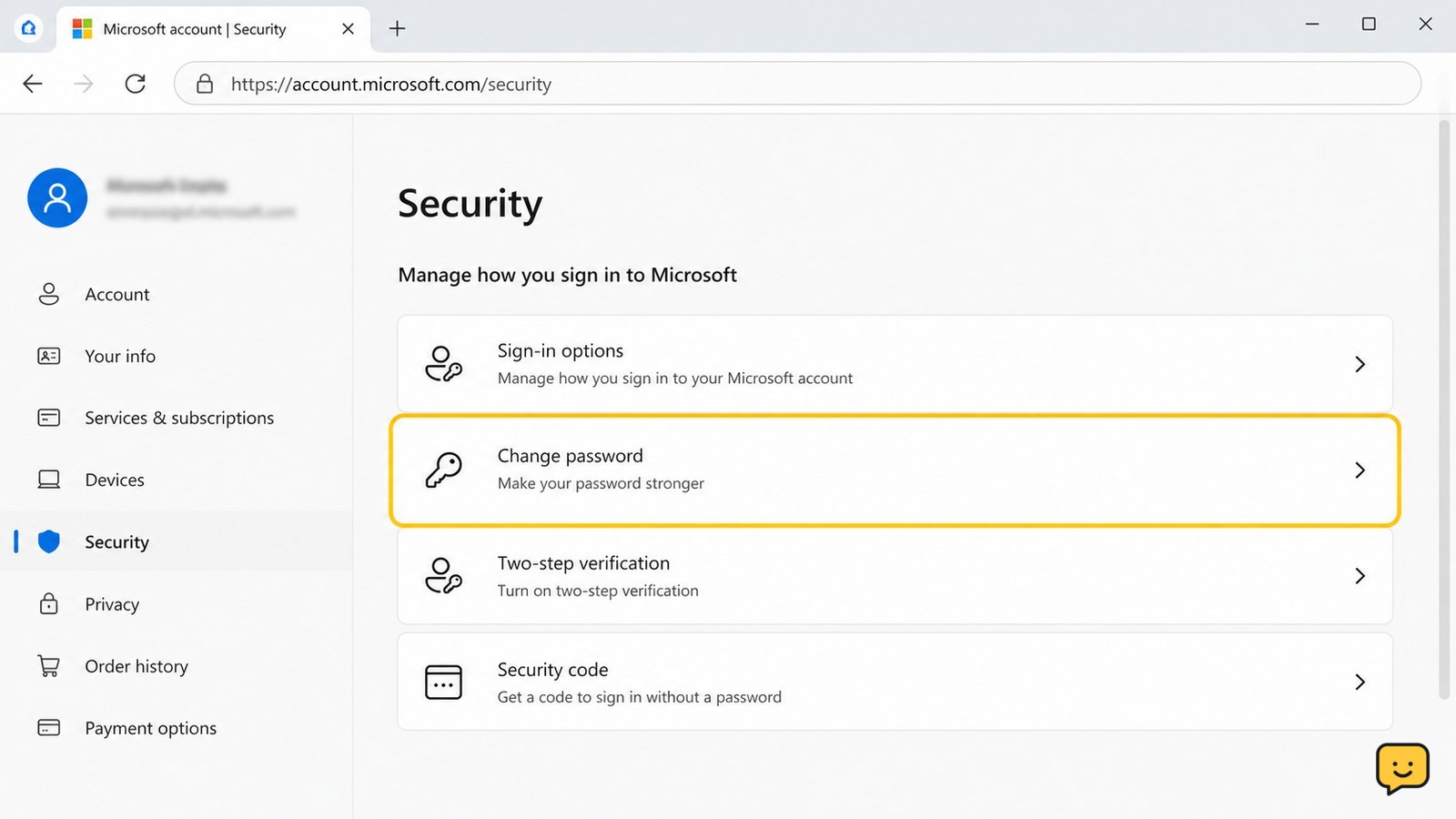
If you know your current Microsoft account password, open https://account.microsoft.com/security, sign in, and select Change password. Enter your current password, create and confirm a new unique password, then save it. Test the new password in a private browser window or another trusted device. If you forgot the old password, use Microsoft’s recovery page instead.
Check that this password-change path applies to your account
These steps apply when you can still sign in to a personal Microsoft account and want to replace its existing password. Microsoft’s password-change guidance directs users to the account Security page.
For the related task, How to Recover a Microsoft Account Password covers the next checks separately.
A work or school account uses a different process. Microsoft directs those users to passwordreset.microsoftonline.com for password changes or resets. If your organization manages the account, follow its instructions or contact its administrator.
Open Microsoft account Security without using an email link
- Open a browser and enter account.microsoft.com/security yourself.
- Sign in with the Microsoft account whose password you want to replace.
- Complete any security verification Microsoft displays. Check the account name or email address before continuing.
If the page opens an unexpected sign-in form, check the address bar before entering anything. Do not continue if the domain is misspelled, unfamiliar, or reached through a suspicious message.
Change the password from the Security page
- Select Change password.
- Enter your current password when requested.
- Enter the new password, then enter it again to confirm it.
- Save the change using the button shown by Microsoft.
Use a password that is unique to this Microsoft account. Avoid a familiar phrase, personal detail, or password already used for email, shopping, social media, or another service. Never share the new password with someone who asks for it by phone, email, or chat.
If Change password is missing, confirm that you are signed in to the correct account and that you are not using a work or school account. Do not use third-party password-change pages.
Verify that the new password works
- Sign out of the Microsoft account in the browser where you changed the password, or open a private browsing window.
- Return to a Microsoft sign-in page and enter the account address.
- Use the new password rather than a saved password or autofill entry.
- Confirm that sign-in succeeds and that the account name is the expected one.
If the new password fails but the old password still works, stop changing it repeatedly. Check for typing, capitalization, keyboard-layout, and autofill errors, then return to the official Security page. If neither password works, use Microsoft’s account recovery page rather than guessing.
Check verification methods and unfamiliar activity
After a successful change, review the account’s available verification methods. Make sure the recovery email address, phone number, or authenticator method belongs to you and is still accessible. If a verification method is unfamiliar, do not approve unexpected requests or share verification codes.
Also review recent sign-in activity when Microsoft presents that option. An unfamiliar sign-in, device, or location is a reason to secure the account further, not proof by itself that someone has access; locations can be approximate. If you suspect an unknown device has access, follow Microsoft’s account-security guidance before resuming normal sign-in.
Reopen Outlook, OneDrive, Xbox, or another Microsoft service only after the account sign-in has been verified. An app may ask for the new password again if it retained the old one.
Recover the account if you cannot use the current password
The normal change-password path requires access to the current account credentials. If you forgot the password or Microsoft rejects it, use Microsoft’s official recovery page. Enter the account identifier and follow the available verification instructions.
Do not keep submitting guesses, and do not pay anyone who claims to bypass Microsoft verification. If recovery information is unavailable or the recovery code is rejected, continue only through Microsoft’s official account-recovery options. A successful password change is not complete until you can sign in with the new password and recognize the account’s security information.
Frequently asked questions
Can I change my Microsoft account password if I forgot the old one?
No. The standard change-password path is for a known current password. If you forgot it or Microsoft rejects it, use the official recovery page at account.live.com/password/reset and complete the identity checks Microsoft provides. Avoid repeated guesses and unofficial recovery services.
Why can’t I find the Change password option?
First confirm that you are signed in to the correct Microsoft account at account.microsoft.com/security. If it is a work or school account, the personal-account path may not apply; Microsoft directs those users to passwordreset.microsoftonline.com or their organization’s administrator. Do not use a third-party password page.
How do I know the Microsoft password change worked?
Sign out or use a private browsing window, then sign in at an official Microsoft page with the new password. Confirm that the account address and profile are yours. If the new password fails, check typing and autofill before attempting another change.
Should I enable two-step verification after changing the password?
Yes, if the option is available for your account and you can keep the verification method accessible. Review the listed recovery email, phone number, or authenticator method first. Never approve an unexpected sign-in request or share a verification code.
Browse more Access & Recovery guides for help with this topic.


