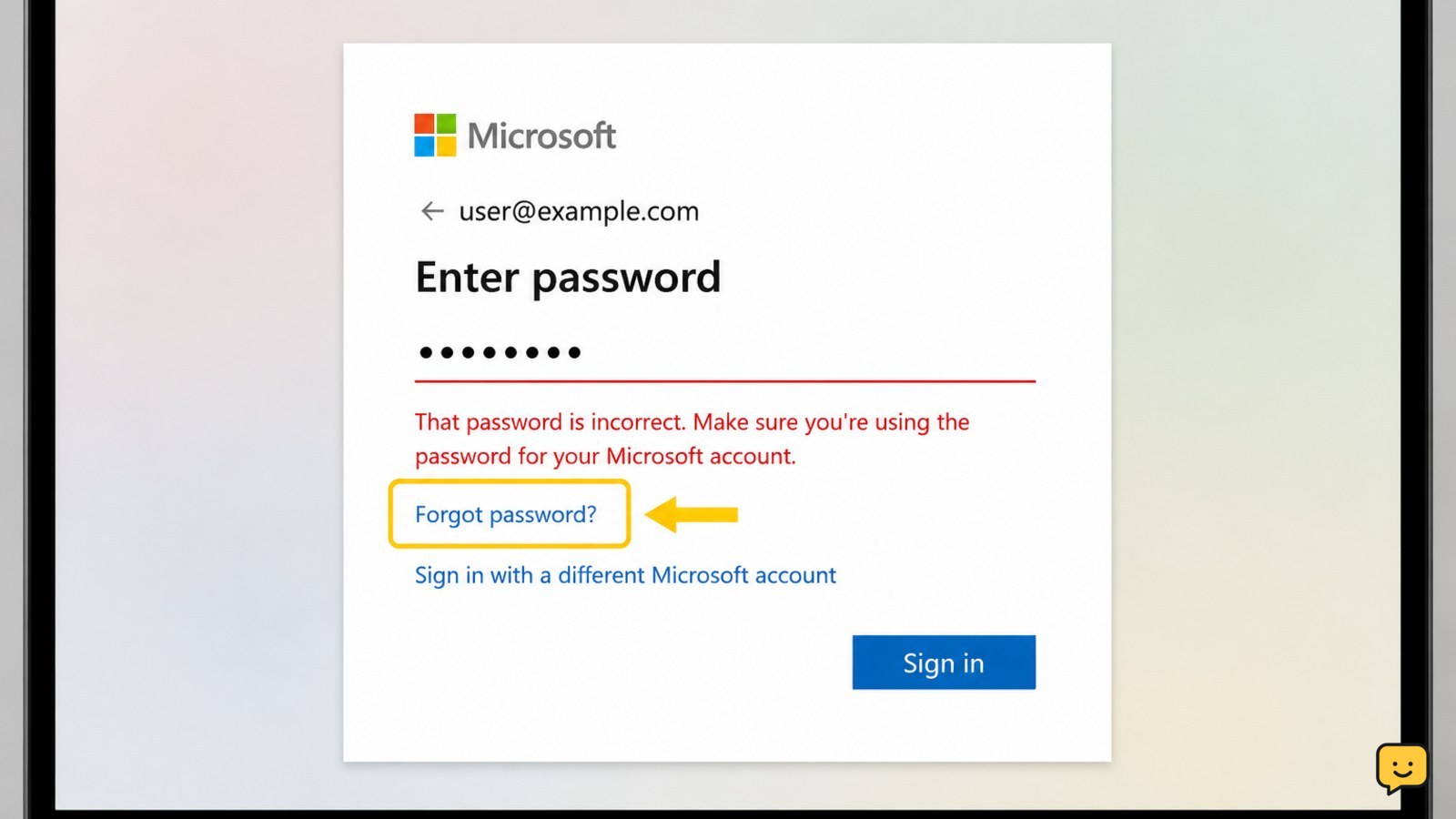
To recover a Microsoft account that says the password is wrong, first confirm the email address or Skype name and enter the password manually. If it still fails, select the password-reset or account-recovery option on Microsoft’s official sign-in page. Complete the security check using an available method, then verify recent activity and update your password after signing in.
1. Confirm that you are using the right Microsoft account
A wrong-password message can appear when the password is being entered for the wrong account. Check the complete sign-in name, including the domain and any numbers or punctuation. Outlook.com, Hotmail, Live, and other Microsoft addresses may all be used as Microsoft account names.
- Return to Microsoft’s official sign-in page rather than using a link from an unexpected email or message.
- Check the email address, phone number, or Skype name shown on the sign-in screen.
- Type the password manually once. Check Caps Lock, the keyboard layout, spaces copied at the beginning or end, and similar characters such as
0andO. - If a browser or password manager filled the password, clear the field and try the saved entry only after confirming that it belongs to this account.
Verify: If the corrected username and manually entered password work, stop here. If Microsoft still rejects the password, do not keep guessing.
2. Reset the password through Microsoft
Use Microsoft’s built-in password-reset option when the password is not accepted. On the sign-in screen, select the option such as Forgot password? or Reset password, then enter the account identifier requested by Microsoft.
- Choose a listed verification method, such as a recovery email address, phone number, authenticator, or trusted device.
- Request the security code only from the official Microsoft page.
- Enter the current code on that page and create a new password that you have not used for this account.
- Save the new password in a reputable password manager or another private, secure location.
Microsoft may limit attempts after repeated incorrect entries. If you see a message saying that you have tried too many times, use the account recovery or sign-in-helper path instead of trying more passwords.
Verify: Sign out of other Microsoft pages, open a fresh official sign-in window, and test the new password once. If it works, continue to the security review below.
3. Use account recovery when you cannot access security information
If the displayed recovery email or phone number is unavailable, choose Microsoft’s account-recovery option rather than attempting to bypass verification. The recovery form may ask for an alternate email address and information that helps confirm ownership.
If the recovery code is rejected, follow Microsoft account recovery code steps before repeating failed sign-in attempts.
- Use an alternate email address that you can currently open and that is not the account you are trying to recover.
- Provide the requested account details as accurately as possible, including older passwords you genuinely remember, contacts, or recent account information when requested.
- Submit the form once you have reviewed the entries for accuracy.
- Check the alternate inbox, including its junk folder, for Microsoft’s response.
Using a familiar device, browser, location, or network can help you provide consistent account information, but it does not replace Microsoft’s ownership checks. If Microsoft cannot confirm ownership, follow the instructions in its response and avoid services that promise guaranteed access.
Failure path: If the form is declined, wait before trying again, review every answer, and use only information that is accurate. If the account belongs to a work or school organization, contact that organization’s administrator; consumer-account recovery steps may not apply.
4. Check for a lockout or sign-in problem
A correct password may still be rejected when the account has been temporarily restricted after repeated failed attempts or when an app keeps submitting an old password. Microsoft’s support guidance recommends using its sign-in helper when the issue persists.
- Stop sign-in attempts on phones, mail apps, browsers, and other devices.
- Complete the official password reset or sign-in-helper process.
- After access returns, update the password anywhere it was stored, including mail apps, Windows, browsers, and password managers.
- Try signing in from a private browser window or a different browser only to test whether an old session or saved credential is causing the rejection.
Verify: A successful sign-in in the official browser confirms that the account credentials work. If only one app fails, repair that app’s account connection rather than resetting the password repeatedly.
5. Secure the account after you regain access
Recovery is not complete until you confirm that the account still belongs only to you. Open Microsoft account security settings and review recent activity, recovery methods, connected devices, and sign-in sessions.
- Look for unfamiliar locations, devices, password changes, security-info changes, messages, or purchases.
- Sign out of sessions and remove devices you do not recognize.
- Replace unknown recovery information with details you control.
- Enable two-step verification or another available multifactor method.
- Change the password again if you suspect that someone else knew it, and do not reuse it on another service.
If you find evidence of unauthorized access, prioritize changing the password and removing unknown sessions. Review payment activity and contact the relevant provider for any unrecognized purchase.
Stop condition: Do not continue ordinary troubleshooting if security information was changed without your permission. Treat the account as potentially compromised and use Microsoft’s official account-security and recovery paths.
Frequently asked questions
Why does Microsoft say my password is wrong when it is correct?
The account name may be wrong, the keyboard layout or Caps Lock may have changed, a browser may have filled an old password, or the account may be temporarily restricted after repeated failed attempts. Confirm the username, enter the password manually once, and use Microsoft’s official reset or sign-in-helper process if it still fails.
How do I recover a Microsoft account without the recovery phone?
Use Microsoft’s account-recovery form and provide an alternate email address that you can access. Answer the ownership questions accurately and submit the form through Microsoft’s official site. You cannot safely replace the verification process with a bypass method. If the account is managed by work or school, contact its administrator.
What should I do after too many incorrect Microsoft password attempts?
Stop trying additional passwords. Use Microsoft’s official account-recovery or sign-in-helper route, and complete any security checks it presents. After resetting the password, update saved credentials on every device and app so an old password does not trigger more failed attempts.
How can I tell whether my Microsoft account was hacked?
Check recent sign-in activity, security-info changes, unfamiliar devices, sent messages, subscriptions, and purchases. An unknown sign-in or changed recovery method is a warning sign. Change the password, sign out unknown sessions, enable multifactor verification, and review financial activity if anything looks unauthorized.
Browse more Access & Recovery guides for help with this topic.


