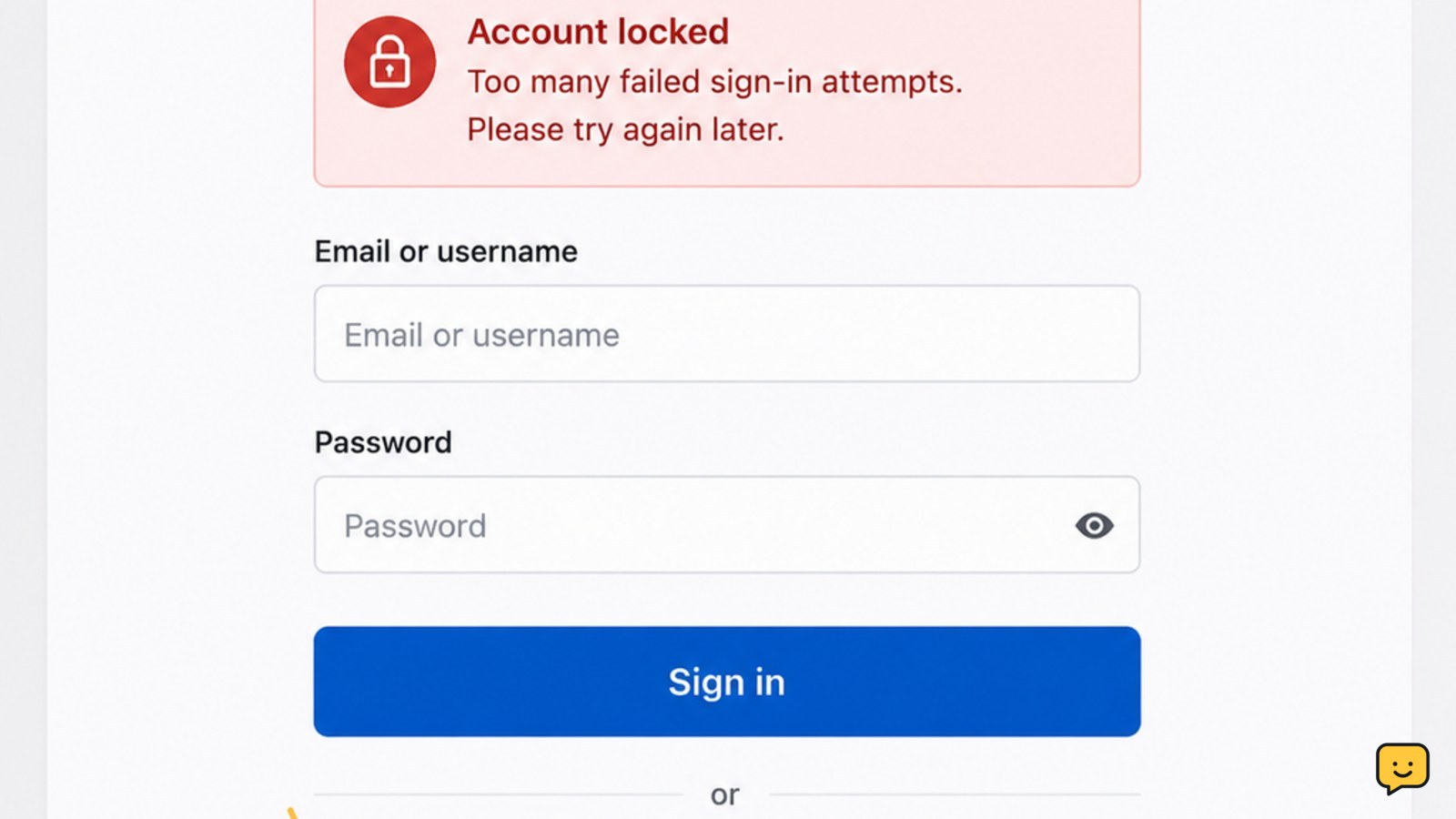
Stop entering passwords while the lock is active. Check the provider’s message for a temporary lock or recovery instruction, then use the official “Forgot password?” or “Can’t sign in?” route from a trusted device. Complete the requested identity checks. If the lock persists, use the provider’s official support or account-recovery form instead of third-party services.
Check whether the lock is temporary or a security hold
Read the exact message on the sign-in screen before trying again. A temporary lock usually tells you to wait or gives a time estimate. A security hold may instead ask you to verify your identity, reset the password, confirm recent activity, or use an account-recovery form.
Lockout rules vary by provider. X says its temporary lock after too many attempts lasts about an hour, while Google account recovery cases can require an official verification form when the error continues. Do not assume that waiting the same amount of time will work everywhere.
For a work, school, or managed account, follow the organization’s instructions if the screen says to contact an administrator. Do not keep testing passwords while waiting, because additional attempts may restart or extend the restriction.
Stop repeated attempts and check saved sign-in details
Close other browsers, apps, and devices that may still be submitting an old password. Email apps, password managers, browser autofill, and connected services can repeatedly send an outdated credential after you change it.
- Open your browser’s password manager or password app.
- Find the entry for the affected service and check the saved username and password.
- Confirm that you are using the correct account address, profile, or organization.
- Remove an obviously outdated autofill entry only after recording the correct recovery information.
Do not use a VPN to make repeated recovery attempts. The Google support evidence specifically warns against VPN use during this type of lockout because an unfamiliar connection can make verification harder.
Use the provider’s official recovery route
Start from the provider’s home page or official app and select the control labeled “Forgot password?”, “Can’t sign in?”, “Recover account,” or a similar option. The wording and order vary by service, so follow the screen shown for your account rather than searching for a bypass.
- Enter the account’s username, email address, or phone number.
- Choose a recovery method already linked to the account.
- Enter the verification code only on the provider’s official page or app.
- Create a new password when the provider allows it.
If the first method is unavailable, choose another method offered on the same official recovery flow. Do not pay a third party that promises to remove the lock, and never send a recovery code to someone who contacts you first.
Success means the provider confirms the reset or returns you to a normal sign-in screen. If the page loops back to “too many attempts,” stop and use the provider’s account-recovery form or official support route instead of repeating the same request.
Complete identity verification without weakening account security
Answer recovery questions and provide requested details as accurately as possible. Use information associated with the account, such as a known recovery address, trusted device, previous password, or authenticator method, when the provider specifically requests it.
Keep the recovery page open only long enough to finish the official process. Never share a password, one-time code, backup code, passkey approval, or identity document with an unsolicited helper. A legitimate provider will not need you to disclose a one-time code to another person.
If you cannot access any recovery option, do not invent details or submit repeated guesses. Use the provider’s verified identity-recovery alternative. If all recovery options are lost, the provider may require a separate verification form, and access may not be restored through the normal sign-in screen.
Secure the account immediately after access returns
Do not stop at the password reset. Once you can sign in, review the account’s security area and check for changes made while you were locked out.
- Set a unique password that you do not use on another service.
- Review the recovery email address and phone number.
- Check two-factor authentication, passkeys, authenticators, and backup codes.
- Review recent sign-ins, devices, and active sessions.
- Sign out unfamiliar sessions and remove devices you do not recognize.
- Check forwarding rules, filters, connected apps, payment activity, and profile changes where the service provides those controls.
If you entered the old password on a suspicious page or reused it elsewhere, change that password on every affected service. Then review the account for unauthorized changes before resuming normal use.
What to do if the lock remains after recovery attempts
Use the provider’s official recovery form when the temporary period has passed, the error persists, or the normal reset route cannot verify you. Include accurate account details and use a familiar device or connection when the provider requests those details.
If the lock persists and no verification method works, use recover an account with no recovery options rather than making more guesses.
Do not create a replacement account if the locked account contains important email, cloud files, purchases, or backups until you understand the provider’s recovery options. A new account will not restore data or ownership of the original one.
If recovery succeeds but unfamiliar security changes remain, secure the account first: change the password, end unknown sessions, restore trusted recovery methods, and contact official support if the provider reports unauthorized changes.
Frequently asked questions
How long does an account stay locked after too many attempts?
There is no universal lockout period. Some services use a short temporary cooldown, while others require password recovery or identity verification. Follow the exact message shown by the provider. If the stated period passes and the error remains, stop retrying and use the official recovery form.
Can I recover a locked account without the recovery email or phone?
Sometimes. Use the provider’s official alternative verification process if one is offered. You may need a trusted device, previous account details, an authenticator, or other ownership evidence. Do not use third-party “unlock” services, because they cannot safely bypass the provider’s verification controls.
Why does the account stay locked after I enter the correct password?
A lock can remain active even after the correct password is entered. Other devices may also be submitting an old password, or the provider may have placed a security hold on the account. Stop sign-in attempts, close connected apps, and use the official recovery route shown by the service.
What should I do if I suspect someone else caused the lockout?
Treat it as a possible account-security incident. Recover access through the official provider, change the password, end unfamiliar sessions, review recovery settings and recent activity, and remove unknown connected apps. If a recovery address or phone number was changed, use the provider’s compromised-account process.
For more current help, browse all Access & Recovery guides.


