
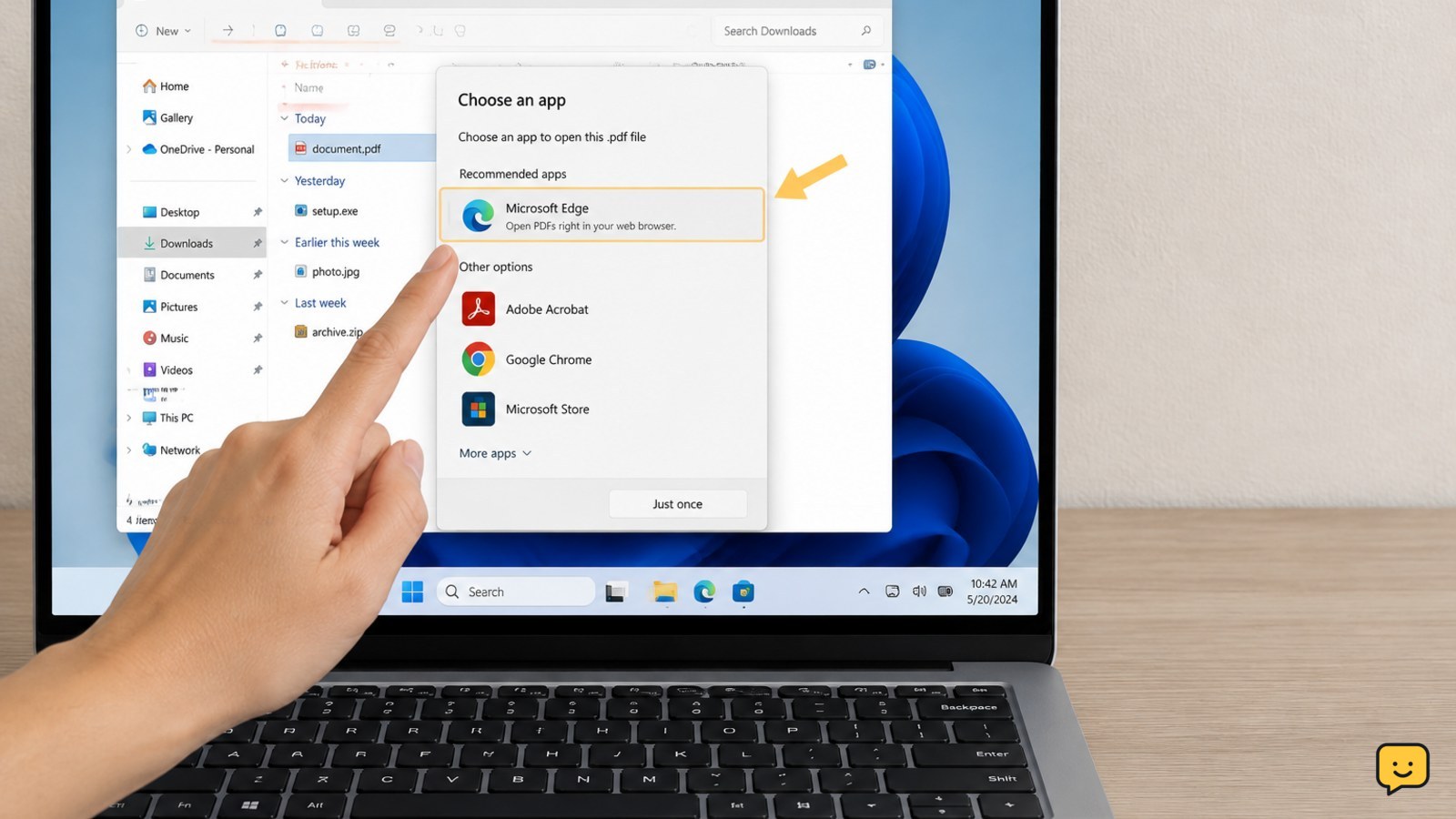
First, identify the downloaded file’s extension in File Explorer, then open Settings > Apps > Default apps and search for that extension. Choose a trusted app that is designed for that file type. If the extension is unknown or the download came from an untrusted source, do not open it or select “Always.” Delete it or obtain the file again from the official source.
Check the downloaded file type first
Windows can only choose a suitable default when it can identify the file type. A prompt that appears for one new extension may be normal; a prompt that returns for common files such as PDFs, pictures, or documents usually points to a missing or incorrect association.
- Open File Explorer and select View > Show > File name extensions.
- Look at the complete file name in Downloads. The characters after the final period are the extension, such as .pdf, .jpg, or .docx.
- Check for a second extension. A file named report.pdf.exe is an executable file, not a PDF.
Verification: You should know the exact extension before choosing an app. If you cannot identify it confidently, do not open the file.
Choose a safe app from the prompt
For a known file type, the prompt itself can set the association. Select an app that is normally designed for that format, such as a trusted PDF reader for a PDF or an installed image viewer for a JPG.
- Right-click the file and choose Open with > Choose another app.
- Review the file extension shown in the dialog and the names of the available apps.
- Select the trusted app that supports that format.
- Use Always only when the extension and app both match what you expect, then select OK.
Verification: Close the file and open it again. Windows should use the selected app without asking. Test another file with the same extension to confirm the association applies consistently.
Set the association in Windows Settings
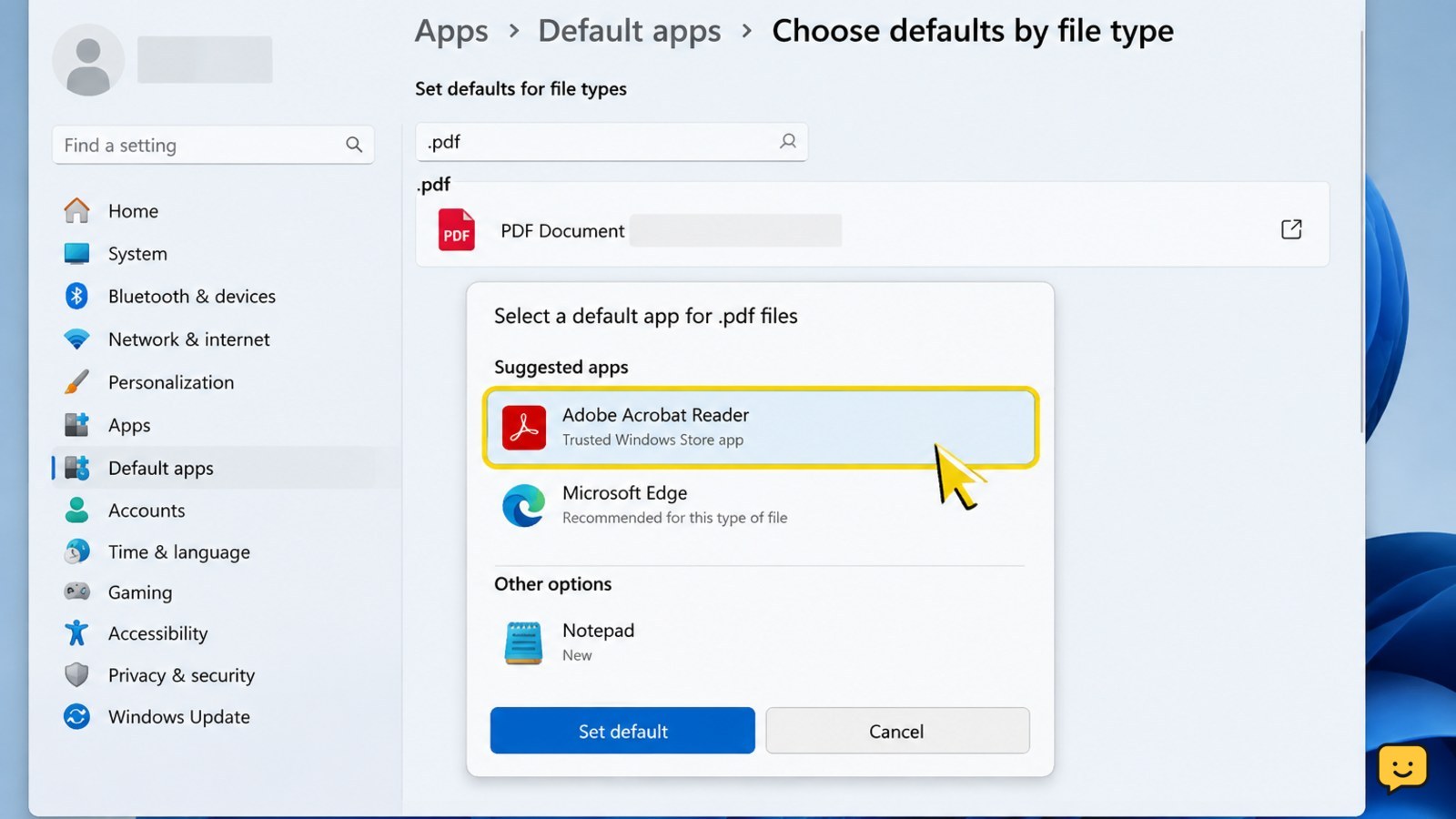
If the prompt does not save your choice, set the file type directly in Windows 11. This is useful when the correct app is installed but is not being retained as the default.
- Open Settings with Windows + I.
- Select Apps, then Default apps.
- Search for the extension, including the period, such as .pdf or .jpg.
- Select the current entry beside that extension.
- Choose the trusted installed app and confirm the change.
Repeat the process for each extension that prompts. A default for .jpg does not automatically set a default for .png, .webp, or other image formats.
Verification: Return to Default apps and search for the extension again. The intended app should now be listed, then opening a matching downloaded file should bypass the app-selection dialog.
If the correct app is missing
If the app you need is not listed, do not choose an unrelated program just to dismiss the prompt. Confirm the extension first, then install a compatible app from a trusted source.
- Check the file’s extension again in File Explorer.
- Look up that format on the official website of the software maker or in Microsoft Store.
- Install the compatible app, then return to Settings > Apps > Default apps.
- Search for the extension and select the newly installed app.
If the file is an installer, script, shortcut, or other executable type, do not install an app merely to open it. Confirm that you intentionally downloaded it and that its publisher is trustworthy.
Failure path: If no reputable app supports the extension, leave the association unchanged and contact the sender or website that provided the file.
Reset default apps when associations are confused
If many common file types are prompting or opening with the wrong programs, reset Windows’ default app associations before assigning individual formats again.
- Open Settings > Apps > Default apps.
- Scroll to the bottom of the page.
- Select Reset beside the option to reset default apps to Microsoft-recommended defaults.
- Reopen Default apps and set only the file types you regularly use.
This changes default-app choices, so you may need to select your preferred browser, media player, PDF reader, or image viewer again.
Verification: Test one PDF, picture, or document from Downloads. If that works, test one other extension. If only one unusual file still prompts, troubleshoot that extension rather than resetting everything again.
When the download itself is the problem
A repeated prompt is not always an association problem. Windows may be asking because the file type is unusual, incomplete, mislabeled, or potentially unsafe.
- Compare the file name and extension with the download instructions or message you received.
- Check the original website address or sender before opening the file.
- For an unexpected executable or script extension, delete the file or download it again from the verified official source.
- Run a Windows Security scan if you saved or opened a suspicious download.
Do not rename an executable so it looks like a document, and do not force an unknown file to open with a browser, text editor, or media player. If the prompt continues only for that file, the safest conclusion is that the file—not Windows’ normal association—is the issue.
Stop here: Do not continue with manual association changes when the file is unexpected, has a misleading extension, or triggers a security warning.
Frequently asked questions
Why does Windows 11 keep asking me to choose an app?
Windows 11 usually shows this prompt when the file extension has no saved default app, the association points to an unavailable app, or the file type is unfamiliar. Check the complete extension first. If it is a known format, assign a compatible trusted app in Default apps. If the extension is unknown or unexpected, do not open it.
How do I make Windows always use the same app?
Open the file’s Open with menu, choose another app, select the compatible program, and enable the option to always use that app for the file type. You can also open Settings > Apps > Default apps, search for the extension, and select the app there. Only save the choice when the extension and app match.
What downloaded file extensions should I avoid opening?
Treat unexpected executable or script extensions, including .exe, .msi, .bat, .cmd, .js, .vbs, and .ps1, with caution. These types can run actions rather than simply display content. Do not open one from an unfamiliar source, and stop if a supposed document has a second executable extension such as .pdf.exe.
What if the app I want is not listed?
Confirm the extension, then install a compatible app only from Microsoft Store, the software maker’s official website, or an approved organization source. After installation, return to Default apps and assign it to the extension. If no reputable app supports the format, leave the association unchanged and ask the sender or site for a standard file type.
Browse more Computers & Internet guides for help with this topic.


