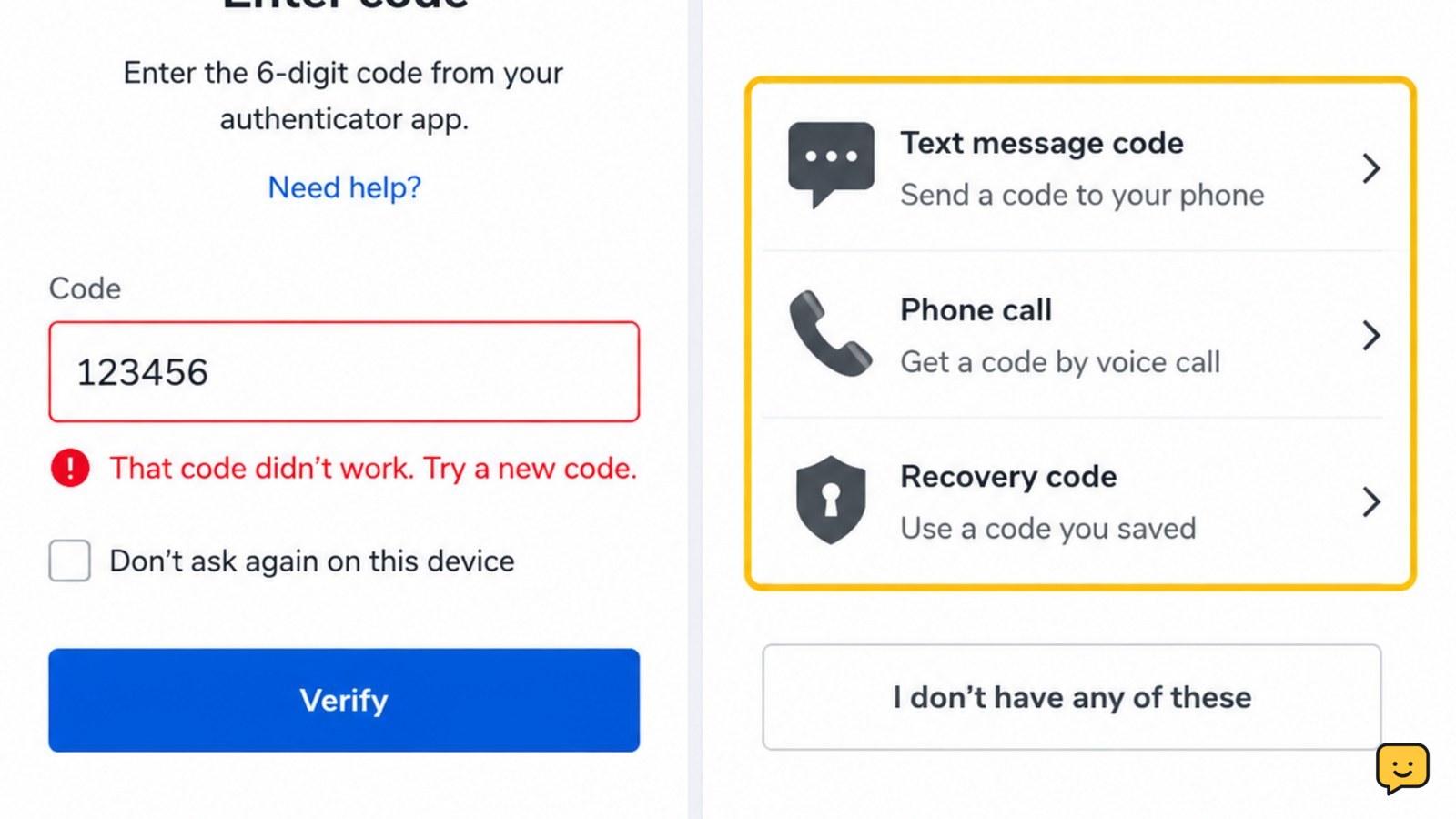
Your two-factor authentication code may not work because it expired, belongs to a different account, is the wrong code type, or your authenticator device time is out of sync. Enter the newest code once, confirm the account and sign-in screen, then use the service’s official backup-code or recovery option if the code is still rejected.
Check the account, code type, and sign-in screen
First confirm that the code matches the account and the prompt currently open. Authenticator apps can contain entries for several accounts, and a six-digit code from one entry will not work for another. Also check whether the page is requesting an authenticator code, SMS code, email code, security key, passkey, or backup code.
- Close suspicious tabs or messages and open the service’s official website or app directly.
- Check the account name or email shown on the sign-in screen.
- Return to the authenticator app and select the matching account entry.
- Use the code in the field that asks for that specific method.
Verify the result: the service should accept the code and continue to the account. If it asks for a different method, do not substitute a backup code or approval notification unless the screen specifically offers that option.
Enter the newest code once, without adding spaces
Time-based authenticator codes change regularly. A code that was visible a moment ago may be too old by the time it is submitted, especially if several older codes were tried first.
- Wait for the authenticator app to display a fresh code.
- Enter only the digits shown, with no spaces or extra characters.
- Submit it once before requesting another code.
If the code is rejected, wait for the next fresh code rather than repeatedly submitting the same one. If several fresh codes fail, continue with the time check below. Repeated attempts can trigger a temporary sign-in block on some services.
Correct the authenticator device time and retry
Authenticator codes depend on the device clock. If the phone or computer running the authenticator app has an incorrect date, time, or time zone, its code may not match the service even when the account entry is correct.
- Open the device’s date and time settings.
- Turn on automatic date and time, and automatic time zone when those controls are available.
- Restart the authenticator app.
- Wait for a newly displayed code and submit it once.
Applicability: this check is for time-based authenticator codes. It does not fix an SMS message that never arrived, a code sent by email, a passkey prompt, or a hardware security key problem.
Verify the result: a fresh code should be accepted after the device clock is corrected. If it is not, do not delete the authenticator entry yet; deleting it can remove a working recovery method.
Use official backup codes or another offered method
If the authenticator code remains invalid, look for a sign-in option such as Try another way, Use a backup code, or an equivalent official control. Backup codes are different from current authenticator codes and are normally intended for one-time use.
For a Google Account, the documented path is Google Account > Security > 2-Step Verification. From there, Google provides controls to show codes or get new codes. Menu names can differ on other services, so use the account’s own security settings rather than a link supplied in an unsolicited message.
- Choose the alternate verification method shown by the official sign-in page.
- Enter an unused backup code only in the backup-code field.
- After access is restored, replace or regenerate backup codes if the service provides that control.
If no alternate method appears, use the service’s official account recovery flow. Do not search for a bypass or send identity documents to an unverified address.
Recover safely after losing the phone or authenticator
If the phone was lost, stolen, reset, or replaced, the problem may not be the code itself: the authenticator entry may be unavailable or the account may still be tied to the old device. Use a trusted device, backup code, recovery email, recovery phone, security key, passkey, or another method already listed by the service.
Google’s 2-Step Verification guidance recommends signing out of a lost or stolen phone and changing the account password. Once you regain access, review recovery methods and signed-in devices, remove anything unfamiliar, and set up a replacement verification method from the official security page.
Stop immediately if you received an unexpected sign-in request, a message asking for your code, or an unfamiliar approval prompt. Deny the request, open the account directly, change the password if access is available, and review recent security activity. If you cannot verify ownership through an official method, stop and follow the provider’s account-recovery process.
Know when the code problem needs provider recovery
Use official recovery instead of more code attempts when the authenticator entry is missing, every fresh code fails after the device time is corrected, all backup methods are unavailable, or the account shows a security lock. Recovery may require a trusted device or identity checks, and the available options depend on the provider.
Do not create a second account, remove security settings, or give a code to a person who promises to restore access. The successful endpoint is an official recovery confirmation followed by a normal sign-in. Afterward, confirm that the password, recovery details, two-factor methods, and active sessions belong to you.
Frequently asked questions
Why does my authenticator code keep changing before I can use it?
The code is time-based, so it changes on a regular cycle. Wait for a newly displayed code and submit it once. If fresh codes continue to fail, set the device date, time, and time zone to automatic, restart the authenticator app, and try one new code. Do not keep submitting expired codes.
Can I use a backup code instead of my two-factor code?
Yes, but only when the official sign-in page offers a backup-code option. A backup code is not interchangeable with an authenticator or SMS code. Enter an unused backup code in the matching field, then replace or regenerate your backup codes after signing in if the service provides that option.
What should I do if I lost the phone with my authenticator?
Use an available trusted device, backup code, recovery email, recovery phone, passkey, security key, or the provider’s official recovery flow. After access is restored, sign out the lost device, change the password if appropriate, review active sessions, and set up a replacement verification method.
Why is my code rejected even though it looks correct?
The code may belong to another account entry, may be entered into the wrong method field, may have expired, or may be generated while the device clock is inaccurate. Confirm the account name, choose the matching authenticator entry, correct automatic time settings, and submit one fresh code.
Should I give my two-factor code to customer support?
No. Never read a two-factor code to a caller, message sender, or person claiming to be support. Use the provider’s official website or app and start recovery there. An unexpected request for a code can indicate an attempted sign-in or phishing attempt.
Browse more Access & Recovery guides for help with this topic.


