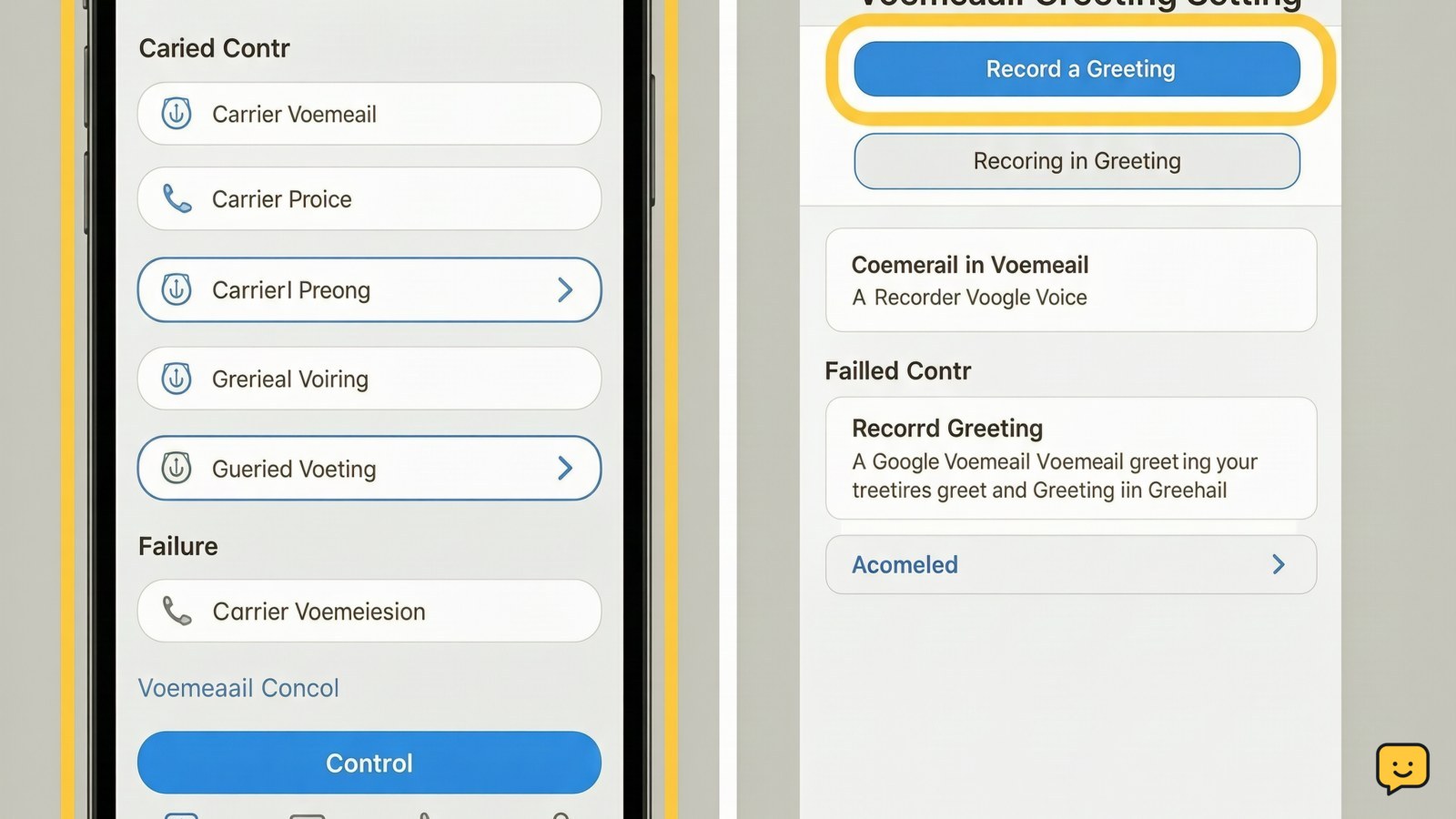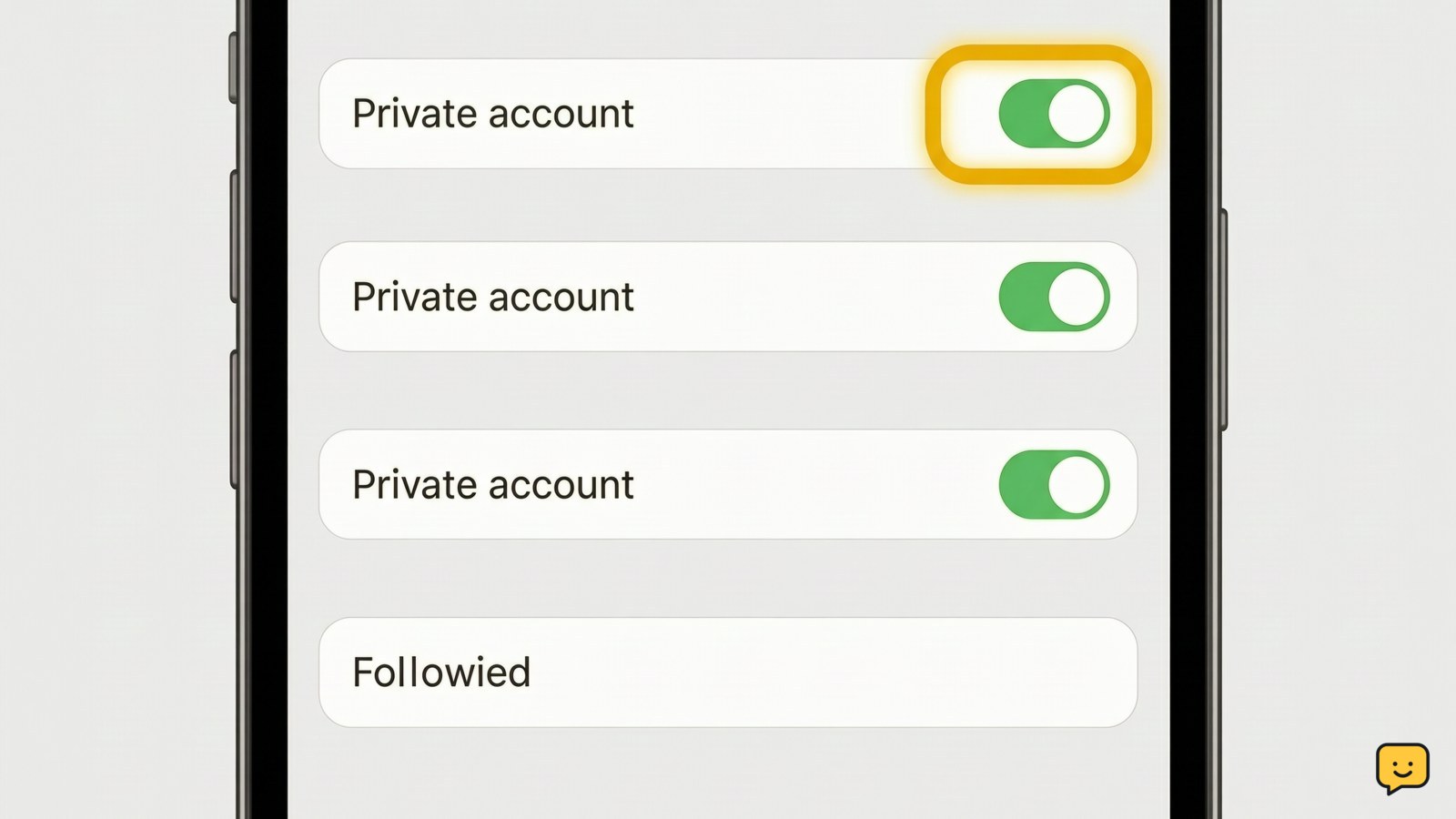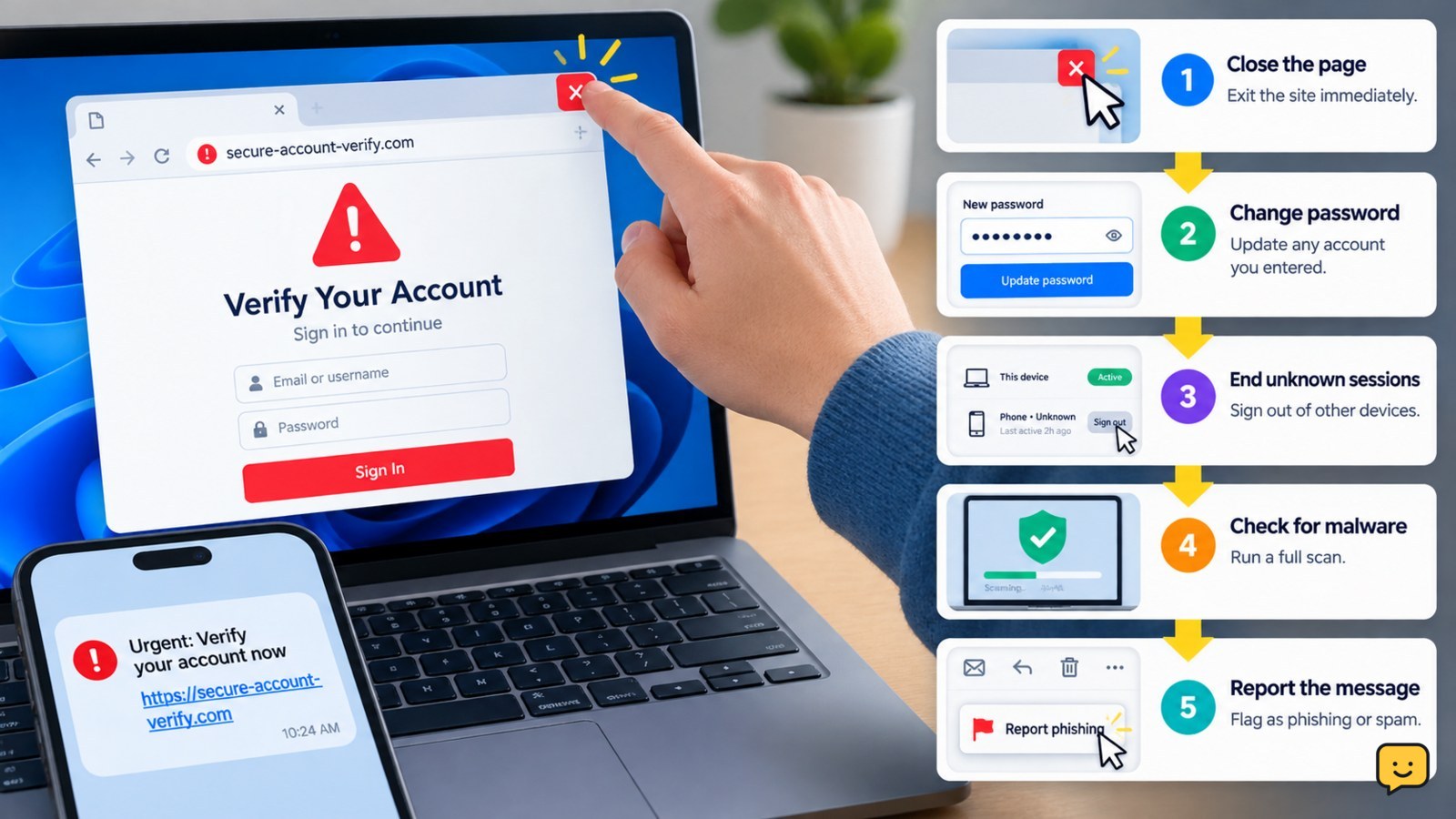
If you clicked a phishing link, close the page and do not enter more information. If you entered a password, change it from the service’s official site or app, then end unknown sessions and turn on 2FA. Check for downloads or new extensions, scan the device, report the message, and use official recovery if account details changed.
Browse more Privacy & Online Safety guides
1. Stop interacting and identify what the link did
A phishing link is not proof that an account or device was compromised, but the response depends on what happened after the page opened. Close the tab or app window, decline downloads and notifications, and do not call numbers or use contact buttons shown on the page.
| What happened | Safest next action |
|---|---|
| You opened the page only | Close it, check for downloads or new extensions, and continue with the device check. |
| You entered a password or username | Change that account’s password from its official app or website, then protect any reused login. |
| You entered a verification code or approved a sign-in | Secure the account immediately, end unknown sessions, and inspect recent security activity. |
| A file downloaded, an extension appeared, or software installed | Disconnect the device if suspicious behavior continues and scan it before using it for sensitive accounts. |
Norton recommends stopping automatic downloads, disconnecting when malware may have been triggered, backing up important data, and scanning the device. Treat those actions as especially important when something downloaded or the device begins behaving unusually.
2. Change exposed passwords from the official account page
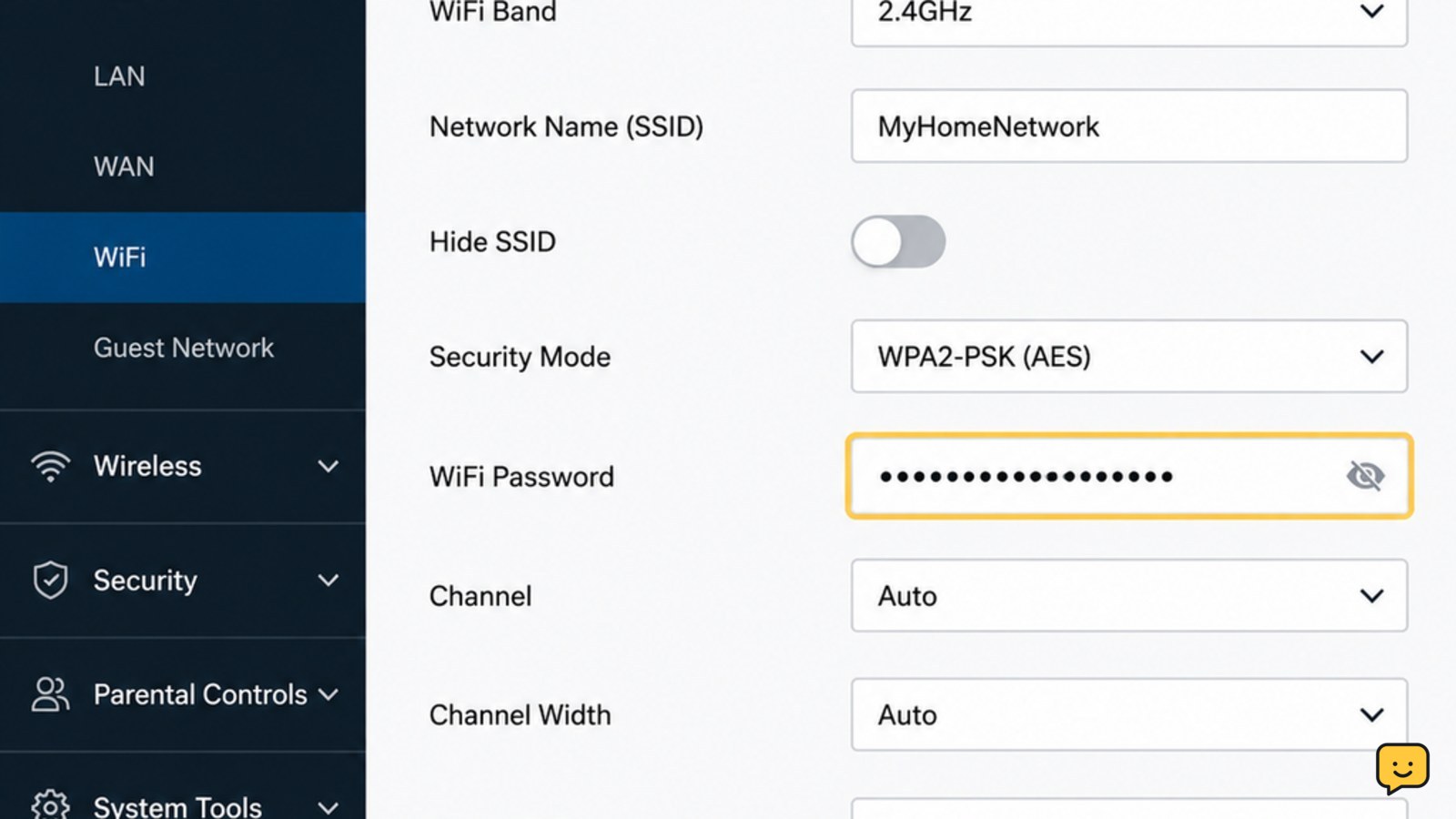
If you entered credentials, change the password for that service from its official app or by typing the known domain into the address bar. Do not use a password-reset link from the suspicious message. Create a new password that is not used anywhere else.
- Open the service directly and go to its Account, Security, or Password settings.
- Change the exposed password and save the change.
- Change the same password anywhere else it was reused, starting with email and accounts that can reset other accounts.
- If you cannot sign in, use the provider’s official account-recovery page rather than replying to the message.
ShowU’s account-security guidance recommends changing an exposed password, ending active sessions, checking account changes, and enabling MFA. If the password change succeeds, sign out and sign back in through the official service to verify that the new password works.
If the reset email or code never arrives, check the account’s other approved recovery methods. If the recovery address, phone number, or 2FA method was changed, stop trying random links and use the provider’s hacked-account route.
3. End unknown sessions and check account changes
After changing a password, review the account’s signed-in devices, active sessions, and recent security activity. Remove or sign out any device, browser, location, or session you do not recognize.
- Open the official Account or Security settings.
- Check recent sign-ins, active sessions, and connected devices.
- End unknown sessions or use the provider’s sign-out-everywhere control if available.
- Inspect the recovery email, recovery phone, 2FA methods, passkeys, forwarding rules, connected apps, and recent profile changes.
- Remove changes you did not make, then confirm the account shows only your current recovery methods and trusted devices.
An unfamiliar session that remains after sign-out is a failure signal: repeat the password change from a trusted device and start official recovery or provider support. Do not assume that changing the password alone removed every active session.
4. Check the phone or computer for downloads and extensions
Check the device that opened the link for a downloaded file, newly installed application, browser extension, changed browser settings, or unusual pop-ups. A page that opened and closed normally is different from a device that starts showing persistent or unexpected behavior.
- Open the device’s downloads list and delete files you did not request. Do not open them to inspect them.
- Review recently installed apps and browser extensions. Remove anything you did not intentionally install.
- Run the device’s available security or malware scan.
- Install pending operating-system and browser security updates from the device’s normal settings.
- Back up important personal files before making major changes, provided the device is not showing signs of active compromise.
If the scan finds a threat, the device repeatedly opens unfamiliar pages, or an unknown program cannot be removed, keep it offline and seek support from the device manufacturer, a qualified technician, or your organization’s IT team. Use a different trusted device to secure accounts while the affected device is isolated.
5. Turn on stronger sign-in protection and report the message
Enable two-factor authentication after the password and session checks are complete. Prefer an authenticator app, passkey, or security key when the service supports one; save backup codes somewhere separate from the affected device.
Verify the protection by opening the account’s security settings again and confirming that the new 2FA method is listed. If setup fails, do not disable existing protection just to finish the process. Use another approved method or the provider’s official recovery process.
Report the phishing message through the email, messaging, or social platform’s built-in report control, then delete it. If the message was sent to a work or school account, report it to the organization’s IT or security team as well. Keep the sender address, destination domain, and approximate time if support asks what happened, but do not revisit the suspicious page.
Continue checking sign-in alerts and account activity. If you see password-reset requests, unfamiliar messages, changed recovery details, or new sessions, treat the account as compromised and return to official recovery rather than communicating with the sender.
Frequently asked questions
What if I clicked the phishing link but entered nothing?
Close the page and check the device for downloads, new browser extensions, unexpected notifications, or unusual behavior. If nothing changed, update the browser and device, run the available security scan, report the message, and monitor important accounts for unfamiliar sign-ins. Do not revisit the page to test it.
Should I change my password after clicking a phishing link?
Change your password if you entered it, entered a verification code, approved a sign-in, or reused that password elsewhere. Make the change through the service’s official app or website, not through the message. If you only opened the page and entered nothing, prioritize the device check and account monitoring.
What should I do if a file downloaded from the phishing link?
Do not open the file. Disconnect the device if it shows suspicious behavior, remove the unrequested download, and run a security scan. If the file cannot be removed, the scan detects a threat, or unusual behavior continues, keep the device offline and use a different trusted device for account recovery.
Can a phishing link steal information without me typing anything?
A link can expose you to unwanted downloads or misleading sign-in pages even when you do not submit information. The risk depends on the device, browser, and what the page attempted to do. Check downloads, extensions, notifications, and device behavior; update the software and run its security scan.
What if my recovery email or 2FA method was changed?
Treat the account as compromised. Do not use recovery links from the original message. Open the provider’s official account-recovery or hacked-account page from a trusted device, follow its identity checks, and contact workplace or school IT if the account is managed.