If Valorant voice chat is not working, select your microphone and headset manually under Settings > Audio > Voice Chat, enable the appropriate voice channel, and run the Loopback Test. Then verify Windows microphone permission, the default recording device and push-to-talk bindings. If loopback works but matches remain silent, check firewall, VPN and service-status issues.
Identify which part of voice chat has failed
First determine whether the problem affects your microphone, incoming audio or one specific Valorant channel. This prevents unrelated setting changes.
- Open Valorant and enter a party with someone you trust.
- Check whether you can hear that player.
- Try speaking through party voice, then test team voice during a match.
- Watch for the in-game voice indicator while holding the assigned push-to-talk key.
If you can hear other players but they cannot hear you, focus on the input device, microphone permission and push-to-talk controls. If nobody can hear anyone, check output settings and network access. If party chat works but team chat does not, verify the team channel and its separate key binding.
Select the correct devices in Valorant
Valorant can keep using an old monitor, controller, webcam or disconnected headset even when Windows has switched to a different device.
- Open Settings in Valorant.
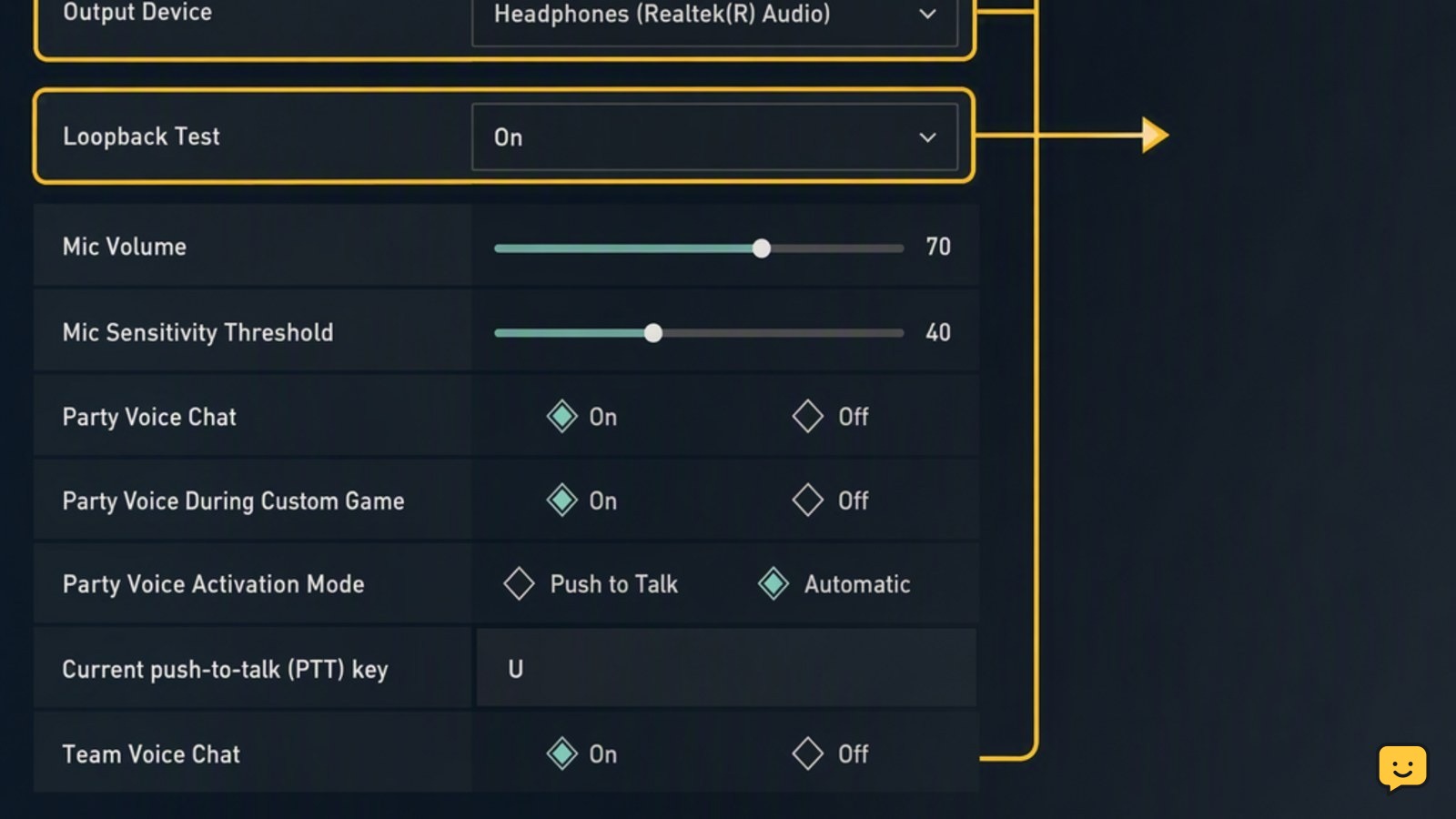
- Select Audio, followed by Voice Chat.
- Set Output Device to the headset or speakers you actually use.
- Set Input Device to your intended microphone instead of leaving the selection ambiguous.
- Confirm that Party Voice Chat and Team Voice Chat are enabled when you need those channels.
- Raise incoming, microphone and channel volume above zero.
Apply the settings and test again. If the problem began after connecting a Bluetooth headset, USB microphone or controller, restart Valorant after selecting the device.
Use the Loopback Test to check your microphone
The Loopback Test helps separate an input problem from a party, match or network problem.
- Remain on the Audio > Voice Chat settings page.
- Turn on the Loopback Test.
- Speak at your normal playing volume.
- Listen for your own voice through the selected output device.
If you hear yourself clearly, Valorant is receiving the microphone and sending the test audio to the correct output. Turn the test off and continue with channel, binding and network checks.
If you hear nothing, reselect the input device and check whether the microphone is muted. Review the microphone sensitivity threshold as well: an overly restrictive threshold can prevent normal speech from activating voice transmission.
Verify push-to-talk controls
Team and party voice may use different activation modes or bindings. A missing, conflicting or misunderstood binding can make a working microphone appear broken.
- Open Settings > Controls.
- Find the communication controls.
- Locate the current team voice and party voice push-to-talk bindings.
- Assign each action to a key that is not being intercepted by another action or application.
- Return to a party or match, hold the correct key and speak.
Check the displayed binding instead of relying on a remembered default. If party voice is configured for automatic activation, test push-to-talk temporarily to determine whether voice activation or microphone sensitivity is causing the failure.
Allow microphone access in Windows
Windows privacy controls can block desktop games from using a microphone even when the device works elsewhere.
- Open Windows Settings.
- Go to Privacy & security > Microphone.
- Enable microphone access for the device.
- Allow desktop apps to access the microphone.
- Close and reopen Valorant after changing permission.
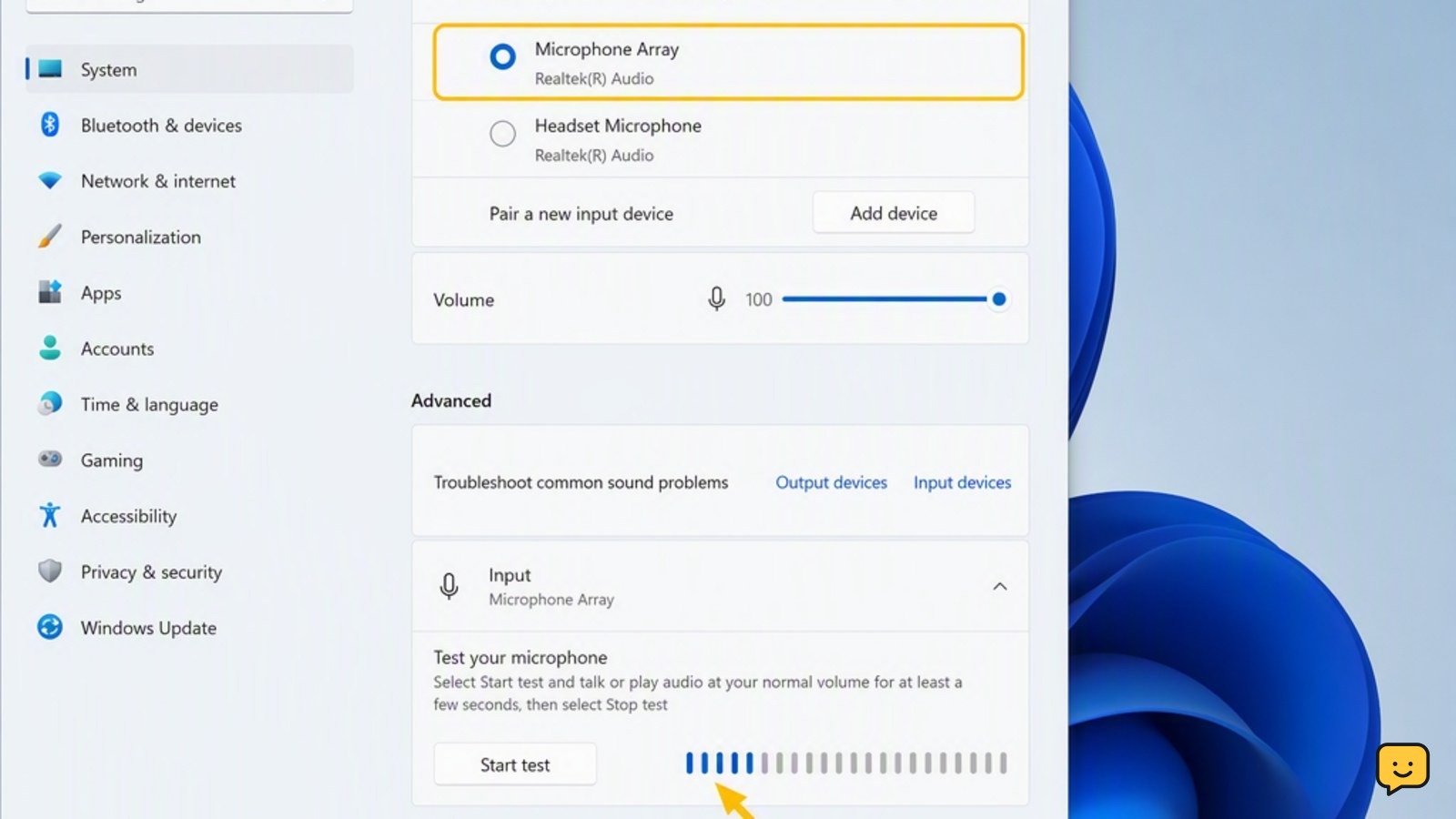
Next, open the Windows sound settings and inspect the input meter while speaking. If the meter does not move, choose the correct input device, increase its input volume and check its physical mute control.
Riot’s official troubleshooting also recommends checking the Windows recording devices and setting the primary microphone as the default device. Confirm that its recording-level indicator reacts when you speak.
Check incoming audio and player mutes
If teammates can hear you but you cannot hear them, the microphone is probably not the failed component.
- Confirm that Valorant’s output device matches the headset or speakers currently in use.
- Raise voice-chat output and incoming volume.
- Open the party or match player list and check whether individual players are muted or set extremely low.
- Check the Windows volume mixer and make sure Valorant is not muted.
- Disconnect unused audio devices, then restart the game.
Bluetooth headsets can expose separate communication and stereo playback devices. If one option produces no voice audio, test the other available headset output while keeping your normal microphone selected.
Rule out a network or voice-service failure
If loopback succeeds but party and team communication still fail, the local microphone path is working. The remaining cause may be channel configuration, blocked connectivity or a temporary service problem.
- Exit Valorant and the Riot Client completely, then restart the computer.
- Restart the router if other online services are also unstable.
- Disconnect any VPN or proxy and test on the normal connection.
- Check the Riot service-status page for Valorant incidents in your region.
- Allow Valorant and the Riot Client through Windows Firewall if they are blocked. Do not turn the firewall off.
- If possible, test briefly on another trusted connection, such as a secured mobile hotspot.
If voice works on the alternate connection, inspect the original router, firewall or network policy. School, workplace and managed networks may restrict real-time voice traffic; use a network you are authorized to manage rather than attempting to bypass those restrictions.
Finish with updates and a clean retest
After correcting the likely cause, perform one controlled test rather than changing several more settings at once.
- Install pending Valorant, Riot Client and Windows updates.
- Reconnect the chosen headset or microphone.
- Start Valorant and verify the input and output selections again.
- Run Loopback Test and confirm that you hear yourself.
- Join a party and test party voice.
- Enter a match and test team voice separately.
The issue is resolved when the Windows input meter reacts, Valorant loopback plays your voice, the transmission indicator appears, and another player confirms two-way audio.
If Windows and loopback both work but neither voice channel functions on multiple networks, collect the affected account, region, approximate failure time and troubleshooting results for Riot Support. Avoid sharing passwords, sign-in codes or other credentials.
Frequently asked questions
Why can I hear teammates in Valorant but they cannot hear me?
Your input path is likely misconfigured. Select the correct microphone under Settings > Audio > Voice Chat, run Loopback Test, and confirm that Windows shows movement on the microphone input meter. Also check the physical mute switch, microphone permission, sensitivity threshold and the current push-to-talk binding.
Why does Valorant loopback work but team voice does not?
Loopback working means Valorant can receive and play your microphone locally. Check that Team Voice Chat is enabled, use the correct team push-to-talk binding, and confirm that you are not muted in the match. If both party and team channels fail, check Riot service status, firewall access, VPN use and the network connection.
Why is party voice working but team voice not working?
Party and team voice are separate channels with separate controls. Enable Team Voice Chat in the audio settings, then inspect its current push-to-talk binding under communication controls. Test during a match, because team voice is not verified by a party-only test.
How do I know whether Windows is blocking my Valorant microphone?
Open Windows microphone privacy settings and confirm that microphone access and desktop-app access are enabled. Then open the sound input settings and speak. If the input meter moves but Valorant loopback fails, reselect that microphone inside Valorant and restart the game.
Should I reinstall Valorant to fix voice chat?
Reinstallation is usually unnecessary until device selection, loopback, Windows permission, key bindings and network access have been tested. If loopback works, reinstalling is especially unlikely to fix a channel or service problem. Contact Riot Support when the issue persists across working devices and different networks.
Browse more Valorant guides for help with this topic.