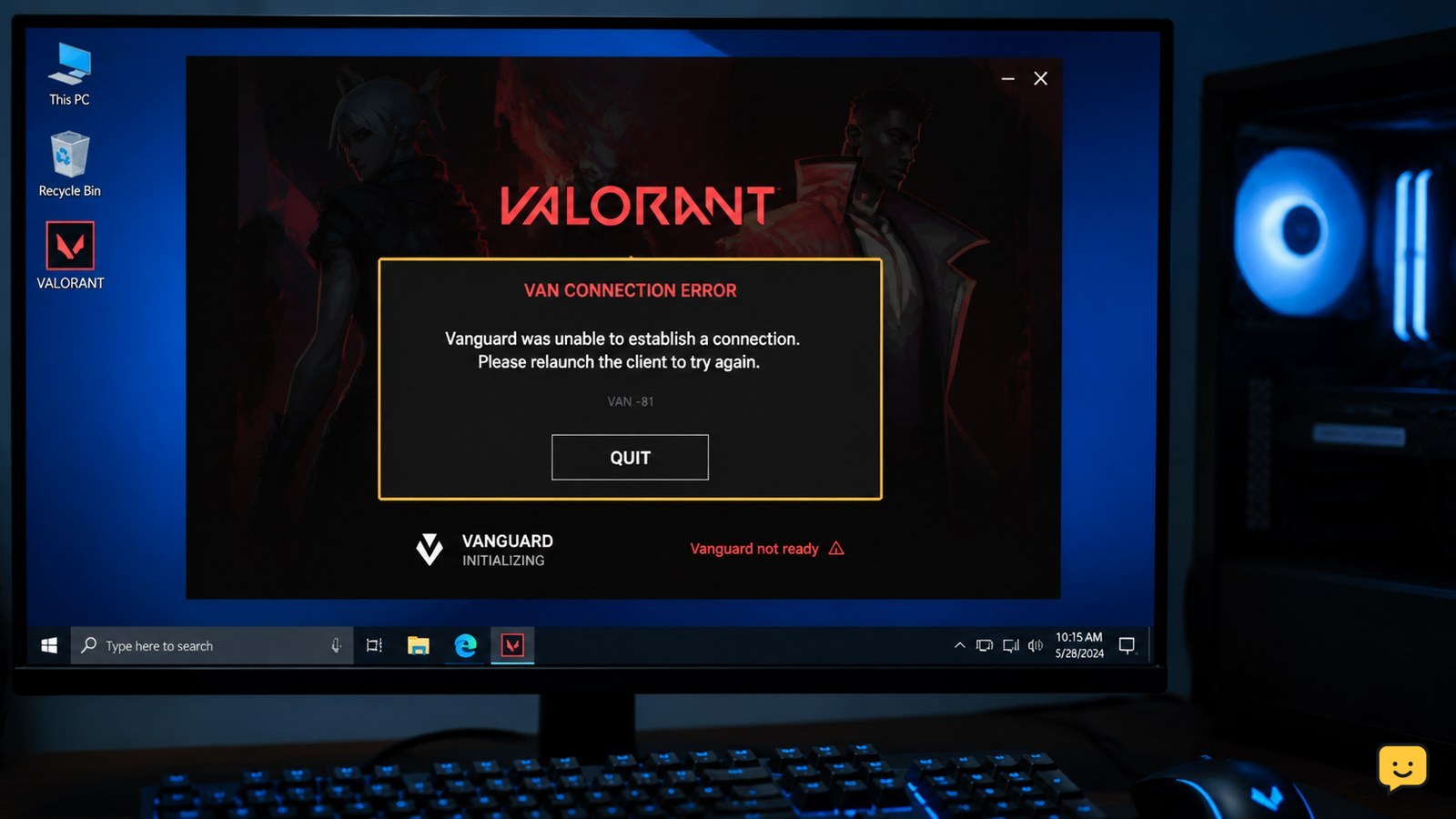
VALORANT shows a VAN connection error when Riot Vanguard cannot start correctly, stay connected, or verify that your Windows PC is ready for the game. Close VALORANT and the Riot Client, restart the PC, then test the connection without joining a match. If the error returns, record the exact VAN code and use Riot Support’s instructions for that code rather than applying unrelated fixes.
Check whether Vanguard or the network is failing
VALORANT’s VAN connection error usually points to Riot Vanguard failing a readiness, startup, or connection check rather than proving that your internet is completely offline. Riot describes VAN 0 as a failure to verify that the PC is ready or an initialization problem, while VAN -102 can mean Vanguard is not starting, staying connected, or confirming readiness.
First, separate the symptom. If VALORANT cannot reach the main menu or blocks you before matchmaking, focus on Vanguard and the Riot Client. If the game launches but shows packet loss during a match, use a network-focused diagnosis instead; that is a different failure pattern. Do not assume every VAN code has the same fix.
Restart VALORANT, Riot Client, and Windows
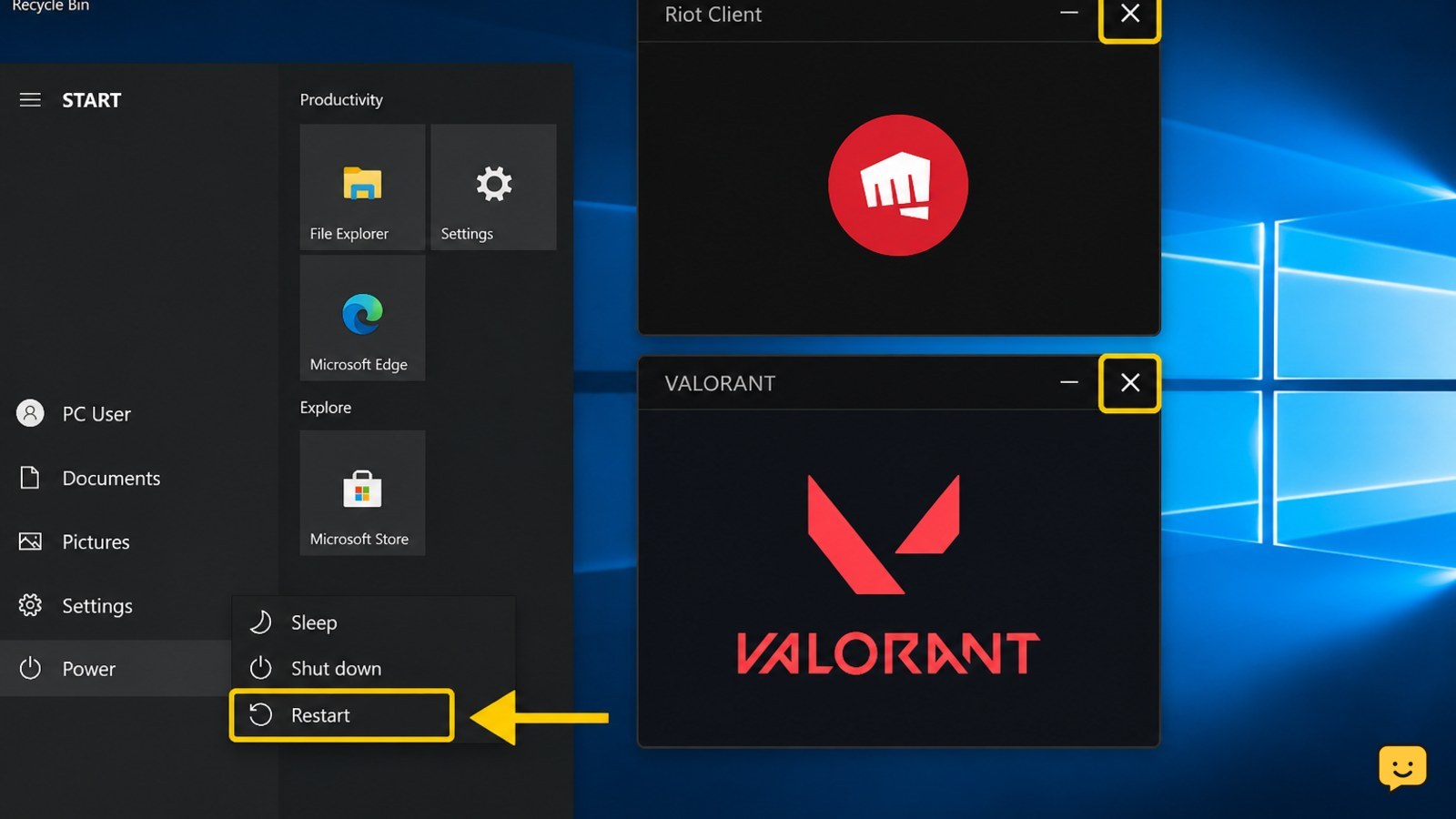
A full Windows restart is the safest first action when Vanguard has not initialized correctly. Close VALORANT and the Riot Client, then restart the PC instead of only reopening the game.
- Exit VALORANT.
- Close the Riot Client from its window and, if it remains open, exit it from the Windows notification area.
- Restart Windows.
- Open the Riot Client and launch VALORANT normally.
Verify the result at the main menu. The fix has worked if the VAN warning does not return and the game allows you to enter Practice or another non-ranked screen. If the same warning appears immediately after the restart, do not queue; continue with the network and client checks below.
Check the connection without changing security settings
Network instability can prevent the Riot Client or Vanguard from maintaining the connection it needs, especially when other devices are using the same home connection. Pause large downloads, streaming, cloud synchronization, and game updates, then try VALORANT again.
- Restart the modem or router using its normal power procedure.
- If possible, test the PC with Ethernet instead of Wi-Fi.
- If you use a VPN or proxy, disconnect it for the test.
- Try launching VALORANT while other high-bandwidth devices are idle.
Verify by reaching the main menu and remaining there briefly without the VAN message returning. If other websites also disconnect, the problem is likely broader than VALORANT and your internet provider or network administrator may be the correct next contact. For match-only packet loss, see VALORANT packet-loss checks.
Confirm the Riot Client and Vanguard state
Riot Vanguard must be able to start and remain available for VALORANT to pass its launch checks. If the Riot Client reports that Vanguard is missing, stopped, or needs a restart, follow the on-screen Riot instruction and restart Windows before testing again.
Do not randomly delete Vanguard folders, alter system security settings, or install unofficial replacement files. Those actions can create a second problem and do not identify the cause of the original VAN message. If the client repeatedly asks for the same restart, or Vanguard fails again immediately after Windows starts, move to the exact VAN-code article on Riot Games Support.
Verification requires more than seeing the launcher open: VALORANT should reach the main menu without the VAN warning. If it does not, the diagnostic path has reached its safe boundary.
Record the exact code before contacting Riot Support
Riot Support’s code-specific instructions are the correct next step when a general restart and network test do not clear the error. Capture the full VAN number, the wording beneath it, when it appears, and whether the PC restart changed anything.
- Take a screenshot of the complete warning.
- Note whether the error appears before the main menu, after login, or during matchmaking.
- Record whether Ethernet, router restart, or closing other network activity changed the result.
- Submit those details through Riot Games Support and use the instructions for the exact code shown.
Stop before ranked play if the warning remains. Repeated launch attempts are unlikely to make an uninitialized Vanguard state safe for a competitive match, and leaving a match after a failed launch can create avoidable account or queue consequences.
Frequently asked questions
Can a VAN connection error be caused by Wi-Fi?
Yes, an unstable or overloaded Wi-Fi connection can interfere with the Riot Client or Vanguard connection. Test after pausing downloads, restarting the router, and using Ethernet if available. If VALORANT fails before the main menu even on a stable connection, focus on Vanguard startup rather than treating the issue as ordinary packet loss.
Should I reinstall VALORANT for a VAN error?
Not as the first step. A VAN warning can result from Vanguard initialization or connection problems, so restarting Windows and checking the network is safer and more informative. If Riot Support’s instructions for your exact VAN code recommend reinstalling or repairing a component, follow that current procedure instead of deleting files manually.
Why does VALORANT keep asking me to restart my PC?
Repeated restart requests usually mean Vanguard is still not completing its startup or readiness check. Restart Windows once after fully closing the Riot Client. If the same request returns, stop repeated launch attempts, record the exact message, and use Riot Support’s code-specific guidance. A managed PC may also require an administrator or IT staff member.