Valorant error or not opening?
If Valorant shows an error or will not launch, record the exact code first. With no code, fully close Riot Client and VALORANT processes, restart Windows, confirm the Vanguard vgc service is running, and test one clean launch as administrator. If you still can’t launch Valorant, use the symptom and code groups below to choose the matching fix instead of reinstalling everything immediately.
This guide also covers the broad “can’t play Valorant” symptom when the cause is a launch, Vanguard, connection, update or crash error. Start with the visible code or the last screen reached. Browse the Valorant guides for a more specific walkthrough once you identify the failure.
Start with the exact code or visible symptom, then match it to Vanguard, connection and platform, update and login, or crash and launch troubleshooting. Restart the Riot Client and PC only after recording the message. Do not reinstall Valorant or Vanguard until the error category and official guidance point there, because different failures need different checks.
Record the exact Valorant error before changing anything
Read the complete message rather than searching only for the word “error.” Record capitalization and punctuation in codes such as VAN errors, the full wording of connection messages, and whether the problem appears before login, after pressing Play, while joining a match, or during gameplay.
Take a screenshot if the message disappears quickly. Also record your Windows version, whether the Riot Client updated immediately before the failure, and whether other online services work. This separates a local launch problem from a wider service or network problem.
Verify: close the message, reopen Valorant once, and check whether the same code returns. If the code changes, record both codes instead of treating them as one issue.
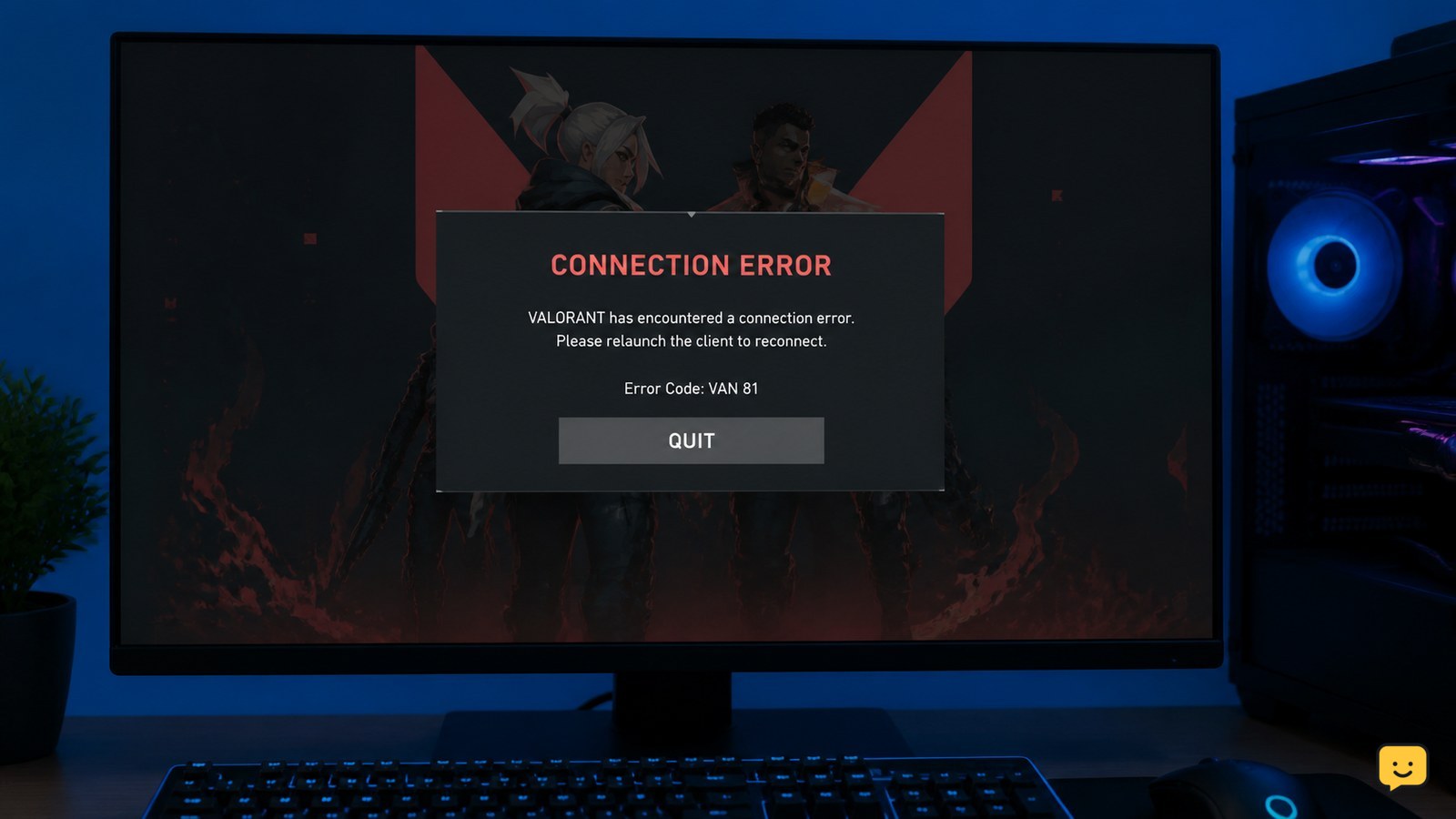
Choose the correct Valorant error category
| Visible code or symptom | Likely route | First safe checks | Do not do yet |
|---|---|---|---|
| VAN code, Vanguard warning, or “Vanguard not initialized” | Riot Vanguard and Windows security | Restart the PC, confirm Vanguard is present, and use the exact Riot Support article for the code. | Do not change BIOS or uninstall software without code-specific guidance. |
| Restriction, TPM, Secure Boot, or hardware-security message | Vanguard restriction and PC security requirements | Record the wording and check official Riot requirements for your Windows configuration. | Do not attempt to evade the restriction or make blind firmware changes. |
| Connection, queue, server, or party failure | Network, platform, or Riot service status | Check whether other services work, restart the Riot Client, and test again after confirming the service is available. | Do not reinstall the game for a temporary network failure. |
| Patch stuck, update failed, login loop, or account sign-in error | Riot Client update or account access | Capture the message, restart the client, and check whether the client can complete its update. | Do not repeatedly enter credentials or share them with anyone. |
| Crash, black screen, freeze, or failure to launch | Game files, drivers, Windows, or conflicting software | Use Riot’s crash troubleshooting route and note whether the Riot Client remains open. | Do not assume every crash is a Vanguard problem. |
This is a routing table, not a complete code list. Riot can add, retire, or change error codes, so the visible code and current official explanation take priority over an old list.
Fix VAN and Vanguard errors without guessing
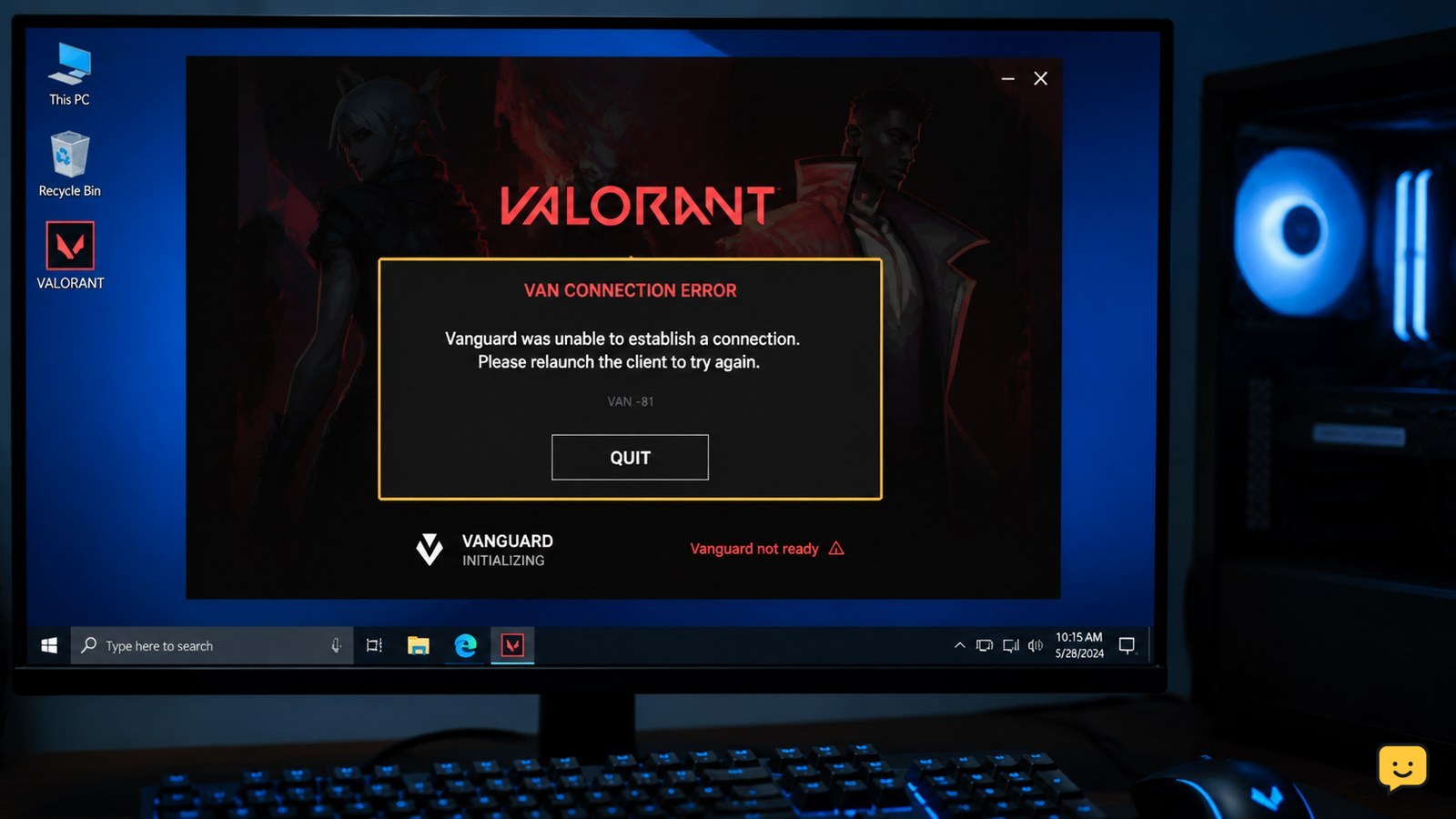
VAN errors identify a Vanguard or system-readiness path, but they are not interchangeable. Riot describes VAN 0 as a failure to verify that the PC is ready to run Valorant or an initialization problem. Other VAN codes can require different checks.
- Write down the full VAN code and message.
- Restart Windows, not only the game window, then open the Riot Client again.
- Check whether the same code returns before launching a match.
- Follow the current Riot Support instructions for that exact code.
For a known VAN 1067 message, use a code-specific walkthrough rather than applying a generic reinstall. If the warning mentions a restriction, TPM, or Secure Boot, treat it as a security-requirement issue and verify the requirement for your PC before changing firmware settings. If Vanguard is not initialized, route it to Vanguard initialization checks.
Failure path: if a restart does not change the code, capture the new screenshot and stop repeating restarts. Continuing with unrelated driver, BIOS, or registry changes can make the cause harder to identify.
Separate connection, platform, update, and login failures
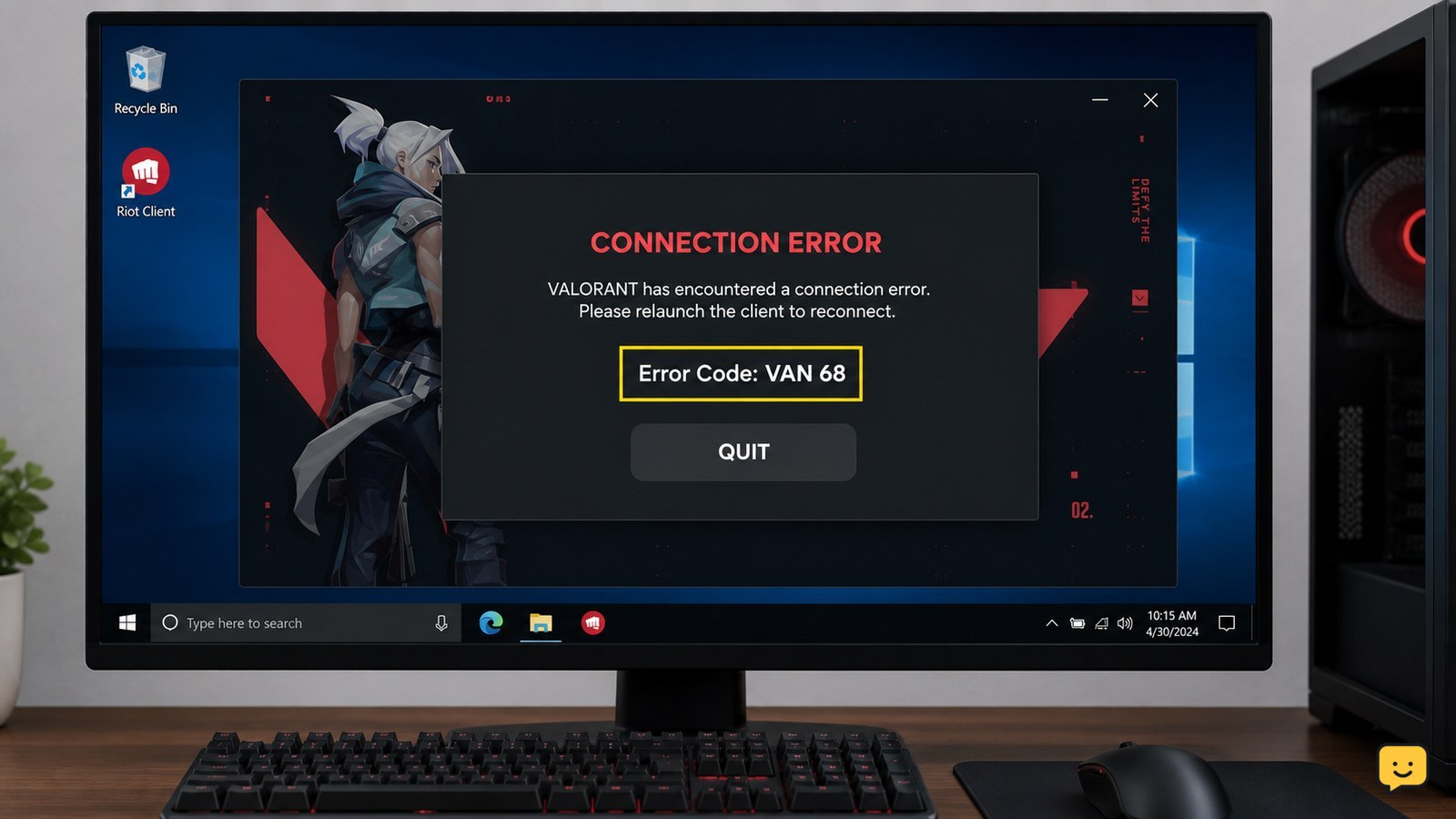
A connection or queue message does not prove that Valorant’s files are damaged. First check whether the Riot Client loads normally, whether other online services work, and whether the problem affects one account, one party, or every attempt. Restart the Riot Client once after recording the message.
For an update or login loop, note whether the client is downloading, verifying, reopening, or returning to the sign-in screen. A client that cannot finish an update belongs on the update path; a client that signs in but cannot join a match belongs on the connection or service path.
Verify: after the safe restart, the expected result is a completed client login and a stable Play button. If the same message returns, check current Riot service information and use the official support route. Do not repeatedly submit passwords, and never provide a password or verification code to someone offering a fix.
Troubleshoot crashes and launch symptoms as a separate path
Riot’s crash guidance covers failures such as driver crashes, input devices failing to register, and sound cutting out. That means a crash or mid-game failure should not automatically be treated as a VAN error.
- Record whether Valorant crashes before the menu, during loading, or during a match.
- Note what fails with it: the whole PC, the game window, sound, keyboard, or mouse.
- Use Riot’s current crash-troubleshooting page for the matching symptom.
- Test only after the client opens normally and the original symptom is reproducible.
If the game launches but shows a display symptom rather than an error message, use the symptom-specific route. For example, screen tearing is a graphics-settings problem, while a missing crosshair is an in-game settings problem. Reinstalling is not the first response to either symptom.
Failure path: if the crash persists after the relevant official checks, preserve screenshots and any available crash details, then contact Riot Support rather than stacking unrelated fixes.
Know when reinstalling is justified
Reinstalling Valorant or Vanguard is a later recovery step, not a universal answer. Consider it only when the exact Riot guidance recommends it, the client or Vanguard installation is clearly damaged, or the same local failure survives the category-specific checks.
Before uninstalling, record the error again and confirm that the problem is not a service outage, account restriction, connection failure, or security requirement. After reinstalling, verify the actual result: the Riot Client should complete installation, Vanguard should initialize when required, and Valorant should reach the main menu without the original code.
If the original error returns immediately after a reinstall, stop. The persistence is useful evidence that the problem may involve Windows security, account status, drivers, or Riot services rather than missing game files.
Prepare a useful Riot Support report
Include the exact code and message, a screenshot, your Windows version, the Riot Client and Valorant version if shown, when the issue began, what changed beforehand, and the result of each safe check. State whether the failure is repeatable and whether it affects launch, login, queue, or gameplay.
For Vanguard or security messages, include the wording exactly and describe any recent Windows, BIOS, hardware, or security-setting change. Do not include your password, authentication codes, recovery codes, or other secret account information.
A clear report helps support route the problem without assuming that every Valorant error has the same cause.
Frequently asked questions
Should I reinstall Valorant for every error code?
No. Reinstalling is not a universal fix. First identify whether the message concerns Vanguard, connection, login, updates, or a crash. Reinstall only when the exact Riot guidance recommends it or when the installation is clearly damaged. If the same code returns immediately afterward, stop repeating the install and report the result to Riot Support.
What does a VAN error mean in Valorant?
A VAN error routes you toward Riot Vanguard or the PC’s readiness for protected play, but each code can have different requirements. Record the complete code and message, restart Windows once, and follow the current Riot Support instructions for that code. Do not assume that VAN 0, VAN 1067, a restriction warning, and an initialization failure use the same fix.
How do I tell whether a Valorant error is a connection problem?
Look for a failure involving the queue, server, party, or match connection while the Riot Client and game otherwise open normally. Check whether other online services work and whether the issue affects one party or every attempt. Restart the client once after recording the message. If the service is unavailable, local reinstalls will not resolve the outage.
What should I do if Valorant says Vanguard is not initialized?
Treat it as a Vanguard initialization issue, not as a generic game crash. Record the exact message, restart Windows, and check the current Riot Support instructions for Vanguard initialization. If the message returns, preserve the screenshot and stop before changing BIOS, TPM, Secure Boot, or registry settings without verified guidance.
What information does Riot Support need for a Valorant error?
Provide the exact code and wording, a screenshot, Windows version, client or game version when visible, when the issue began, what changed beforehand, and the result of each check. Explain whether it occurs at login, launch, queue, or during a match. Never include passwords, authentication codes, or recovery codes.