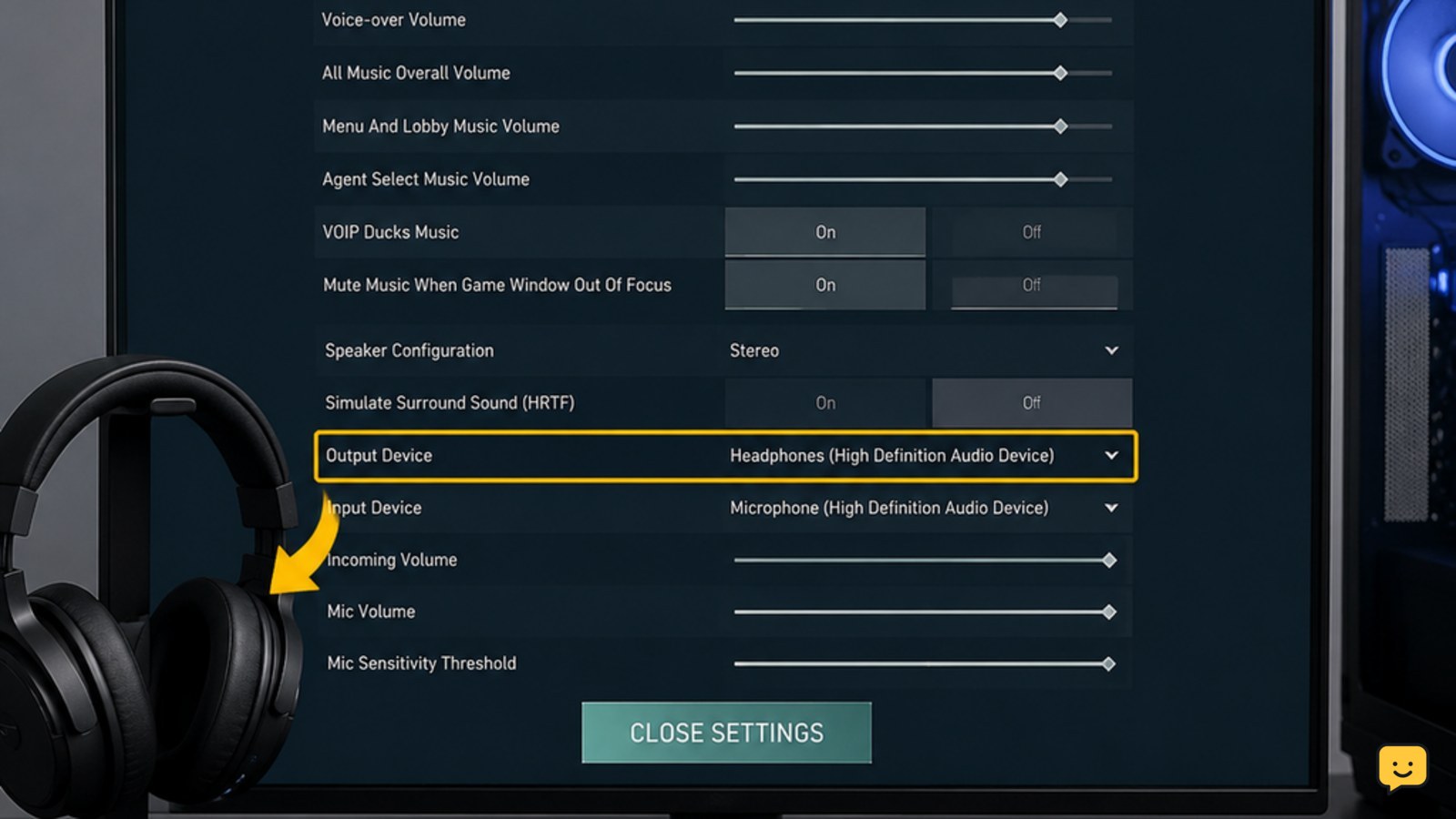
If VALORANT has no game sound in your headphones, first confirm that Windows is sending audio to the headset and that the headset is not muted. Then open VALORANT’s Settings > Audio > Device Settings and select the same headphones. Apply the change, test a non-ranked mode, and only continue if the selected device produces no sound.
Check whether Windows is sending sound to the headphones
Start outside VALORANT so you can separate a game setting from a Windows or headset problem. Play any familiar sound, then open the Windows sound controls and confirm that the headphones are the active output device.
- Make sure the headset cable, USB connection, or wireless connection is secure.
- Check the physical mute switch and the headset volume wheel or buttons.
- Open the Windows output-device list and choose the headphones by their actual device name.
- Raise the Windows volume enough to hear a normal system sound.
Verify: You should hear Windows audio through the headphones. If you do not, VALORANT cannot fix the problem yet. Reconnect the headset or select another available output, then test again. If the headset fails in every application, continue with Windows or hardware troubleshooting rather than changing more VALORANT settings.
Select the headphones in VALORANT Audio settings
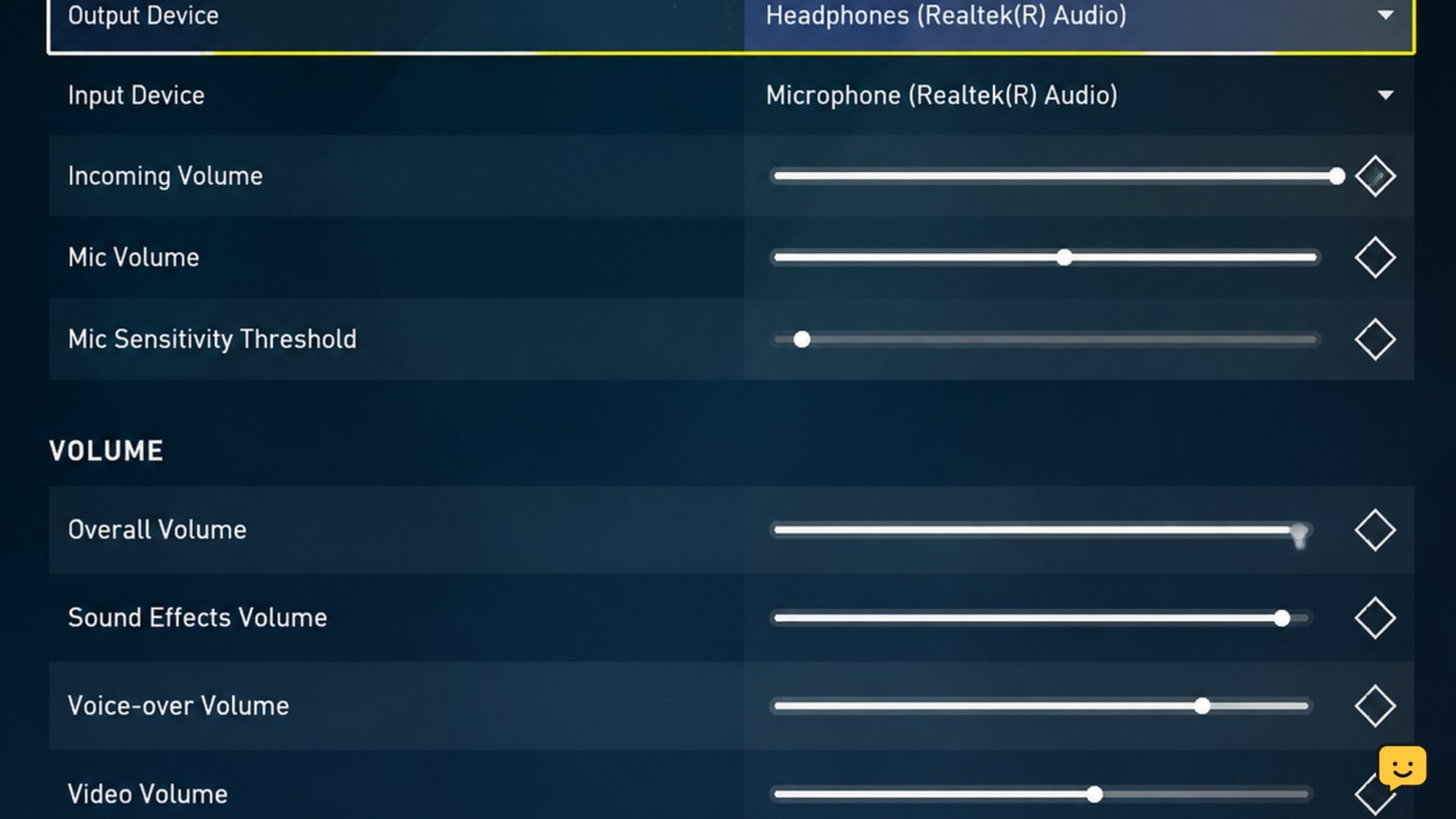
VALORANT can use a different output from the one currently selected by Windows. With the headphones connected, open Settings > Audio > Device Settings and inspect the output device.
- Launch VALORANT and open the Settings menu.
- Choose the Audio section.
- Open Device Settings and find the output or playback-device selector.
- Select the headphones, not the monitor, speakers, controller, or a disconnected device.
- Apply or close the settings, then listen for in-game audio.
Use the device name shown by Windows rather than guessing from a generic label. If the headphones are not listed, close the game, reconnect the headset, confirm that Windows detects it, and open VALORANT again.
Verify: The selected VALORANT device should match the headphones that passed the Windows sound test. Test in the Practice Range before joining a match.
Check VALORANT volume and headset mute states
If the correct device is selected but the game remains silent, check the volume controls that can suppress output without changing the device.
- In VALORANT’s Audio settings, confirm that the master or overall game volume is not at zero.
- Check the individual sound categories if only effects, music, or voice audio is missing.
- Confirm that the headset itself is not muted and that its volume is above the minimum.
- Check Windows volume controls for VALORANT while the game is open, if the game has its own app-level volume entry.
Use the symptom as a guide: If no VALORANT sound works, focus on the selected output and master volume. If only one category is missing, inspect that category before changing devices. If voice chat works but effects do not, the output path is probably active and the missing category is more likely muted or set too low.
Do not raise volume to an uncomfortable level as a test. A clear, moderate sound is enough to confirm the route.
Reconnect the device and repeat the audio selection
Some headsets change their Windows device entry when they reconnect, switch between wireless modes, or move between USB ports. That can leave VALORANT pointing at an older or inactive entry.
- Exit VALORANT completely.
- Reconnect the headphones or select their normal wireless mode.
- Play a Windows test sound and confirm that the headset works again.
- Start VALORANT and return to Settings > Audio > Device Settings.
- Select the currently listed headphones again and test in the Practice Range.
If sound returns after this sequence, the issue was a stale or mismatched device selection. Keep the same connection method during your next match. If the headset disappears from Windows or repeatedly changes names, the problem is outside the game and may involve the connection, headset software, or device driver.
What to do if VALORANT still has no headphone sound
Use one controlled comparison instead of changing several settings at once. Test VALORANT with another known-working output device, then switch back to the headphones.
- Another device works: VALORANT is producing audio, so inspect the headphones, their connection, and the Windows device route.
- No output device works: Recheck VALORANT’s audio volumes, restart the game, and repeat the Windows output test.
- Windows audio also fails: Stop troubleshooting VALORANT and repair the system output or headset connection first.
Only return to ranked play after you can hear a repeatable in-game sound through the intended headphones. If the problem began after an update or persists across multiple working devices, use Riot Support with the device names and the exact test result; do not delete unrelated account or configuration data as a first step.
Frequently asked questions
Why can I hear other apps but not VALORANT?
VALORANT may be using a different output device or an app-specific volume level. Confirm the headphones are active in Windows, then select the same device in VALORANT under Settings > Audio > Device Settings. Check VALORANT’s master and category volumes while the game is open.
What should I do if my headphones are not listed in VALORANT?
Close VALORANT, reconnect the headset, and confirm that Windows detects it and can play sound through it. Start the game again and reopen Settings > Audio > Device Settings. If Windows never lists the headphones, troubleshoot the connection or headset before changing game settings.
Can voice chat work when game sound does not?
Yes. Voice chat and game effects can use separate volume categories, so working voice chat does not prove that every game-audio channel is enabled. Check the master volume and the individual effects, music, and voice controls in VALORANT.
Should I test the fix in a ranked match?
No. Use the Practice Range or another non-ranked test first. Confirm that you can hear a clear in-game sound through the intended headphones before entering ranked play. If audio remains unreliable, keep troubleshooting outside a live match.
Browse more Valorant guides for help with this topic.