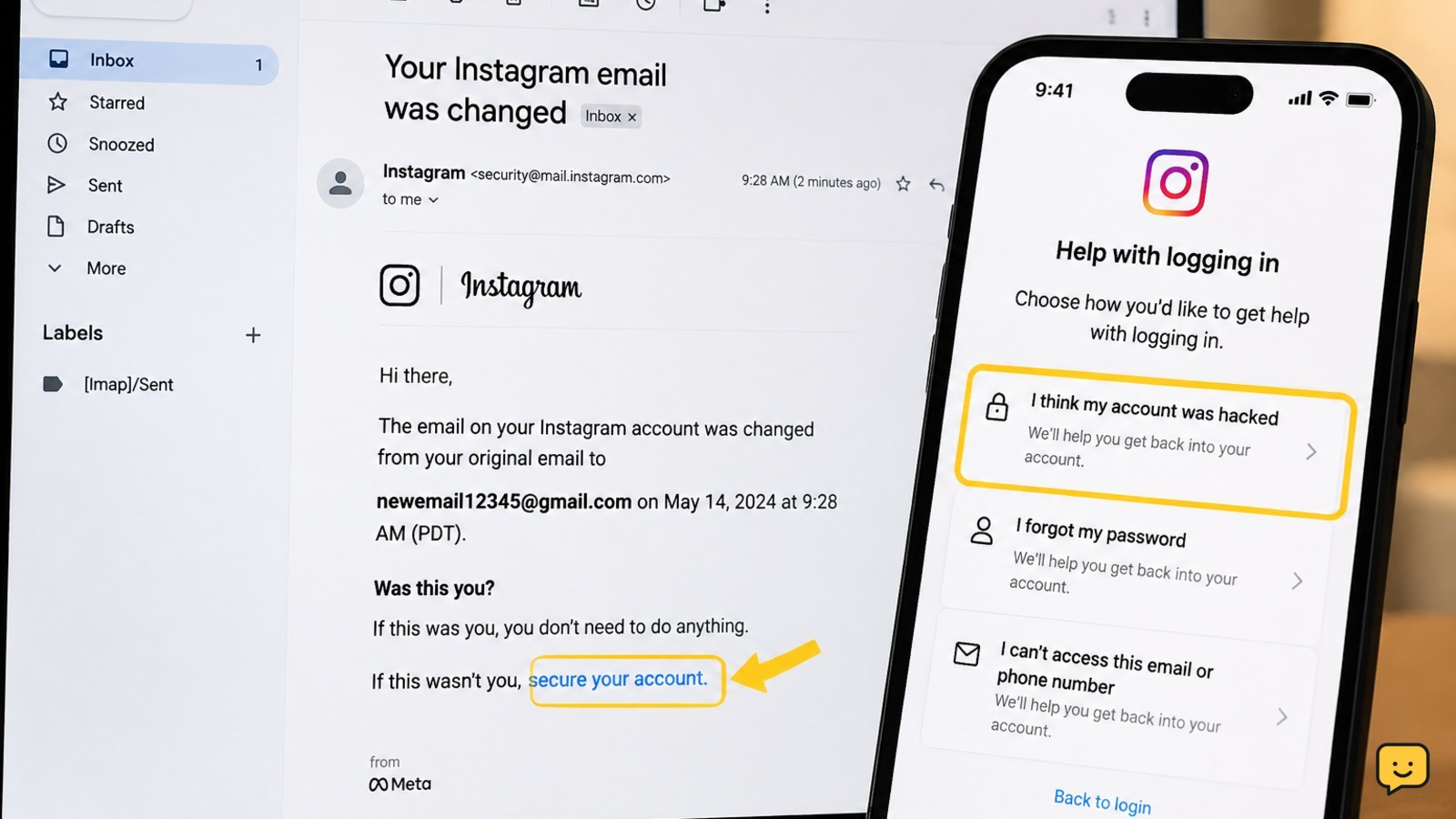
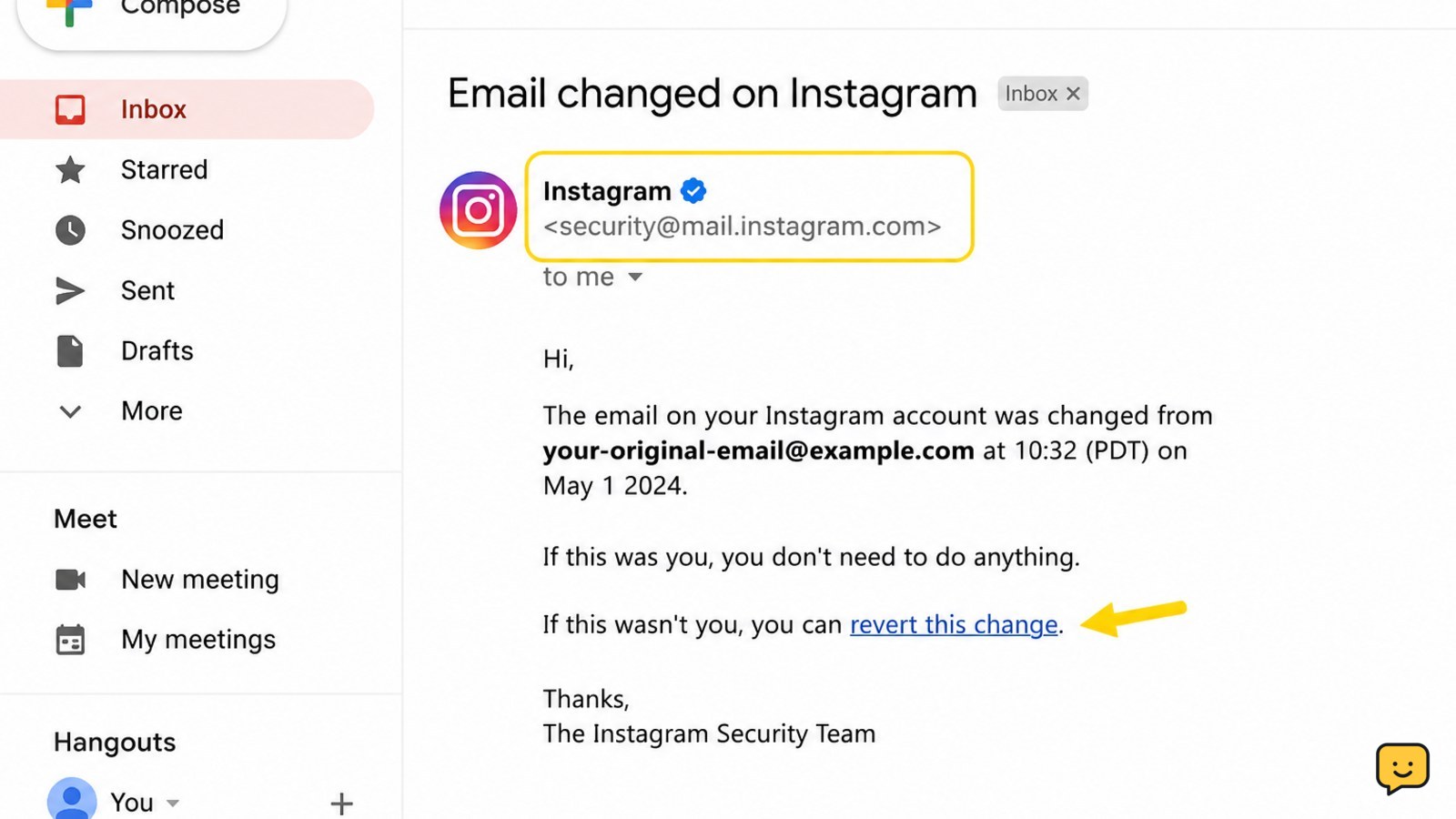
If someone changed your Instagram email, search your original inbox for an email from [email protected]. If it says the email address was changed, use its special link to reverse the change. If that link is unavailable or expired, open Instagram’s official hacked-account recovery page at instagram.com/hacked and follow the account-access instructions in the app.
1. Check the original inbox for Instagram’s reversal email
Instagram says the email about an address change comes from [email protected] and includes a special link that can reverse the change and help secure the account. Search the original mailbox for messages from that address, using terms such as “email address changed” or “Instagram.” Check Spam, Junk, Trash, and filtered folders.
- Open the message only if the sender and destination look legitimate.
- Read the message for wording that confirms the email address was changed.
- Select the link or button that says the change was not made by you, or otherwise reverses the email change.
- Complete the security prompts without sharing any code with another person.
Verify: the link should return you to Instagram or an official Instagram help page, not a chat account, payment page, or unrelated website. If the reversal succeeds, try signing in with your previous credentials and continue to the security checks below.
If it fails: the message may be old, the link may have expired, or the attacker may have changed additional details. Move to the official hacked-account route instead of searching for a third-party recovery service.
2. Start recovery through Instagram’s hacked-account page
Use Instagram’s official hacked-account support route at instagram.com/hacked. Instagram identifies this page as a support route for hacked or disabled account access and may direct you to continue in the Instagram app.
- Open the address by typing it yourself or by using Instagram’s Help Center.
- Choose the option that matches an account being hacked or accessed without permission.
- Enter the username, original email address, or phone number associated with the account when requested.
- Follow the current recovery instructions, which may include confirming account details or completing an identity check.
Use accurate information that matches the account’s history. If Instagram asks for a contact email, use a mailbox you control and have secured. Keep the recovery request focused on the unauthorized email change and any other changes you can document.
Verify: save the confirmation screen or reference information if Instagram provides it. Check the contact mailbox regularly, including its filtered folders, for a response from an official Instagram address.
3. Use a familiar device and provide consistent account details
Recovery can be more difficult when the request comes from a new device, unusual location, or unfamiliar network. If possible, use the phone, browser, and connection previously used for the account. This does not bypass Instagram’s checks; it simply keeps your recovery attempt consistent with your normal account activity.
- Use the Instagram app or a current browser from a device you previously used.
- Enter the account’s correct username, original email, and former phone number where the form permits.
- Describe the unauthorized changes briefly and accurately.
- Complete only the verification steps presented by Instagram.
Do not guess repeatedly or submit information belonging to another person. If the account has personal photographs or other information Instagram requests for verification, follow the in-app instructions and submit documents only through the official process.
If the form loops: close extra Instagram tabs, update the official app, try the same familiar device again, and reopen the hacked-account route. If Instagram displays a security checkpoint loop, use the dedicated Instagram security checkpoint guide for safe troubleshooting.
4. Secure your email account before and after Instagram recovery
Your email account can be the recovery path for Instagram, so protect it before requesting more links. Change the email password to a unique one, enable two-factor authentication, and review recent sign-ins and recovery options. Remove unfamiliar forwarding addresses, filters, or connected applications.
- Sign in to your email provider directly, not through a link in a suspicious message.
- Change the email password if it was reused anywhere else.
- End unfamiliar email sessions and remove unknown devices.
- Check forwarding and filtering settings for changes you did not make.
Verify: send a test message to the mailbox and confirm that it arrives in the expected inbox. If you cannot secure the mailbox, use another safe contact address in Instagram’s recovery process and continue recovering the email account through its provider.
5. Lock down Instagram after you regain access
Recovery is not complete when you can sign in. Immediately inspect the account and remove changes made by the intruder.
- Change the Instagram password to a new, unique password that has not been used elsewhere.
- Review the account’s email address and phone number and replace unfamiliar details.
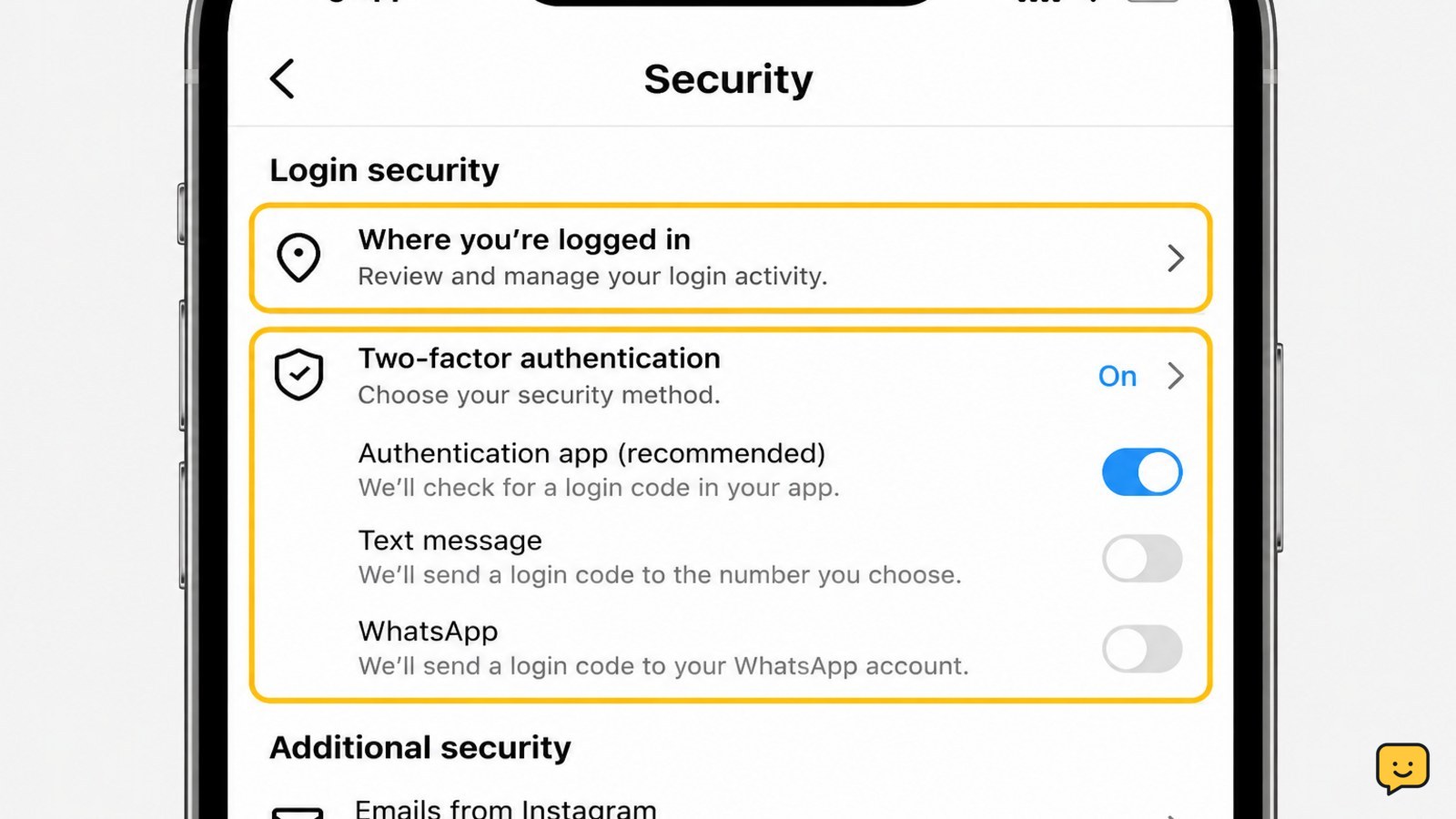
- Open the account’s login activity or sessions area and sign out devices or locations you do not recognize.
- Enable two-factor authentication with an authenticator app or another method Instagram supports.
- Review connected apps, shared access, profile details, posts, stories, messages, and payment information for unauthorized changes.
Tell contacts not to trust unusual messages, investment requests, links, or payment requests sent from the account during the compromise. Remove unauthorized posts and report suspicious activity through Instagram’s official tools.
Verify: sign out of the recovered account on the test device, sign back in with the new password, complete two-factor authentication, and confirm that the recovery email and phone are yours. If an unknown session returns, change the password again, secure the email account, and stop using any connected service that may still have access.
How to recognize Instagram recovery scams
People who lose an account often receive messages from supposed “Instagram agents,” account brokers, or recovery specialists. These contacts are not a substitute for Instagram’s official recovery process.
- Instagram recovery should begin through the official app, Instagram Help Center, or instagram.com/hacked.
- Do not pay someone who promises guaranteed recovery.
- Do not send a password, login code, backup code, or screenshot of a security email.
- Do not install remote-access software or allow another person to control your device.
- Check the address bar before entering any information; a similar-looking domain can be a phishing site.
Stop: if a supposed helper asks you to forward a security email or approve an unfamiliar login, end the conversation and report the account.
Frequently asked questions
Can I recover Instagram if the hacker changed my email and password?
Yes, start with Instagram’s official hacked-account recovery route at instagram.com/hacked. Also search your original inbox for the security email about the address change, because its special reversal link may restore the previous email connection. Use a familiar device where possible and provide consistent account details. Do not use paid recovery services or share login codes.
What email does Instagram use when the account email changes?
Instagram’s help information identifies [email protected] as the sender for the email-change notice. Check the original mailbox, including Spam and filtered folders. Before selecting anything, confirm that the link leads to Instagram or an official Instagram help page. If the sender or destination looks different, do not open the link.
What if the Instagram email-change reversal link does not work?
Use the official hacked-account page at instagram.com/hacked instead. The reversal link may be expired, or the intruder may have changed other account details. Try the recovery process from a familiar device and use accurate former account information. If Instagram shows a checkpoint loop, follow its current in-app instructions rather than repeatedly submitting random details.
How do I stop the hacker from getting back into Instagram?
Secure the email account first, then change Instagram’s password, replace unfamiliar recovery details, sign out unknown sessions, remove suspicious connected apps, and enable two-factor authentication. Review posts, messages, and payment details for misuse. If an unfamiliar session returns, repeat the password and session checks and stop using any connected service you do not recognize.
Does Instagram support recovery by direct message?
Do not rely on unsolicited direct messages claiming to be Instagram support. Begin recovery inside the official Instagram app, through the Instagram Help Center, or at instagram.com/hacked. Treat requests for payment, passwords, login codes, identity documents outside the official flow, or remote device access as warning signs.
Browse more Access & Recovery guides for help with this topic.


