Open the platform’s Privacy or Account settings and restrict who can add you to groups to the most limited available choice, such as contacts or approved people. Also tighten message requests, block the sender, leave the current chat, and report repeated abuse. Menu names differ, so verify the change by checking the saved setting.
Check which control is creating the invitation
Social media group invitations usually come from a group privacy control, a message-request control, or an account-discoverability setting. Check each area instead of changing only notification preferences; muting an alert can hide the invitation without preventing the stranger from adding you.
- Open the app’s profile, account, or menu screen.
- Look for Privacy, Messages, Groups, Invitations, or Account visibility.
- Identify whether the setting controls who may add you directly, who may send requests, or who may find you by phone number, email address, or username.
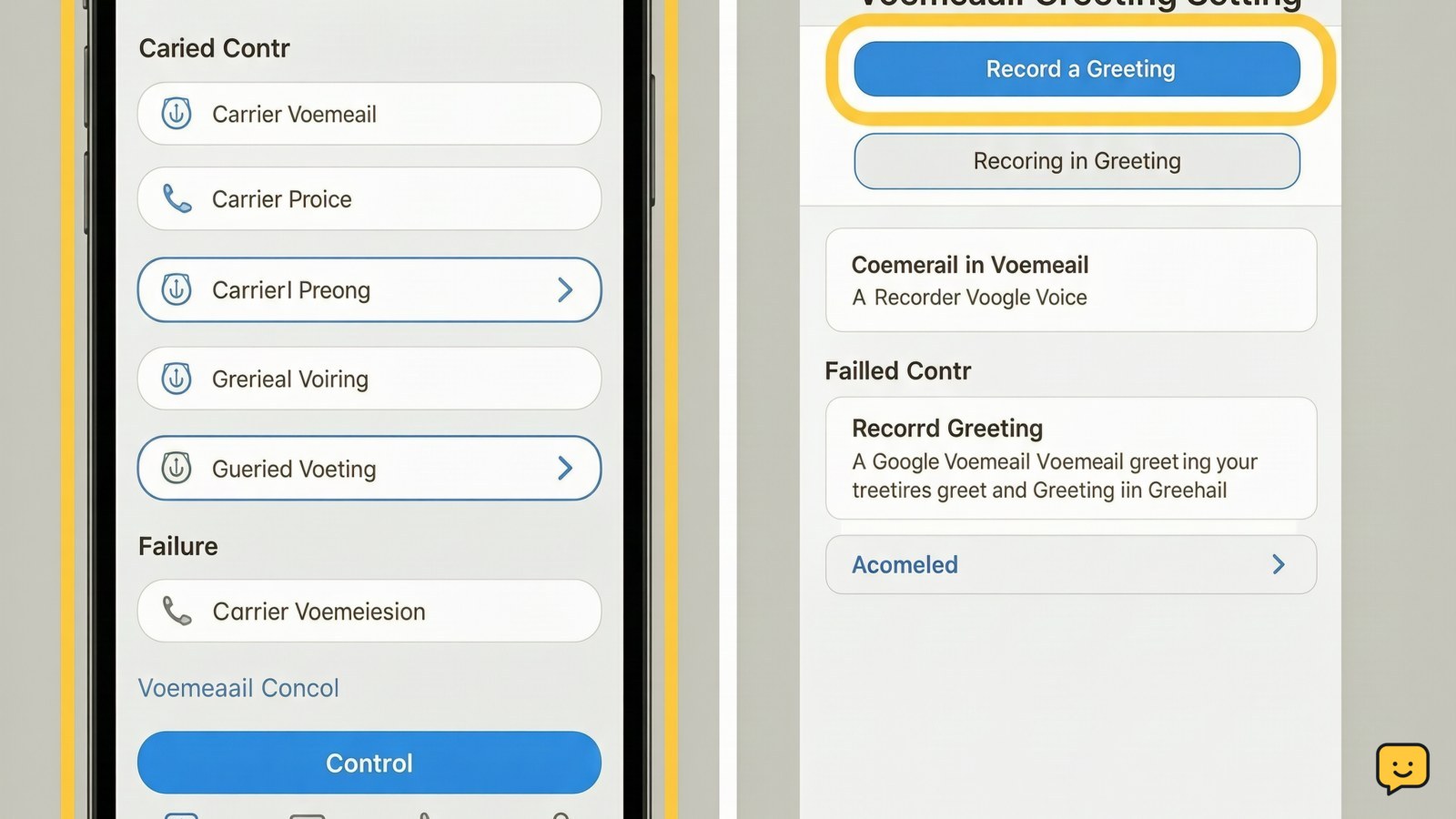
The supplied WhatsApp reference describes a Settings > Privacy > Groups path, but the referenced page could not be independently verified. Treat that path and its labels as version-dependent rather than as a universal menu.
Restrict who can add you to groups
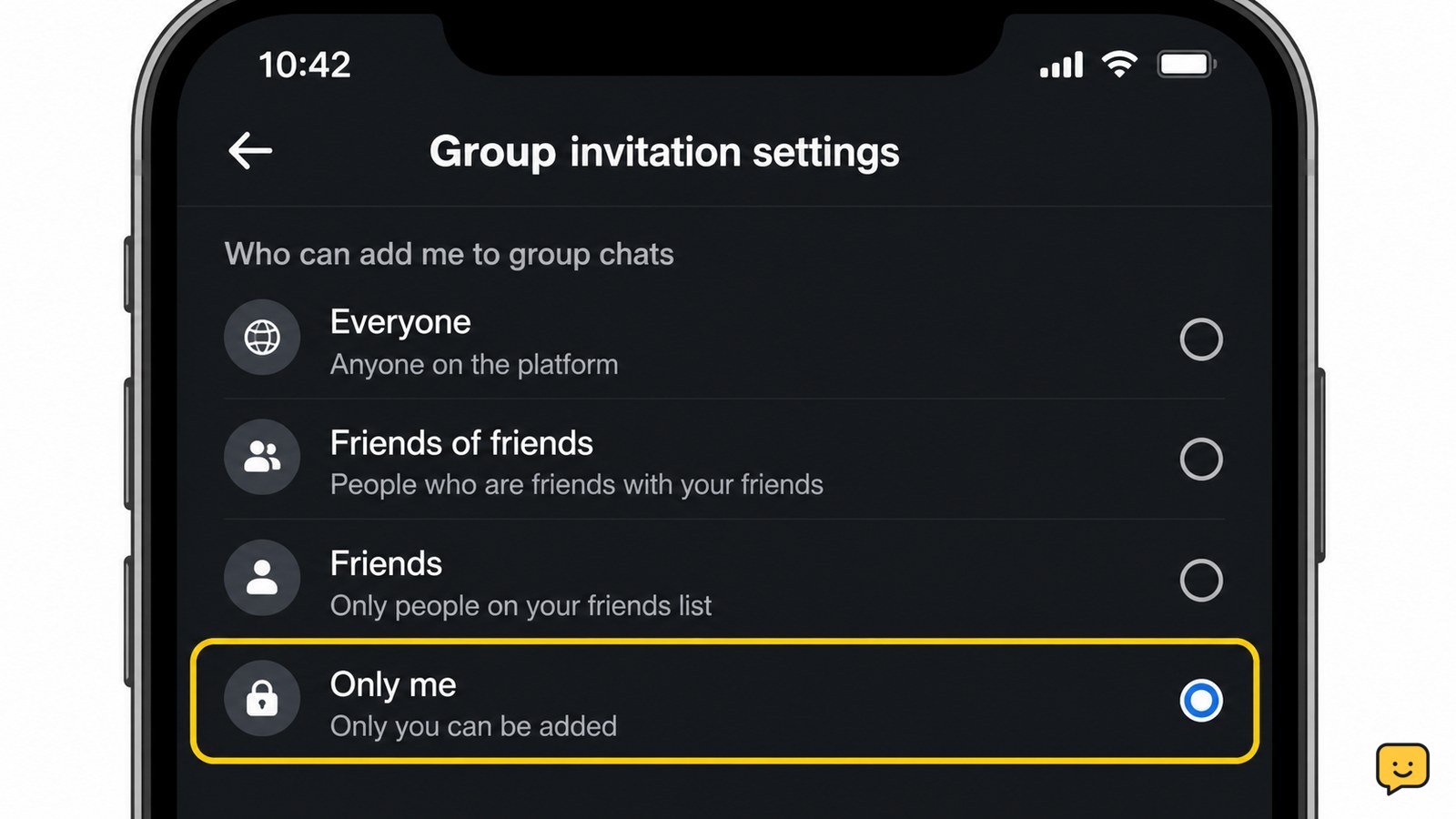
The group privacy setting is the primary control for stopping strangers from adding your account to new group chats. Choose the most restrictive available option, such as contacts, approved people, or an approval step, instead of an option that allows anyone.
- Open Privacy or Account settings.
- Select Groups, Group invitations, or a similarly named control.
- Change the audience from the broadest choice to the narrowest choice that still works for you.
- Save the change if the platform uses a separate Save or Confirm button.
Success means the selected restricted audience remains visible after you close and reopen the setting. If no group control exists, continue with message restrictions and discoverability controls; some services may not provide a complete prevention option.
Limit message requests and account discovery
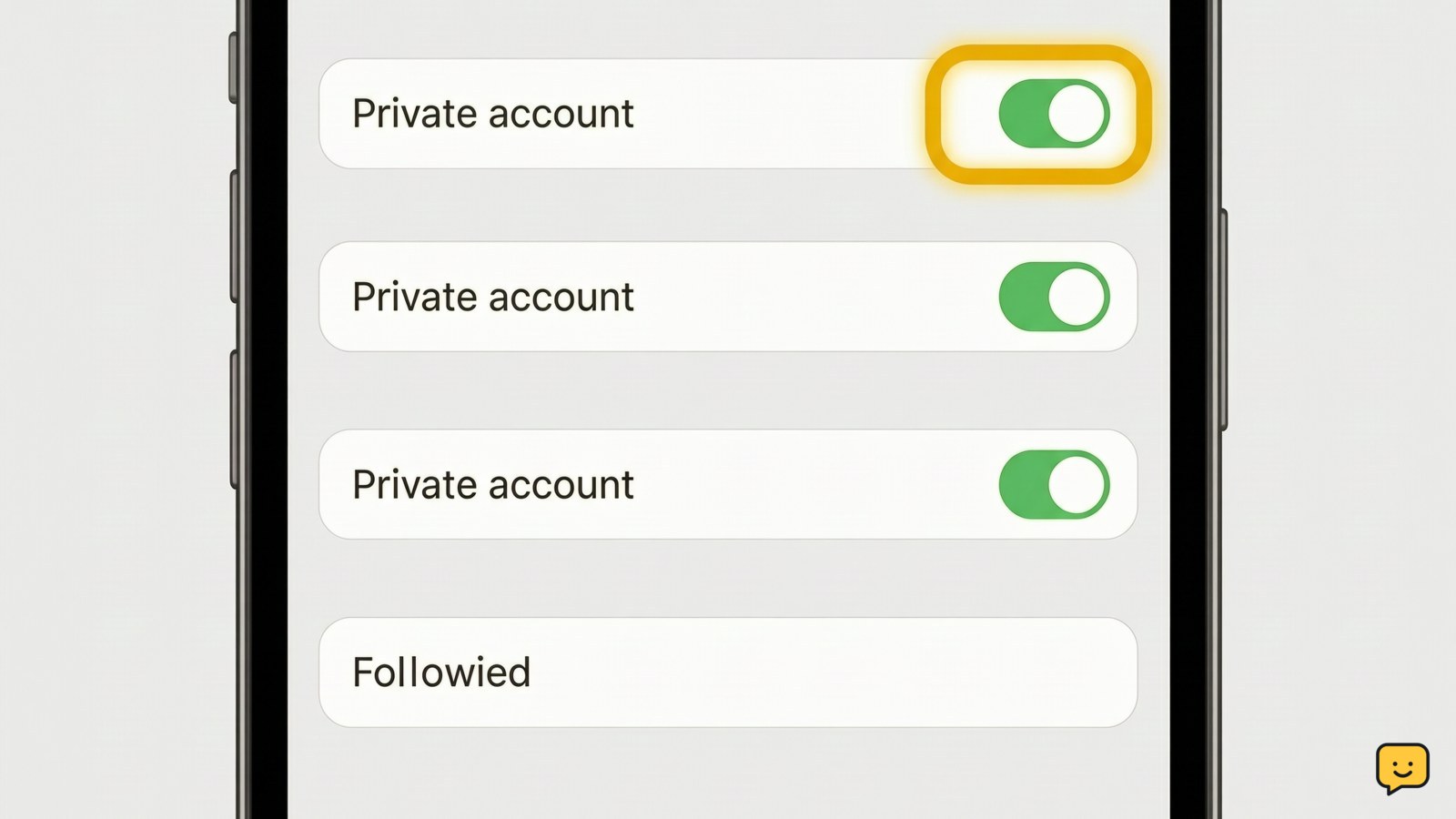
Message and discoverability controls reduce the routes strangers can use to reach you when group privacy alone is not enough. Restrict new messages from unknown accounts and reduce lookup options that expose your profile to people who have your phone number or email address.
- Open Privacy or Messages, then review message requests from people you do not follow or know.
- Choose the most restrictive available delivery option, such as sending requests to a filtered area or preventing them from appearing in the main inbox.
- Review How people find you, Contact syncing, or similar settings.
- Disable discoverability by phone number or email when you do not need it.
- Review profile visibility and limit public details that could help a stranger identify or target you.
Do not disable security alerts or sign-in notifications while tightening privacy. Those alerts help distinguish unwanted invitations from possible account misuse.
Remove the current chat and block the sender
Privacy changes usually affect future invitations, so handle an existing unwanted group chat separately. Preserve evidence first if the chat contains threats, impersonation, scams, or harassment.
- Open the group or invitation details without opening suspicious links or attachments.
- Use Leave group, Delete chat, or the platform’s equivalent.
- Open the sender’s profile and select Block if the account is unwanted or abusive.
- Use Report for spam, impersonation, threats, harassment, or suspicious behavior.
Blocking one account does not guarantee that other accounts cannot invite you. If the sender returns with a new profile, do not negotiate or click links; report the new account and keep the invitation evidence.
Verify the setting and troubleshoot continued invites
Verification confirms whether the privacy change was saved and whether the invitations are coming through a different feature. Check the saved setting after restarting the app or signing in through the platform’s official website.
- Return to the group privacy screen and confirm the restricted audience is still selected.
- Check message-request and account-discovery settings for a broader exception.
- Review blocked accounts and confirm the unwanted sender appears there.
- Install pending app updates, then sign out and back in if the control repeatedly reverts.
- Record the date, sender names, group names, and screenshots if invitations continue.
If the account shows unfamiliar sign-ins, changed recovery details, or activity you did not perform, treat the issue as possible account compromise rather than ordinary spam. Stop responding, secure the account through its official recovery and security screens, and review active sessions and two-factor authentication.
Frequently asked questions
Can I stop strangers from messaging me as well as adding me to groups?
Usually, yes, if the platform provides separate message-request controls. Set requests from unknown accounts to the most restrictive option available, then review phone-number, email, and username discoverability. These controls may reduce unwanted contact without preventing every account from finding you.
What if my social media app has no group privacy setting?
Use the available message, blocking, reporting, and account-discovery controls. Leave unwanted chats, block repeat senders, and reduce who can find you through contact information. If strangers can still add you, document the pattern and report it through the platform’s official support route.
Does leaving a group chat stop future invitations?
No. Leaving removes you from the current chat, but it may not change who can invite you later. Save the group privacy setting separately, restrict message requests, and block or report accounts that continue sending unwanted invitations.
Should I reply to ask the stranger to remove me?
No. Replying confirms that your account is active and may expose you to links, scams, or further contact. Leave the chat, block the sender, and report the account when the invitation is suspicious, abusive, or unrelated to a group you recognize.
How can I tell whether unwanted invitations mean my account was hacked?
An invitation alone does not prove a compromise. Check for unfamiliar login sessions, changed recovery information, new linked apps, messages you did not send, or profile changes. If any appear, stop interacting with the invitation and use the platform’s official security and recovery controls.
For more current help, browse all Privacy & Online Safety guides.