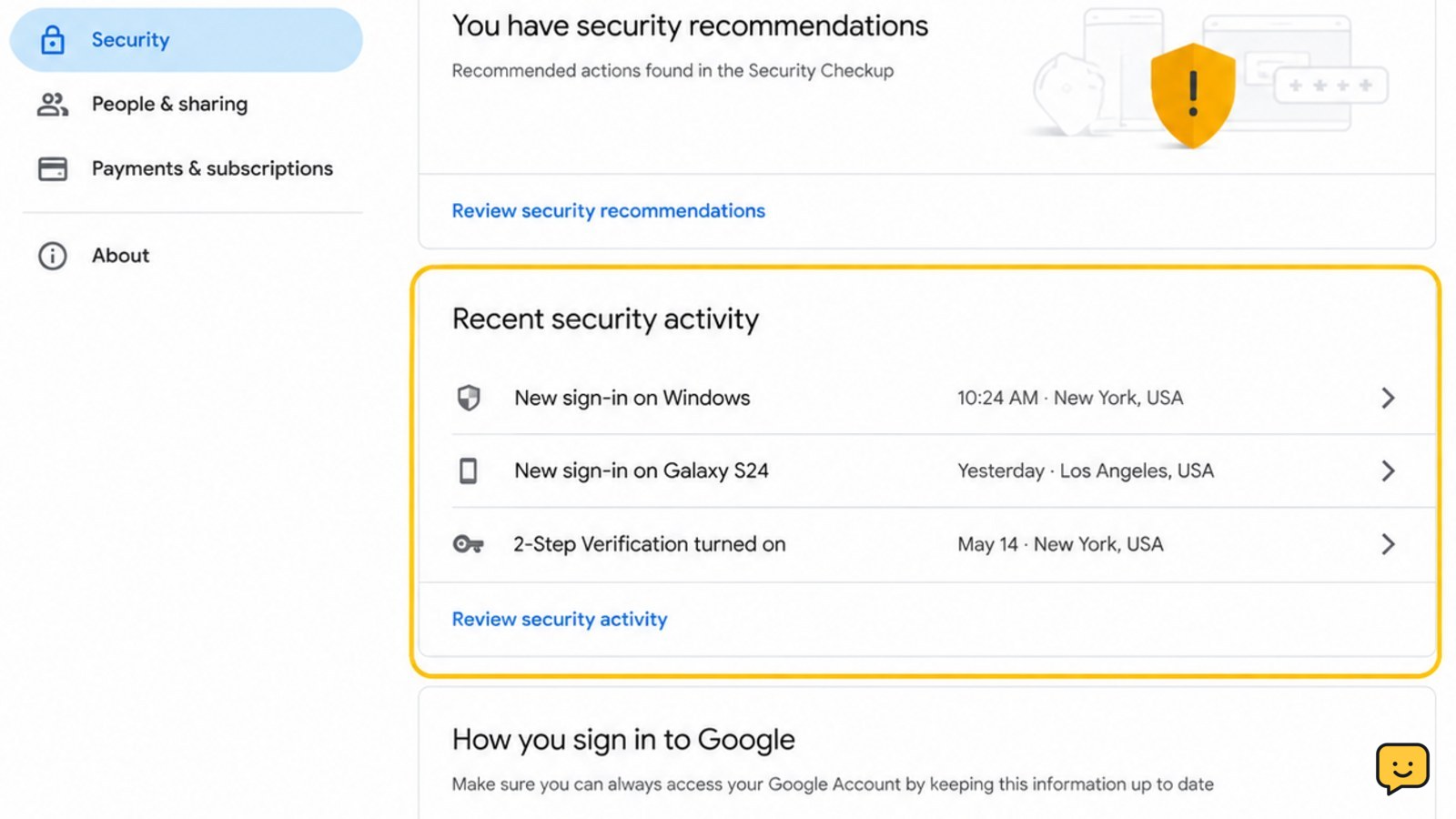
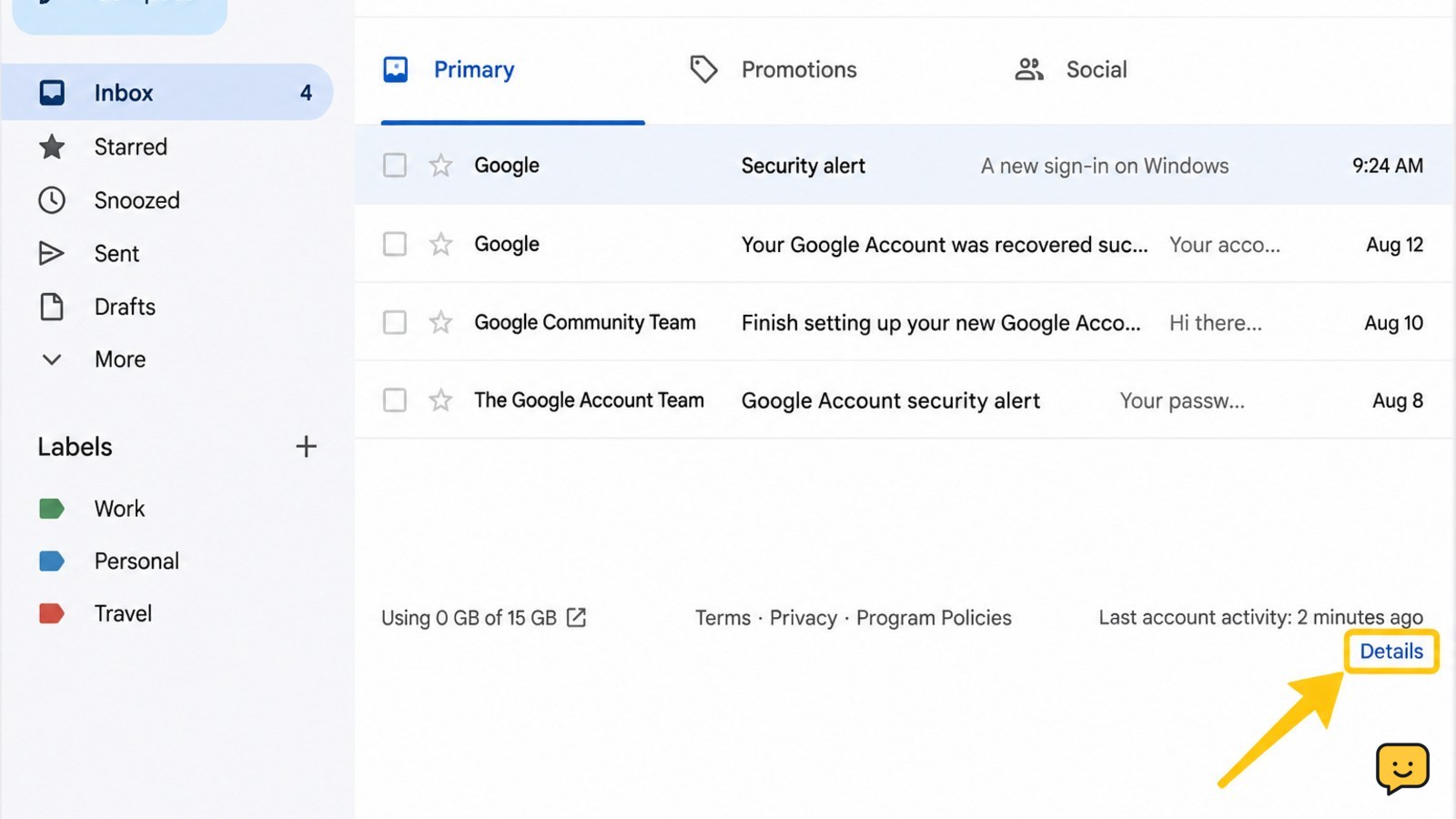
Open your Google Account, select Security, and review Recent security activity or Recent security events. For Gmail-specific history, open Gmail on a computer, scroll to the bottom right, and select Details. Compare dates, times, devices, locations, and IP information with your own activity. If an event is unfamiliar, use Google’s account-security controls and stop before approving any sign-in you cannot verify.
Open Recent security activity in your Google Account
Sign in to the Google Account you want to check, then open the account security area at myaccount.google.com/security. Look for Recent security activity or Recent security events. Google uses this area to show security updates and activity that may require review.
- Confirm the email address or profile picture belongs to the account you intended to inspect.
- Open the recent activity list and read each event rather than relying only on a warning banner.
- Record the event type, date, time, device or browser description, and location shown by Google.
The exact wording and layout can change. If the security page does not show the activity list, use Gmail’s account-activity details on a computer instead, or open Google Account directly and select Security again.
Check Gmail sign-in history and IP details
Gmail provides a separate view of recent access to the mailbox. On a computer, open Gmail and scroll to the bottom-right corner of the inbox. Select Details beside the Last account activity notice.
- Review the listed dates and times for Gmail access.
- Compare the access type or client information with the device and browser you use.
- Check the IP addresses shown for mailbox access when that detail is available.
Google’s Gmail Help documentation says this view can show sign-in history, including dates, times, and IP addresses used to access the account. Gmail activity is useful for mailbox access, while the Google Account security page is the better place to review broader security events.
If the Details link is missing, you may not be in the Gmail web interface, or the page may not have finished loading. Switch to a computer browser, open Gmail directly, and check the bottom-right area again. Stop if the page redirects you to an unfamiliar domain.
Decide whether an unfamiliar event is actually yours
An event deserves closer review when its time, device, or access pattern does not match what you were doing. Compare the record with your own sign-ins before taking account-protection actions.
- Match the date and time with when you opened Gmail, Google Drive, YouTube, or another Google service.
- Check whether the device or browser description fits a phone, tablet, work computer, or shared computer you use.
- Compare nearby events. Several entries around the same time may belong to one sign-in or account change.
- Look for a security update you did not make, such as an unfamiliar change in the account-security area.
Do not decide from location alone. Google may display a location that does not look familiar even when the access relates to a device or network you used. Treat the record as unconfirmed until the date, device, and action make sense together.
Verification checkpoint: you should be able to explain each recent event as your own sign-in, a known device or service, or an account change you intentionally made. If you cannot, continue to the protective actions below.
Respond safely to activity you do not recognize
If an event still does not match your activity, use the controls shown on Google’s account-security pages rather than links in an alert email. Google says suspicious-activity notices can be sent through recovery phone numbers and email addresses, but the safest starting point is to open your account directly.
- Review the event details and use Google’s available security-review control if it identifies the activity as unfamiliar.
- Change the Google Account password from the account-security settings if you believe someone else may know it.
- Review signed-in devices, recovery methods, and 2-Step Verification settings for changes you did not make.
- Remove or end access only for devices or sessions you can clearly identify as unfamiliar.
- Check Gmail settings for mailbox changes if the concern involves email access, especially forwarding or filtering rules.
Use a new password that is not reused on another service. Do not share verification codes with anyone who contacts you, even if they claim to be helping secure the account.
If you entered your password on a suspicious page, treat the password as exposed and secure the account from a trusted, directly opened Google page. If Google blocks sign-in or repeatedly asks for identity verification, stop making repeated attempts and use the official recovery process.
Verify that the account is secure after review
Return to the Google Account Security page after making any change. The review is complete only when the account status and recent activity match what you intended to do.
- Confirm the password change or security update appears as an expected event.
- Check that recovery information still belongs to you and that 2-Step Verification methods are familiar.
- Review the device and session list again for anything you did not authorize.
- Open Gmail’s Details view once more if the concern started with mailbox access.
Keep a record of the date, event type, and action you took if you may need to report unauthorized access. Do not approve a new sign-in or continue if Google displays an identity check that you cannot confidently complete. A blocked account, unknown recovery change, or continuing unfamiliar activity requires Google’s official recovery and account-security support.
Frequently asked questions
What is the difference between Google Account security events and Gmail account activity?
Google Account security events cover broader account changes and security-related activity. Gmail’s Details view focuses on access to the mailbox and can show dates, times, and IP addresses. Check both when you are investigating an unfamiliar sign-in, because an event may appear in one view without using the same wording in the other.
Why does a Google sign-in location look unfamiliar?
An unfamiliar location does not automatically mean someone accessed your account. Compare the time, device, browser, and nearby events with your own activity. A location by itself is not enough to confirm a breach. Treat the event as suspicious when the device or action also does not match, or when Google reports an account change you did not make.
What should I do if Recent security activity shows nothing?
Open Gmail on a computer and select Details beside Last account activity in the bottom-right corner. That view may provide mailbox access dates, times, and IP information. If neither view contains the record you expected, confirm that you opened the correct Google Account and that you are using Google’s direct website rather than an email link.
What if Google keeps asking me to verify it is me while I review activity?
Stop if the verification request refers to an unfamiliar device, location, or sign-in. Confirm that you are on Google’s official site, then use a device and browser you normally use. If you cannot complete the check or sign-in is blocked, use Google’s official account-recovery process instead of repeatedly guessing passwords or codes.
Browse more Privacy & Online Safety guides for help with this topic.