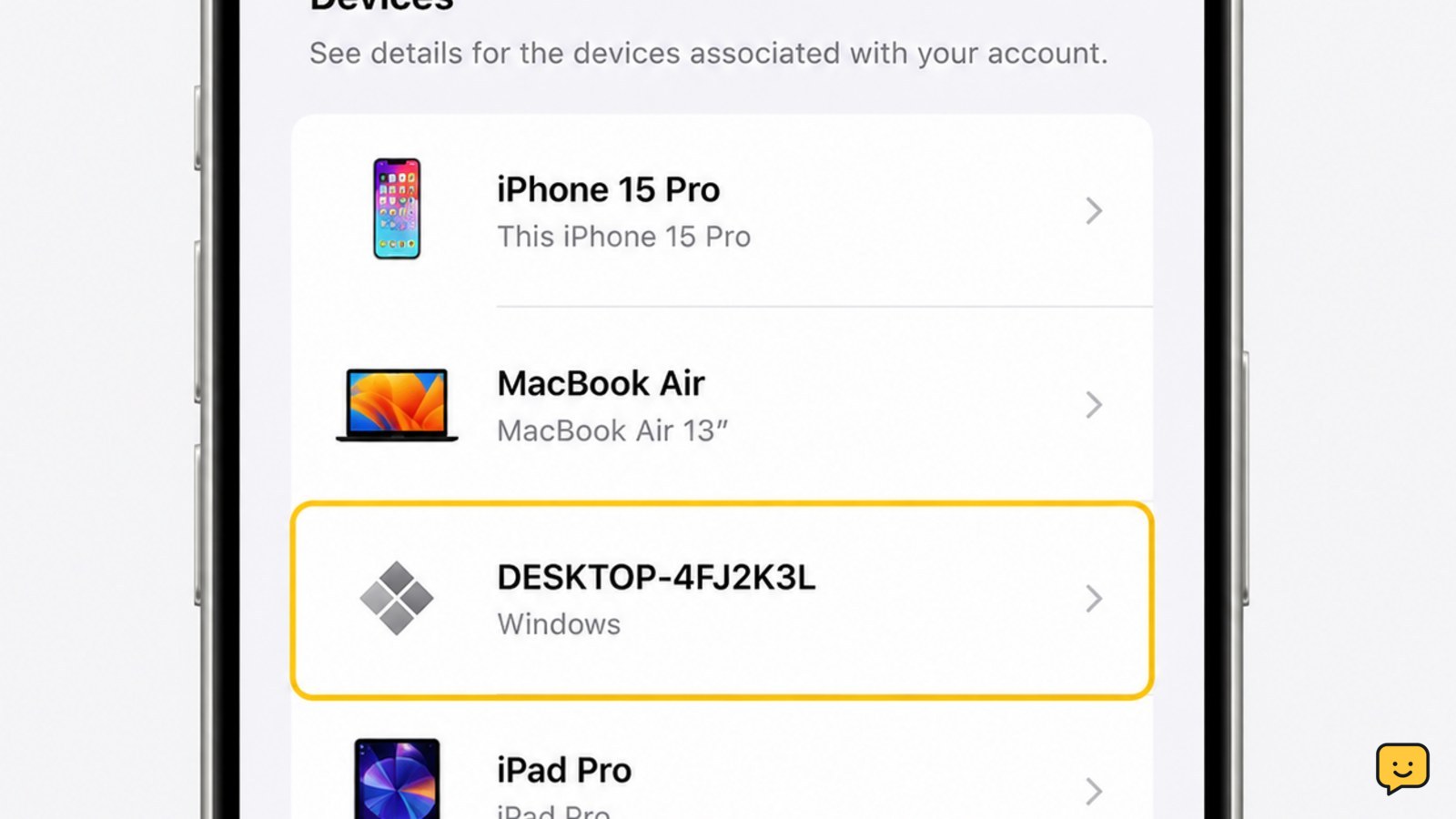
Open your Apple Account device list, select the unfamiliar device, and choose Remove from Account. Then change your Apple Account password and check two-factor authentication, because removing a device alone does not establish why it appeared or secure every active sign-in. If the device appears only under Media & Purchases, treat that as a separate purchases association and verify the main device list too.
Check which Apple device list contains the unfamiliar entry
Apple can show devices in more than one account area. The main device list is the place to check devices connected to your Apple Account. A separate list under Media & Purchases manages devices associated with purchases, such as devices that can download or play items bought with the account.
If you find the entry only under Media & Purchases, removal addresses that purchases association. It does not, by itself, confirm that an active iCloud or Apple Account sign-in has ended. Check the main device list as well.
Before acting, compare the device name and model with phones, tablets, Macs, Apple Watches, or older hardware you have owned. An old device may remain listed even if you no longer use it.
Remove the unfamiliar device from iPhone or iPad settings
- Open Settings.
- Tap your name at the top to open your Apple Account page.
- Scroll to the device list and tap the unfamiliar device.
- Review its details, then choose Remove from Account and confirm when prompted.
Apple may ask for your password or another verification step. Complete it only in the Apple settings screen you opened yourself. If the device is shown under the purchases area instead, open Media & Purchases, select View Account, and review the associated-device controls there.
Success check: the unfamiliar device no longer appears in the relevant list after you return to the account page or refresh it.
Remove the device from a Mac or Apple Account website
On a Mac, open System Settings, select your name, and inspect the devices connected to the Apple Account. Select the unfamiliar device and use the removal control shown on its details page. Menu names can vary by macOS release, so rely on the device details page rather than an old shortcut.
If you use Apple’s account website, sign in directly at the official Apple Account site, open the devices area, select the unfamiliar device, and choose its removal option. Complete any requested verification.
If you cannot find a device-management list, do not assume the device is gone. Return to an iPhone, iPad, or Mac already signed in to the account and check the account page there.
Verify that the unknown device stayed removed
- Close and reopen the Apple Account device list, or refresh the page.
- Check both the main device list and the Media & Purchases list if the entry appeared in both places.
- Confirm that the device name is absent and that no new unfamiliar entry has appeared.
Removal from a list is the observable result you can verify. It is not proof that the account was never accessed. If the device remains visible, the removal may have failed, the page may not have refreshed, or you may have removed only a purchases association.
If the device disappears but returns later, treat that as an unresolved security problem rather than repeatedly removing it.
Change the password and review two-factor authentication
For an unfamiliar device, change your Apple Account password from a trusted device or Apple’s official account settings. Use a new password that is not reused on email, social, shopping, or cloud-storage accounts.
Next, review the trusted phone numbers and trusted devices used for two-factor authentication. Remove or update anything you do not recognize. Never approve a sign-in request or share a verification code merely because an unexpected message claims to be from Apple.
Also review account details and recent purchases for changes you did not make. If you find unauthorized transactions or changed security information, preserve the dates and details and contact Apple through its official support channels.
What to do if Apple will not remove the device
If the removal control is missing, sign in again through an Apple settings screen or the official Apple Account website. Confirm that you are viewing the correct Apple Account and the correct device list. A purchases-associated device may require the separate Media & Purchases path.
If you cannot receive a verification code or no longer have access to a trusted phone number, do not bypass verification. Use a trusted device, recovery contact if available, or Apple’s official account-recovery process. Recovery can take longer when Apple cannot verify ownership.
Stop: if you are currently locked out, do not keep changing settings from unfamiliar devices or hand your password to a caller or repair service. Recover the account first, then repeat the device review.
Frequently asked questions
Does removing an unknown device change my Apple Account password?
No. Removing a device and changing the password are separate actions. If you do not recognize the device, change the Apple Account password from a trusted device and review trusted phone numbers and two-factor authentication settings.
Is an unknown Apple device proof that my account was hacked?
No. It can be an old device, a device associated with purchases, or an unfamiliar sign-in. Treat it as a warning, verify both device lists, change the password, and inspect security details for changes you did not make.
Will removing a device erase its photos or other data?
Removing a device from the account list does not give you a way to erase its local contents. If the device is lost or stolen, use Apple’s official device-location and protection options separately, and secure the account without attempting unauthorized access.
What should I do if the unknown device appears again?
Change the Apple Account password immediately, review trusted phone numbers and devices, and check for unfamiliar account changes or purchases. If the device returns after those steps, stop repeating removal and contact Apple through its official support channel.
Can I remove a device if I cannot receive the verification code?
Usually, Apple may require account verification before allowing security changes. Use another trusted device, a recovery contact if available, or Apple’s official account-recovery process. Do not share codes or use services claiming to bypass verification.
Browse more Privacy & Online Safety guides for help with this topic.