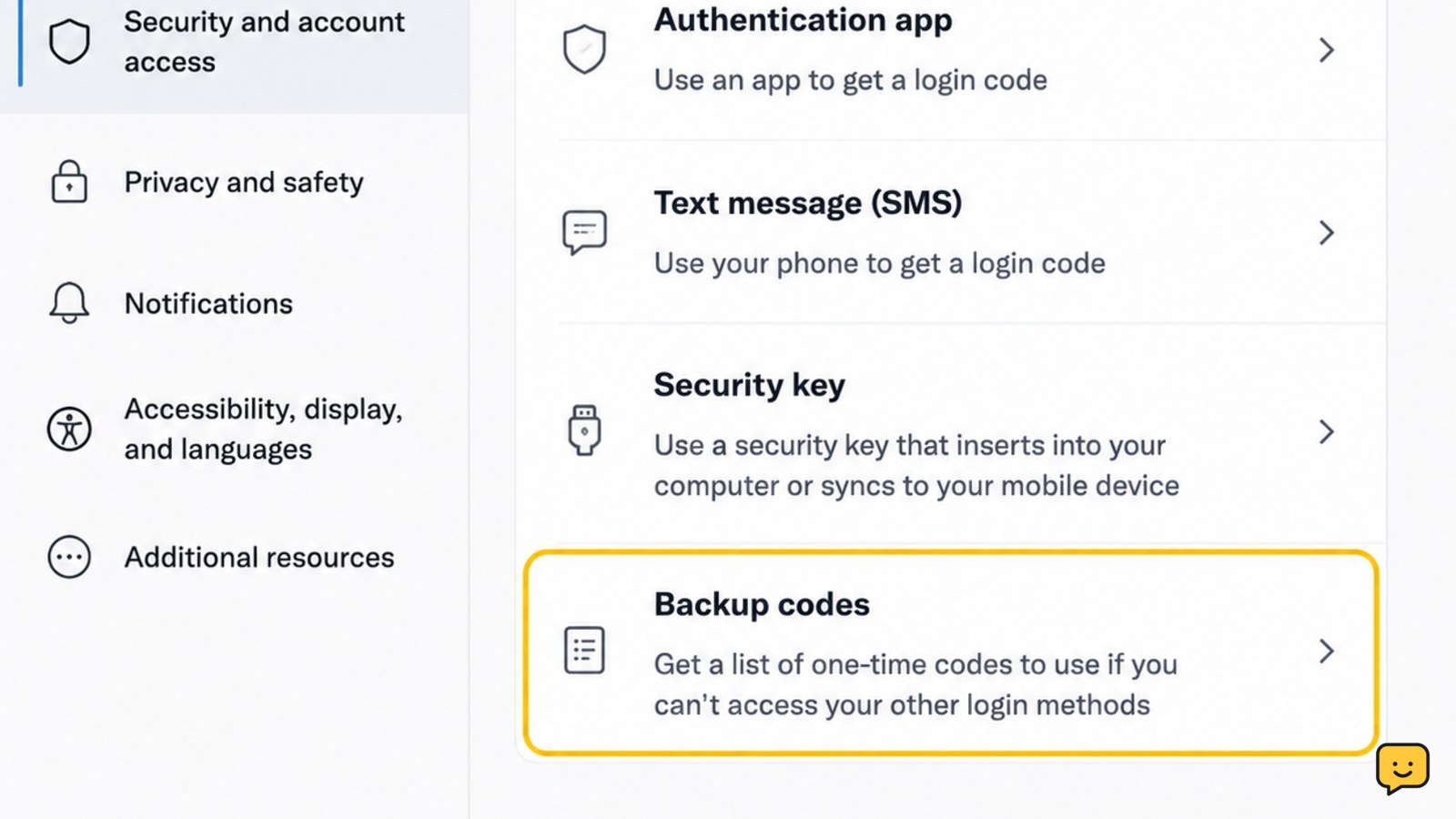
Backup codes are one-time sign-in codes created in an account’s two-factor authentication settings. While signed in, open the platform’s Security or Two-factor authentication area and save the codes in a protected place. When the usual phone or authenticator is unavailable, choose the backup-code option, enter one unused code, and then replace the set if the platform allows it.
Confirm that backup codes apply to your account
Backup codes are part of two-factor authentication, also called 2FA or two-step verification. They are intended for the second sign-in step when your usual phone, text message, security key, or authenticator app is unavailable. Google’s account guidance describes this same use: a backup code can replace the normal second verification step.
Social platforms do not all offer backup codes, and menu names can change between the app and website. Look for Security, Two-factor authentication, Two-step verification, or Login security. If none of these areas includes backup or recovery codes, that platform may use a different recovery method.
Find backup codes while you are signed in
- Open the platform’s official app or website and sign in normally.
- Open your profile, account, or settings menu.
- Choose Security or Accounts Center, if the platform uses one.
- Open Two-factor authentication or Two-step verification.
- Select the account or login method you want to manage, then look for Backup codes, Recovery codes, Additional methods, or a similar control.
- Complete the requested password or identity check. Choose the option to view, download, print, or create codes.
Save the current list in a password manager or another protected location. Avoid leaving it in a public cloud note, an unprotected photo gallery, or an ordinary text message. The codes are account credentials: anyone who has your password and an unused backup code may be able to pass the second sign-in step.
Verification checkpoint: you should see a platform-generated list of codes connected to the correct account. If the platform offers a download or print action, confirm that the saved copy is readable before closing the page.
Use one unused code at the sign-in screen
- Start signing in to the correct social media account.
- Enter your username, email address, or phone number and password.
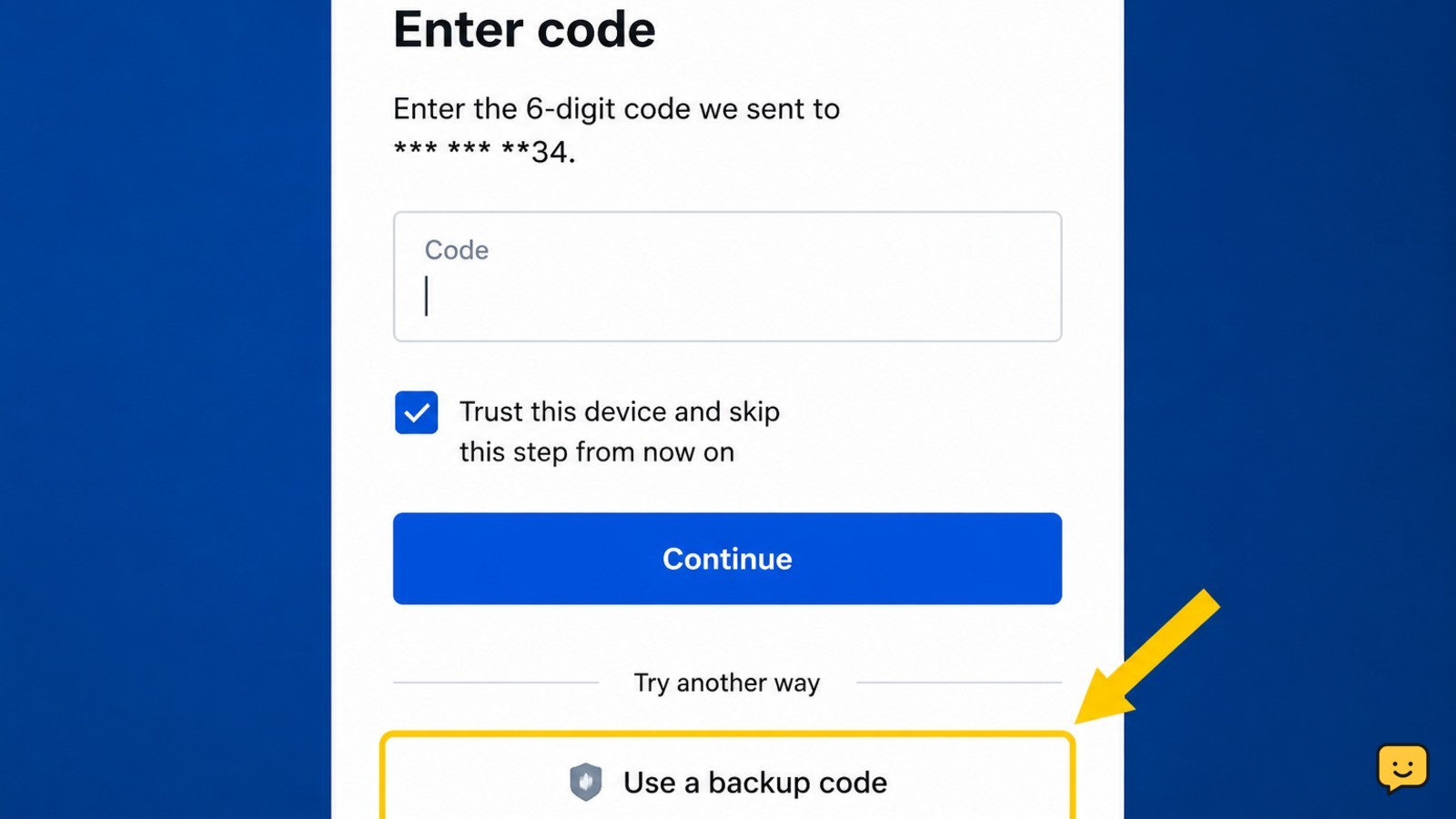
- When the platform asks for the second factor, choose Try another way, Use a backup code, Enter recovery code, or the closest available option.
- Enter one unused backup code exactly as shown. If spaces or hyphens appear only for readability, follow the platform’s input format.
- Submit the code and wait for the account’s normal home screen or signed-in state.
Use only one code for each sign-in attempt. Backup codes are generally one-time credentials, so mark the submitted code as used only after the platform accepts it. Do not keep retrying a code that has already worked.
Success looks like: the second-factor screen disappears and the account opens without requesting the same backup code again. If the platform asks whether to trust the device, choose that option only on a private device you control.
Replace the code list after you regain access
After a successful sign-in, return to the two-factor authentication settings and check how many codes remain. If the platform provides Generate new codes, Get new backup codes, or a similar control, create a fresh list after using a code or after losing control of an old copy. Generating a new list may invalidate the previous list, so save the replacement before leaving the settings page.
Review the account’s active sessions, recovery email address, phone number, authenticator methods, and connected apps. Remove devices or sessions you do not recognize, then change the password if there is any sign of unauthorized access. Never disable two-factor authentication merely because a backup code was needed.
What to do if a backup code is missing or rejected
- No code list appears: check the correct account and the platform’s website version as well as its app. You may be viewing security settings for a different profile, or the platform may not support backup codes.
- The code is rejected: check for a typing error, confirm that you are using the current list, and try a different unused code once. Do not use a normal SMS, email, or authenticator code in a backup-code field.
- Every code appears used: select another verification method if offered, such as an authenticator app, trusted device, security key, or account recovery form.
- You are locked out and cannot view the codes: you usually cannot reveal a new list from the login screen. Use the platform’s official recovery flow, a previously signed-in device, or another listed verification method.
- The account may be hacked: use the platform’s official hacked-account or compromised-account route. After access returns, change the password, end unfamiliar sessions, inspect recovery details, and generate new backup codes.
Do not buy codes, ask strangers for codes, or use recovery services that request your password or backup-code list. A rejected code is a reason to verify the code type and account identity, not to bypass the platform’s security checks.
Frequently asked questions
Can I find backup codes when I am locked out of my social media account?
Usually not. Backup codes are normally displayed only inside the account’s security settings while you are signed in. Search your password manager, protected notes, printed records, or secure device backups for a previously saved list. If you cannot find one, use the platform’s official recovery flow or another verification method shown on the sign-in screen.
What happens when I use a backup code?
The platform uses the code as the second authentication step after your password. A successful code should open the account or complete sign-in. Treat that code as consumed afterward, even if the list still displays it. If the platform supports replacement codes, generate and securely save a new list.
Why does my backup code say it is invalid?
Common causes include a typing mistake, an already-used code, an outdated list after regeneration, or entering the code in the wrong verification field. Confirm the account, use the current saved list, try one different unused code, and stop if it also fails. Then use an official alternative recovery method.
Are backup codes safer than text-message codes?
They solve different problems. A backup code does not depend on mobile service, but anyone who obtains it may use it with your password. Store codes privately and do not send them in messages. Keep two-factor authentication enabled and use the platform’s strongest available sign-in method on trusted devices.
Browse more Access & Recovery guides for help with this topic.


