
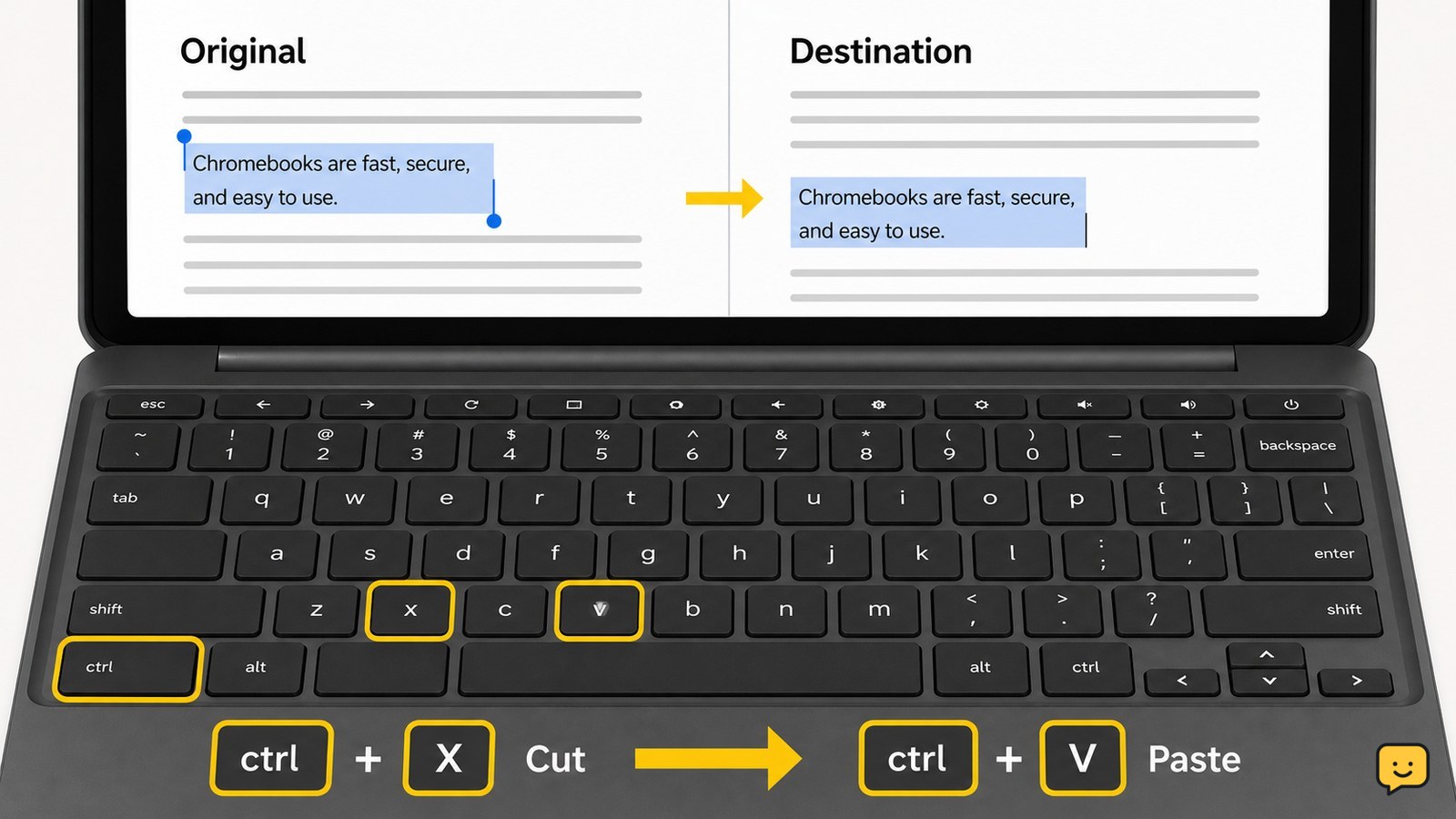
To cut and paste on a Chromebook, select the text or item, press Ctrl+X to cut it, click where you want it to go, then press Ctrl+V to paste it. The selected content should disappear from its original location and appear at the new one. If shortcuts do not work, right-click the selection and choose Cut, then use Paste.
Browse more Computers & Internet guides
Select exactly what you want to move
On a Chromebook, cutting starts with a precise selection. In a text box or document, click at the beginning of the text, hold the touchpad button, and drag across the words you want to move. You can also hold Shift while using the arrow keys to extend a selection.
For a file or folder, open the Files app and click the item once. A highlighted item is ready for the Cut command. Check the highlight before continuing; anything included in the selection may move.
Press Ctrl+X to cut the selection
With the text or item highlighted, press Ctrl+X. On a standard Chromebook keyboard, the Ctrl key is at the lower-left and lower-right edges of the keyboard.
For text, the selected words should disappear from the original location. For a file or folder, the item may remain visible but appear faded until you paste it elsewhere. The supplied Chromebook shortcut demonstrations and Currys’ Chromebook instructions identify Ctrl+X as the cut shortcut.
Click the destination and press Ctrl+V
Click where the cut content should go, then press Ctrl+V. In a document, the text should appear at the cursor position. In a folder, the cut file or folder should appear in the destination after the move completes.
Verify both sides of the move: look at the original location to confirm the content is no longer there, then check the destination for the expected text, file, or folder. If the destination does not accept that type of content, the paste may do nothing.
Use the right-click menu when shortcuts fail
The Chromebook touchpad menu provides an alternative when the keyboard shortcut is not recognized. Select the text or item, then click the touchpad with two fingers, or hold Alt while clicking. Choose Cut from the menu.
Click the destination, open the same menu, and choose Paste. On a touchscreen Chromebook, touch and hold the selection until the context menu appears, then choose Cut or Paste if those commands are available.
If Cut is missing or disabled, the app may not allow that content to be moved. Try Copy instead with Ctrl+C, then paste with Ctrl+V. Copy leaves the original untouched.
Recover the content if the paste does not appear
If the original text vanished but nothing appears at the destination, click the intended destination and press Ctrl+V once more. Avoid copying or cutting another item first, because a new clipboard action can replace the content you were trying to recover.
If paste still fails, check that the cursor is inside an editable text field or that the destination folder is open and writable. Try the right-click Paste command. If the app or webpage blocks clipboard actions, use Copy instead and enter the text manually or choose an editable destination.
Choose Copy when you need to keep the original
Use Ctrl+C instead of Ctrl+X when you want a duplicate rather than a move. Select the content, press Ctrl+C, click the destination, and press Ctrl+V. The original should remain visible, while a second copy appears at the destination.
Copy is the safer choice for important notes, files, photos, or formatted content when you are unsure whether the destination will accept the item. Stop if the pasted result has lost important formatting or is incomplete, then undo with Ctrl+Z where the app supports it.
Frequently asked questions
What is the Chromebook shortcut for cut and paste?
The cut shortcut is Ctrl+X, and the paste shortcut is Ctrl+V. Select the text or item first, press Ctrl+X, click the destination, and press Ctrl+V. Use Ctrl+C instead when you want to leave the original in place.
How do I cut and paste without a mouse on a Chromebook?
Use the keyboard. Select text with Shift plus the arrow keys, press Ctrl+X to cut, move to the destination with the Tab or arrow keys, and press Ctrl+V. The exact navigation depends on the app and whether it exposes keyboard-accessible controls.
Why does Ctrl+V not paste on my Chromebook?
Ctrl+V may fail when the cursor is not inside an editable field, the destination does not accept that content type, or the app blocks clipboard actions. Click the destination again, try the right-click Paste command, and use Ctrl+C rather than Ctrl+X if the original content is still available.
Can I cut and paste files on a Chromebook?
Yes, when the Files app and destination support the move. Select the file or folder, press Ctrl+X, open the destination folder, and press Ctrl+V. Check that the item appears in the new folder before closing the original location.


