Gmail can place a legitimate message in Spam because of its filtering signals, a saved filter, a blocked sender, or feedback from another mail client or account user. Open Spam, select the message, and choose “Not spam.” Then review filters, blocked addresses, contacts, forwarding, and recent account activity. Test with a new message before stopping.
Check Spam and undo the incorrect decision
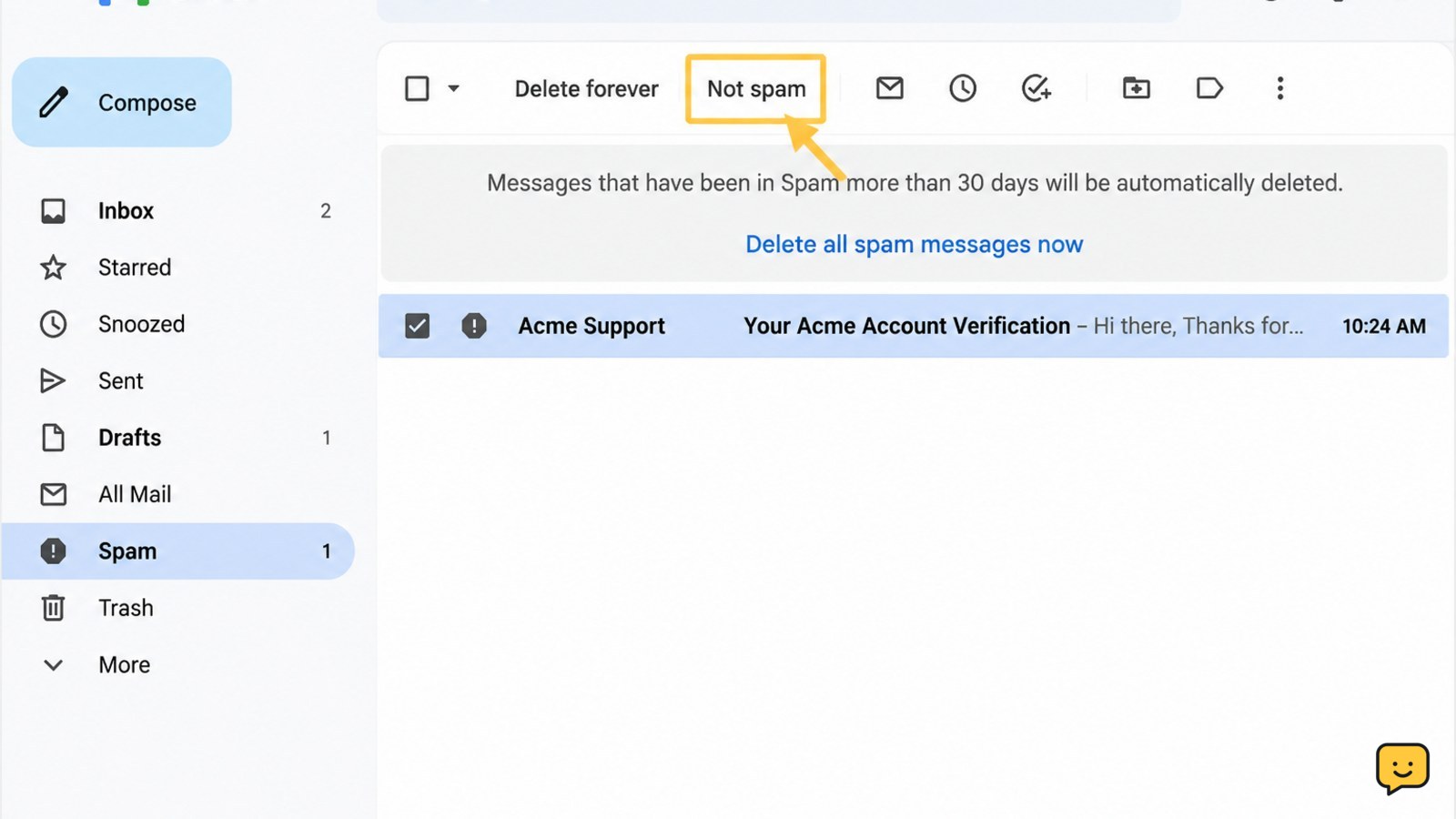
First confirm that Gmail is moving the messages to Spam rather than archiving, deleting, or placing them under another label. In Gmail on the web, open Spam from the left sidebar. If it is hidden, select More.
- Open a message that should be legitimate.
- Check the sender address and the message details.
- Select Not spam or Report not spam.
- Confirm that the message returns to your inbox.
Gmail says messages reported as spam help it identify similar messages more efficiently. This means spam feedback can influence how later messages are handled, even when you did not personally mark every message. Do not use Not spam for a message that appears fraudulent.
Verify: Search for the sender in Gmail after moving one message back. If the next legitimate message reaches Inbox, continue monitoring before changing more settings.
Review filters and automatic rules
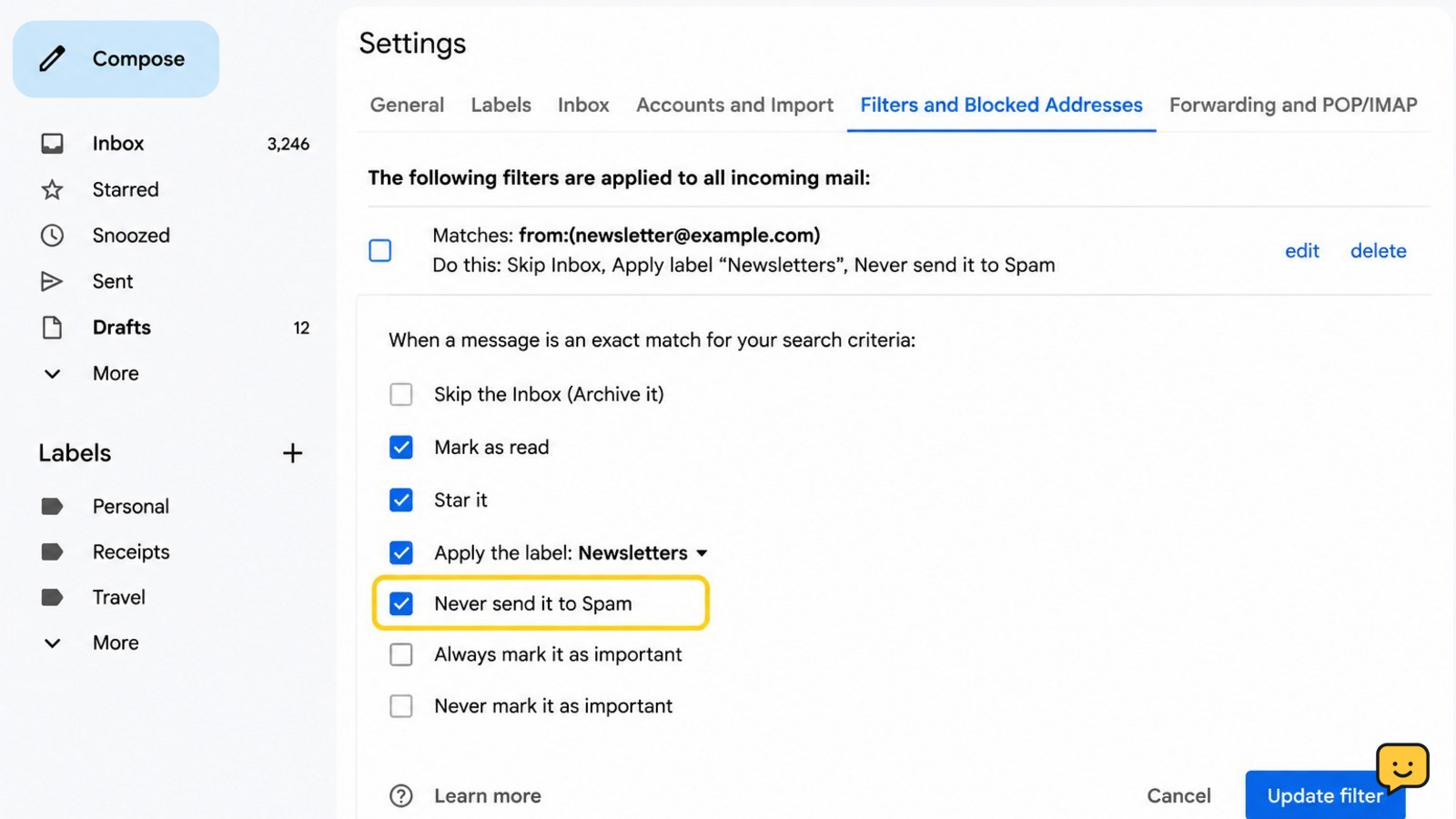
A Gmail filter can skip the inbox, delete a message, apply a label, or send messages to Spam. Review filters before creating a new rule, because overlapping rules can make the problem harder to trace.
- On a computer, select the Gmail Settings gear.
- Choose See all settings, then open Filters and Blocked Addresses.
- Read each filter that matches the affected sender, domain, subject, or keywords.
- Select Edit to inspect its actions, or Delete if you created it and no longer need it.
Pay particular attention to actions such as Delete it, Skip the Inbox, and rules that apply an unfamiliar label. If a filter is useful but too broad, narrow its matching conditions instead of deleting it.
Failure path: If a filter appears without your permission, do not simply remove it and move on. Review forwarding, delegation, sent mail, and recent account activity, then change your Google Account password and enable 2-Step Verification if needed.
Check blocked senders and add trusted contacts
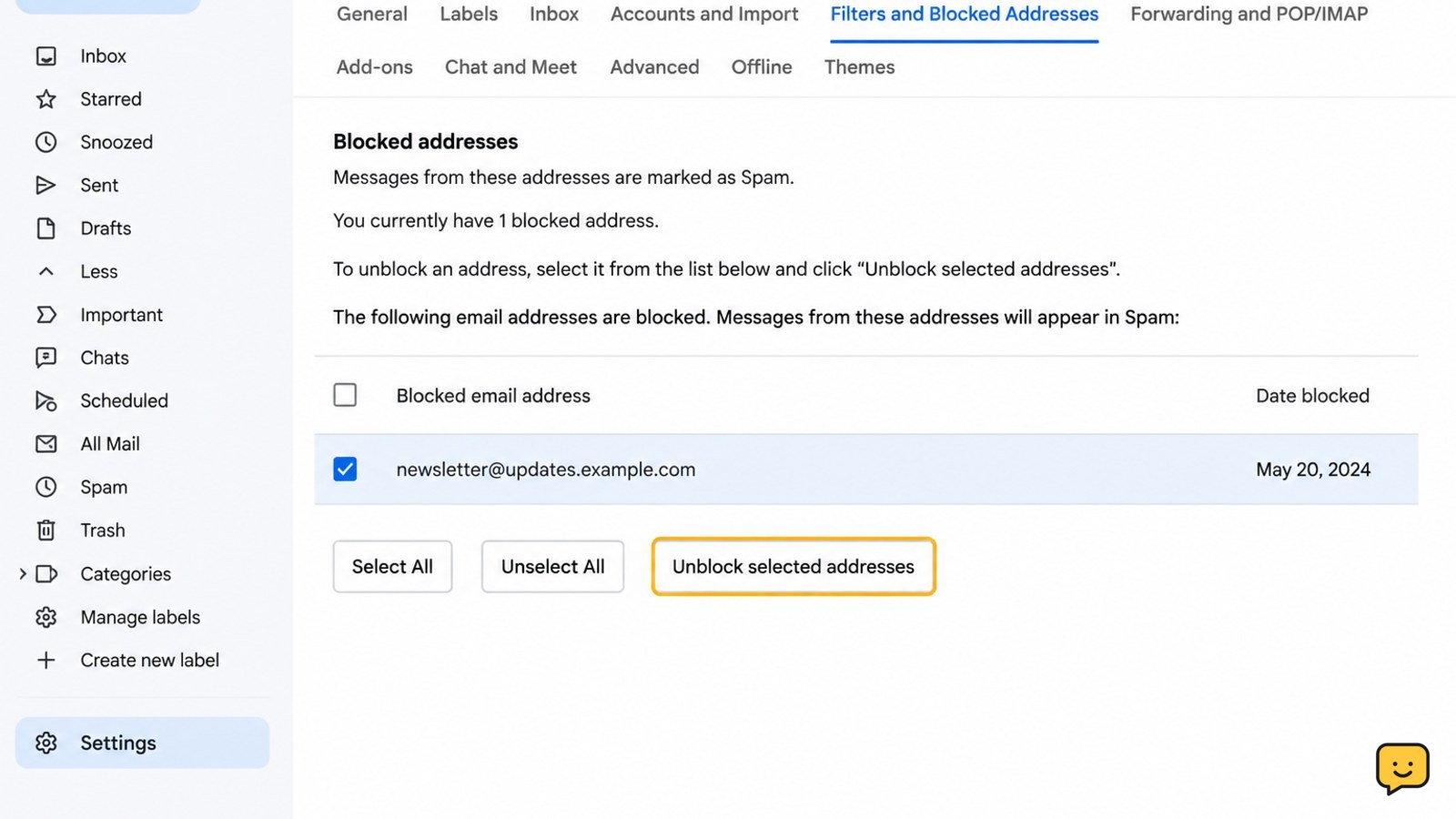
Gmail’s blocked-sender list can affect future messages from an address. In Settings, open Filters and Blocked Addresses and review the blocked addresses section.
- Find the affected sender or domain.
- Select Unblock if the address is trusted and the block was accidental.
- Save the change if Gmail asks you to confirm it.
- Add the sender to Google Contacts using the exact address shown in the message details.
Adding a sender to Contacts can help you recognize legitimate mail, but it is not a guarantee that Gmail will bypass every security check. Check the full address rather than relying only on the display name. A fake message can use a familiar-looking name.
Verify: Ask the sender to send a short test message with no sensitive information. Confirm that the new message appears in Inbox and that the address matches the contact you reviewed.
Check other mail apps, forwarding, and account access
If you use Gmail through a phone app, desktop mail program, or another connected service, an action taken there may affect the same mailbox. Check Gmail on the web to establish the account’s actual state.
- Look in Sent, Trash, and All Mail for unexpected activity.
- Review Forwarding and POP/IMAP in Gmail settings for addresses or access settings you do not recognize.
- Review Google Account security activity and signed-in devices.
- Remove unfamiliar access and secure the account through Google’s official account settings.
Do not approve an unexpected sign-in prompt or follow a security link delivered in an unsolicited email. Open your Google Account directly through a known address instead.
Stop condition: If you find an unknown forwarding address, delegated user, filter, or sent message, treat the issue as a possible account-security problem. Secure the account before continuing delivery tests.
Test delivery without weakening protection
After correcting a spam decision, filter, or block, test the change with one legitimate message. Do not create a rule that sends every message to Inbox or disables Gmail’s spam protection.
- Send a plain test message from the trusted sender.
- Wait for it to arrive, then check Inbox, Spam, Trash, and All Mail.
- Open the message details and confirm the sender address and recipient address.
- Repeat once later if the issue appears intermittent.
If the message still goes to Spam, the cause may be sender reputation, message content, authentication, or organization-level filtering rather than a setting you changed. Google documents that valid messages from outside a Workspace domain can sometimes be incorrectly marked as spam. A Workspace administrator may need to review organization-level controls.
For recurring mail from a business or service, contact the sender through its official website and ask it to review delivery and authentication. Never provide your password or verification codes to the sender.
Frequently asked questions
Why are Gmail emails going to Spam when I did not mark them as spam?
Gmail may classify a message as spam based on its filtering signals, sender history, message characteristics, or feedback from another mail app or account user. A saved filter or blocked address can also change where messages appear. Check Spam first, choose “Not spam” for a verified message, then review filters and blocked senders.
How do I stop a legitimate sender from going to Spam in Gmail?
Open the legitimate message in Spam and choose “Not spam.” Then review Settings > See all settings > Filters and Blocked Addresses, unblock the sender if necessary, and add the exact address to Contacts. Test with a new message. These steps improve handling but do not guarantee that Gmail will ignore every security warning.
Can a Gmail filter send messages to Spam automatically?
Yes. A filter can apply actions that remove messages from Inbox, delete them, or otherwise route them away from normal mail views. Review every filter matching the sender, domain, subject, or keywords. Edit overly broad rules rather than creating a second rule that broadly forces all matching messages into Inbox.
What should I do if I find an unfamiliar Gmail filter?
Treat an unfamiliar filter as a possible account-security warning. Do not stop after deleting it. Review forwarding, delegation, sent messages, recent security activity, and signed-in devices. Remove unknown access, change your Google Account password through official settings, and enable 2-Step Verification. Stop if you cannot verify that the account is secure.
Browse more Email & Social Accounts guides for help with this topic.