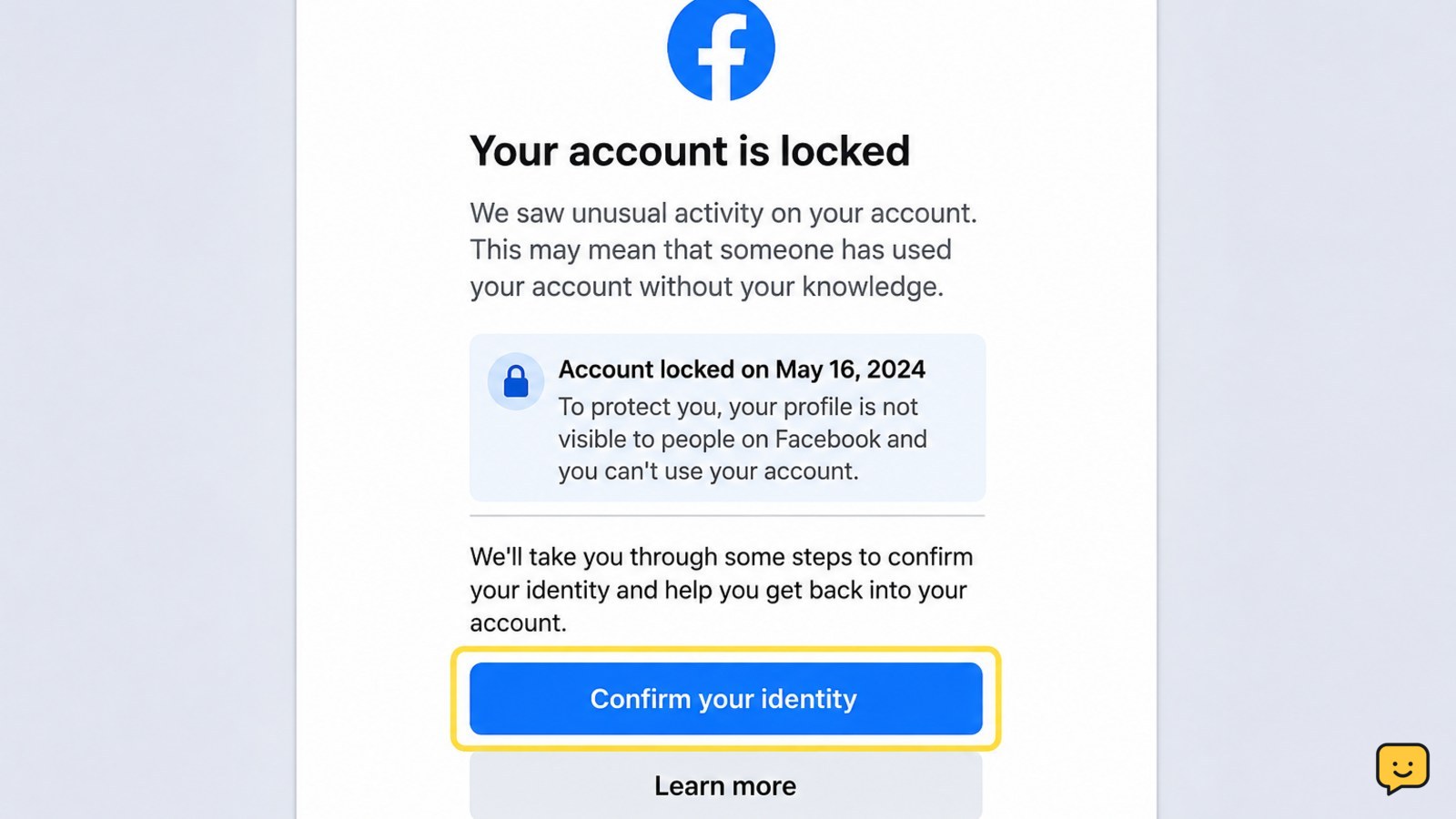
If Facebook locks your account and asks you to confirm your identity, begin from the Facebook app or by typing facebook.com yourself. Sign in, follow the security-check instructions, and submit only the information or document types shown in Facebook’s form. Use a clear, matching submission, check your spam folder for updates, and stop if another site requests your password or codes.
1. Confirm that Facebook, not a scammer, locked the account
Open the Facebook app or type facebook.com into your browser. Do not use a recovery link from a social-media message, email, comment, or search advertisement until you have checked where it leads.
A genuine Facebook security check appears during sign-in or inside Facebook’s Help Center. Facebook’s official guidance says to log in and follow the instructions to confirm your identity. The process may ask you to complete a security check before access is restored.
If you can still access Facebook on another device, review recent account activity and security notifications. Unexpected password, email, phone, or session changes can indicate that the account was compromised rather than simply locked.
2. Start the official identity-confirmation process
Sign in from the locked-account screen and choose the option to confirm your identity. Follow the prompts in the order shown. The available options can differ by account and situation, so use the choices Facebook presents instead of substituting an unrelated form.
- Enter the account login detail Facebook requests, such as the associated email address or phone number.
- Choose the available identity-confirmation method.
- Read the document or information requirements before submitting anything.
- Complete the form and save the confirmation or reference information if Facebook provides it.
Facebook may ask for an identity document or a face-matching check. If an upload is requested, the form’s current instructions are the authority for what is accepted. Do not assume that every government document, photo, or account detail will qualify.
3. Make the submission easy for Facebook to review
Use information that matches the account and the instructions on screen. If Facebook asks for a document, capture the complete document in good lighting with the text readable. Avoid glare, heavy blur, cropped edges, filters, screenshots of screenshots, or edits that obscure the requested details.
Submit only what the form requests. Do not add extra documents, personal explanations, or sensitive information that Facebook did not ask for. If the form asks for a face check, complete it directly in Facebook and follow its positioning and lighting directions.
Facebook’s identity-confirmation guidance notes that an ID may be rejected and provides settings related to face matching and how an ID is stored. Review those choices on the official Facebook page if they are shown to you.
Verification: A successful submission should produce an on-screen confirmation, a change in the sign-in flow, or a message that Facebook is reviewing the information. A submission receipt does not necessarily mean the account is unlocked yet.
4. Fix common confirmation failures
The upload fails: Check that the file meets the limits shown in the form, then retake the image with the entire document visible and readable. Try the Facebook app or an up-to-date browser. If the page is stuck, restart the phone or browser before trying once more.
The requested message does not arrive: Check spam, junk, promotions, and blocked-message folders. Facebook’s account-unlock guidance specifically recommends checking spam. Confirm that you are checking the email address or phone number displayed by Facebook, not an address supplied by a third party.
The same check keeps returning: Do not switch repeatedly between devices, browsers, or unofficial forms. Record the exact message, review the requirements again, and use the next official option Facebook provides. Repeated rejection can mean that the submission is unclear, does not match the request, or cannot be verified through that method.
You no longer control the email or phone: Choose the official alternative shown on the locked-account page. If you believe someone changed the account details, use Facebook’s official hacked-account recovery route rather than asking a stranger to recover it for you.
5. Protect the account after access returns
Once Facebook lets you in, change the password from Facebook’s account settings and make it unique. Review logged-in sessions, remove devices you do not recognize, and check that the recovery email address and phone number are yours.
Turn on two-factor authentication if it is available for your account, and secure the email account used for Facebook with its own strong password and two-factor authentication. Check recent posts, messages, advertising activity, and payment activity for changes you did not make.
Never trust a person who claims to be Facebook support and asks for a password, one-time code, login approval, or payment. Facebook’s official recovery process does not require you to surrender control of your credentials to another person.
Frequently asked questions
What documents can Facebook accept for identity confirmation?
Facebook shows the accepted document types and requirements in the identity-confirmation form for your account. Because the available options can vary, follow that list exactly. Submit a clear, complete image with readable details and no glare, filters, or cropped edges. Do not upload extra documents unless Facebook requests them.
Why did Facebook reject my identity document?
Facebook may reject a submission when the image is blurry, cropped, too dark, obscured, or does not satisfy the form’s requirements. Retake the image in good lighting and make sure the requested details are visible. If Facebook rejects it again, stop repeated submissions and use the next official option shown.
What should I do if Facebook’s confirmation code never arrives?
Check spam, junk, promotions, and blocked-message folders, then confirm that you still control the email address or phone number displayed by Facebook. Restart your phone or browser and try the official sign-in flow again. Do not ask anyone else to provide a code or use a code sent to a different account.
How can I tell whether a Facebook identity-check link is real?
Start by typing facebook.com yourself or opening the Facebook app. Treat unexpected links, shortened URLs, urgent threats, payment requests, and requests for passwords or login codes as phishing signs. Do not upload an ID or enter credentials on a page whose address you cannot verify as an official Facebook or Meta site.
Will Facebook unlock my account immediately after I submit my identity details?
Not necessarily. A confirmation screen usually means Facebook received the submission, not that review is complete. Follow the status or next-step instructions shown by Facebook and monitor the associated email account, including spam folders. Avoid repeated submissions and unofficial services while waiting for an official result.
Browse more Access & Recovery guides for help with this topic.


