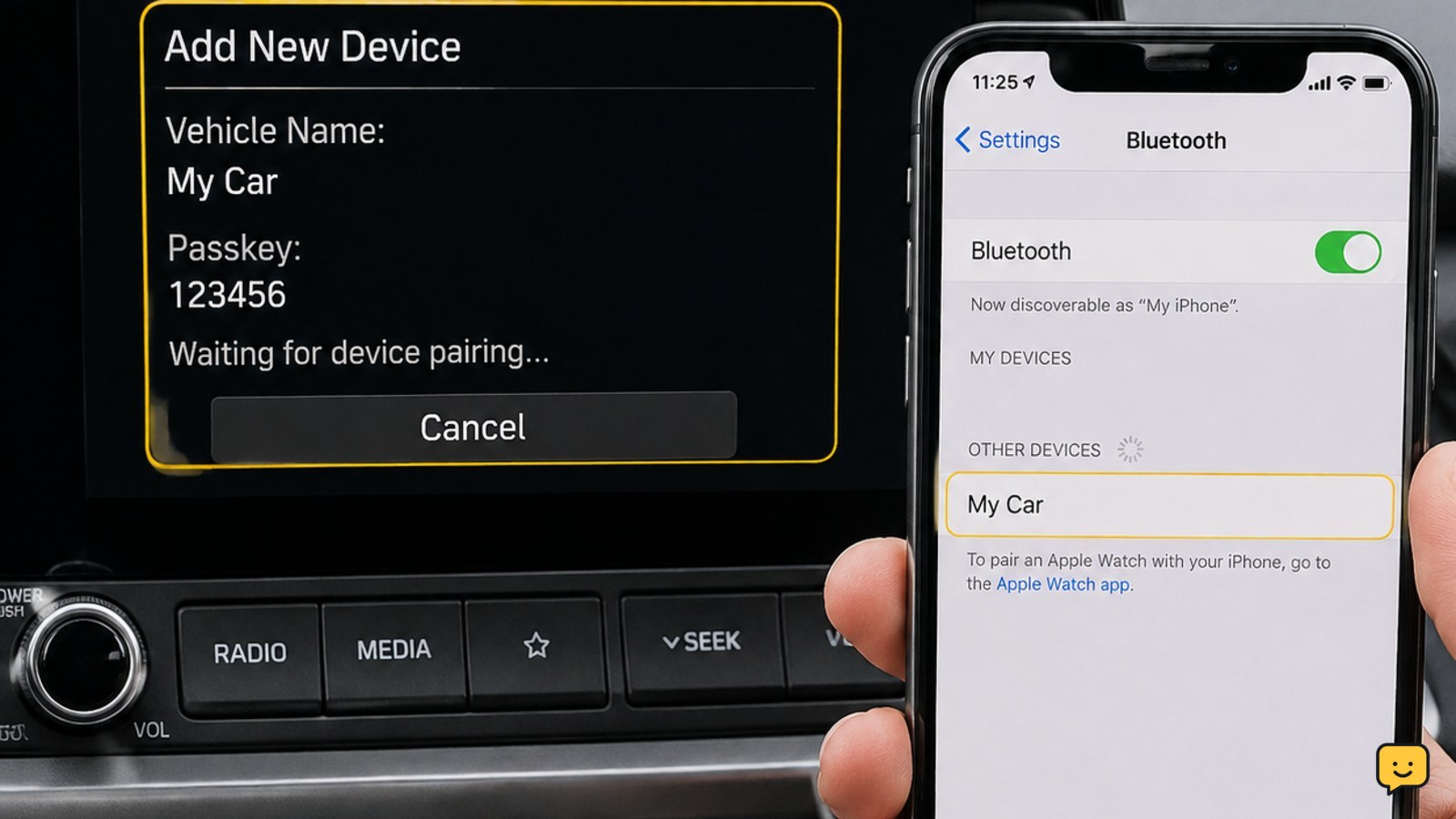
Park the car, switch on its Bluetooth pairing mode, then open Bluetooth settings on the phone and select the vehicle’s name. Confirm that the code matches on both screens and allow call or contact access if wanted. Test a call and a music track while stationary. If pairing fails, remove an old device and try again.
Put the parked car into phone-pairing mode
Turn on the ignition or accessory power and leave the vehicle parked. On the car’s display, open the phone, Bluetooth, or connectivity menu. Choose an option such as Add Phone, Pair Device, or Connect Phone. Ford’s SYNC instructions, for example, direct drivers to open Settings or Home and select Add a Phone.
The vehicle must be discoverable before the phone can find it. Some systems enter pairing mode when you press a phone button on the dashboard or steering wheel instead of using the touchscreen. If you cannot find an add-device option, stop searching through unrelated menus and check the vehicle manual for the exact control.
Turn on Bluetooth and select the vehicle name
On the phone, open its Bluetooth settings and switch Bluetooth on. Keep the settings screen open while the phone searches for nearby devices. When the car appears, select the vehicle name or the name shown on its pairing screen.
Do not select a similarly named device unless it is clearly the car. If the vehicle does not appear, confirm that the car is still showing its add-phone or discoverable screen. Then switch Bluetooth off and on again on the phone, move the phone closer to the dashboard, and repeat the search.
Confirm the matching pairing code
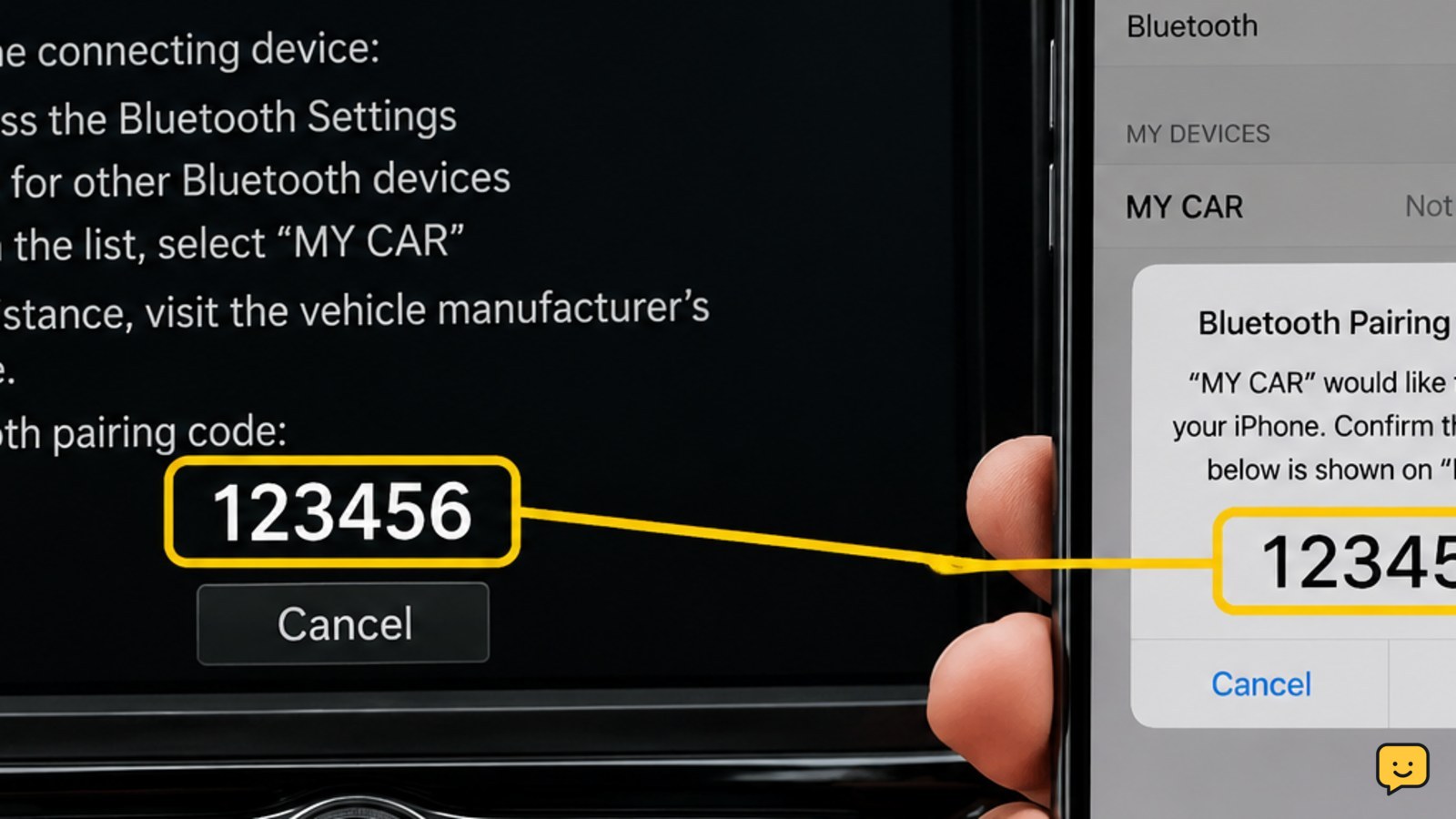
The car and phone may display a passcode or pairing number. Compare the digits on both screens before accepting. Select Pair, Yes, or the equivalent confirmation on each device only when the codes match.
A matching code confirms that the intended phone and vehicle are responding to the same pairing request. If the numbers differ, cancel both requests rather than guessing. Return the car to Add Phone mode and start a fresh request. A vehicle may also ask for a PIN specified in its manual, particularly on older systems.
Choose call, contact, and audio permissions
After pairing, the phone may ask whether the car can access contacts, call history, or notifications. Allow only the access you want to use. Contact access helps the car display names and support hands-free dialing, but it is not required for every Bluetooth audio function.
Look for a separate phone setting for the paired vehicle and check that call audio and media audio are enabled when those choices are available. On an iPhone, Apple identifies Bluetooth as an option for car playback when CarPlay is not being used. If your vehicle supports wireless or wired CarPlay, follow the vehicle and phone instructions for that system instead of assuming Bluetooth provides every CarPlay feature.
Verify hands-free calling and music playback
Keep the car parked and place a short test call. Confirm that the call uses the vehicle speakers and that the car’s microphone picks up your voice. End the call, start a short music track, and select the car as the playback destination if the phone asks where to play it.
Next, check the car’s audio source. Bluetooth pairing alone does not always change the radio or media source automatically. Select Bluetooth Audio, Media, or the equivalent input, then raise the car volume and phone media volume to a safe testing level. Success means the call and music play through the vehicle rather than the phone speaker.
Fix a phone that pairs but does not connect or play sound
- Check the active connection: A phone can be stored in the car without being the currently connected device. Disconnect another phone and select the newly paired phone from the vehicle’s phone list.
- Check the audio source: If calls work but music does not, switch the car from radio or another input to Bluetooth Audio and confirm media audio is enabled for the vehicle on the phone.
- Restart both sides: Turn Bluetooth off and on, then turn the car off completely and restart the phone if the connection remains stuck.
- Remove the old pairing: On the phone, choose the vehicle in Bluetooth settings and select Forget, Remove, or Unpair. In the car, delete the phone from its stored-device list. Pair again from the car’s Add Phone screen.
- Reduce stored-device conflicts: If the car refuses new devices, delete unused phones from its memory. The exact storage limit varies by vehicle.
Stop after a clean re-pair fails repeatedly. Record the phone model, vehicle model year, the screen where pairing stops, and whether calls or music fail separately. Use the vehicle manual or manufacturer support for model-specific diagnosis rather than repeatedly accepting mismatched requests.
Use the owner’s manual when the menu or feature differs
Bluetooth labels, confirmation steps, saved-device limits, and audio controls vary by vehicle, phone, and infotainment version. A manufacturer guide may call the same function Phone, Connectivity, SYNC, Hands-Free, or Device Manager. Use the exact manual for the vehicle when the general sequence does not match the display.
When the phone is sold, transferred, or no longer used in the car, remove its saved pairing from the vehicle and choose Forget or Remove on the phone. This prevents the car from reconnecting to an old device and removes the phone from the vehicle’s stored-device list.
Frequently asked questions
Why does my phone say it is connected to the car but music plays through the phone?
Select Bluetooth Audio or Media as the car’s active source, then check the paired vehicle’s phone settings for media-audio access. Also raise the phone’s media volume and the car volume separately. A connection used for hands-free calls can remain active even when the radio is still selected as the audio source.
Can I pair more than one phone with my car?
Many vehicles can store multiple paired phones, but the number and active-phone behavior vary. If the car connects to the wrong phone, disconnect that phone or disable its Bluetooth temporarily, then select the intended phone from the vehicle’s device list. Delete unused devices if the car will not accept a new pairing.
Do I need Bluetooth if my car has Apple CarPlay?
Not always. Apple lists CarPlay as the preferred connection method when it is available, while Bluetooth can provide phone and audio functions on vehicles without CarPlay or when CarPlay is not being used. Follow the vehicle’s instructions for wired or wireless CarPlay because its setup and controls differ from ordinary Bluetooth pairing.
What should I do if the car and phone show different pairing codes?
Cancel the request on both devices and start again from the car’s Add Phone or Pair Device screen. Do not accept either code when the numbers differ. If the mismatch repeats, remove the old vehicle pairing from the phone, delete the phone from the car’s stored devices, restart both systems, and try a new pairing request.
Browse more Features & Controls guides for help with this topic.