Start with Windows Display settings: select your gaming monitor, use its native resolution and highest stable refresh rate, then restart Valorant. Test VSync in Settings > Video and cap FPS if frames are far above the monitor’s refresh rate. If tearing appears only in Valorant, update the graphics driver and use Riot Client’s Repair option before changing advanced Windows settings.
Check whether the split appears only in Valorant
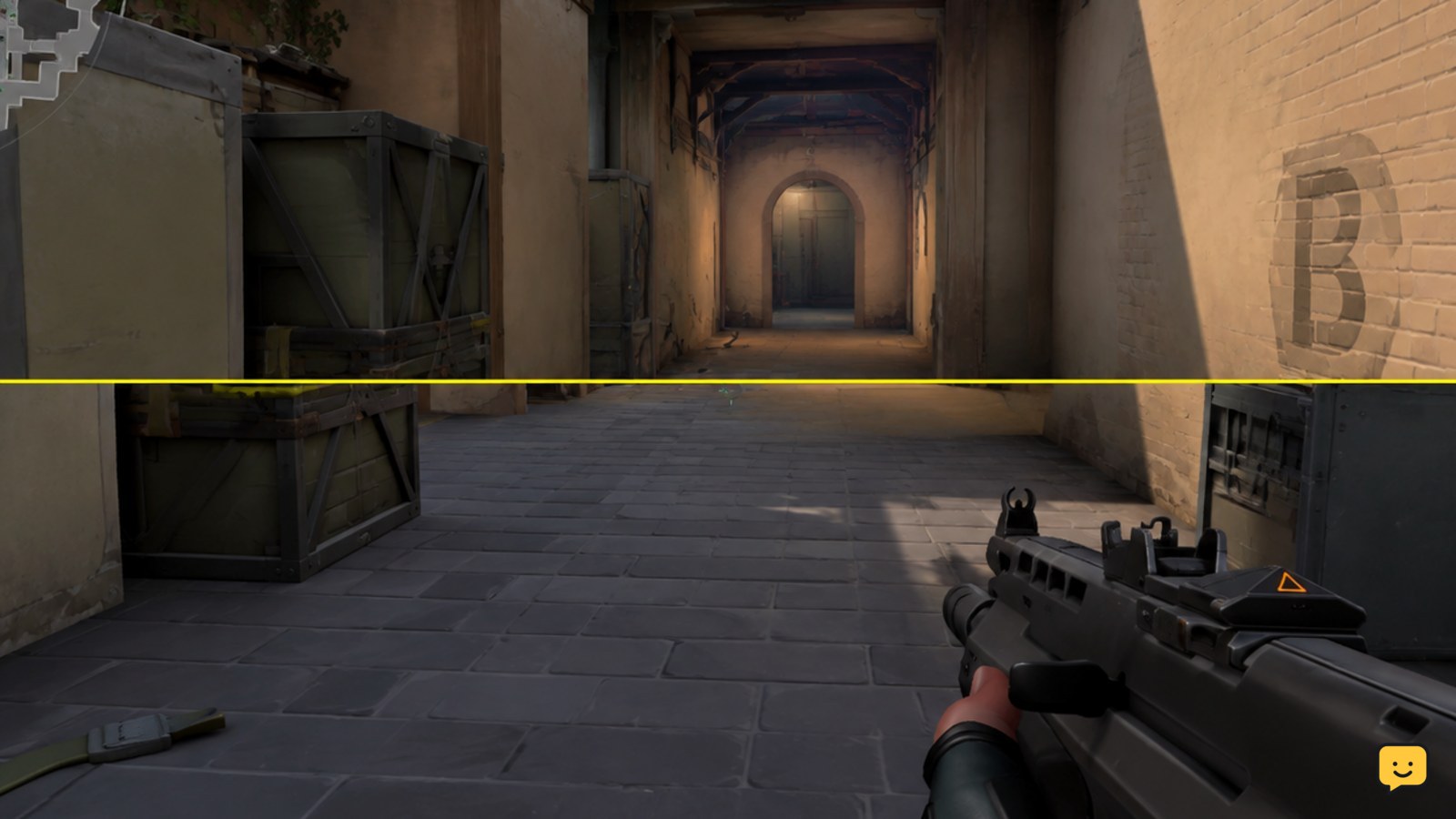
Screen tearing usually looks like a horizontal break where two different frames appear at once during a fast camera turn. First, compare Valorant with the Windows desktop, a video, and another 3D game.
- If the desktop and other games look normal, prioritize Valorant settings, the graphics driver, and Riot Client repair.
- If every 3D application tears, prioritize the monitor’s refresh setting, cable, graphics driver, and display configuration.
- If the symptom is actually flashing, brief black screens, colored blocks, or a lost signal, stop treating it as ordinary tearing.
This check prevents you from changing several unrelated game settings when the display problem is broader than Valorant.
Match Windows resolution and refresh rate to the monitor
On Windows, open Settings > System > Display, select the monitor used for Valorant, and confirm the display resolution is set to the monitor’s native value. Then open Advanced display and choose the monitor’s highest stable refresh rate.
- Apply the setting and move a window across the screen to confirm the display remains stable.
- Launch Valorant and choose the same resolution in Settings > Video if the game is using a different mode.
- Keep the game in the display mode that behaves consistently on your system. If changing fullscreen causes flicker or signal loss, return to the last stable mode.
Verify: In the Practice Range, make a fast horizontal turn across a high-contrast wall. The image should remain joined instead of showing a horizontal offset.
Test VSync before changing advanced settings
Valorant includes a VSync control in its video settings. VSync coordinates frame presentation with the display and is the most direct in-game test when the symptom is genuine tearing.
- Open Valorant and select Settings > Video.
- Find the VSync option and enable it.
- Apply the change, enter the Practice Range, and repeat the same fast camera movement.
If the tearing disappears, leave VSync enabled for a reliable fix. If the picture becomes noticeably less responsive or motion feels uneven, disable VSync and continue with frame-rate control instead. Menu names or placement can change after a game update, so use the current Video settings shown in your client.
Failure path: If VSync is already enabled and the split remains, turn it off once, restart Valorant, and test again. This separates a stale setting from a persistent synchronization problem.
Limit FPS when the frame rate is far above refresh rate
Very high frame output can make unsynchronized presentation easier to notice. Use Valorant’s frame-rate limit controls to keep output consistent rather than allowing an unrestricted rate.
- Open Settings > Video and locate the FPS limit controls.
- Set the gameplay limit to a stable value your PC can maintain without large swings.
- Test the same camera movement again, then play a short unranked round to check real match conditions.
Do not chase a number your system cannot hold. A stable limit is more useful here than repeatedly changing the cap after every brief fluctuation. If limiting FPS reduces the tearing, keep the cap and avoid changing several graphics options at the same time.
Update the graphics driver and remove display-mode conflicts
If the problem began after a driver, Windows, or Valorant update, install the current graphics driver supplied by your GPU manufacturer and restart Windows. Driver Easy’s troubleshooting reference also identifies driver updates, power settings, Game Mode, and fullscreen optimizations as possible paths, but these should be tested one at a time.
- Update the graphics driver, restart the PC, and test Valorant before making another change.
- If tearing appears only in fullscreen, test the game’s alternate display mode and keep the mode that remains stable.
- Only test Windows Game Mode or fullscreen-optimization changes if the basic resolution, refresh-rate, VSync, and FPS checks did not help.
Verify: Reproduce the issue in the same map or Practice Range movement after each change. If a setting introduces flicker, input problems, or a black screen, undo that setting immediately and return to the last stable configuration.
Repair Valorant when no other game tears
When Valorant is the only affected game, damaged or incomplete game data is a reasonable final software check. Close the game, open the Riot Client, find Valorant, and use the client’s available Repair option. A ValorantTechSupport report specifically points to Riot Client repair for game-specific tearing.
- Wait for the repair process to finish completely.
- Restart the Riot Client and launch Valorant.
- Test in the Practice Range before entering a ranked match.
If Repair reports an error, cannot complete, or the symptom remains unchanged, do not keep repeating it. Record whether the issue affects only fullscreen, only one monitor, or every 3D application, then use the appropriate manufacturer or Riot support channel.
Frequently asked questions
Does VSync remove screen tearing in Valorant?
Yes, VSync can remove visible tearing by coordinating frame presentation with the monitor refresh cycle. It may also change the game’s responsiveness or motion feel. Test it in the Practice Range first. If the tearing disappears and input still feels acceptable, keep it enabled; otherwise, disable it and try a stable FPS limit.
Why does Valorant tear when other games do not?
Valorant may be using a different resolution, refresh mode, fullscreen behavior, frame limit, or driver profile than other games. Compare the game’s Video settings with Windows Display settings, test VSync, and cap FPS. If the issue remains isolated to Valorant, Riot Client Repair is the final game-specific check in this guide.
Can a wrong refresh rate cause Valorant tearing?
Yes. If Windows or Valorant is using a lower or mismatched refresh setting, motion can look uneven and tearing may be easier to see. Select the correct monitor in Windows, choose its native resolution and highest stable refresh rate, then use the matching resolution in Valorant.
Should I use fullscreen or windowed mode to stop tearing?
There is no single mode that works for every PC. If tearing appears only in fullscreen, test the alternate Valorant display mode and compare the result in the Practice Range. Keep the mode that stays stable. If changing modes causes flicker, signal loss, or a black screen, restore the previous mode.
Browse more Valorant guides for help with this topic.