
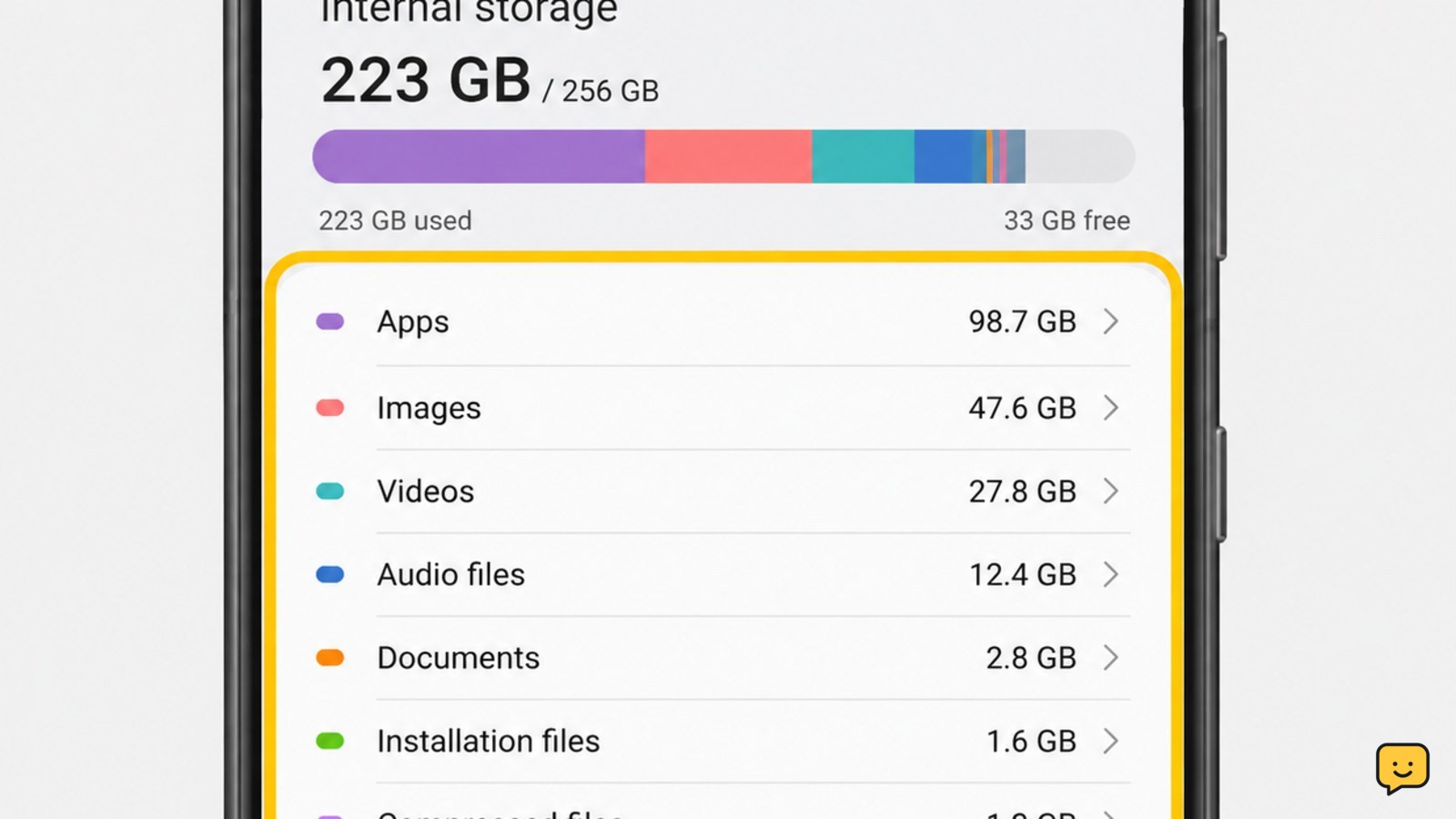
If your phone still says storage is full, open its storage breakdown and check trash folders, app caches, downloads, message attachments, and large apps. Empty Recently Deleted or Trash, clear cache on Android, remove offline downloads, and uninstall or offload unused apps. Recheck storage after each change; stop before deleting app data or photos you have not backed up.
Check the storage breakdown before deleting more
Start with the category using the most space. On Android, open Settings > Storage or search Settings for Storage. On iPhone, open Settings > General > iPhone Storage. Menu names vary by manufacturer and software version.
If deleted files did not free space, use find what is taking phone storage to identify the category consuming it.
Record the available-space figure and the largest categories. If photos, videos, apps, downloads, or a messaging app is near the top, use that category first. If the total barely changes after deleting a file, the file may still be in a trash folder or the storage summary may not have refreshed yet.
Verify: take note of the free-space number before cleanup. Return to this screen after each major action rather than relying on a notification that says an item was deleted.
Empty Trash and Recently Deleted folders
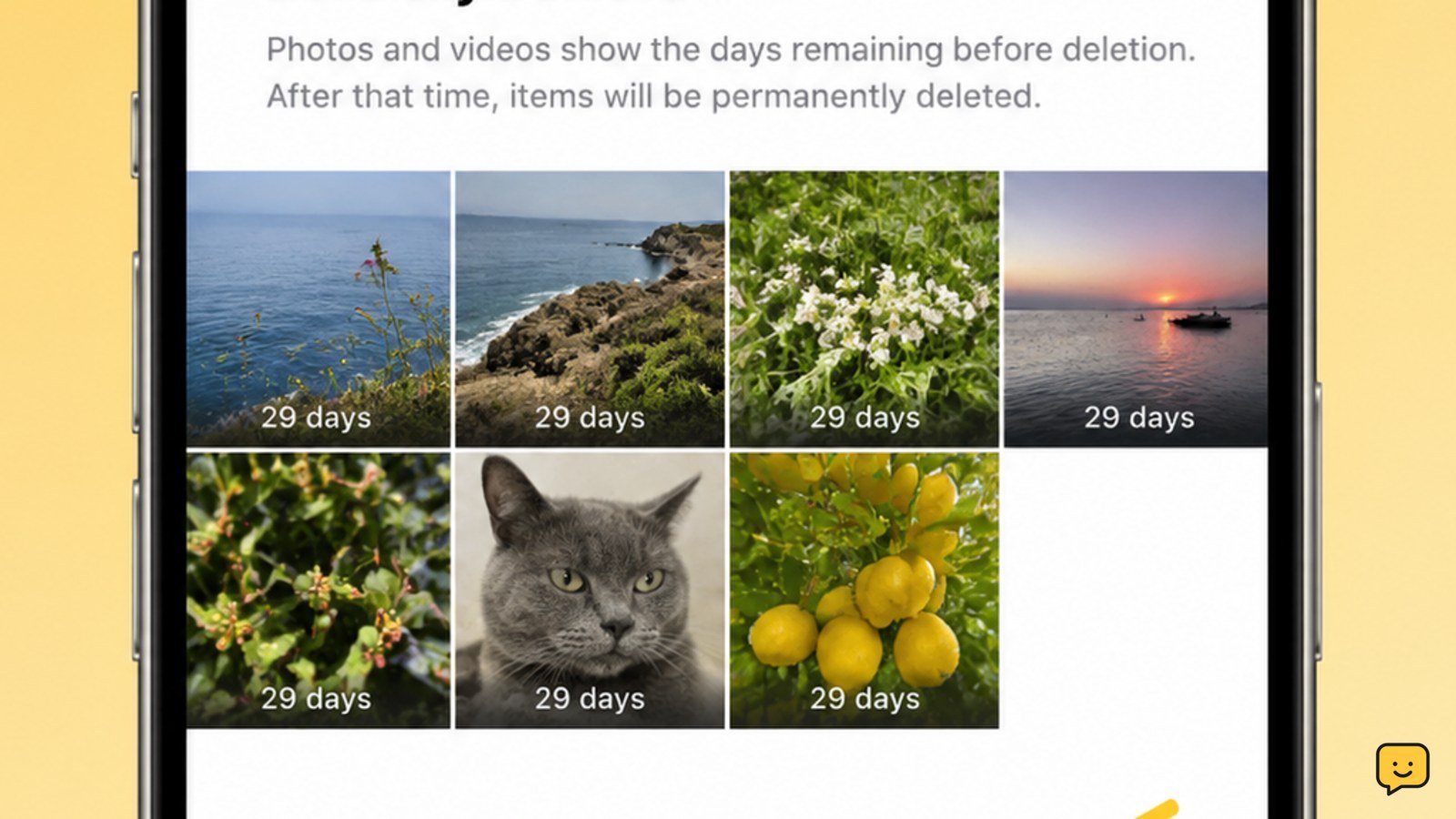
Deleting an item often moves it to a temporary folder instead of removing it immediately. Check the phone’s file manager, photo gallery, and cloud-photo app for Trash, Bin, or Recently Deleted.
- Open the app where you deleted the files.
- Open its library, menu, or albums area and find the deleted-items folder.
- Review the contents before choosing Empty, Delete all, or the equivalent control.
- Repeat for other apps that store photos, videos, downloads, or documents.
Emptying a cloud service’s trash may remove the items from that service as well, so confirm that you no longer need them. If the folder is already empty, continue to cached data and large apps instead of deleting more random files.
Verify: return to the storage breakdown. A large deleted video or photo collection should produce a noticeable change once the relevant trash folder is emptied.
Find hidden media, downloads, and message attachments
Files can remain outside the folder you normally browse. Check the file manager’s Downloads, Videos, Images, and Documents categories. Also inspect messaging and social apps for saved videos, voice recordings, podcasts, and received media.
- Sort files by size if the file manager provides that option.
- Review unusually large videos, duplicate downloads, screen recordings, and offline media.
- Delete only items you recognize and no longer need.
- Empty the file manager’s Trash afterward if it has one.
Streaming, map, music, and social apps may keep offline copies that do not appear in the camera gallery. Remove those downloads from inside the app so its stored index is updated. If a file is visible in a cloud app but marked for offline use, remove the offline copy rather than deleting the cloud original.
Failure path: if the file manager shows little content but the storage screen reports a large media category, check each gallery, cloud-photo, and messaging app separately. Do not use a third-party cleaner to delete unidentified files.
Clear cached app data without deleting account content
Cached data can remain after files are deleted and may contribute to a full-storage warning. On Android, open Settings > Apps, choose a large app, open Storage or Storage & cache, and choose Clear cache. The exact labels depend on the phone maker.
Clear cache for large apps that regularly download images, video, or web content. Avoid Clear storage, Clear data, or similarly named controls unless you have checked what they remove. Those options can erase local downloads, settings, or unsynced content.
iPhone does not provide a universal button to clear every app’s cache. Use the app’s own storage controls where available, remove downloaded content, or offload an unused app from Settings > General > iPhone Storage. Offloading removes the app while retaining its documents when supported; deleting an app can remove local data.
Verify: close and reopen the app, then check the phone’s storage screen. If the app immediately rebuilds a large cache, reduce offline downloads or remove the app only after confirming its data is backed up or synced.
Remove or offload the largest unused apps
Use the storage list to identify apps with large app, document, or download totals. Start with games, video editors, navigation apps, and streaming apps you no longer use.
- Open the app’s entry from the storage screen.
- Review its size and any listed documents, downloads, or stored media.
- Remove offline content inside the app when you want to keep the app.
- On Android, uninstall the app only after checking for unsynced data.
- On iPhone, use Offload App when you want to remove the app but retain supported documents, or choose Delete App when you have confirmed the data is safe.
Do not remove an app solely because its displayed size is large if it contains work files, recordings, or unsynced drafts. If the phone is too full to update or open an app, free a small amount of space by emptying trash and removing one known offline download first.
Stop condition: stop when the phone has enough usable space for the immediate task. Keeping a modest amount of free space also gives the system room to complete downloads, updates, and temporary operations.
Restart and verify usable space after cleanup
After emptying deleted-item folders and removing cached or offline content, restart the phone. A restart can give the storage report time to recalculate, but it will not permanently remove files that are still in Trash or stored by an app.
- Restart the phone normally.
- Open the storage screen again.
- Compare the available-space figure with the number you recorded earlier.
- Open the largest category again if the number has not changed.
If space increased, repeat only the cleanup needed for your target. If the number remains unchanged, check whether the deleted files are still visible in a trash folder, whether an app has recreated its downloads, or whether the storage screen is still calculating.
If storage repeatedly fills again after a clean restart, back up important data before deleting more. The problem may be caused by an app continually saving media or downloads, so watch which category grows between checks and address that app directly.
Frequently asked questions
Why is my phone storage still full after deleting photos?
The photos may still be in Recently Deleted or Trash, or another app may have its own saved copies and message attachments. Empty the relevant deleted-items folders, check messaging and cloud-photo apps, then compare the free-space figure in the phone’s storage settings.
Is it safe to clear cached data on Android?
Clearing cache is generally safer than clearing app storage because it targets temporary files. Use the app’s Storage or Storage & cache screen and choose Clear cache. Do not choose Clear data or Clear storage unless you accept that local downloads, settings, or unsynced content may be removed.
Why does iPhone storage show System Data as large?
System Data can include temporary files, caches, logs, and other system-managed content. iPhone does not offer one universal button to clear it. Remove known offline content, restart the phone, and recheck storage. Back up important data before considering more disruptive app removal.
How much storage should I free before updating my phone?
The required amount varies by phone, update, and available temporary space. Use the update screen’s stated requirement when shown. If there is not enough room, first empty trash, remove one or two known large downloads, and offload or uninstall an unused app after checking its data.
Browse more Mobile Devices guides for help with this topic.


