Valorant FPS is often low because an FPS limit is enabled, the game is using the wrong graphics profile, another program is consuming CPU or GPU time, or the PC is overheating and reducing clock speeds. Check Valorant’s video limits, close unnecessary background software, update the graphics driver, and compare performance in the Practice Range before changing multiple settings at once.
Check whether an FPS limit is causing the low result
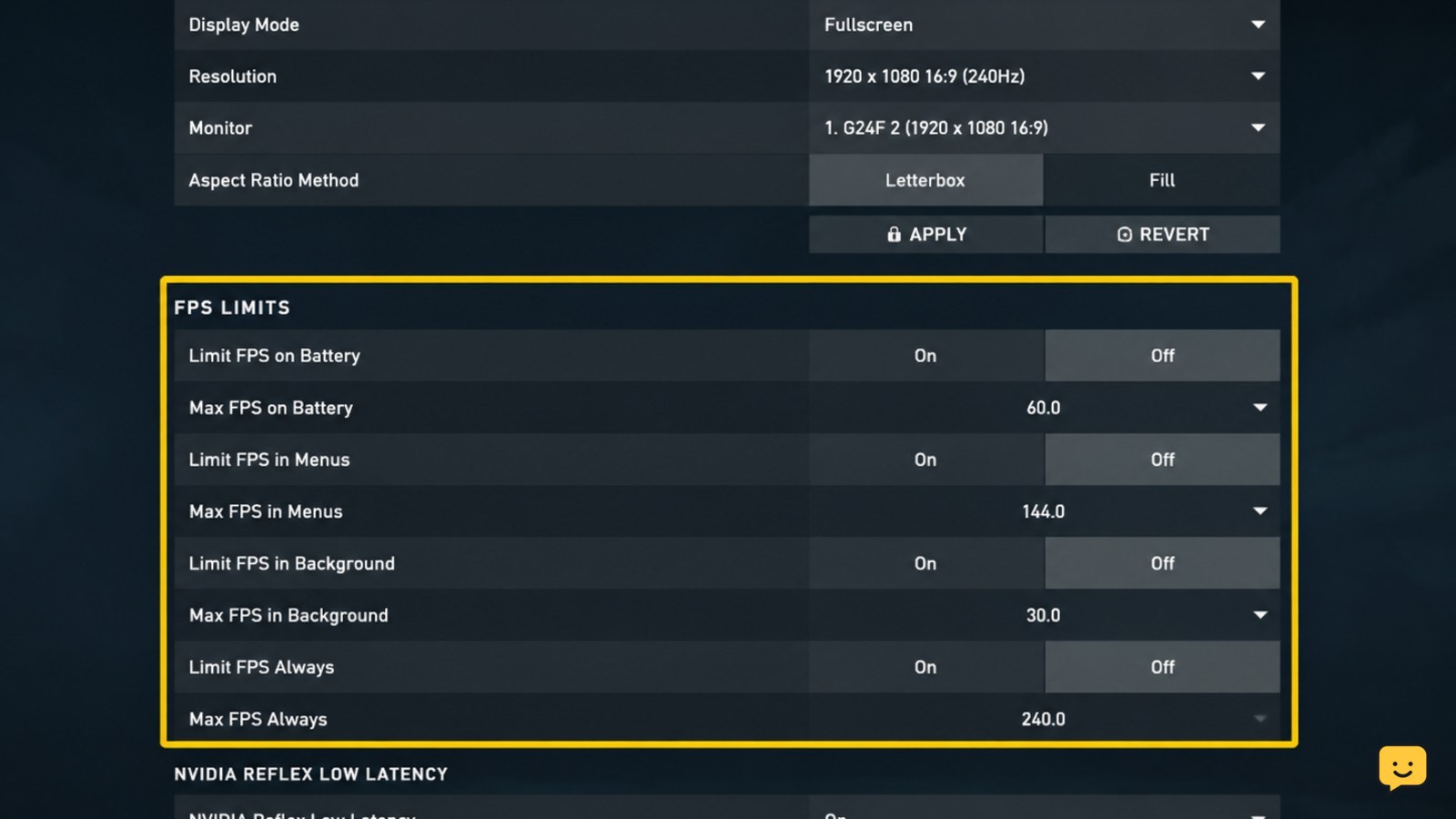
Start with Valorant’s video settings because a limit can make a capable gaming PC appear slow. Open Settings, choose Video, and review the General and Stats areas. Check the limits for battery, menus, background operation, and gameplay. If gameplay FPS is capped below your monitor’s refresh rate, raise or disable that cap for testing.
Also check VSync. Disable it temporarily when diagnosing a low ceiling, then restart the match or Practice Range. If the FPS immediately reaches the same fixed number as the limit, the setting—not the PC’s maximum performance—is controlling the result.
Verify: enable an in-game FPS statistic and watch it for several minutes in the Practice Range. If the number stays close to one exact value, inspect limits before lowering graphics quality.
Separate constant low FPS from sudden drops
The pattern matters. FPS that is low from the moment the round begins usually points to a limit, high rendering load, a power profile, or a hardware bottleneck. FPS that is normally high but falls during effects, fights, or map movement is more consistent with CPU or GPU spikes, background activity, shader-related work, or heat.
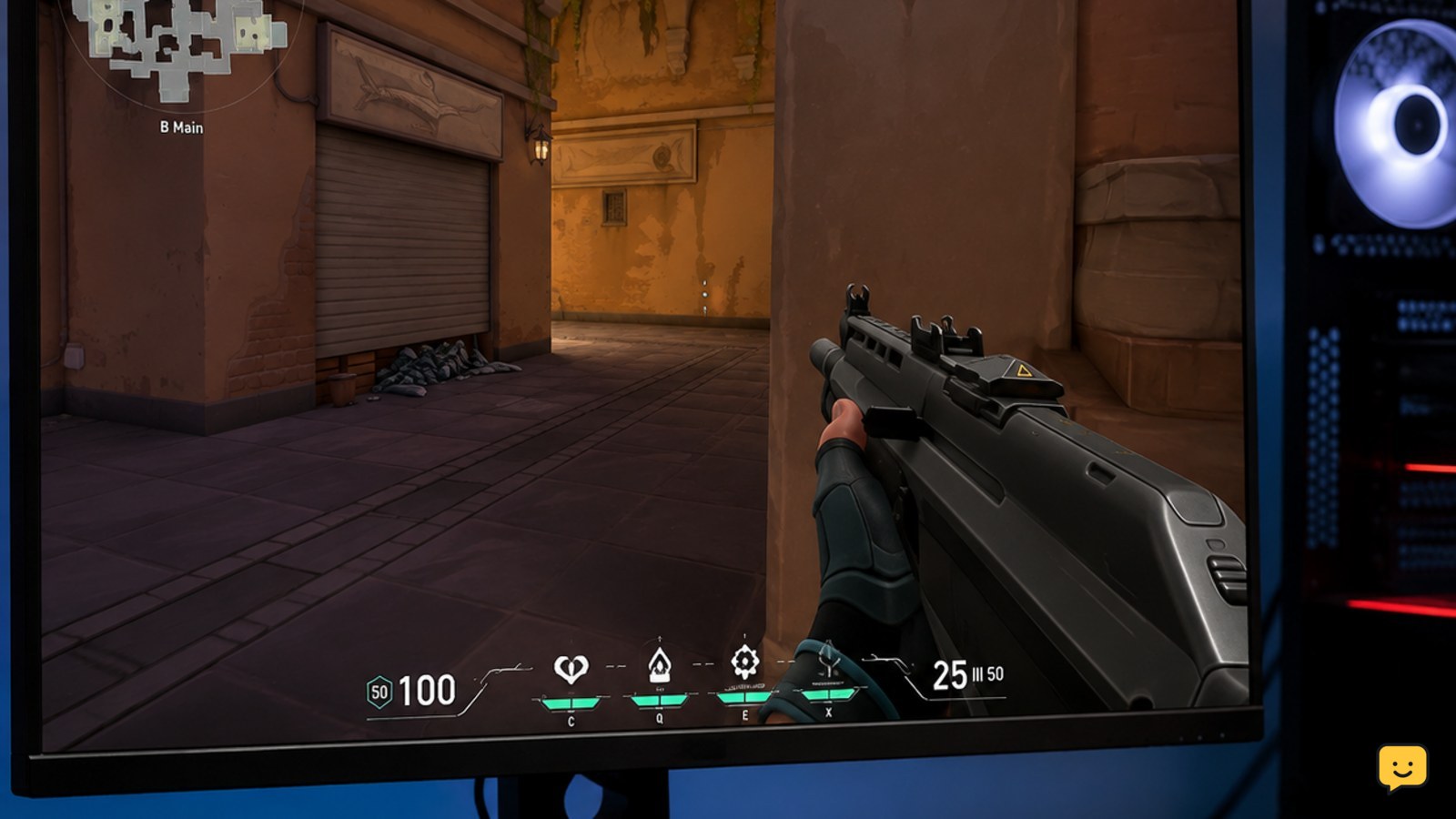
Run the same short test after each change: load the Practice Range, move through the same area, and use the same weapon or ability sequence. Then compare one real match. A Practice Range result can confirm that the game launches and renders correctly, but it cannot reproduce every multiplayer scene.
Failure path: if the Practice Range is smooth but matches still drop, do not keep lowering every setting. Move to background-process, network-independent performance checks, and temperature monitoring. Network lag can feel like stutter, but it does not by itself lower the rendered FPS counter.
Lower the settings that increase rendering load
In Settings > Video > Graphics Quality, use a lower preset for testing, then change one option at a time. Resolution and display mode affect the amount of work sent to the GPU. Material, texture, detail, and UI quality can also add load, while anti-aliasing and detail-heavy effects may affect clarity or frame time on some systems.
Keep the setting change reversible. Record the original values, lower the most demanding options, and test the same Practice Range route. If FPS improves substantially, raise options individually until you find the balance between visibility and stable frame time.
Do not assume the lowest possible quality is always best. If GPU use is low while FPS remains poor, reducing visual settings further may do little; the limit may instead be the CPU, a background process, power management, or thermal throttling.
Close background programs and overlays before retesting
Quit browsers with video or many tabs, recording software, launchers, RGB utilities, hardware dashboards, and other programs that continually use CPU, memory, disk, or GPU resources. Disable nonessential overlays for one test session, including game, chat, and graphics-driver overlays. Keep security software active; do not weaken protection to chase a small FPS gain.
Open Windows Task Manager while Valorant is closed and check Processes and Performance. Look for a program that stays busy or consumes significant memory. After closing only software you recognize, restart Valorant and repeat the controlled test.
Verify: if the drops disappear only when one program is closed, update or reconfigure that program rather than permanently disabling unrelated Windows services. If nothing changes, restore the programs and continue to the driver and temperature checks.
Check graphics drivers, Windows power mode, and GPU selection
Install the current graphics driver from your GPU manufacturer’s official support page, choosing the driver for the exact graphics model and Windows version. Restart the PC after installation. A driver update is especially reasonable when FPS changed after a Windows update, Valorant update, or driver change.
On a gaming laptop or a PC with integrated and dedicated graphics, confirm that Valorant is assigned to the intended high-performance GPU in Windows graphics settings or the manufacturer’s control panel. Use Windows’ higher-performance power mode while testing, and connect the laptop to its charger.
Failure path: if FPS becomes worse immediately after a driver update, use the manufacturer’s supported rollback option or reinstall the previous known-good driver. Stop if crashes, graphical artifacts, or black screens appear; those symptoms need a driver or hardware diagnosis rather than more in-game tweaks.
Check heat and clock-speed throttling under load
Low FPS that appears after several minutes, especially when the fans become loud or the chassis feels unusually hot, can indicate thermal throttling. Monitor CPU and GPU temperature, utilization, and clock speed with a trusted hardware monitor while running the same test. A temperature rise combined with falling clock speed is more useful evidence than temperature alone.
Place the PC on a hard, open surface. Clear dust from external vents using the manufacturer’s safe cleaning procedure, and confirm that fans are spinning normally. Do not block laptop intake vents or use an unstable overclock while troubleshooting.
Verify: after cooling the system and repeating the test, stable clocks and steadier FPS point toward heat or airflow. If clock speeds still fall, temperatures remain abnormal, or the PC shuts down, stop the gaming test and arrange hardware service.
Confirm the fix with a repeatable FPS comparison
Use the same resolution, display mode, graphics settings, Practice Range route, and short ability test before and after the change. Record average FPS and the lowest observed value if Valorant’s statistics display provides them. Then play a normal match to check whether the improvement holds during real combat.
Keep the change that improves stability without making the game difficult to read. If none of the checks changes FPS, restore the original settings and compare another game or benchmark. Low performance everywhere suggests Windows, driver, power, thermal, or hardware trouble; low performance only in Valorant suggests a game configuration or installation-specific issue.
If Valorant remains unusually slow after a clean driver check and controlled comparison, report the issue through Riot’s current support channel with your PC specifications, driver version, resolution, FPS pattern, and the steps already tested.
Frequently asked questions
Why is Valorant FPS low even on a powerful PC?
A powerful PC can still show low Valorant FPS when gameplay is capped, the game uses an integrated GPU, a background process consumes CPU time, or the processor is throttling from heat or power limits. Check the FPS cap and GPU assignment first. If GPU usage is low but FPS is also low, investigate CPU load, clock speed, and background programs instead of lowering every graphics option.
Should I use low graphics settings for higher Valorant FPS?
Lower settings can help when the GPU is the bottleneck, but they may not fix a CPU limit, FPS cap, driver issue, or thermal slowdown. Lower the graphics preset temporarily as a diagnosis, then raise options one at a time. Keep the settings that provide stable frame time and clear visibility rather than automatically choosing the lowest quality.
Why does Valorant FPS drop after playing for a while?
Drops that begin after several minutes can indicate rising temperatures, falling clock speeds, or a background process that gradually increases resource use. Monitor CPU and GPU temperature, utilization, and clocks during the same repeatable test. Improve airflow and remove recognized background load. If the PC becomes excessively hot, shows artifacts, or shuts down, stop testing and seek hardware service.
Can internet lag cause low FPS in Valorant?
Internet lag can make movement or hit registration feel delayed, but it does not normally reduce the rendered FPS counter. Compare the in-game FPS statistic with network indicators and the visual smoothness of the scene. If FPS stays steady while actions feel delayed, investigate the connection separately. If the FPS counter falls, continue with graphics, background-load, driver, and thermal checks.
Browse more Valorant guides for help with this topic.