If your VALORANT crosshair is not visible, open Settings > Crosshair, select the active profile, and restore the inner lines or center dot. Choose a contrasting color, turn outlines on, and confirm opacity and thickness are above zero. Save the changes, then test the crosshair in the Practice Range. If it remains absent, reset the profile and restart the game.
Check the active crosshair profile first
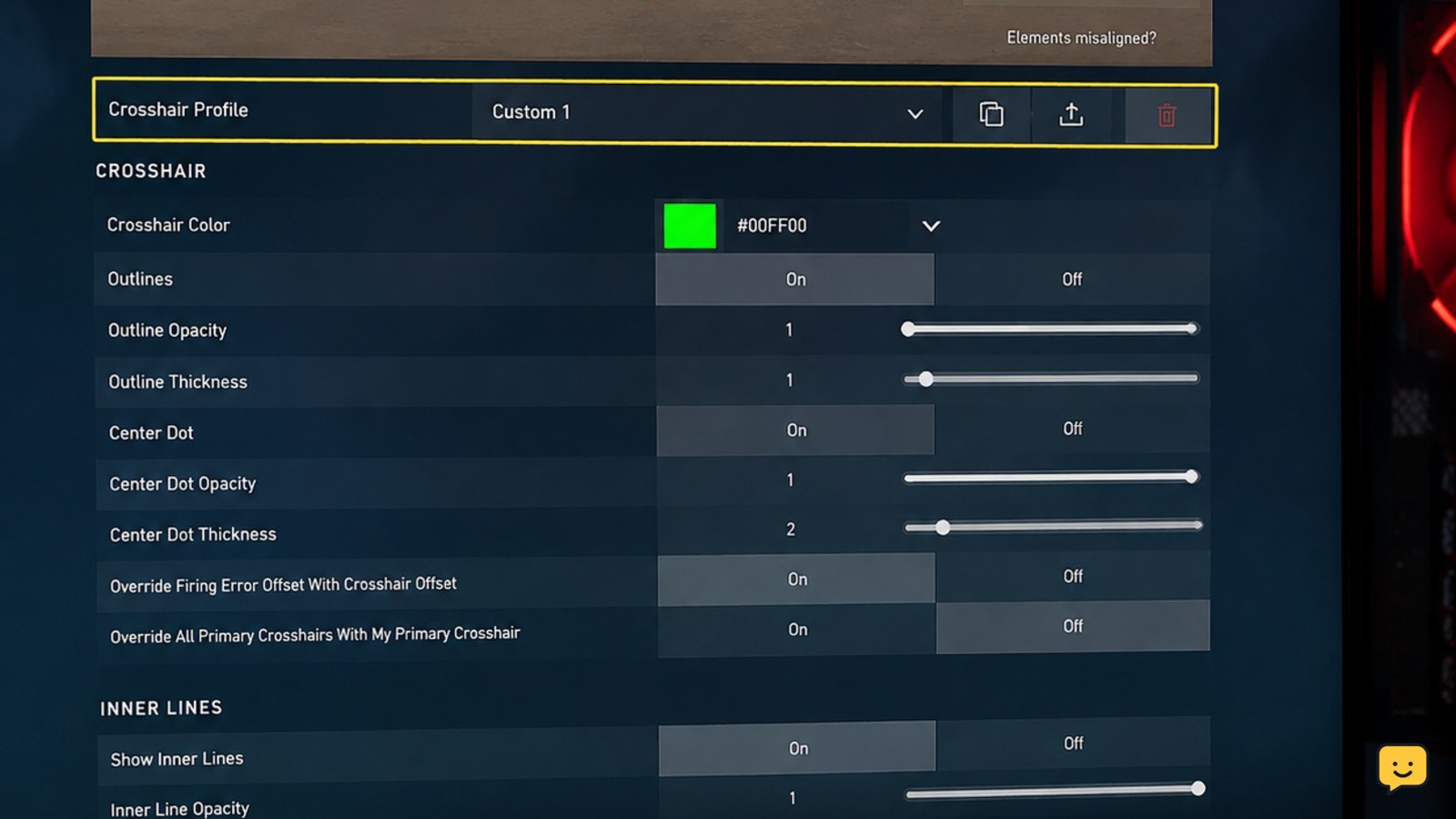
Open Settings from the gear icon, then select Crosshair. Start with the profile that is currently selected. VALORANT can store different crosshair configurations, so editing an unused profile will not change the sight you see in a match.
- Open the crosshair settings page.
- Identify the selected profile.
- Make one small change, such as increasing inner-line opacity or thickness.
- Leave the menu and check whether the crosshair appears.
If the change has no effect, return to the page and confirm that you edited the selected profile rather than another saved profile.
Restore visible lines, outlines, or the center dot
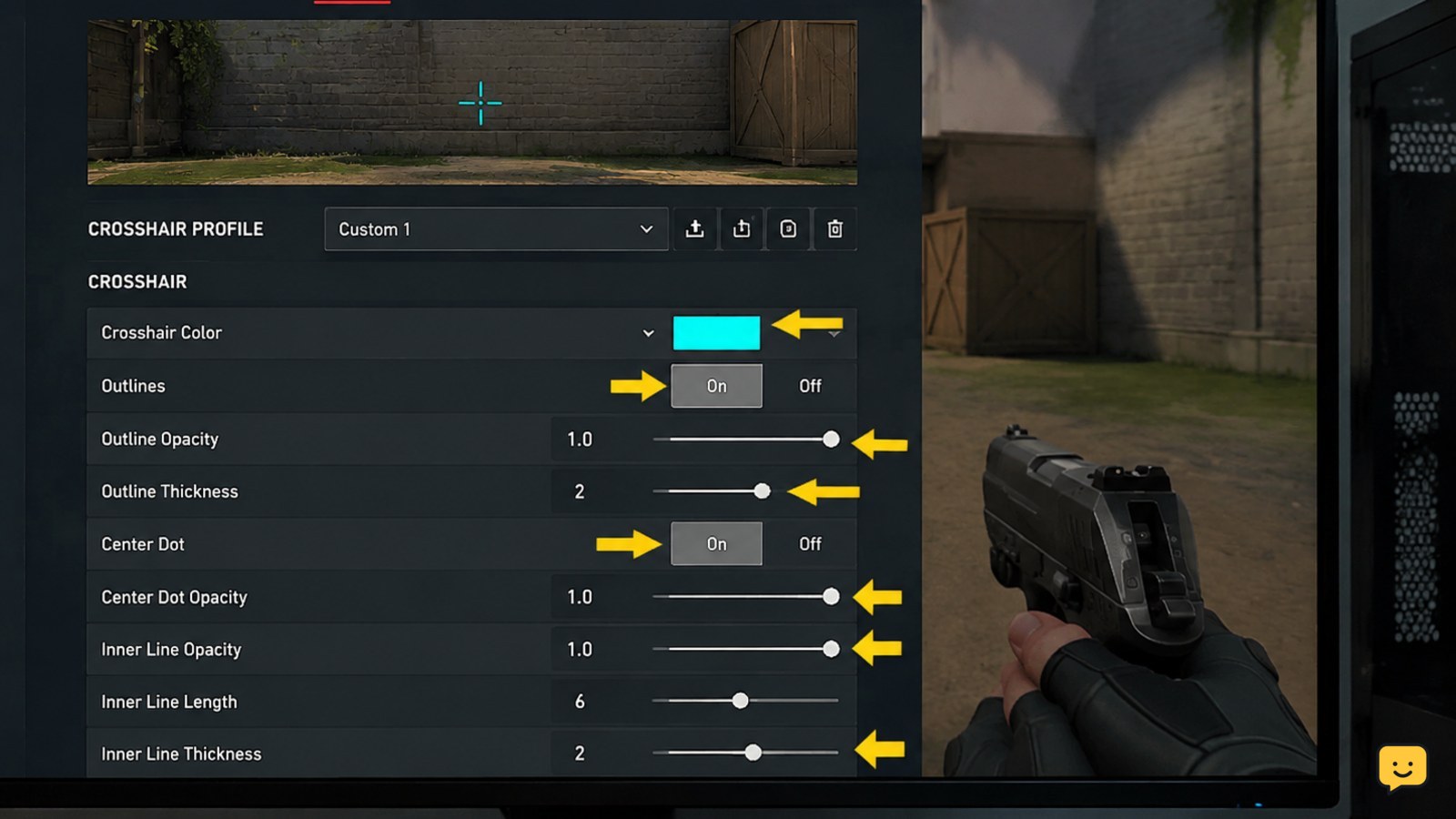
A crosshair can be technically enabled but effectively invisible when its visible elements have zero opacity, very low thickness, or a color that blends into the map. In the selected profile, review the sections for the main crosshair elements.
- Set the color to one that contrasts with the surfaces you usually play on.
- Turn Outlines on if the crosshair disappears against bright or detailed backgrounds.
- Increase inner-line opacity and thickness slightly.
- Enable the Center Dot if you want a simple central aiming reference.
Keep the settings modest at first. A very thick outline or large center dot can obscure targets rather than improve visibility. Check the result against both a dark and a light wall.
Check whether a firing or movement option changes visibility
If the crosshair appears while standing still but changes during movement or shooting, review the profile options that alter its appearance. Settings related to firing error, movement error, or other dynamic behavior can make parts of the crosshair expand, shift, or become less useful during an engagement.
Temporarily disable dynamic movement or firing behavior, then test again in the Practice Range. This isolates a visibility problem from a behavior setting. If the crosshair returns to a stable shape, re-enable one option at a time and stop when you identify the setting that causes the unwanted change.
Reset the profile when saved settings are corrupted
If the crosshair remains absent after the visibility checks, use the reset control on the Crosshair settings page for the active profile, if it is available in your current client. Resetting removes custom values from that profile and gives you a known starting point.
- Record or screenshot any settings you want to keep.
- Reset the selected crosshair profile.
- Apply a basic contrasting color with visible inner lines.
- Test the result before importing or rebuilding a custom design.
If the default profile is visible, the problem was limited to the saved configuration. Recreate your preferred design gradually instead of changing every option at once.
Verify the fix in the Practice Range and a match
Use the Practice Range as the verification point because it lets you check the crosshair without risking a competitive round. Confirm that it remains visible while standing still, moving, firing, and aiming down sights if you use a separate ADS profile.
If it is visible in the Practice Range but missing in one match, check whether that situation uses a different profile or weapon-specific crosshair configuration. If it is missing everywhere, close VALORANT and the Riot Client, restart the PC if necessary, and test the reset profile again.
When the crosshair is visible in the range and remains stable during a normal match, stop troubleshooting. Further profile changes are no longer needed.
Frequently asked questions
Why is my VALORANT crosshair visible in the menu but not in a match?
The selected match profile may differ from the profile you edited, or a separate ADS or weapon-specific configuration may be active. Check the selected profile before entering a match, then test standing, moving, firing, and aiming in the Practice Range. If only one weapon or aiming mode is affected, compare that mode’s crosshair settings with the main profile.
What crosshair color is easiest to see in VALORANT?
There is no single best color because map surfaces and display settings vary. Choose a color that contrasts with both light and dark backgrounds, then add a thin outline if it still blends into the environment. Test the choice in the Practice Range rather than judging it only from the settings preview.
Can a VALORANT crosshair disappear because its opacity is too low?
Yes. Very low opacity, zero thickness, or disabled inner lines can make the crosshair appear missing even though the profile is active. Increase opacity and thickness slightly, enable outlines, and check the result against a wall. If that fails, reset the active profile and build the design again from visible defaults.
Should I use a third-party overlay if the in-game crosshair is missing?
No. Diagnose the built-in Crosshair settings first and avoid overlays while troubleshooting. Third-party tools can introduce separate display or compatibility problems and are unnecessary when the in-game profile is working. If the default crosshair remains absent across the Practice Range and matches, contact VALORANT Support.
Browse more Valorant guides for help with this topic.