To stop malicious browser notifications, do not click the alert. Open your browser’s notification or site-permission settings, remove or block unfamiliar websites, then clear suspicious extensions and run a trusted malware scan. Test the result by restarting the browser and visiting only known sites. If alerts continue outside the browser, investigate installed apps or device-level notification settings.
Confirm the alert is a website notification
Malicious browser notifications often look like security warnings, prize messages, delivery updates, or virus alerts. They can appear on the desktop even when the related website is closed. A sender name or domain in the alert is a useful clue, but it does not prove the message is legitimate.
Do not use the notification’s buttons to unsubscribe, scan, call support, or sign in. Close the alert using the operating system’s normal close control. If several alerts appear, note the sender names and continue from the browser settings rather than opening them.
Remove unfamiliar notification permissions in Chrome
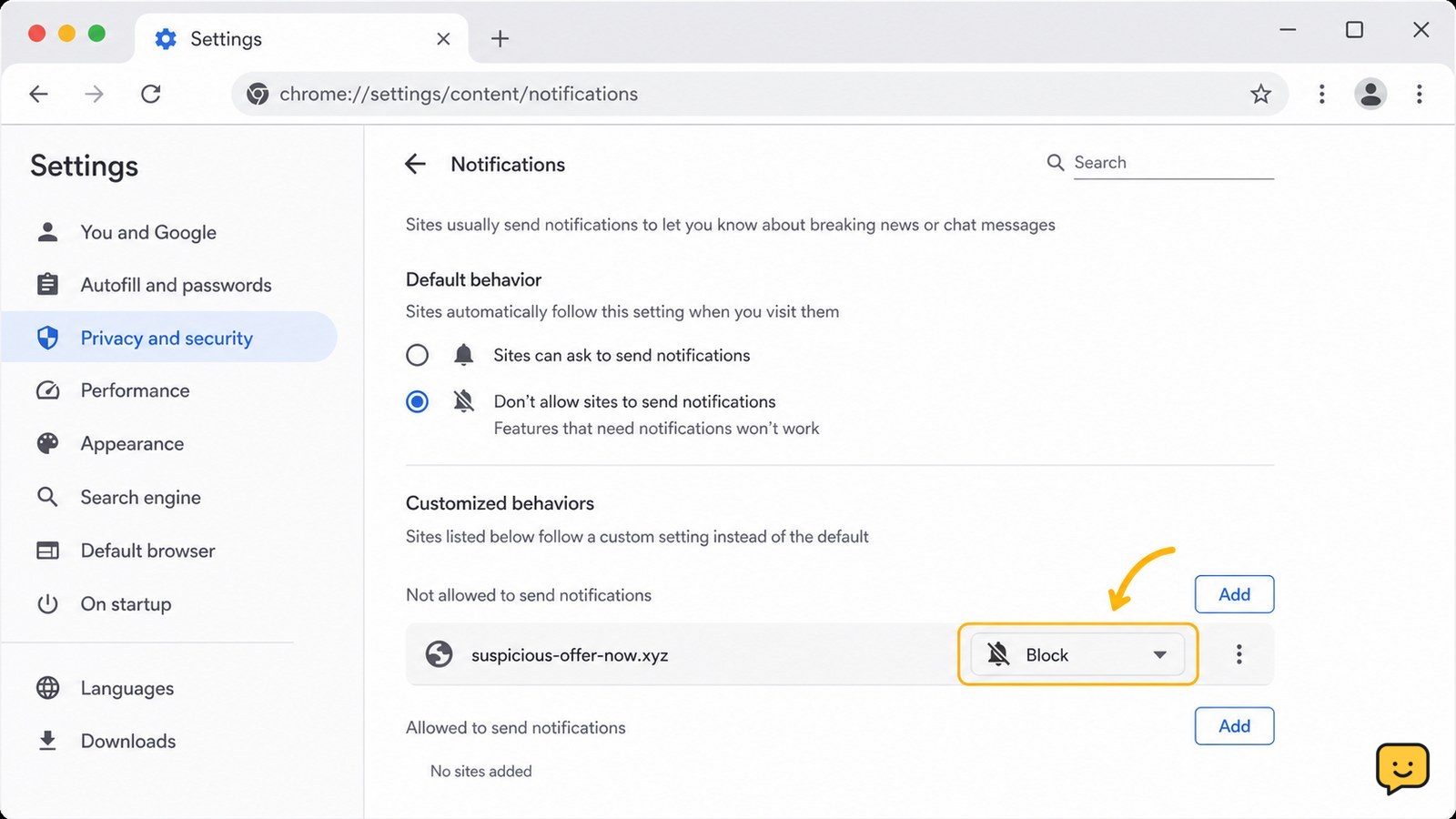
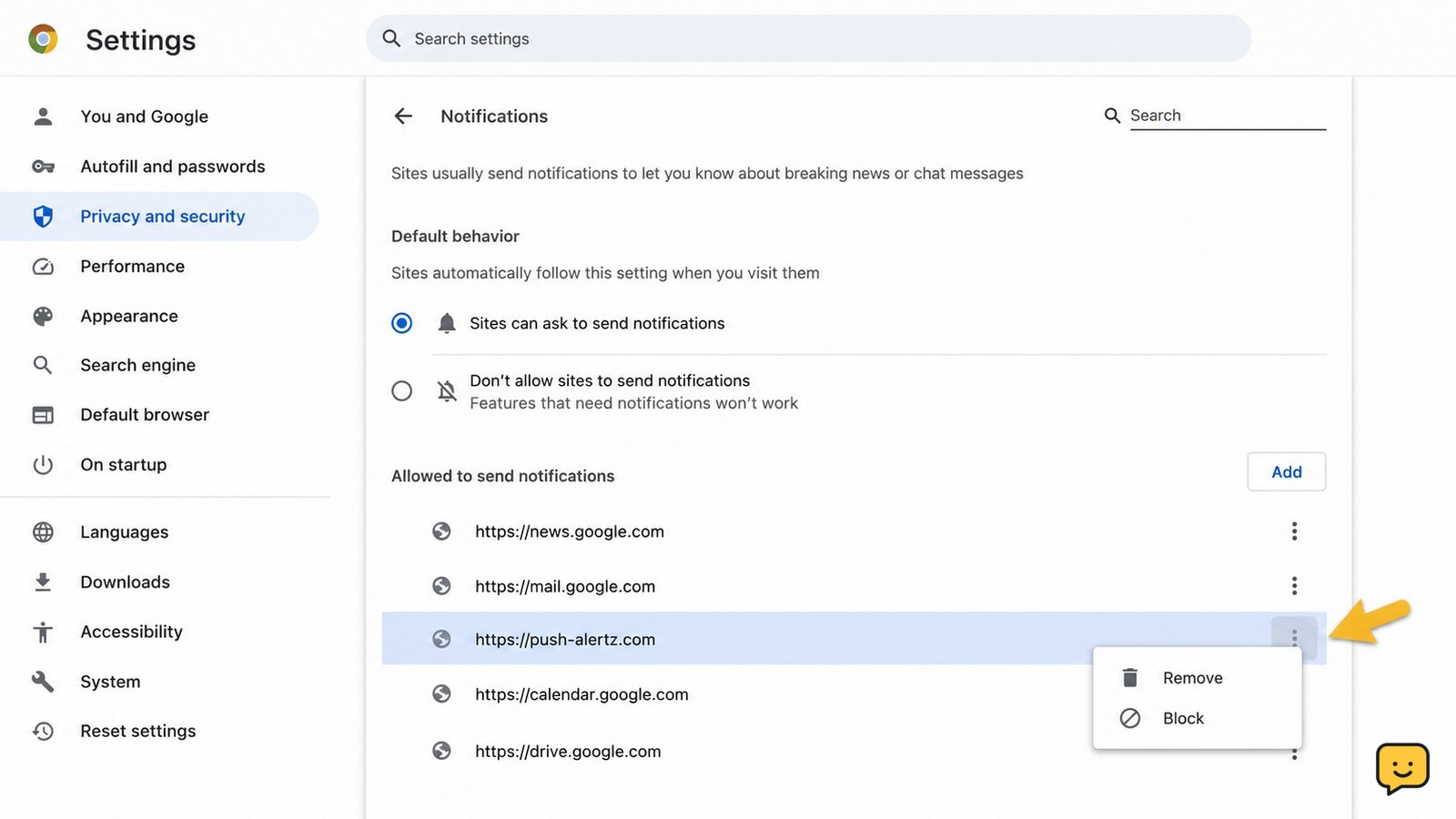
In Chrome on a computer, open Settings, choose Privacy and security, then Site settings and Notifications. Review the sites allowed to send notifications. For every unfamiliar or suspicious domain, open its menu and choose Remove or change it to Block.
Also review the default behavior for new requests. Set sites to ask before sending notifications, or block notification requests if you do not need them. On Android, open Chrome’s site settings and notification controls from the browser settings, then remove suspicious allowed sites.
Verify: the suspicious domain is no longer listed under allowed notifications, and no new alert appears after Chrome is closed and reopened.
Block unwanted requests in Edge, Firefox, or Safari
In Microsoft Edge, open Settings, go to Cookies and site permissions, select Notifications, and remove or block unfamiliar entries. Keep new notification requests blocked or set to ask, depending on how you use the browser.
In Firefox, open Settings, choose Privacy & Security, find Permissions, and select Settings beside Notifications. Change suspicious sites to Block, remove them, or use the option that blocks new requests.
In Safari on Mac, open Safari > Settings > Websites > Notifications and deny notifications for unfamiliar sites. On iPhone or iPad, review Safari website settings and system notification permissions. Menu names can vary by browser version, so search the browser’s settings for notifications or site permissions.
Verify: the sender’s domain is removed or blocked in the browser you actually use. If alerts appear in another browser, repeat the check there.
Remove extensions you did not install or recognize
A suspicious extension can change search results, inject advertising, or reopen unwanted pages even after notification permissions are removed. Open the browser’s extensions or add-ons page from its settings. Review each installed item, including recently added items and anything with an unfamiliar name or publisher.
Remove an extension only when you are confident it is unwanted. For a work, school, password-manager, or security extension, confirm its publisher and purpose before changing it. Do not disable a protection tool merely because a notification claims it is causing the problem.
Verify: restart the browser and confirm the unfamiliar extension is gone. If the remove control is unavailable, the device may be managed by an organization or affected by unwanted software; do not bypass the restriction.
Scan the device when notifications return
If alerts return after permissions and extensions are cleaned up, run a full scan with the device’s built-in security software or a reputable security product obtained from its official source. Allow the scanner to quarantine confirmed unwanted software, then restart the device and run a second scan if the tool recommends it.
Check recently installed applications as well. Remove only programs you recognize as unwanted, using the operating system’s normal uninstall process. Do not trust a pop-up that asks you to download a “cleaner” or call a support number.
On a managed work or school device, contact the administrator instead of removing security software or changing management settings.
Verify the browser stays quiet without opening alerts
After cleanup, close every browser window, restart the device, and open the browser from its normal app icon. Visit two or three familiar websites without selecting links from the old notifications. Confirm that the unwanted sender does not reappear and that legitimate notifications still work if you chose to keep them.
If only one website continues to request permission, block that request and leave the site. If alerts appear when every browser is closed, check the operating system’s notification settings and installed applications; the source may not be a browser permission.
Keep the browser, operating system, and security software updated. Treat unexpected security claims, prize offers, and urgent account warnings as untrusted until verified through the organization’s official website.
Frequently asked questions
Can a browser notification infect my device by itself?
Usually, displaying a notification is not the same as installing software. The risk comes from clicking a deceptive link, downloading a file, installing an extension, or entering information. Close the alert, remove the website permission, and scan the device if you opened anything or if alerts continue.
How do I stop notifications from one website without blocking every site?
Open your browser’s notification or site-permission settings, find that website, and choose Remove or Block. This changes the permission for that site only. Leave other sites unchanged, then restart the browser and confirm the unwanted sender no longer appears.
Why do malicious notifications continue after I remove permission?
The alerts may come from another browser, a suspicious extension, an installed application, or a device-level notification setting. Check every browser you use, review extensions, run a trusted full-device scan, and inspect recently installed applications. If the alerts appear while all browsers are closed, focus on the operating system or installed apps.
Should I click an alert’s unsubscribe button?
No. An unwanted alert’s unsubscribe button may open a phishing page or download unwanted software. Remove the sender through browser settings instead. If you already clicked it, do not enter information, close the page, remove any downloaded file, and run a security scan.
Browse more Privacy & Online Safety guides for help with this topic.