
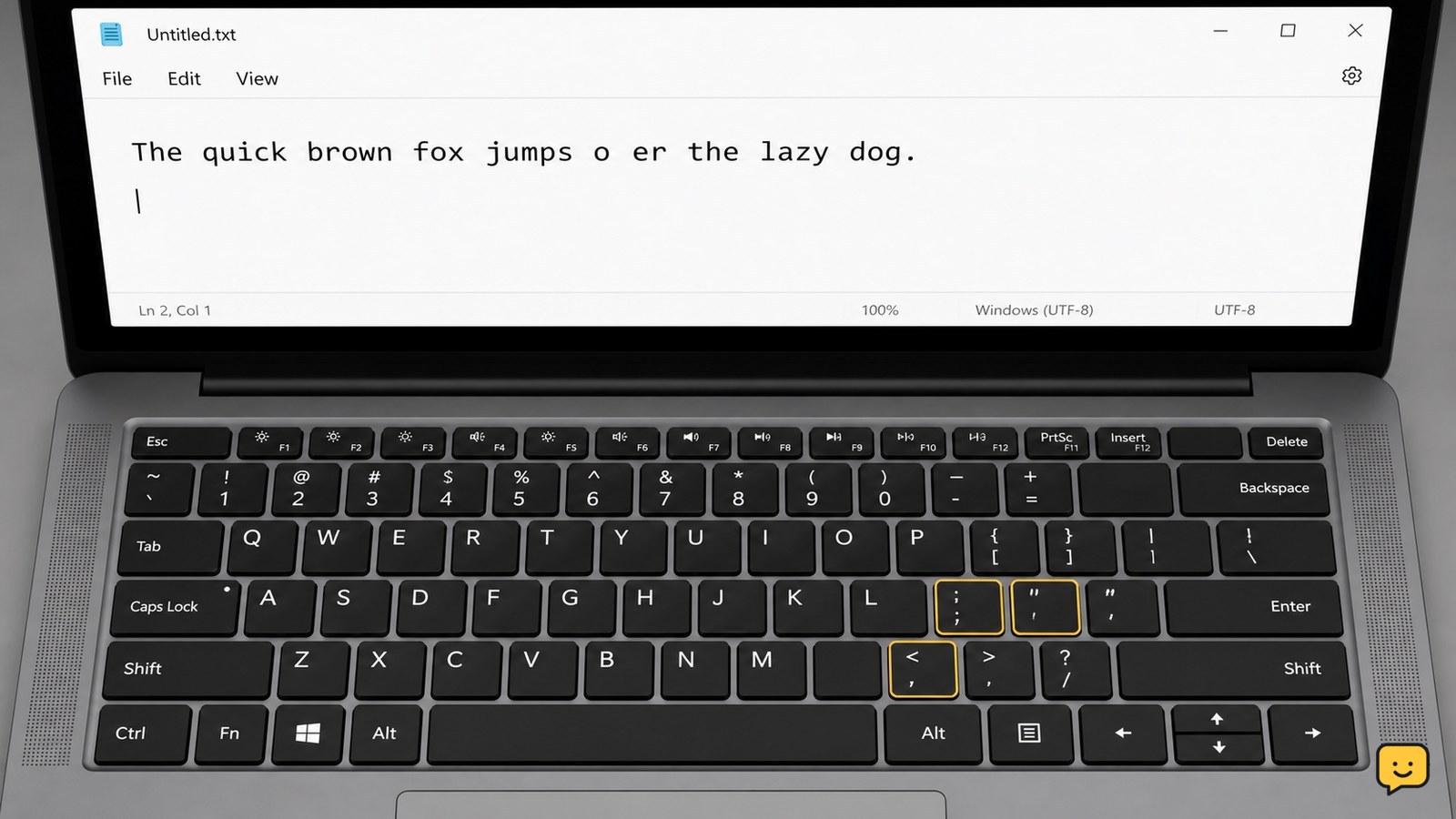
To fix laptop keyboard keys not typing correctly, first restart the laptop and check Num Lock, Fn Lock, and the keyboard layout. Test the affected keys in a plain text editor, then clean around them with the laptop powered off. If only the built-in keyboard fails while an external keyboard works, update or reinstall the keyboard driver. Stop and seek repair after liquid damage, swelling, or visible hardware damage.
Identify whether the fault affects one key or the whole keyboard
Open a plain text editor and press the affected keys several times. Note whether a key produces no character, the wrong character, repeated characters, or a different symbol. Test letters, numbers, Space, Enter, Backspace, and both Shift keys.
- Press the same key in two different apps. If the result is wrong in only one app, that app or its text settings are the likely cause.
- Connect an external keyboard and repeat the test. If the external keyboard works normally, focus on the laptop keyboard, its connection, or its driver.
- Use the on-screen keyboard to enter a few characters. In Windows, press Windows key + Ctrl + O to open it.
Verify: Record the exact keys that fail before changing settings. This makes it easier to tell whether each fix changes the symptom.
Restart the laptop and check Num Lock, Fn Lock, and keyboard modes
A temporary input process or keyboard mode can make keys appear incorrect. Save your work, restart the laptop normally, and test the same keys again before installing anything.
- Press Num Lock once, then test the number pad or letter keys that are producing numbers.
- Try the laptop’s Fn Lock shortcut, commonly Fn + Esc, if the function row behaves differently from its labels. The exact shortcut varies by manufacturer.
- Check whether a stuck Shift, Ctrl, Alt, or Fn key is changing the output. Press and release each key once.
Verify: Type a short sentence containing the affected letters, numbers, and punctuation. If the output is now correct, stop here.
Correct the keyboard layout and language in Windows
If keys consistently produce the wrong symbols, Windows may be using a different keyboard layout. This is common after switching languages or using a shortcut accidentally.
- Look at the language indicator near the right side of the taskbar, such as ENG.
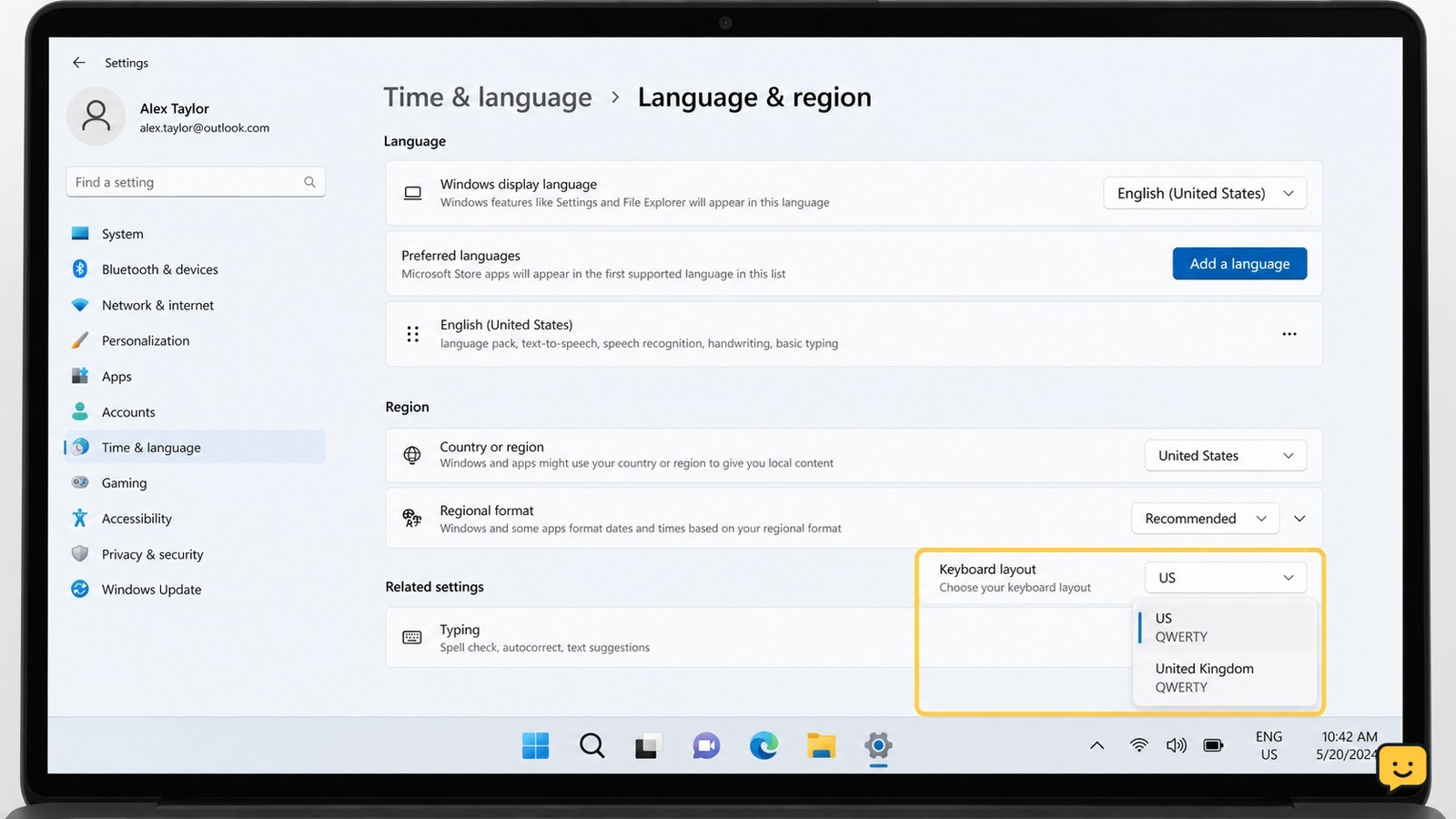
- Select the language and choose the layout printed on your physical keyboard, such as US or UK.
- Open Settings > Time & language > Language & region. Select your language, open its language options, and review the installed keyboards.
- Remove layouts you do not use to reduce accidental switching.
Verify: In the text editor, test keys that commonly differ between layouts, including quotation marks, the @ symbol, slash, backslash, and the number row. If only symbols were wrong and they now match the key labels, the layout was the cause.
Clean stuck or unresponsive keys without damaging the keyboard
Dust, crumbs, and residue can stop a key from moving or registering consistently. Turn the laptop off, unplug its charger, and disconnect accessories before cleaning.
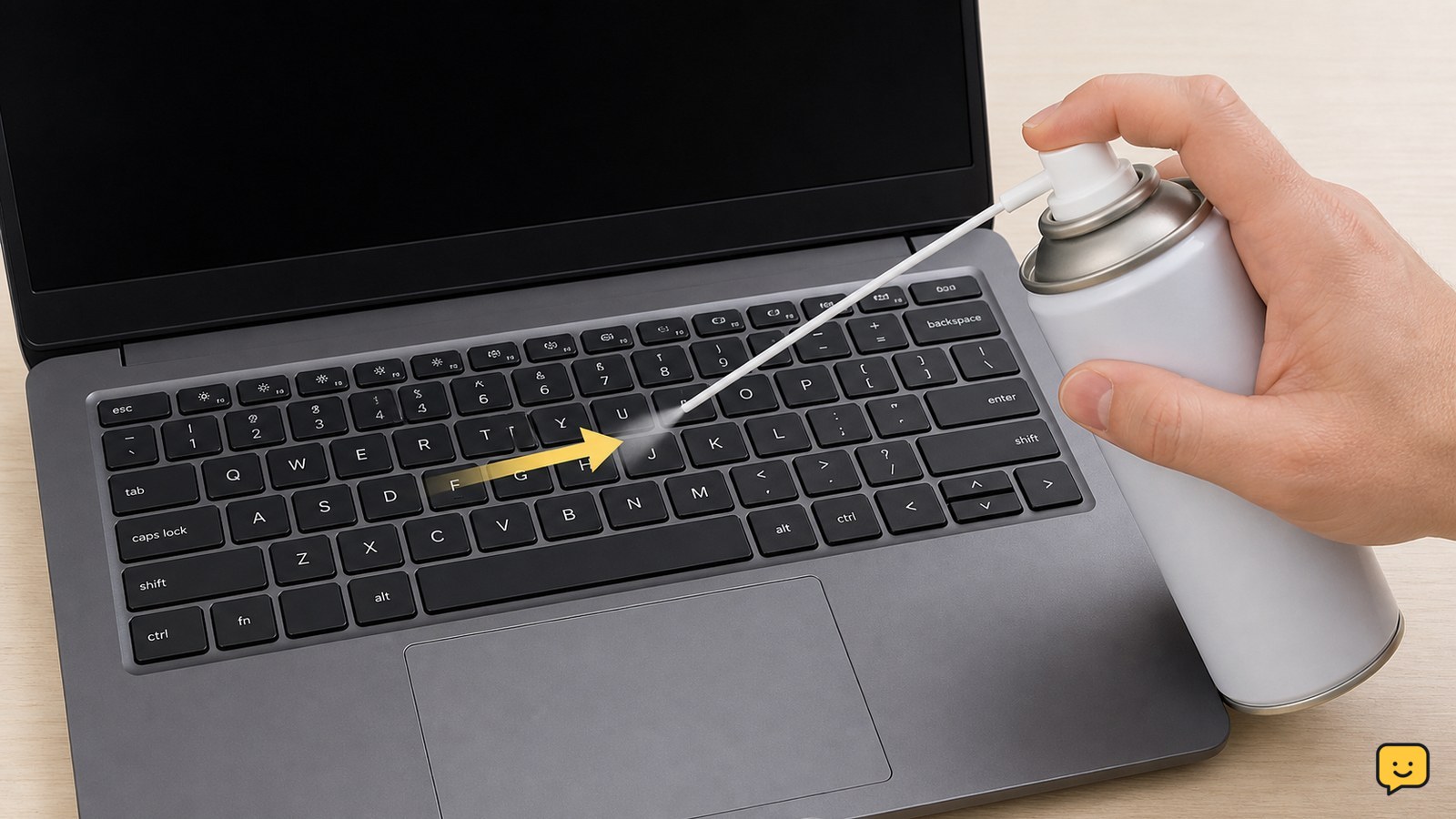
- Hold the laptop at an angle so loose debris can fall away from the keyboard.
- Use short bursts of compressed air across the affected key and the surrounding gaps. Keep the can upright and follow its label instructions.
- Wipe the key surfaces with a dry microfiber cloth. Do not spray cleaner directly onto the keyboard.
- Press the key gently from different points to check whether it moves evenly. Do not force it or remove the keycap.
Verify: Turn the laptop on and test the key in a plain text editor. If it still sticks, feels loose, or needs excessive force, stop cleaning and arrange service.
Update or reinstall the Windows keyboard device
When the built-in keyboard works intermittently or stops responding after an update, its device driver or input service may be misbehaving. Use an external keyboard or the on-screen keyboard if needed.
- Right-click Start and open Device Manager.
- Expand Keyboards, right-click the listed laptop keyboard device, and choose Update driver.
- Restart the laptop after any update.
- If the problem remains, return to the same device, choose Uninstall device, and restart. Windows should detect the keyboard again during startup.
Install BIOS, chipset, or keyboard packages only from the laptop manufacturer’s support site and only for the exact model. Do not use an incompatible firmware package.
Verify: Test the affected keys before opening several applications. If the keys work at the sign-in screen and in a text editor, the driver issue is resolved.
Use the boot screen to separate software and hardware faults
If Windows fixes do not help, test the keyboard outside the normal desktop. Restart and use the manufacturer’s documented key to enter the boot menu or firmware setup. The key may be F2, F10, F12, Delete, or another key depending on the model.
- Try the affected keys in the firmware or boot menu without changing any settings.
- If the keys work there but fail in Windows, the cause is probably Windows settings, drivers, or an installed application.
- If the same keys fail there, connect an external keyboard if supported and compare the result.
Verify: Exit without changing firmware settings. If the built-in keyboard fails both outside and inside Windows, software troubleshooting is unlikely to help. Arrange repair or keyboard replacement through the manufacturer or a qualified technician.
Frequently asked questions
Why are my laptop keys typing the wrong letters or symbols?
The most common cause is an incorrect keyboard layout or an enabled Num Lock or Fn Lock mode. Check the taskbar language indicator, select the layout printed on your keyboard, and toggle Num Lock. If only one key is wrong or sticky, inspect it for debris or physical damage.
Why do some laptop keyboard keys work while others do not?
A small group of failed keys often points to debris, liquid exposure, a damaged key mechanism, or a fault in the keyboard matrix. Test the same keys in a text editor and at the boot or firmware screen. Failure in both places indicates likely hardware trouble.
Can a keyboard driver cause laptop keys to stop working?
Yes. A damaged, incompatible, or malfunctioning Windows keyboard device can cause intermittent or complete input failure. Update the keyboard device in Device Manager, restart, and reinstall it only if necessary. Use the laptop manufacturer’s support page for model-specific drivers.
Should I remove a laptop keycap to clean underneath it?
Usually no. Laptop key hinges and scissor mechanisms are fragile, and removing a keycap can create more damage. Use compressed air and a dry microfiber cloth with the laptop powered off. If the key remains stuck or loose, have it inspected instead.
Browse more Computers & Internet guides for help with this topic.


