
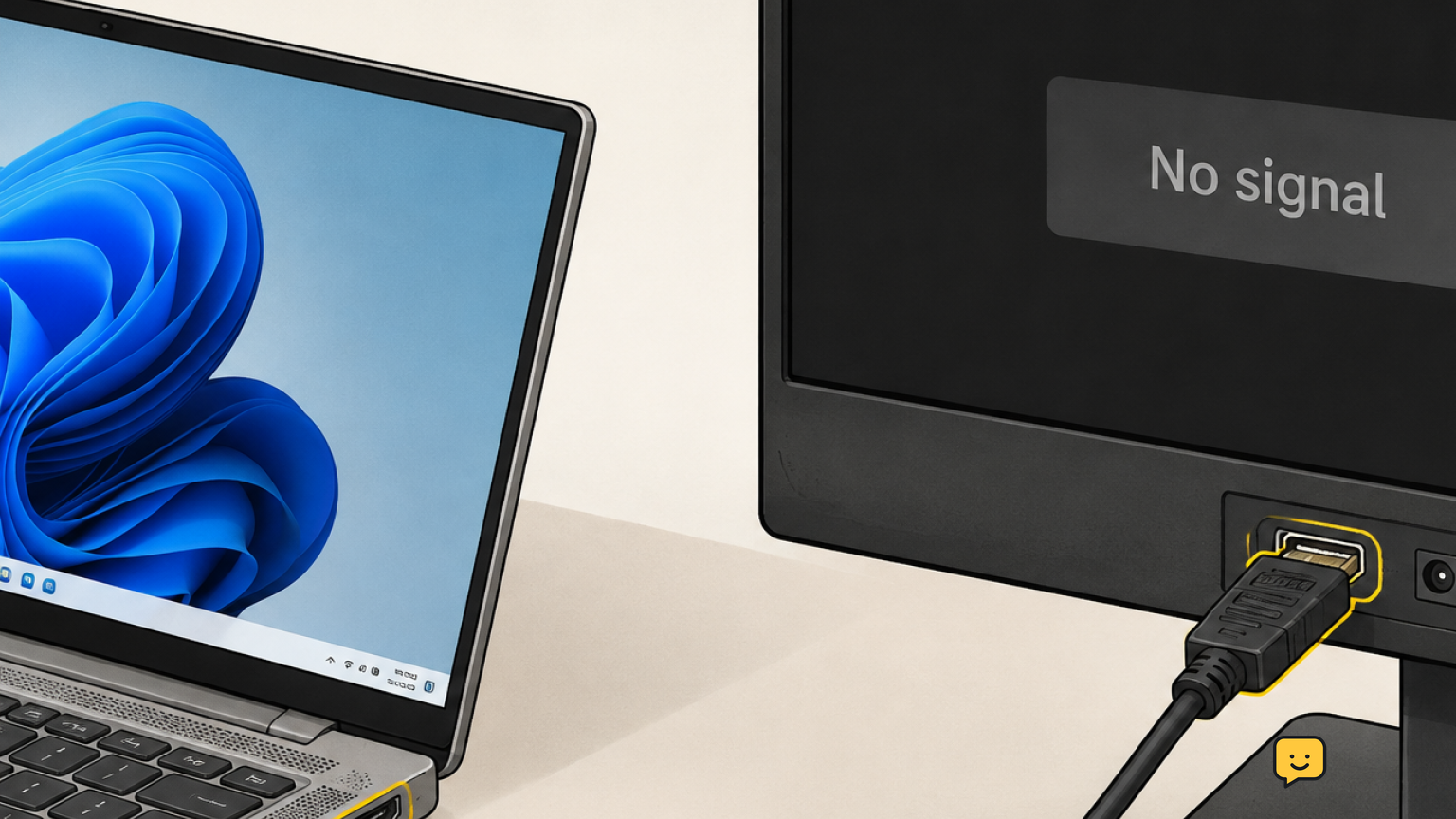
Start by confirming that the monitor is powered on, set to the correct input, and connected with a known-good video cable. Then press Windows+P and choose Extend, use Detect under Settings > System > Display, and reset the graphics driver. If Windows still cannot find the screen, update or roll back the display driver and test each cable, port, adapter, and monitor separately.
First identify what the monitor is doing
This guide applies when a second monitor says “No signal,” stays black, or does not appear under Windows 11 display settings. It also applies to displays connected through HDMI, DisplayPort, USB-C video, a compatible adapter, or a docking station.
- Turn on the monitor and look for its power indicator or on-screen menu.
- Disconnect the video cable from the monitor. If the monitor displays its own “No cable” or input message, its panel and power system are at least responding.
- Reconnect the cable and note whether the message changes.
If the monitor will not power on or show its own menu, stop Windows troubleshooting and check the monitor’s outlet, power cable, and hardware. If it powers on but reports no signal, continue below.
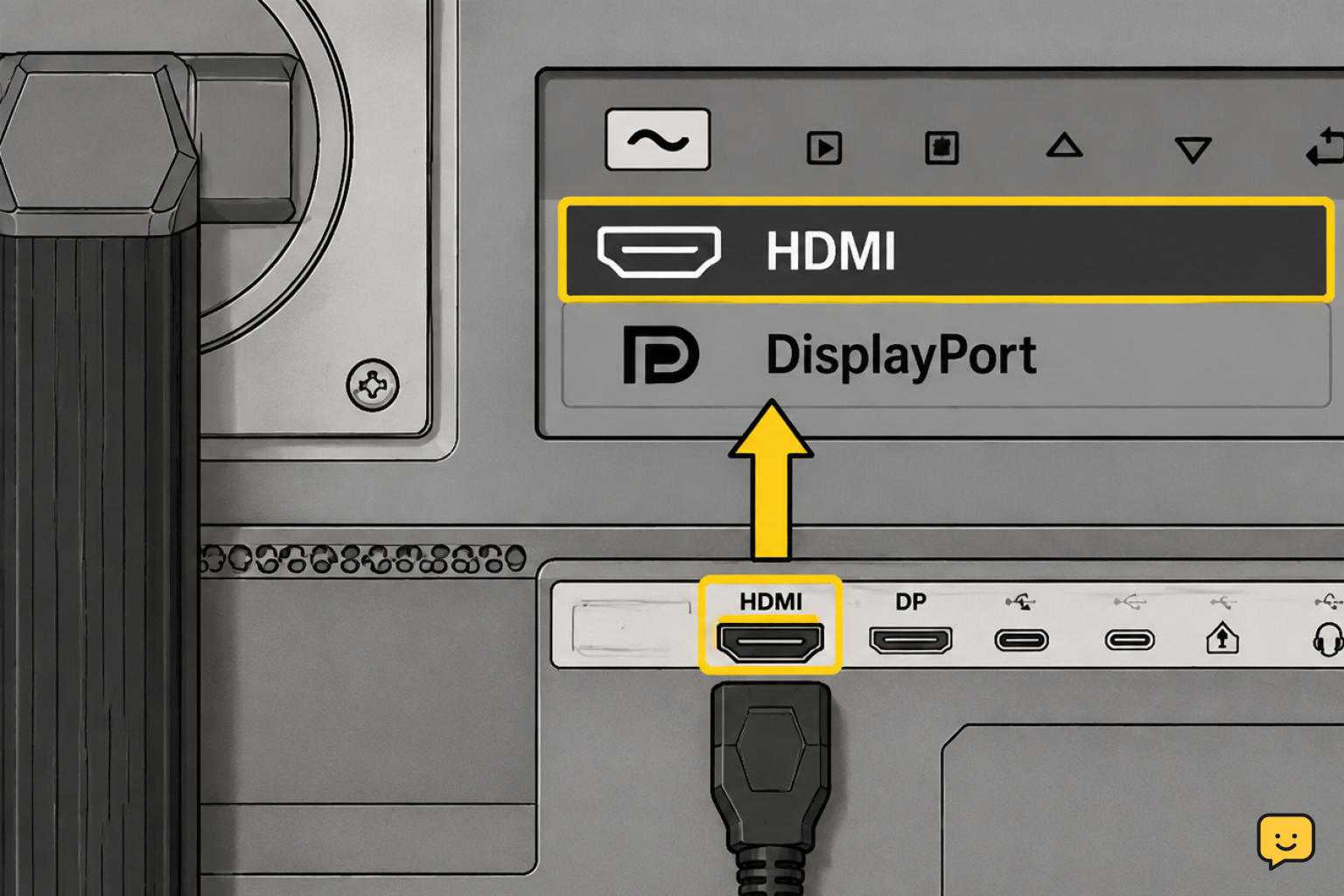
1. Check the cable, ports, and monitor input
A loose cable, incompatible connection, or wrong input selection is a common cause of this problem.
- Shut down the laptop and turn off the monitor.
- Unplug the video cable at both ends. Check for bent connectors, debris, or visible damage, then reconnect it firmly.
- Use the monitor’s Input or Source control to select the connection you actually used, such as HDMI 1, HDMI 2, DisplayPort, or USB-C.
- If the monitor has another matching input, test it. If you have another compatible cable, substitute that as well.
- If you are using a dock, hub, or adapter, connect the monitor directly to the laptop when possible.
USB-C needs special attention: the laptop port, cable, and adapter must all support video output. A USB-C port used only for charging or data will not provide a monitor signal.
Verify: Turn both devices back on. Stop if the Windows desktop appears. If the monitor still reports no signal, continue.
2. Choose the correct Windows projection mode
Windows can recognize a display while still being set to use only the laptop screen.
- Press Windows+P.
- Select Extend to use the monitor as additional desktop space, or Duplicate to show the same image on both screens.
- Wait several seconds for the display to wake up.
Avoid PC screen only, which disables output to the second display. If the projection panel does not appear, open Settings > System > Display and continue with the next check.
Verify: Move the pointer toward the edge of the laptop screen. If it enters the second display, detection is working.
3. Ask Windows 11 to detect the monitor
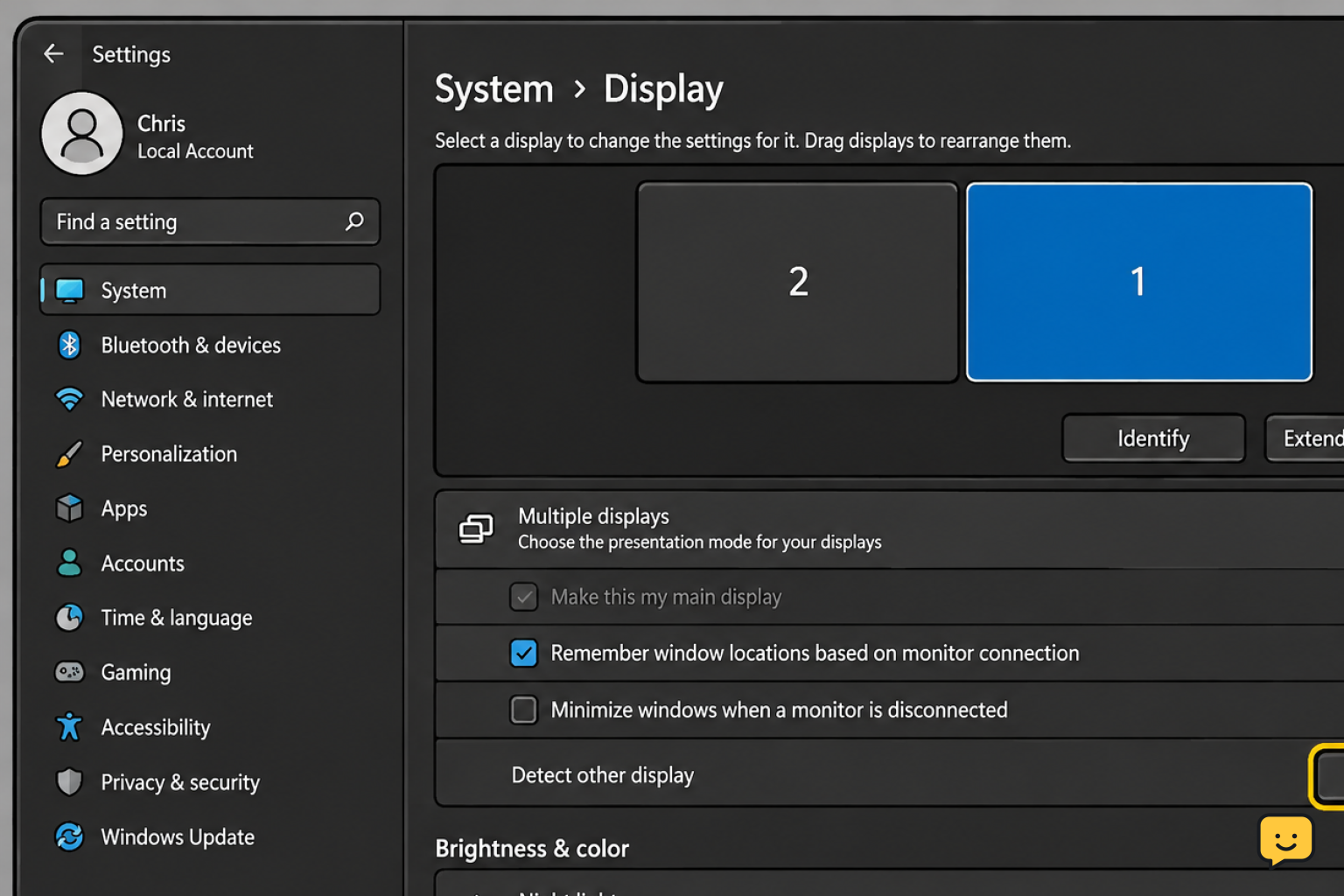
- Right-click an empty area of the desktop and select Display settings.
- Expand Multiple displays.
- Select Detect.
- If a second numbered display appears, select it and choose Extend desktop to this display if necessary.
If the display appears in Settings but remains blank, select it in the display diagram. Start with the recommended resolution and choose a refresh rate supported by the monitor under Advanced display.
Failure path: If Windows says it did not find another display, do not repeatedly click Detect. Continue to the graphics reset and driver checks.
4. Reset the graphics system and restart
A temporary graphics problem can prevent Windows from refreshing the connected-display list.
- Press Windows+Ctrl+Shift+B.
- The screen may briefly flicker or go dark while Windows resets the graphics driver.
- Wait a few seconds, then check the second monitor and reopen Display settings.
- If nothing changes, restart the laptop with the monitor connected and powered on.
Verify: After the restart, press Windows+P and choose Extend again. Continue only if the display remains missing or shows no signal.
5. Update or roll back the display driver
Outdated or recently changed graphics drivers can interfere with external-display detection.
- Open Settings > Windows Update and select Check for updates.
- Install relevant Windows and optional driver updates, then restart.
- If no suitable update is offered, obtain the graphics driver from the laptop manufacturer or the graphics hardware manufacturer. Avoid unverified driver-download sites.
- If the problem began immediately after a graphics-driver update, right-click Start, open Device Manager, expand Display adapters, and open the graphics device’s properties.
- On the Driver tab, use Roll Back Driver if the option is available, then restart.
Laptops may contain both integrated and discrete graphics devices. Do not uninstall devices at random. Use the laptop maker’s recommended driver package when you are unsure which graphics hardware controls the external port.
Stop condition: If the monitor works after an update or rollback and still works after another restart, no further changes are needed.
6. Isolate the failing part
If software checks fail, test one component at a time. Keep the same settings while changing only one part per test.
- Test the monitor and cable elsewhere: Connect them to another computer, game console, or other compatible video source. If there is still no picture, suspect the cable or monitor.
- Test a known-good display: Connect another monitor or TV to the laptop. If that display works, the original monitor, cable, or selected input is the likely problem.
- Bypass accessories: Remove the dock, hub, converter, KVM switch, or extension cable and make a direct connection.
- Try another laptop output: If the laptop provides a second supported video port, test it with a compatible cable.
- Test the dock separately: If direct video works but docked video does not, check the dock’s power supply, compatibility, firmware, cable, and drivers.
If no external display works from any supported laptop port after driver and cable checks, the laptop may have a damaged port or graphics hardware fault. If the monitor fails with multiple source devices and known-good cables, the monitor likely needs repair or replacement.
7. Confirm the repair
- Open Settings > System > Display and confirm that two numbered displays are shown.
- Select Identify and check that the numbers appear on the correct screens.
- Drag the display boxes so their arrangement matches their physical positions.
- Choose the preferred main display and verify that Extend or Duplicate remains selected.
- Restart the laptop once and confirm that the second monitor reconnects without repeating the fixes.
If the display repeatedly disconnects, retest with a direct connection and a known-good cable. Intermittent failures usually require isolating the cable, adapter, dock, port, and monitor rather than changing more Windows settings.
Frequently asked questions
Why does my monitor say no signal even though Windows 11 is running?
The monitor may be set to the wrong input, the cable may be loose or faulty, Windows may be using PC screen only, or the laptop may not be sending video through that port. Confirm the selected input first, then test the cable and press Windows+P to choose Extend or Duplicate.
Why is the second monitor detected but still black?
Select the monitor under Settings > System > Display and make sure the desktop is extended or duplicated to it. Use the recommended resolution and a refresh rate supported by the monitor. Also test another cable and bypass any dock or adapter.
Can every USB-C laptop port connect to a monitor?
No. The laptop port, USB-C cable, and any adapter or dock must support video output. Check the laptop and accessory specifications. If support is unclear, use a documented HDMI or DisplayPort output instead.
How can I tell whether the laptop or monitor is faulty?
Connect the monitor and cable to another compatible source, then connect a known-good monitor to the laptop. If the original monitor fails with multiple sources, suspect the monitor or cable. If no display works from the laptop, suspect its port, adapter, dock, driver, or graphics hardware.
Should I uninstall the graphics driver?
Usually not as a first step. Check Windows Update and the laptop manufacturer’s driver package first. If the problem began after a driver update, use Roll Back Driver when available. Avoid removing multiple graphics devices or installing drivers from unverified sites.
Browse more Computers & Internet guides for help with this topic.


