To stop Valorant sensitivity from resetting, close Riot Client completely, back up the Config folder, remove its read-only status, and confirm your Windows account can write to it. If that fails, rename the Config folder so Valorant creates a fresh profile, set sensitivity again, exit normally, and test one full restart before restoring old files.
Confirm that Valorant is actually resetting sensitivity
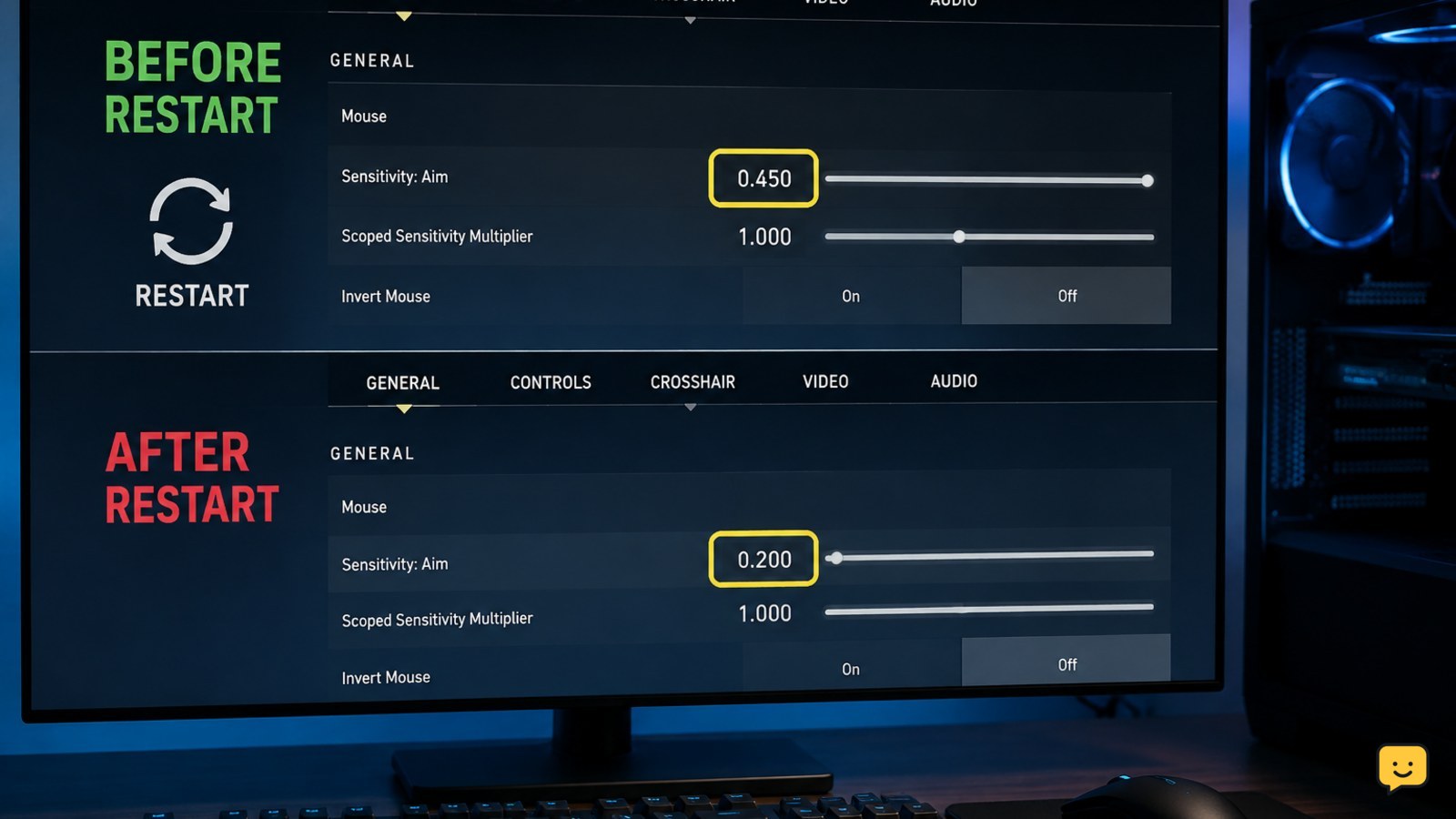
First, separate a saved-setting problem from a mouse or Windows input problem. Open Valorant and note the exact value under Settings > General > Mouse. Test the same mouse movement in the practice range, then close the game normally.
Restart the PC or launch Valorant again and check the displayed sensitivity value before changing anything. If the number is unchanged but aiming feels different, check mouse DPI, a mouse onboard profile, Windows pointer settings, and other games. If the displayed Valorant value has reverted, continue with the configuration checks below.
Close the game and back up the Valorant Config folder
Valorant stores local configuration data under the Windows user profile. A damaged or unwritable configuration can affect sensitivity, keybinds, and crosshair settings together.
- Exit Valorant using its menu.
- Quit Riot Client from the notification-area icon.
- Open File Explorer and enter
%localappdata%\VALORANT\Saved\Configin the address bar. - Copy the entire
Configfolder to the Desktop and rename the copy, such asConfig-backup.
If the folder is missing, do not create a replacement yet. Launch the Riot Client once, close it, and check the path again. If it still does not exist, skip to the profile and repair checks.
Check whether Windows is blocking the settings file
Valorant must be able to write its local settings when you change them. A read-only attribute, security product, controlled-folder rule, or restrictive folder permission can cause the old value to return at the next launch.
- Right-click the backed-up original
Configfolder and choose Properties. - On the General tab, clear Read-only if it is selected, then choose Apply.
- Open the Security tab and confirm your Windows account has permission to modify files in the folder.
- Check Windows Security or your security software for a blocked Valorant or Riot Client write operation.
Do not permanently disable antivirus protection. If a security tool blocked the game, use its documented allow-list process or ask the device administrator. Reopen Valorant, set sensitivity, play briefly, exit normally, and check the value after one restart.
Look for a cloud-sync or profile conflict
A second copy of the configuration can overwrite the local value. This may happen after moving between Windows accounts, using a different Riot profile, restoring a backup, or synchronizing the AppData folder with a file-sync utility.
- Confirm that the Riot account shown in the client is the account whose settings you changed.
- Check whether another Windows account launches Valorant. Each Windows profile has its own local application-data path.
- Review any backup or synchronization software that includes
%localappdata%or the Valorant folder. - Temporarily pause synchronization for one test session, change sensitivity, exit normally, and restart Valorant.
If the setting stays correct only while synchronization is paused, identify the older file or restore rule before enabling sync again. Do not replace the current configuration with an unverified backup.
Create a clean Valorant configuration profile
Renaming the active configuration folder is safer than deleting it. It lets Valorant create fresh files while preserving your backup for recovery.
- Close Valorant and Riot Client completely.
- Return to
%localappdata%\VALORANT\Saved. - Rename
ConfigtoConfig-old. - Launch Valorant and set only the mouse sensitivity first.
- Enter the practice range, then exit through the game menu rather than forcing the process closed.
- Restart Valorant and check whether the sensitivity remains unchanged.
Do not copy the old folder back immediately. Test the new profile first. If the value stays saved, restore other settings manually or copy only a needed file after testing; copying the entire old folder can bring the damaged setting back.
If sensitivity still resets after a clean profile
If a newly created profile also loses its value, the problem is less likely to be one damaged file. Check for a pending Valorant or Riot Client update, restart Windows, and temporarily close mouse software, overlays, and peripheral profile managers.
Test with one Windows account, one Riot account, and the same mouse DPI throughout. If other settings reset too, record that pattern. If only sensitivity changes, compare the in-game value with the mouse software profile.
At this point, use Riot Support rather than repeatedly deleting configuration data. Include your Windows version, Valorant and Riot Client versions, whether a fresh Config folder was tested, whether permissions were changed, and whether pausing synchronization affected the result.
Verify the fix across two Valorant sessions
A single successful launch does not prove the setting is fixed. Use the same sensitivity value and verify it after two complete sessions.
- Set sensitivity and any required scoped or ADS multipliers.
- Play in the practice range for a few minutes.
- Exit Valorant normally and wait for Riot Client to finish closing.
- Launch Valorant again and compare every recorded value.
- Restart Windows, launch the game once more, and check the values again.
The fix is verified when the displayed sensitivity survives both a game restart and a Windows restart. If it changes again, use the failure pattern to identify whether the cause is permissions, synchronization, a profile mismatch, or a wider configuration issue.
Frequently asked questions
Why does Valorant sensitivity reset after I restart the game?
The most common causes are a configuration file that cannot be written, a damaged local profile, a different Windows or Riot profile, or another program restoring an older copy. Check whether other settings reset too. If sensitivity, crosshair, and keybinds all revert, focus on the Config folder and permissions first.
Where is the Valorant settings folder on Windows?
The usual location is <code>%localappdata%\VALORANT\Saved\Config</code>. Paste that path into File Explorer’s address bar after closing Valorant and Riot Client. Back up the folder before renaming or changing anything. Folder availability can vary if the game has not completed its first launch.
Can read-only permissions make Valorant sensitivity reset?
Yes. If Valorant cannot modify its local configuration, it may load the previous saved value on the next launch. Check the Config folder’s Properties and clear Read-only if selected. Also confirm that your Windows account can modify the folder and that security software has not blocked the write operation.
Should I delete the Valorant Config folder?
Do not delete it first. Close the game, copy the folder as a backup, then rename the active folder to something such as <code>Config-old</code>. Valorant can create a clean folder on the next launch. Test the new profile before restoring any old files.
What if Valorant sensitivity resets only on one PC?
Compare the affected PC’s Windows account, Riot account, mouse DPI, peripheral profile, security software, and synchronization settings with the working PC. If the same Riot account behaves correctly elsewhere, the issue is probably local to the affected Windows profile or configuration rather than the account setting.
Browse more Valorant guides for help with this topic.