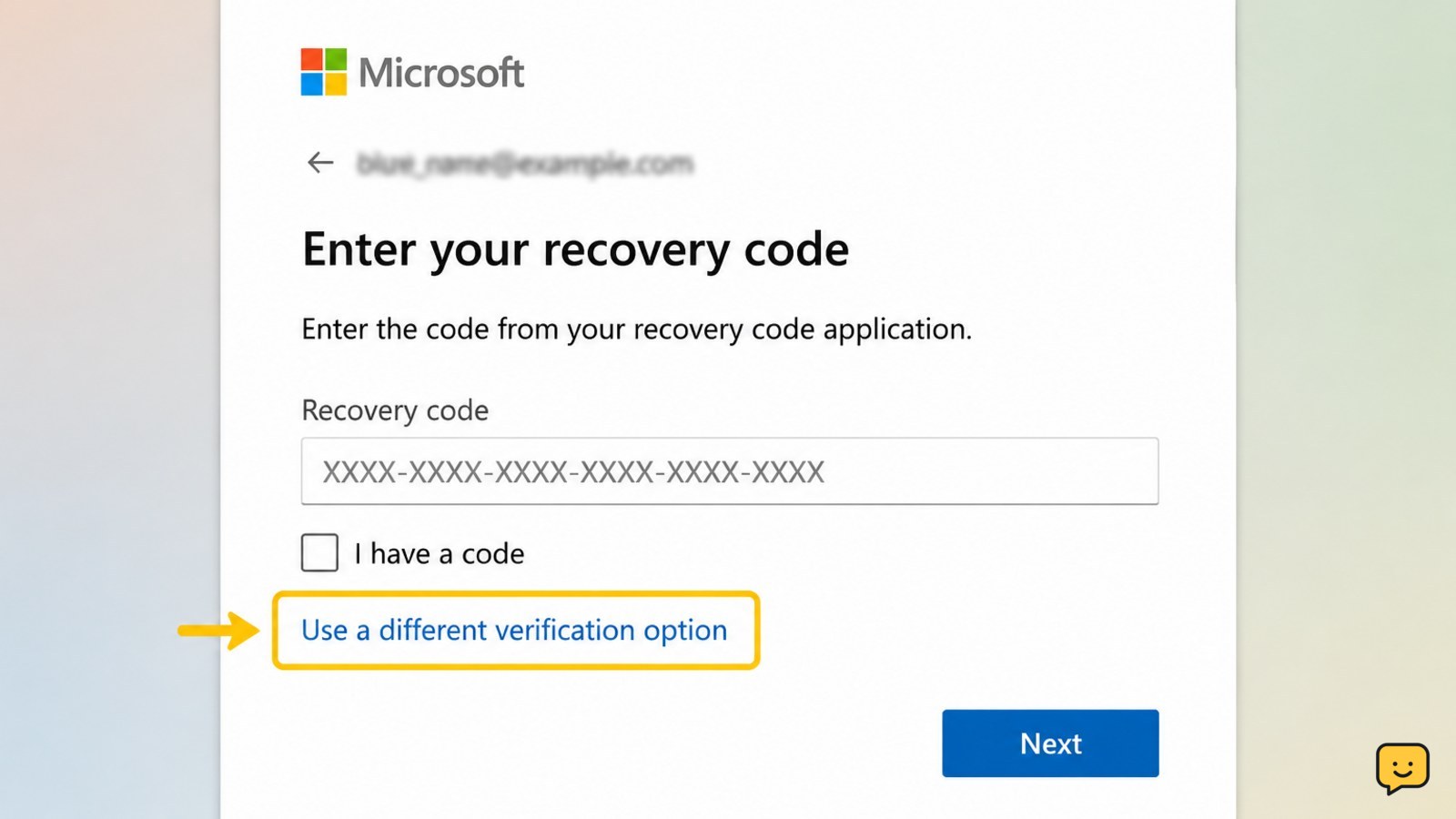
If your Microsoft account recovery code is not working, first confirm that you are using the long recovery code—not a recent email, text, or authenticator verification code—and that the sign-in page shows the correct account. If you created a new recovery code, older codes are no longer valid. Try another connected verification method, then use Microsoft’s official account recovery form if access is still blocked.
1. Confirm which Microsoft code you have
Microsoft uses several kinds of codes. A recovery code is not necessarily the same as a six-digit code sent by email or text, or a number produced by an authenticator app.
- Read the wording on the sign-in page.
- Choose the option that specifically asks for a recovery code if that is the code you saved.
- If the page asks for a code sent to an email address, phone number, or app, request or enter the code for that method instead.
- Enter the code manually once, checking for missing characters, spaces, and easily confused letters or numbers.
Verify: The page should accept the code only when its requested code type matches the code you are entering.
2. Check the account identity and code history
A code can look correct but still belong to a different Microsoft account. This is common when several Outlook.com, Hotmail, Live, work, or school accounts are used on the same device.
- Compare the account identifier shown on the sign-in page with the address connected to the saved code.
- Check alternate aliases you may have used for the same account.
- Look for the date or note you recorded when the code was saved.
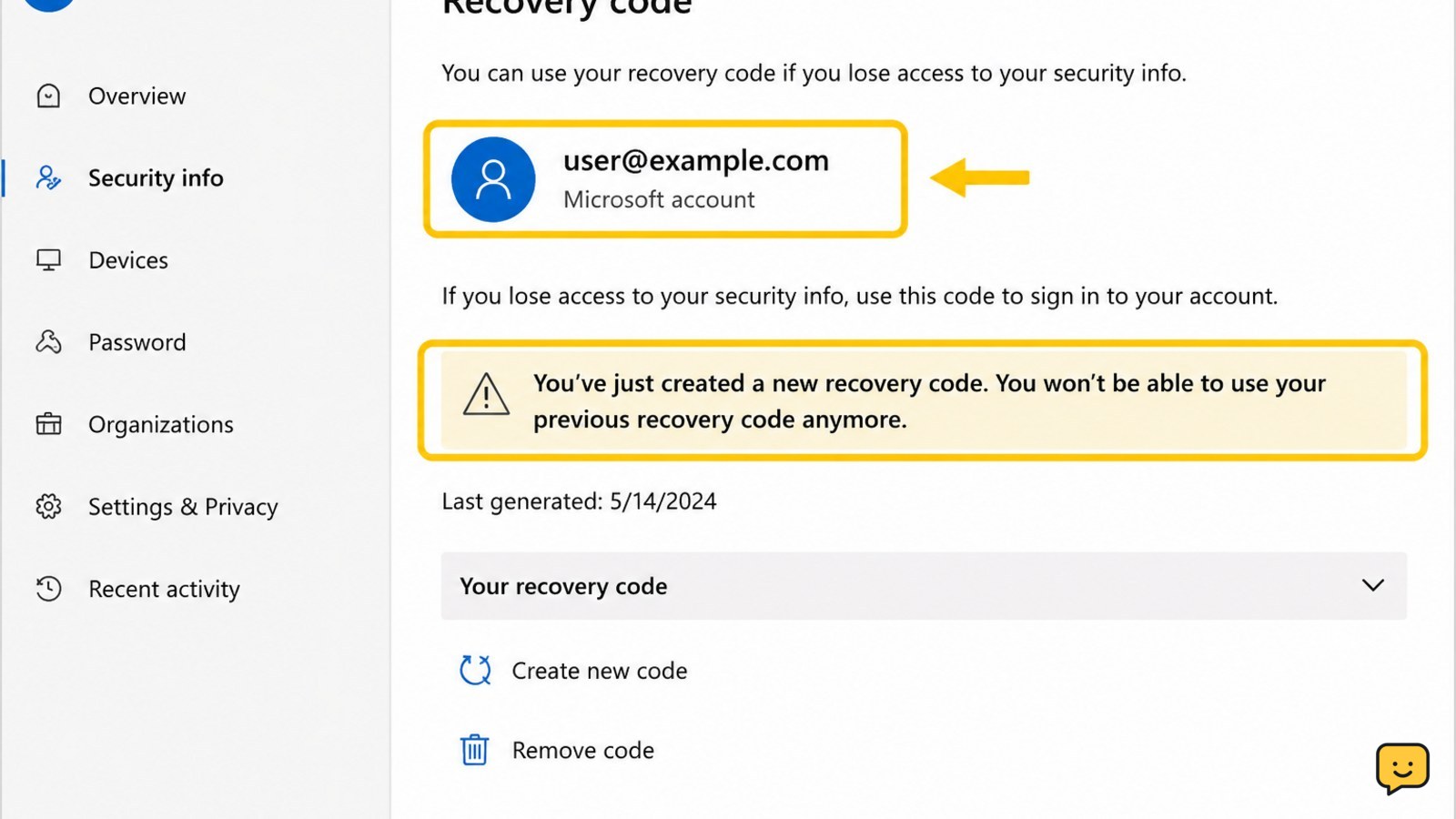
- Ask whether you recently generated another recovery code. Microsoft states that creating a new recovery code makes previous recovery codes stop working.
Failure path: If the code was generated for another account or an earlier code was replaced, do not keep retrying it. Sign in to the correct account, if possible, and generate a new recovery code from Microsoft’s account security settings.
3. Try another connected verification method
Microsoft recommends trying another verification method when the problem may be tied to the method currently being used. This can also distinguish a bad recovery code from a problem with email, text messaging, or an authenticator.
- Select Use a different verification method, Other ways to sign in, or similar wording.
- Try a method already connected to the account, such as an authenticator app, security key, alternate email address, phone number, or trusted device.
- If a code was delivered by email, check the junk or spam folder and confirm that you are checking the mailbox shown by Microsoft.
- If a code was sent by text, make sure the phone can receive messages and that you are using the number displayed on the sign-in page.
Verify: A successful alternative method should take you to the next sign-in or password-reset step. Once inside the account, review security information and replace anything outdated.
4. Retry safely when the service or session is failing
A temporary service, browser, or sign-in-session problem can prevent a correct code from being accepted. Use a clean, official sign-in attempt rather than repeatedly submitting the same code.
- Close duplicate Microsoft sign-in tabs and reopen the official sign-in page.
- Check that your device has a stable internet connection and that its date and time are set automatically.
- Try a current browser or the Microsoft sign-in app, if one is already installed and trusted.
- Request a new verification code only when the page offers that option, then use the newest code shown or delivered for that attempt.
- If Microsoft displays a temporary problem or block, stop trying codes and wait until the page permits another attempt or method.
Failure path: If a newly requested verification code also fails, the issue is probably not the saved recovery code alone. Continue with the official recovery option instead of guessing.
5. Use Microsoft’s official account recovery form
If you cannot use a working verification method, use Microsoft’s account recovery process. Open Microsoft’s account recovery guidance and follow the recovery-form link provided there.
If every code fails, use recover a Microsoft account password to address a wrong-password sign-in problem through the official route.
- Enter the account you are trying to recover, not a different account used to contact Microsoft.
- Provide a reachable email address that Microsoft can use for the recovery response.
- Answer as many questions as accurately as possible, using familiar account details and a device or location you commonly use.
- Submit the form through Microsoft and keep the response for your records.
Microsoft says an unsuccessful recovery request can be tried again, up to two times per day. Use each attempt to provide more accurate information rather than repeating guesses.
Stop condition: If Microsoft cannot verify ownership after the available official recovery attempts, there is no safe code workaround. Do not pay anyone who claims they can bypass the process.
6. Verify access and secure the account
After you regain access, confirm that the account is usable before closing the recovery page.
- Sign out of unfamiliar sessions and review recent sign-in activity.
- Confirm that the recovery email address and phone number are yours.
- Update outdated security information and add a verification method you can access.
- Generate one new recovery code if you need a backup, then store it privately and securely.
- Test the saved code only from the official Microsoft sign-in flow; never paste it into a message, survey, or third-party support page.
Verify: You should be able to sign in with your password and at least one working verification method without relying on the rejected code.
Frequently asked questions
Why is my Microsoft recovery code invalid?
The code may be for a different Microsoft account, may have been replaced by a newer recovery code, or may be entered on a screen requesting a different code type. Check the account identifier and the wording on the sign-in page first. Microsoft says that creating a new recovery code invalidates previous recovery codes.
Is a Microsoft recovery code the same as a verification code?
No. A recovery code is a saved backup for account access, while a verification code is usually delivered for a particular sign-in attempt by email, text, or an authenticator. Use the code requested by the current Microsoft sign-in screen.
What should I do if my new Microsoft recovery code does not work?
Confirm that the new code was created for the same account and enter it on a screen that specifically requests a recovery code. If it still fails, choose another connected verification method and retry from an official Microsoft sign-in page. Do not create repeated replacement codes, because each new code makes earlier ones invalid.
Can Microsoft recover my account if no recovery code works?
Yes, you can try Microsoft’s official account recovery process when available verification methods fail. Provide accurate account information and a reachable contact address. Microsoft states that an unsuccessful request can be submitted again, up to two times per day.
Should I give my Microsoft recovery code to support?
No. Do not give a recovery code, password, or verification code to a person who contacts you. Use Microsoft’s official sign-in and recovery pages directly, and stop if a page or message asks you to send a code outside that process.
Browse more Access & Recovery guides for help with this topic.


