
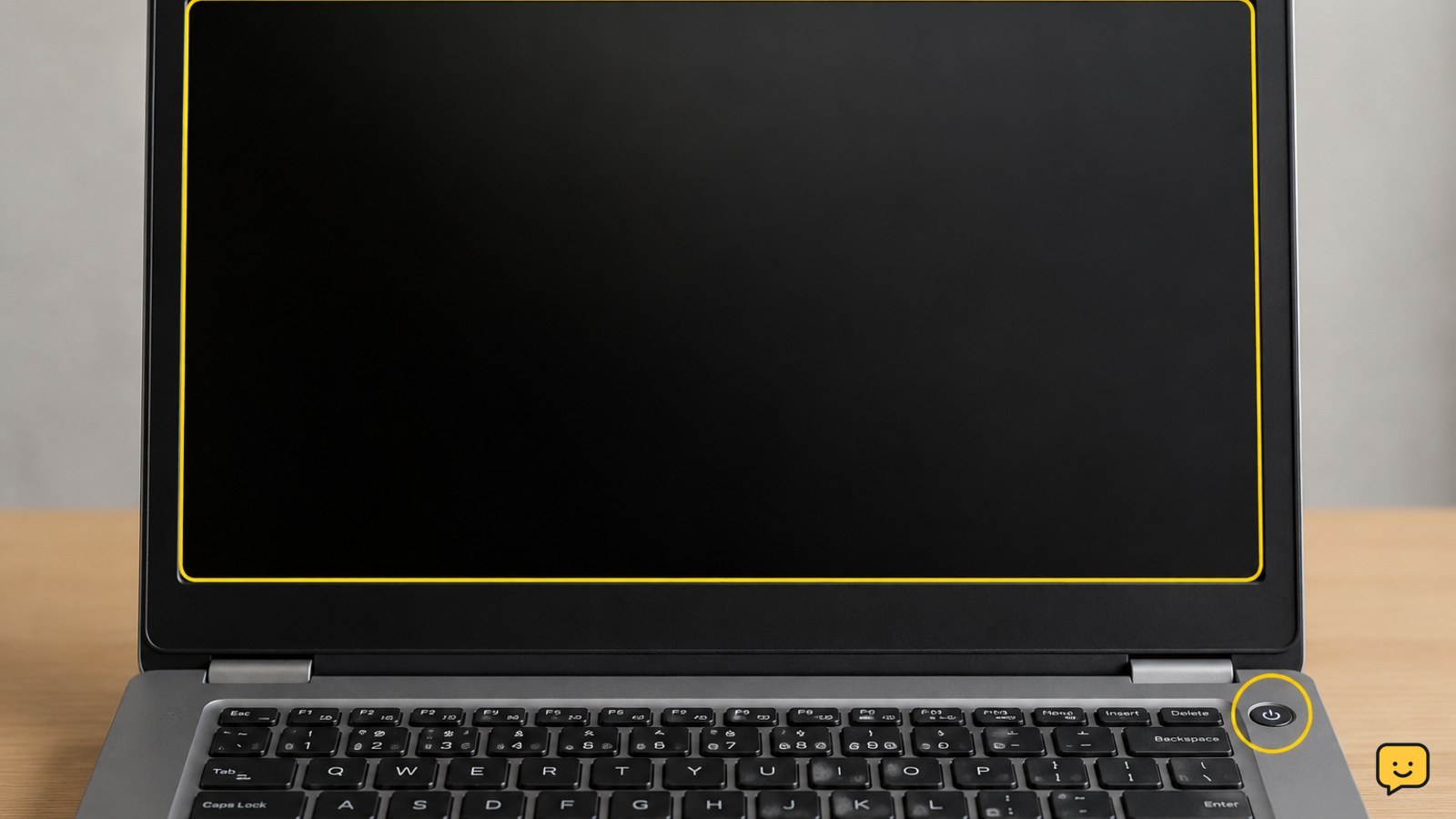
To fix a laptop that will not wake from sleep, first check whether only the display is stuck by trying an external screen or display reset. Then test the power button, keyboard, charger, and touchpad. If the laptop remains unresponsive, use a forced shutdown only after saving work is impossible, then update display and chipset drivers and review Windows sleep and hibernation settings.
Check whether the laptop is awake but the display is blank
A dark screen does not always mean the laptop is powered off. Look for a power light, fan noise, keyboard backlight, or a change in the charging indicator.
- Press a brightness-up key several times. Use the laptop’s function key combination if brightness is controlled that way.
- Close the lid, wait about 10 seconds, and open it again without pressing the power button repeatedly.
- On a Windows laptop, press Windows + Ctrl + Shift + B once. This attempts to refresh the graphics display. A brief beep or screen flicker indicates that Windows received the command.
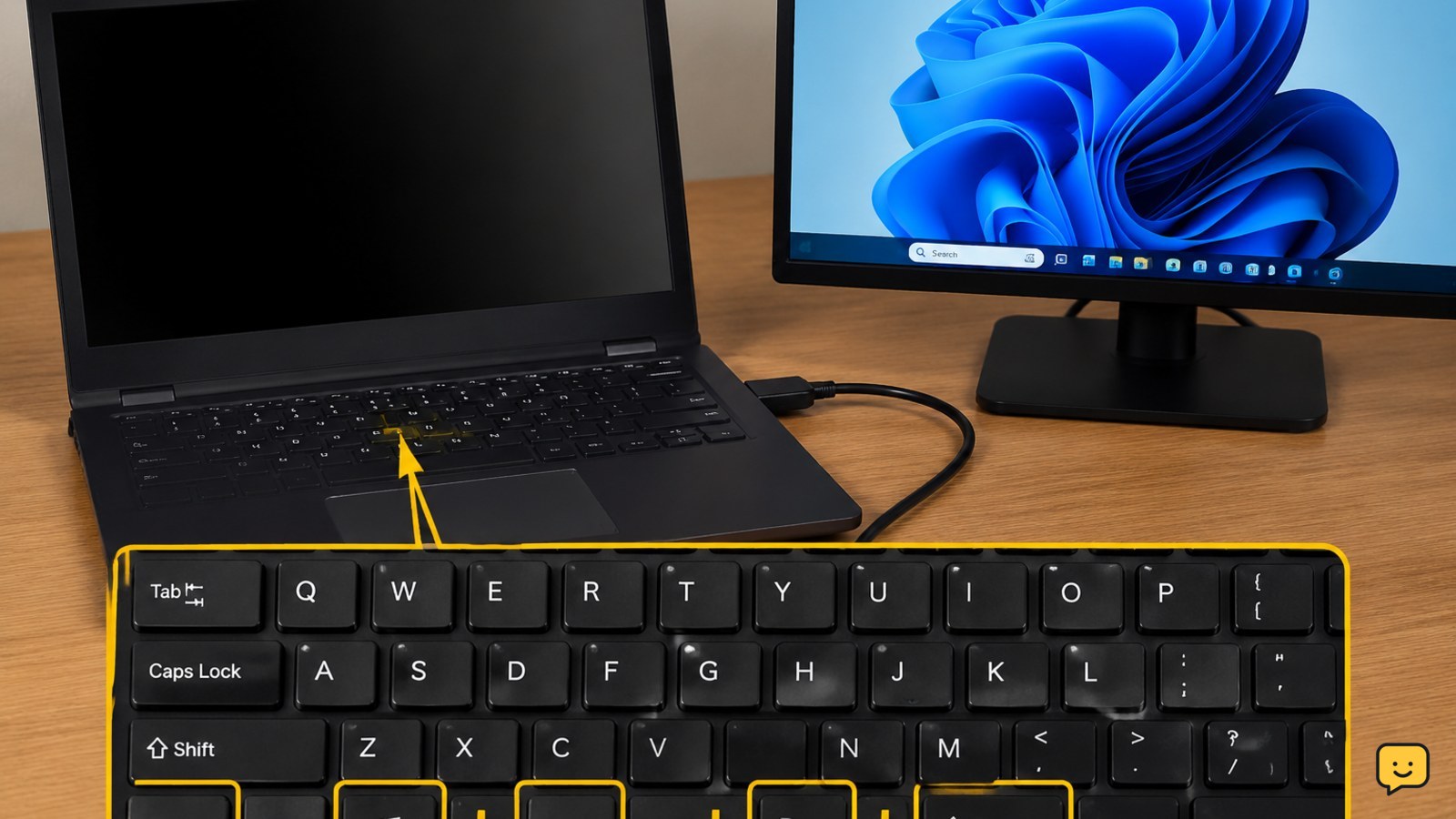
- If an external monitor or television is available, connect it directly to the laptop and switch to the correct input. A picture on the external display points toward the built-in screen, backlight, lid sensor, or display connection rather than a complete sleep failure.
Verify: The laptop is awake when the sign-in screen appears, the pointer moves, or a keypress produces a visible response. If an external screen works but the laptop panel remains dark, stop troubleshooting sleep settings and arrange display service.
Test the normal wake controls and power connection
Sleep can fail because the keyboard or pointing device did not send a wake signal, or because the laptop is not receiving stable power.
- Press the power button once, then wait at least 15 seconds. Do not hold it during this test.
- Press the Spacebar, Enter, and an arrow key. If the laptop has a separate keyboard backlight key, press it once.
- Move the touchpad and click once. If you use a wireless mouse or keyboard, replace or recharge its batteries and test the built-in controls instead.
- Check that the charger is firmly connected at the wall, adapter, and laptop. Try a known-good outlet and look for a charging light.
- Disconnect the charger for 10 seconds, reconnect it, and press the power button once.
Failure path: If the laptop responds only when the charger is connected, investigate battery or charging trouble rather than sleep alone. If no indicator, fan, keyboard light, or display response appears, continue to the controlled shutdown section.
Perform a forced shutdown only when the laptop is unresponsive
A forced shutdown can discard unsaved work and should be the last recovery step, not the first fix.
- Confirm that no update, firmware, or BIOS progress message is visible and that the laptop has shown no response for at least 30 seconds.
- Unplug nonessential accessories and leave the charger connected unless it is hot or damaged.
- Press and hold the laptop’s power button for about 10 seconds, or until all lights and fan activity stop. Release it as soon as the laptop powers off.
- Wait 30 seconds, then press the power button once to start it.
- After Windows loads, save important files immediately and restart normally once more.
Verify: The laptop reaches the sign-in screen and remains responsive after the restart. If it starts but shows repair or disk-check screens, allow those checks to finish. If it repeatedly fails to start, stop and use the manufacturer’s recovery or repair support instead of repeating forced shutdowns.
Update display, chipset, and input drivers
Resume problems can involve the graphics driver or hardware drivers that manage power and wake signals. Once the laptop is working again, install updates from the laptop manufacturer’s support page or Windows Update.
- Open Settings > Windows Update and install available updates. Restart when requested.
- Open Device Manager and check Display adapters, Keyboards, and System devices for warning icons.
- Install the laptop manufacturer’s current graphics and chipset drivers for the exact model. Avoid drivers intended for a different model or operating system.
- Restart, wait for the desktop to load completely, and test sleep manually from Start > Power > Sleep.
- Wake the laptop with the same control that previously failed, then repeat the test with the charger disconnected if the battery has sufficient charge.
Failure path: If the issue began immediately after a driver update, use Device Manager’s driver rollback option when available, or install the manufacturer’s previous stable driver. If only a dock or USB device triggers the failure, update or replace that accessory rather than changing every system driver.
Review Windows sleep and hibernation settings
If the laptop wakes after a restart but fails again after sleep, review the settings that control wake timers, hybrid sleep, and hibernation. The menu names can vary by Windows version.
- Search for Control Panel, open Power Options, and select Change plan settings for the active plan.
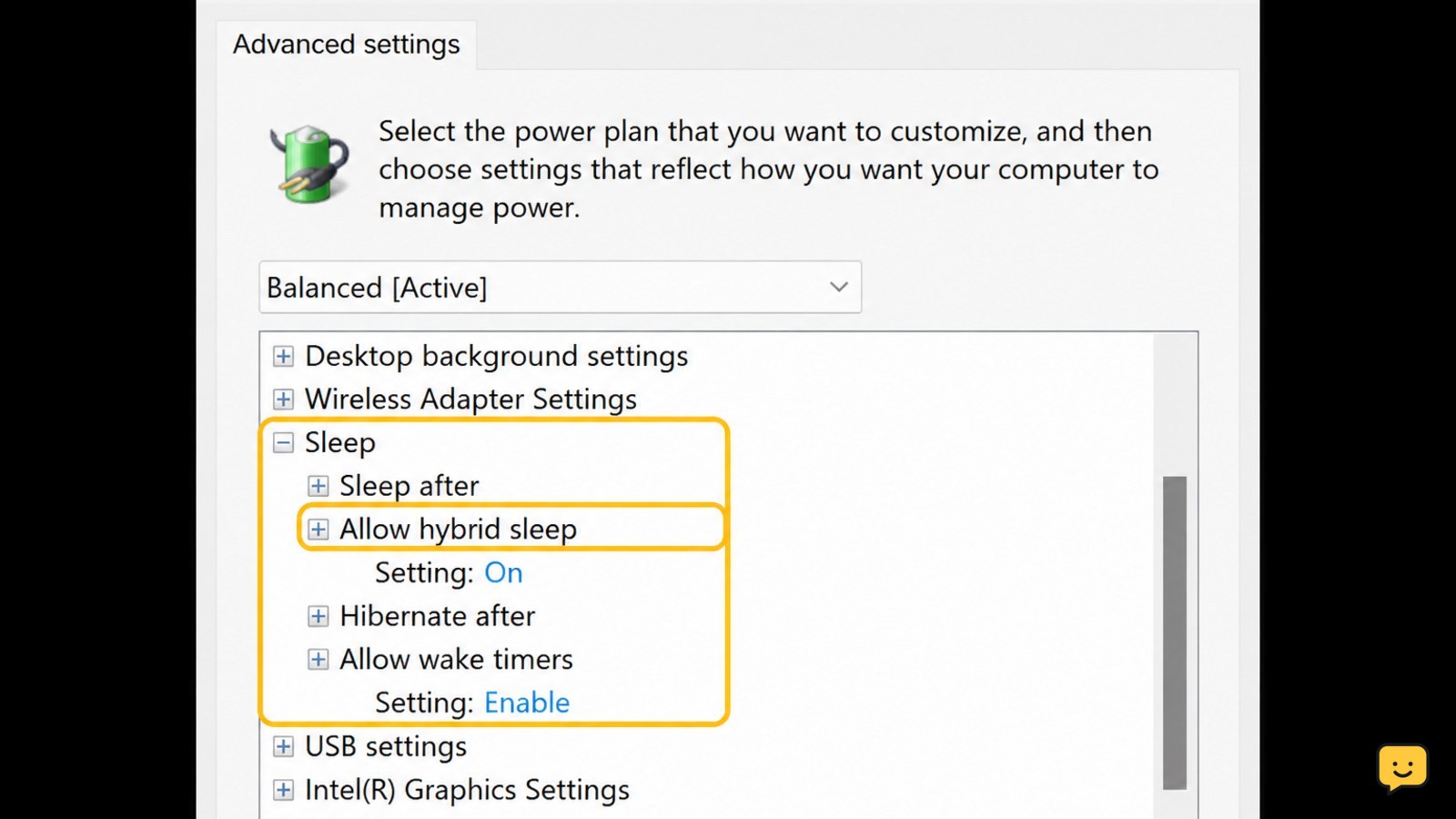
- Select Change advanced power settings, expand Sleep, and review Allow wake timers. If wake timers are needed for scheduled tasks, leave them enabled; otherwise test with them disabled.
- Expand Sleep > Allow hybrid sleep and temporarily set it to Off. Microsoft Q&A guidance identifies hybrid sleep as a possible cause of resume failures.
- Expand Power buttons and lid and confirm that closing the lid is not configured to create an unexpected power state.
- Apply the settings, restart the laptop, and test sleep and wake two times.
Verify: A successful test means the laptop enters sleep, wakes within a few seconds, and keeps the display, keyboard, and touchpad functional. If changing hybrid sleep makes no difference, restore the preferred setting and continue with hibernation repair.
Refresh hibernation and identify a recurring hardware fault
Windows uses hibernation data in some sleep configurations. Dell’s troubleshooting guidance includes refreshing the hibernation file when resume problems continue.
- Save your work and open Terminal or Command Prompt as an administrator.
- Run
powercfg /h off, then restart the laptop. This disables hibernation and removes the hibernation file. - Test sleep and wake again. If the problem is gone, you can re-enable hibernation with
powercfg /h onand retest, or leave it off if you do not use hibernation. - If the problem remains, test with all accessories disconnected and with the manufacturer’s diagnostic tool if one is provided.
- Record whether the failure happens only on battery, only while charging, only with a dock, or after a particular period of sleep.
Stop condition: If sleep repeatedly leaves the laptop hot, causes unexpected shutdowns, or fails even after driver and power-setting checks, stop relying on sleep. Use shutdown or hibernation temporarily, back up your files, and contact the laptop manufacturer or a qualified technician for battery, motherboard, firmware, or display diagnosis.
Frequently asked questions
Why will my laptop not wake from sleep but the power light is on?
The display or graphics driver may be stuck even though the laptop is running. Increase brightness, close and reopen the lid, and on Windows press Windows + Ctrl + Shift + B once. Test an external monitor if possible. If the external display works, the fault is more likely related to the built-in panel, backlight, lid sensor, or display connection.
How do I wake a laptop from sleep without the power button?
Press Spacebar, Enter, or an arrow key, then move and click the touchpad. A connected USB keyboard or mouse may also work if it is allowed to wake the computer. If none of these controls produces a response after about 30 seconds, use a forced shutdown only after confirming that no firmware or update screen is active.
Can hybrid sleep stop a Windows laptop from waking?
Yes, hybrid sleep can contribute to resume problems on some Windows laptops. Open Control Panel, go to Power Options, edit the active plan’s advanced settings, and temporarily turn off Allow hybrid sleep. Apply the change, restart, and test sleep twice. If it does not help, restore your preferred setting and check drivers or hibernation next.
Will a forced shutdown damage my laptop?
An occasional forced shutdown is usually a recovery measure, but it can lose unsaved work and interrupt updates or disk operations. Hold the power button only when the laptop is completely unresponsive and no update or firmware progress is visible. If you need to do this repeatedly, stop and arrange repair support after backing up important files.
Why does my laptop wake only when the charger is connected?
That pattern points toward a battery, charging, or power-management problem rather than a display-only fault. Test a known-good outlet and inspect the charger connection without using damaged equipment. If the laptop works reliably on external power but not on battery, back up your files and have the battery and charging system checked.
Browse more Computers & Internet guides for help with this topic.


