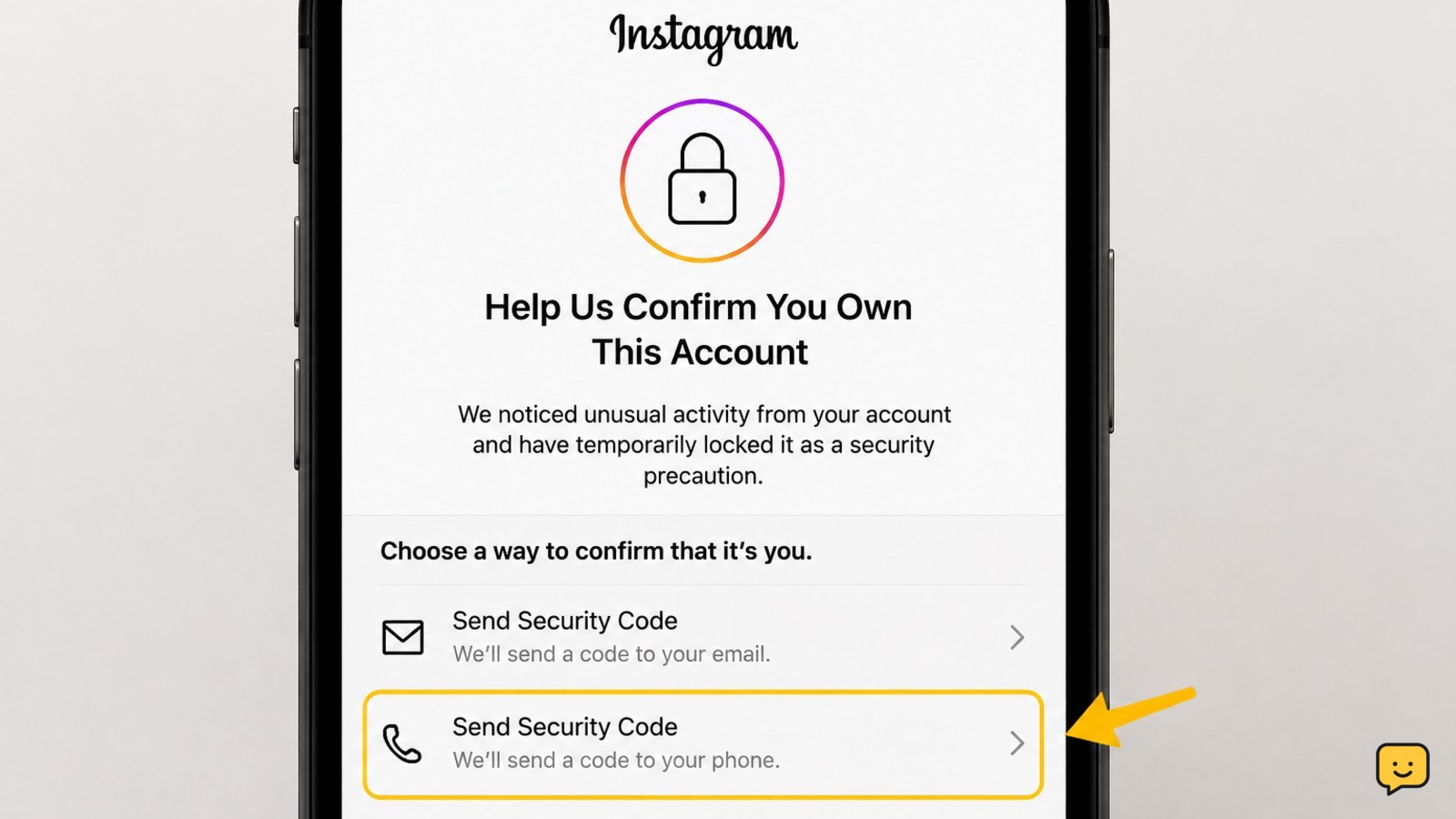
To fix an Instagram account stuck on a security checkpoint, use the Instagram app or Instagram.com login screen and complete the verification option shown. Confirm the code from your account’s email, phone, or authenticator, then update your password and review logged-in sessions. If every option loops or fails, stop retrying and use Instagram’s official hacked-account recovery flow.
What the Instagram security checkpoint means
A security checkpoint is an access-control step that asks you to confirm ownership before Instagram allows a login or account change. It can appear after a sign-in from an unfamiliar device, an unusual location, repeated login attempts, or other activity Instagram wants to verify.
A checkpoint is different from a normal password error. Repeatedly guessing the password, switching between many devices, or requesting many codes can make the process harder to follow. Keep the recovery attempt limited to official Instagram screens.
1. Start with the same device and official login screen
Open the current Instagram app on a device you have used with the account before. If the app loops, go directly to instagram.com in a normal browser rather than following a link in an email or message.
- Enter the username, email address, or phone number connected to the account.
- Enter the password once, if you know it.
- Read the checkpoint message and select the verification option Instagram displays, such as sending a code or confirming account details.
- Complete one recovery path at a time instead of opening several parallel requests.
Verify the result: you should reach the account, a password-reset screen, or a clearly labeled next recovery step. If the same page reloads without showing a new option, continue with the browser and app checks below rather than repeatedly submitting the form.
2. Complete the code or authenticator check
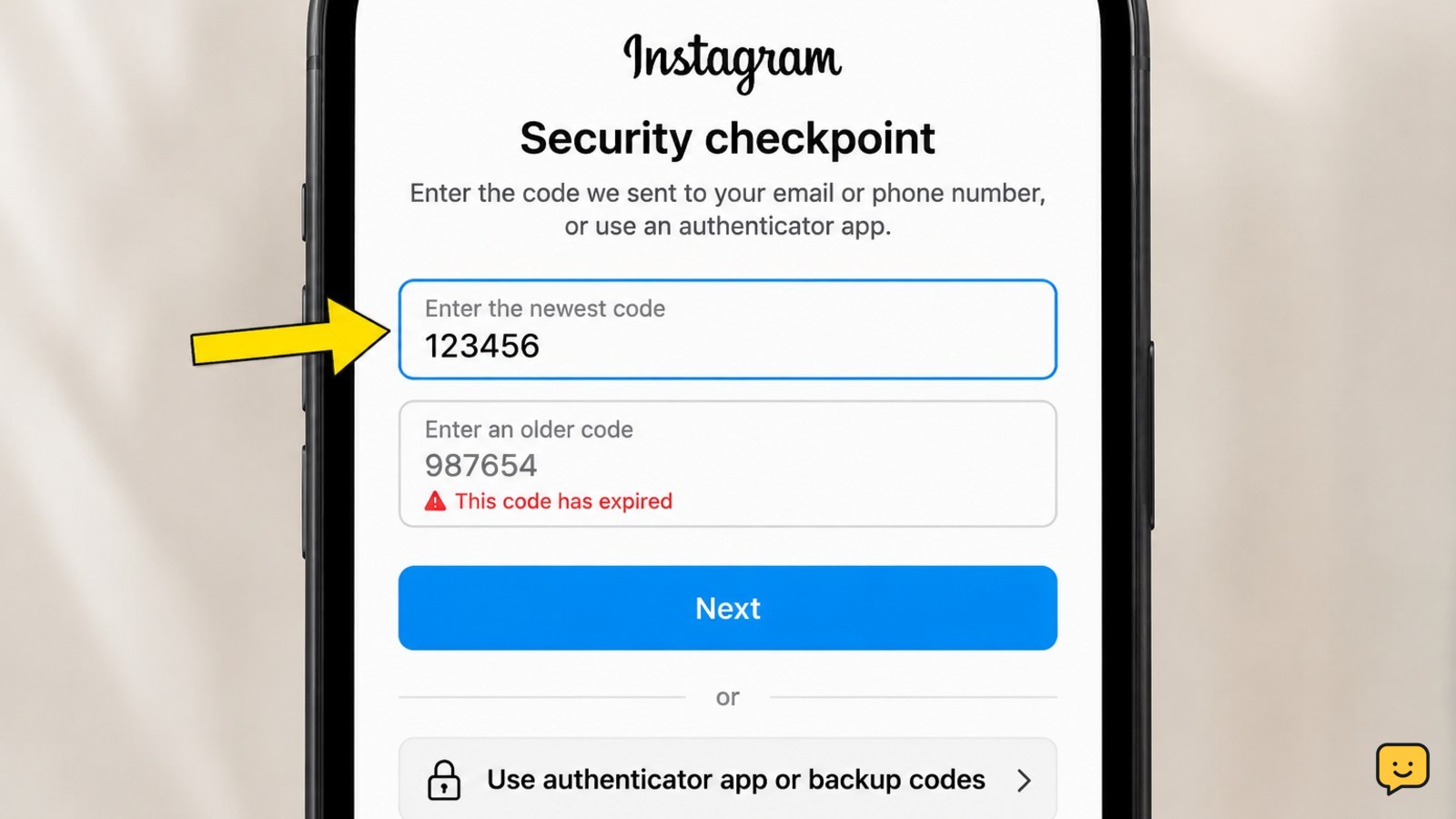
Use only a code delivered to an account contact method that you recognize. Check the inbox’s spam, junk, and filtered folders, and confirm that you are checking the correct email account. If Instagram offers an authenticator code, open the authenticator app linked to this account and enter the current code before it expires.
If a code fails, request one new code and enter that newest code only. Do not combine an older code with a later request. If you use backup codes, select that option only when you obtained the codes when two-factor authentication was configured.
Failure path: if you no longer have the phone, email, authenticator, or backup codes, do not guess. Choose the visible option for getting more help or account recovery. If no such option appears, use Instagram’s official hacked-account page at instagram.com/hacked/.
3. Break an app or browser login loop safely
A loop can be caused by stale app data, an outdated app, blocked cookies, or a session that did not complete correctly. These steps do not remove the checkpoint; they only give Instagram a clean, supported sign-in attempt.
- Update Instagram from your device’s official app store.
- Close the app completely and restart the phone.
- On Android, clear Instagram’s cache through the app settings. On iPhone, offload or reinstall the app only if you know the account password or have a working recovery method.
- In a browser, use a private window, allow essential cookies, and temporarily disable extensions that alter login pages.
- Try one familiar network, such as your usual home Wi-Fi or mobile data, and avoid rapidly changing locations through a VPN.
Verify the result: the checkpoint should advance to a code, identity, password-reset, or account screen. If the loop remains after one clean app attempt and one clean browser attempt, stop cycling through devices and move to official recovery.
4. Recover an account whose details were changed
If you received a message that the account email, phone number, password, or username changed and you did not make the change, treat the checkpoint as a possible account takeover. Check the original email account for a genuine Instagram security message and review whether it offers a way to reverse an email change.
Then open Instagram’s official recovery route by typing instagram.com/hacked/ yourself. Select the option that matches the problem and provide only information requested inside Instagram’s official flow. Instagram may ask you to confirm account ownership; complete that check rather than looking for a bypass.
Verify the result: recovery instructions should appear inside Instagram or arrive through a security message you can independently associate with your account. A person offering recovery through direct messages, messaging apps, or an unrelated website is not a safe support channel.
5. Secure the account after access returns
Once you regain access, secure the account before returning to normal use.
- Change the Instagram password to a long, unique password that you do not use elsewhere.
- Review the account’s email address and phone number and replace anything unfamiliar.
- Open the account’s login activity or logged-in sessions and sign out devices you do not recognize.
- Review two-factor authentication and reconnect an authenticator or phone number you control.
- Check recent messages, posts, profile edits, and connected apps for activity you did not authorize.
- Secure the email account used for Instagram with its own unique password and two-factor authentication.
If you find unauthorized activity, save relevant dates and screenshots for your records, remove unknown connected access, and change any reused passwords on other services.
When the checkpoint still will not clear
If the official recovery flow does not provide a usable option, submit the request once with accurate account information and monitor the email address you provided. Keep the original username and any prior account details available, but do not send extra identity documents or codes unless Instagram requests them through its official process.
There is no safe, legitimate method for bypassing Instagram’s ownership checks. Avoid services promising instant unblocking, people claiming to know Instagram employees, and links that imitate Instagram login pages. If you cannot prove ownership through Instagram’s available recovery options, the correct stopping point is to wait for an official response rather than risking your password or personal information.
Frequently asked questions
How long does an Instagram security checkpoint take?
It can take from a few minutes to longer, depending on which verification method Instagram offers and whether a recovery review is required. Follow the time or retry message shown on Instagram, and avoid repeated code requests while waiting. If the process keeps looping, use the official recovery route instead of trying unofficial services.
Why is Instagram stuck on the security checkpoint?
Instagram may be requiring additional ownership verification after an unfamiliar sign-in, unusual activity, repeated attempts, or a changed account detail. A stale app session, blocked browser cookies, or an outdated app can also cause the checkpoint page to repeat. Complete the displayed verification first, then try one clean app or browser session.
What if I cannot access the email or phone on Instagram?
Choose the Instagram option for getting more help or account recovery, or open instagram.com/hacked/ directly. Do not guess codes or pay someone to bypass the check. If the email or phone account may also be compromised, recover and secure it through its provider before continuing.
Can someone remove an Instagram security checkpoint for me?
No legitimate third party can bypass Instagram’s ownership checks. Anyone asking for your password, login code, backup codes, identity documents, or payment is unsafe. Use only the Instagram app, Instagram.com, and Instagram’s official hacked-account recovery flow.
What should I do after recovering Instagram?
Change the password, confirm the email and phone number, review logged-in sessions, inspect two-factor authentication, remove unknown connected apps, and check for unauthorized posts or messages. Also secure the email account used for Instagram, especially if you reused its password elsewhere.
Browse more Access & Recovery guides for help with this topic.


