
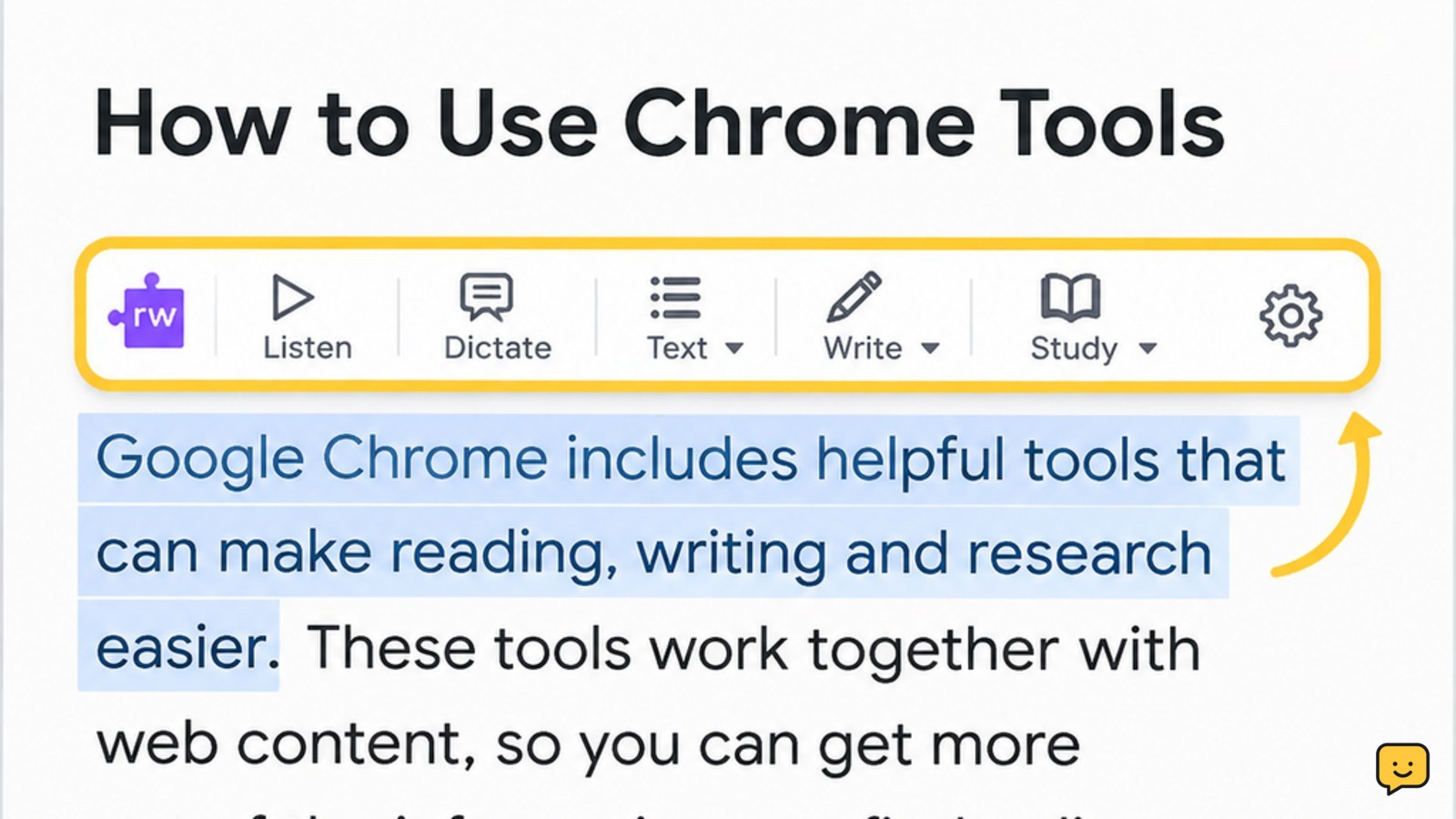
Google Read&Write usually means Read&Write for Google Chrome, a Texthelp learning toolbar for reading, writing, and research. Install or open it through your approved Chrome account, sign in if your school or organization requires it, then select text and use the toolbar. Available tools can vary by license, account, and administrator settings.
For more help with this topic, use the Computers Internet guides.
Confirm which Read&Write product you need
Read&Write for Google Chrome is the browser-based Texthelp product intended to provide reading, writing, and research support in Chrome. Texthelp’s current learning resources identify Google Chrome as a supported environment, while its feature information describes tools for reading and writing across subject areas.
If your school or employer gave you a special link, account, or access code, use that route first. An organization may control which features appear. A personal Google account may show a different access screen or no paid features at all.
Check before continuing: the browser is Google Chrome, the address bar shows the account you intend to use, and the extension name identifies Read&Write or Read&Write for Google Chrome. If those details do not match, stop and ask the account administrator which product to use.
Install or open Read&Write in Chrome
Install or open Read&Write from an approved Chrome extension source, then allow Chrome to add it to the browser.
- Open Chrome and go to the Chrome Web Store, or open the installation link supplied by your school or organization.
- Search for Read&Write and check that the listing identifies the expected Texthelp product before selecting the install control.
- Review the permissions requested by Chrome. Continue only when the permissions make sense for a browser reading and writing tool and the publisher matches your approved source.
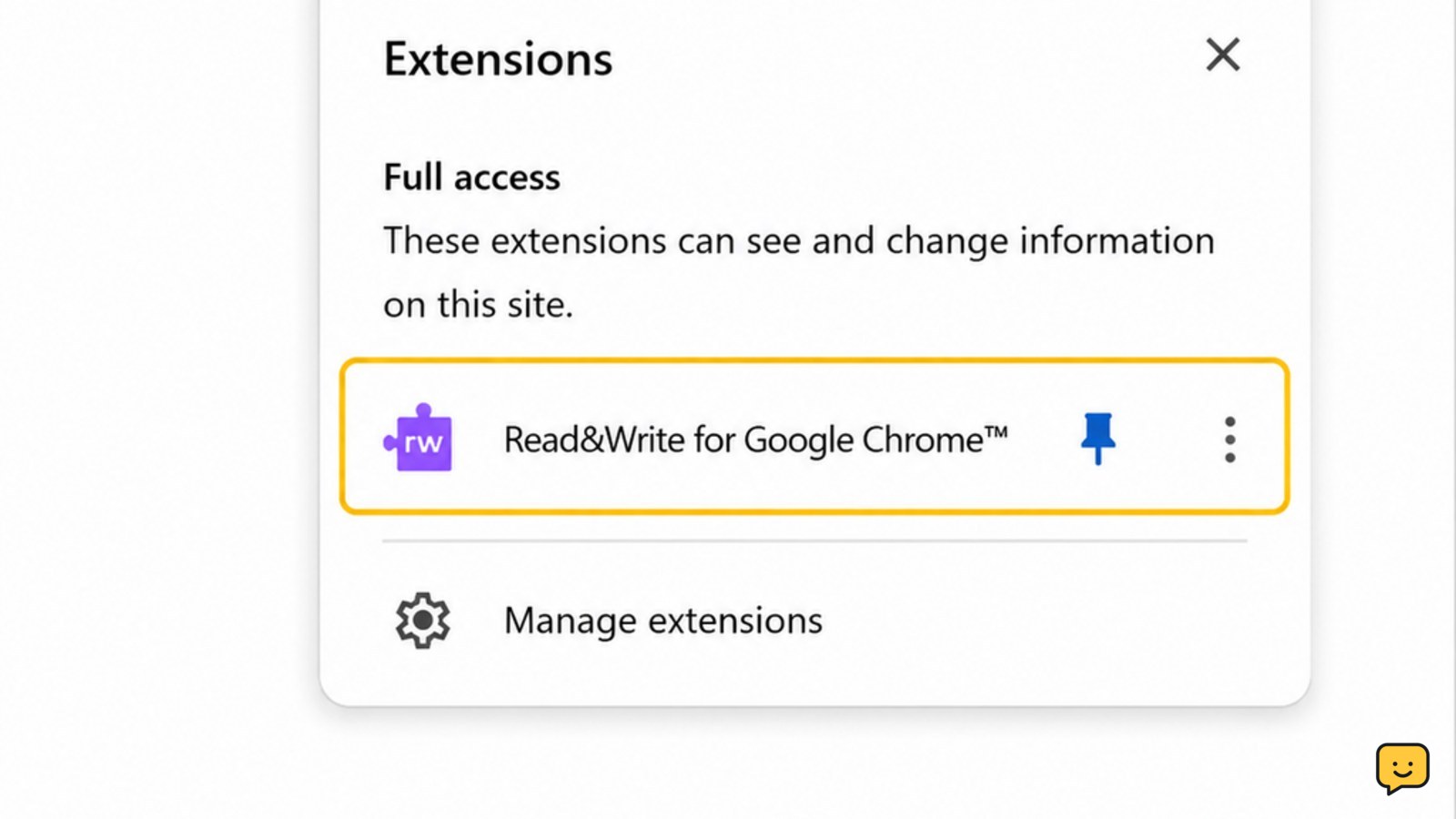
- After installation, open Chrome’s Extensions menu and pin Read&Write if you want its toolbar icon to remain visible.
- Select the Read&Write icon. Complete the sign-in or license step only with the account authorized to use the product.
Success check: the Read&Write toolbar or launch control opens in Chrome without a second, unrelated extension appearing. Texthelp provides dedicated Google Chrome user guides for learning the product’s controls and workflows.
Use reading tools on a webpage
Read&Write can support reading by working with selected webpage text, but the exact controls shown depend on the current product configuration and license.
- Open a simple webpage with a short paragraph that is not private or account-protected.
- Drag across one sentence to select it.
- Open the Read&Write toolbar and choose the reading or speech control shown for your account.
- Listen for the selected sentence, then stop playback using the toolbar control before testing another passage.
Verify the result: the selected text is read aloud, the playback control changes state, or an equivalent reading indicator appears. If nothing happens, select ordinary page text rather than a menu, image, embedded viewer, or locked document.
Texthelp describes Read&Write as including reading and writing support, but it does not mean every website exposes every feature. A page can block selection, use an embedded document, or present text as an image.
Use writing and research tools safely
Read&Write’s writing and research tools are intended to help with tasks such as checking words, gathering information, and working with text; available controls can vary by account and administrator settings.
- Open a blank practice document or a non-sensitive text field.
- Type a short sentence with a deliberately unfamiliar word, or select a word already on the page.
- Open the toolbar and choose the definition, word-support, or writing control that is visible.
- Review the result before inserting or accepting anything. Check spelling, meaning, and context rather than treating a suggested word as automatically correct.
- For research, test the feature with a public, non-confidential passage and record the source of any information you keep.
Success check: the tool responds to the selected word or text and the result appears in the expected panel, menu, or document location. If a control is absent, the feature may be disabled by the license, administrator, website, or current toolbar configuration.
Do not paste passwords, private messages, medical records, financial information, or confidential school or workplace material into a tool until the organization has confirmed how that feature handles data.
Fix a missing toolbar or unavailable feature
A missing Read&Write toolbar is usually an access, browser, account, or page-compatibility problem rather than a reason to change security settings.
- Refresh the page, then select the extension icon again. Test a basic public webpage to separate a page-specific issue from an extension issue.
- Open Chrome’s Extensions page and confirm that Read&Write is installed and enabled.
- Check the signed-in Google account. School or workplace access may work only with the managed account that was assigned the license.
- Sign out and back in only through the normal Google or organization sign-in page. Never provide a password to a pop-up or support contact that you cannot verify.
- Restart Chrome and check for a pending browser or extension update through Chrome’s normal settings.
Use the symptom to choose the next action: if the extension is missing, return to the approved installation source; if it is installed but disabled, contact the administrator before enabling policy-controlled settings; if it works on one page but not another, use a selectable public webpage to confirm that the extension itself works.
Texthelp’s Google Chrome learning resources are the appropriate next reference for control-specific behavior. Contact your school or workplace administrator when the product requires an institutional license, the sign-in loop continues, or a feature is deliberately unavailable.
Frequently asked questions
Is Google Read&Write a Google product?
No. The phrase usually refers to Read&Write for Google Chrome, a Texthelp product that works in the Chrome browser. Google Chrome supplies the browser environment, while Texthelp provides the toolbar and learning features. The publisher name and account requirements should be checked before installation.
Why can’t I see the Read&Write toolbar in Chrome?
The toolbar may be hidden, disabled, restricted to another Google account, or unavailable on the page you opened. Test a plain public webpage, check Chrome’s Extensions page, confirm the managed account, and contact the administrator if the extension or license is controlled by a school or workplace.
Can Read&Write read text from every website?
No. It works best with selectable webpage text. Images, protected documents, embedded viewers, and pages that block selection may prevent reading controls from working. Test a short paragraph on a public webpage before assuming the extension is broken.
Do all Read&Write features require a license?
Not necessarily. The tools visible to you can depend on the product configuration, account, license, and administrator policy. If a feature is missing, verify the account and ask the organization that provided access instead of changing Chrome security or policy settings.


