
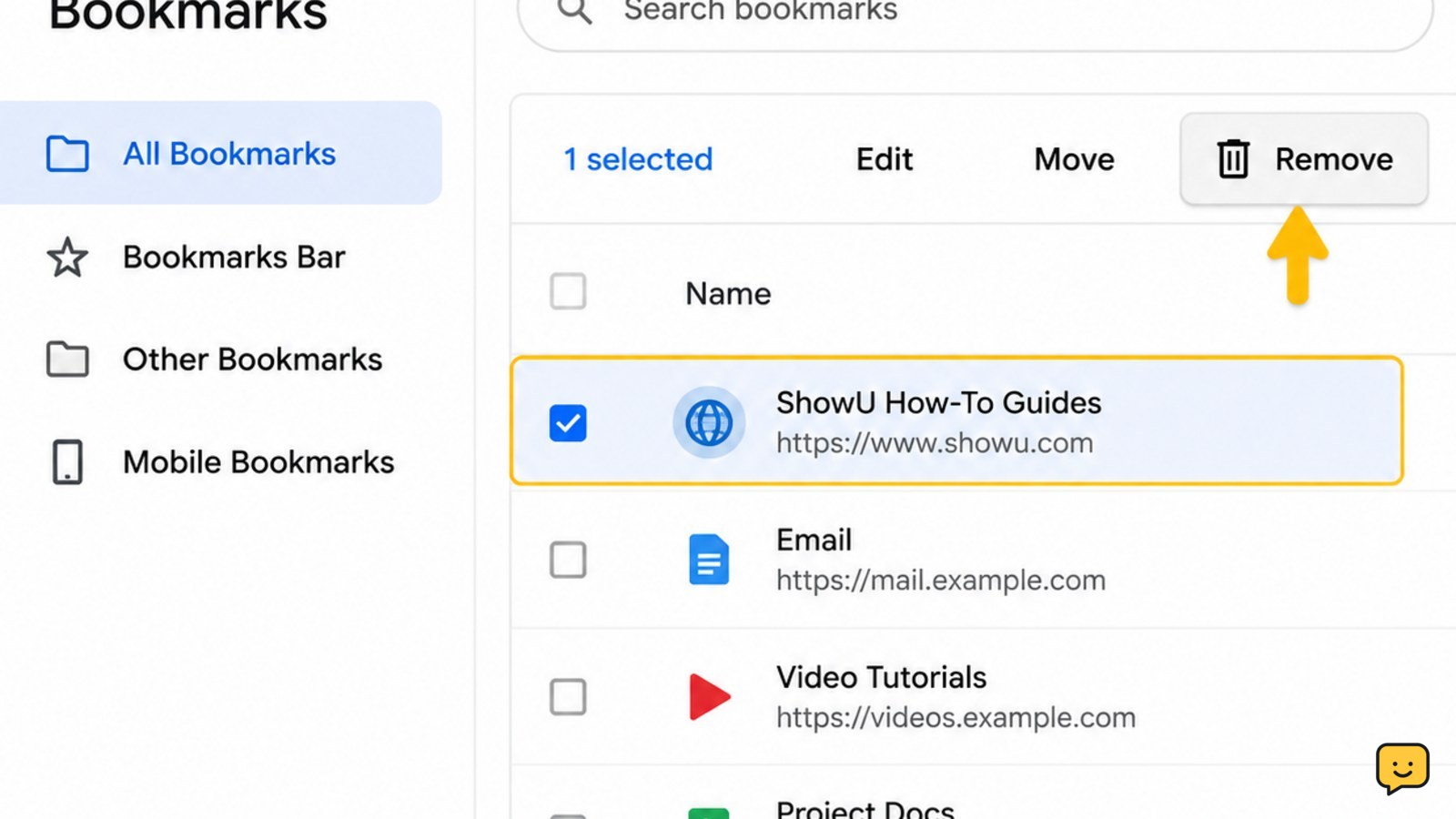
Open your browser’s bookmarks or favorites list, select the saved link, and choose Delete or Remove. On a computer, you can usually right-click the bookmark; on a phone, open the browser menu, choose Bookmarks or Favorites, tap the item’s menu, and select Delete. Check the list again to confirm it disappeared.
For more help with this topic, use the Computers Internet guides.
Identify the browser and bookmark list
The first step is to open the saved-link list in the browser that contains the bookmark. Browsers may call these links Bookmarks or Favorites, and a bookmark saved in Chrome will not normally appear in Firefox, Edge, or Safari.
- On a computer, open the browser’s menu and look for Bookmarks, Favorites, or Bookmarks Manager.
- On a phone or tablet, open the browser menu and select Bookmarks or Favorites.
- Use the search field, if available, and match both the page title and address before selecting the item.
In Firefox, Mozilla’s support instructions also allow you to select the star beside the address bar and choose Remove Bookmark in the edit window.
Delete one bookmark on a computer
On a computer, you can usually delete one bookmark from the visible bookmarks bar or from the manager without opening the saved webpage.
- Open the bookmarks or favorites manager.
- Find the saved link or its folder.
- Right-click the bookmark and choose Delete, Remove, or the equivalent command. In some browsers, select the item first and use a trash-can button or the keyboard Delete key.
- Confirm the removal if the browser asks.
To remove a bookmark from the bar, right-click the link itself and choose the delete or remove command. The wording and location can change between browser versions, so do not select a command such as Clear browsing data for this task.
Remove a bookmark on Android or iPhone
On a phone or tablet, delete a saved link from the browser’s Bookmarks or Favorites screen rather than from the phone’s general Settings app.
- Open the browser menu, then choose Bookmarks or Favorites.
- Locate the saved page and open its item menu. This is often shown as three dots, a swipe action, or an Edit button.
- Tap Delete, Remove, or the trash icon, then confirm if prompted.
In Safari on iPhone, open the bookmarks icon, choose Edit, select the unwanted entry, and tap Delete. In other mobile browsers, menu names and gestures vary, but the safe path is the same: open the saved-link list, select one item, and remove only that item.
Verify the bookmark is gone and check sync
A successfully deleted bookmark disappears from its original folder, bookmarks bar, or favorites list immediately or after the list refreshes.
- Search the bookmark manager again using part of the page title.
- Check the folder and bookmarks bar where you originally saw it.
- If the link is still present, refresh the manager, close and reopen the browser, then confirm that you are using the expected browser profile.
- If sync is enabled, check another signed-in device only after the local deletion is confirmed.
Deleting a bookmark removes the saved shortcut; it does not delete the website, your online account, or the page from the internet. A bookmark that returns can indicate synchronization from another profile or device, so identify the active account before deleting it again.
Recover the wrong deletion safely
If you removed the wrong bookmark, first look for an Undo notification or use the browser’s bookmark manager immediately; some browsers provide a temporary undo action, while others do not.
- If you copied the address beforehand, create a new bookmark by opening the address and selecting the browser’s star or bookmark command.
- If the link was synchronized, check another signed-in device or browser profile only to recover the address, not to delete more items.
- If the webpage address is unknown, search the browser history for the page title or domain and bookmark the correct result.
Stop if the recovery result points to a different page, asks for unexpected account credentials, or cannot be matched to the original title and address. Do not restore a suspicious or unfamiliar link just because its name looks similar.
Frequently asked questions
Does deleting a bookmark delete the webpage?
No. Deleting a bookmark removes only the saved shortcut from your browser. The website, online account, downloaded files, and browsing history remain separate. You can visit the page again by entering its address or finding it in browser history, unless the website itself has been removed.
Why does a deleted bookmark come back?
A deleted bookmark can return when browser sync is active, another device still has the item, or you are viewing a different browser profile. Confirm the deletion locally, check the signed-in browser account and profile, then allow synchronization to finish before checking again.
Can I delete several bookmarks at once?
Yes, many desktop bookmark managers let you select multiple entries with Ctrl-click on Windows or Command-click on Mac, then choose Delete. Check every selected title and folder first. Stop if the selection includes a folder you need, because deleting a folder may remove all bookmarks inside it.
What should I do if there is no Delete option?
Open the full bookmarks manager instead of the bookmarks bar or new-tab shortcut. If the item is managed by a work or school browser profile, policy may restrict changes. Do not bypass that restriction; contact the administrator or use your personal browser profile if the bookmark belongs there.


