
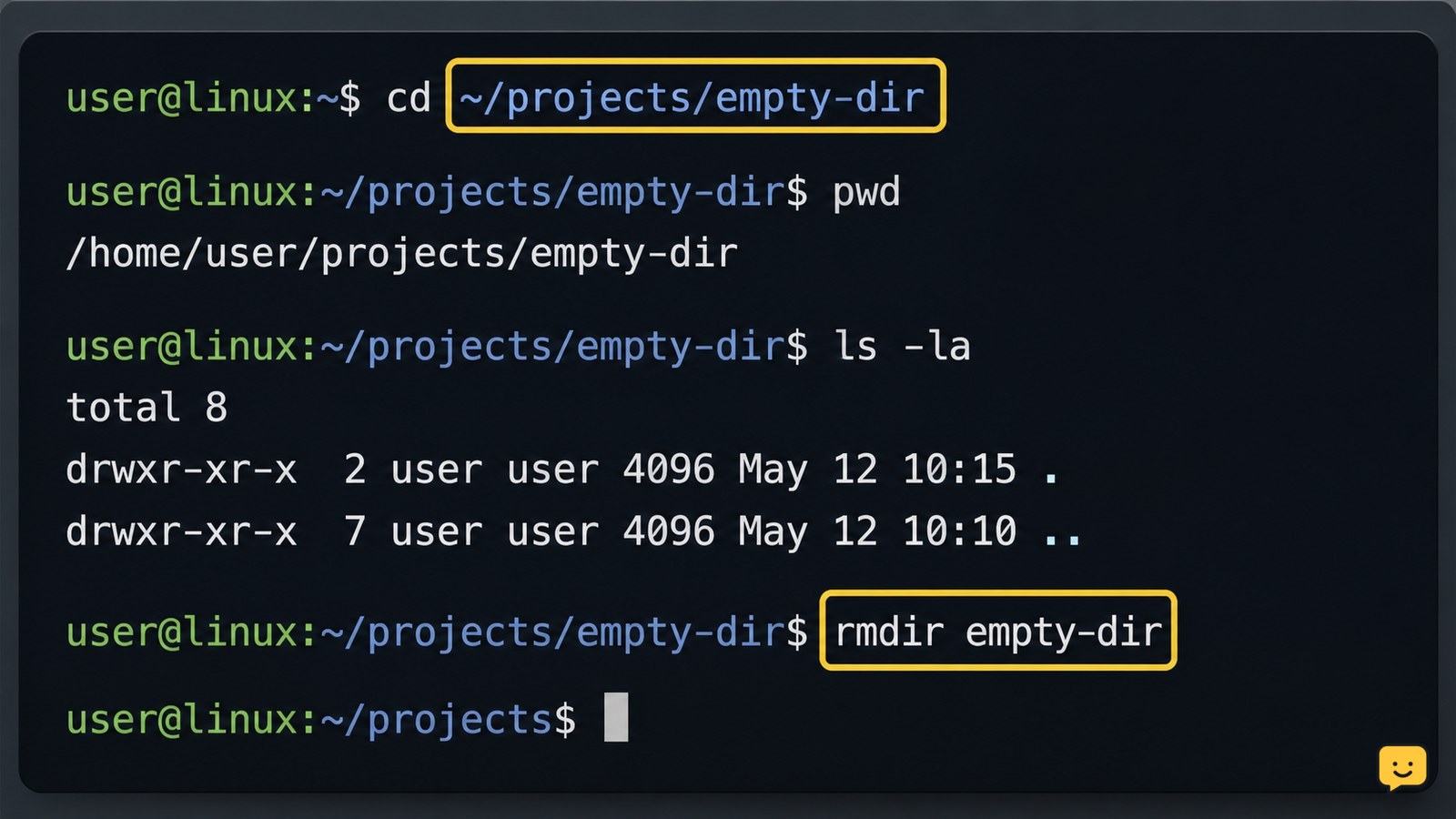
Use <code>rmdir directory-name</code> to remove an empty directory. If it contains files or subdirectories, inspect the path first, then use <code>rm -r directory-name</code>; add <code>-i</code> for confirmation prompts with <code>rm -ri directory-name</code>. Never run a recursive removal command against an uncertain path or a system directory.
For more help with this topic, use the Computers Internet guides.
Check the directory path before deleting it
Before removing a Linux directory, verify your location and the exact target path. Run:
pwd
ls -ld -- directory-name
ls -la -- directory-name
pwd shows the current directory. The first ls command displays the target directory entry, while the second lists its contents, including hidden entries. Replace directory-name with the real path.
If the name contains spaces, quote it:
ls -ld -- "Project Files"The -- separates options from the path, which helps when a name begins with a hyphen. If the listing is not the directory you intended, stop and correct the path.
Remove an empty directory with rmdir
Use rmdir when the Linux directory contains no files or subdirectories:
rmdir -- directory-nameA successful command normally returns to the shell without a message. Verify that the directory is gone:
test ! -e -- directory-name && echo "Directory removed"If you see Directory not empty, rmdir has not deleted anything. Red Hat documents rmdir for deleting directories and distinguishes it from recursive removal; inspect the contents before choosing another command.
Remove a non-empty directory with rm -r
Use recursive removal only when you have confirmed that every item inside the directory can be deleted:
rm -r -- directory-nameThe -r option makes rm descend into subdirectories and remove their contents before removing the directory itself. This is permanent in the normal shell workflow, so it is not the right choice when you need a recoverable Trash or recycle-bin action.
For a safer confirmation mode, use:
rm -ri -- directory-nameThe interactive option asks before removing items. Read each displayed path and answer only when it matches the content you intended to remove. Red Hat describes recursive deletion as the method for directories containing files and subdirectories.
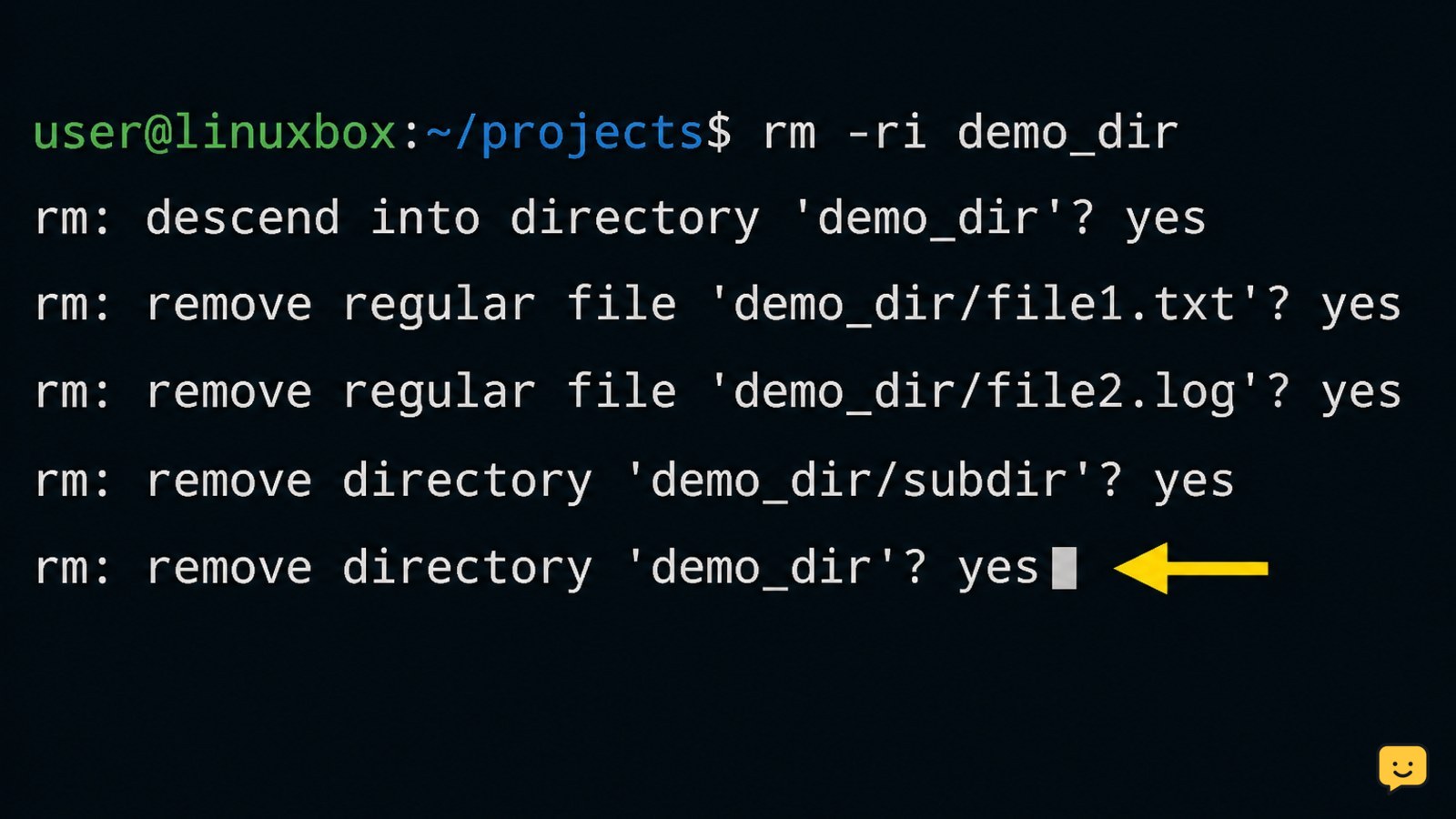
Verify that the directory and contents are gone
After deletion, check the parent directory and test the target path:
ls -ld -- directory-name
test ! -e -- directory-name && echo "Directory removed"
If ls reports that the path does not exist and the test prints the confirmation message, the directory entry is no longer present at that path. If the command still shows the directory, check whether you typed a different path, used a symbolic link, or are viewing a different mounted filesystem.
Do not repeat a recursive command simply because the shell produced no output. A quiet successful command is normal; verification is the check that matters.
What to do if removal fails
A failed Linux directory removal usually points to a non-empty target, a wrong path, insufficient permission, or a filesystem issue.
- Directory not empty: run
ls -la -- directory-nameand identify hidden files or nested directories before usingrm -ri. - Permission denied: check the parent and target permissions with
ls -ld -- parent-directory directory-name. Stop if you do not own the data or cannot confirm the administrator-approved path. - No such file or directory: run
pwdand use an absolute path if necessary, such as/home/user/example. - Busy or read-only filesystem: stop rather than forcing deletion. The directory may be in use or located on storage mounted with write protection.
AskUbuntu’s documented example shows why rmdir fails on a non-empty directory: it is intended for empty directories, not recursive cleanup.
Frequently asked questions
What is the command to remove a directory in Linux?
Use <code>rmdir directory-name</code> for an empty directory. Use <code>rm -r directory-name</code> for a directory containing files, but inspect the path first because recursive removal deletes the contents as well.
Why does rmdir say the directory is not empty?
The directory contains at least one file, hidden file, or subdirectory. Run <code>ls -la — directory-name</code> to inspect it. If all contents are disposable, use the confirmation-based command <code>rm -ri — directory-name</code>.
Can I remove a Linux directory without deleting its files?
No. A directory cannot be removed while it still contains entries. Move or delete the contents first, then run <code>rmdir</code>. If you only want to relocate the directory, use <code>mv</code> instead of a removal command.
How can I delete a directory with spaces in its name?
Put the path in quotes or escape each space. For example, use <code>rmdir — "Old Projects"</code> for an empty directory or <code>rm -ri — "Old Projects"</code> for a non-empty one.
Should I use sudo to remove a directory?
Only when you have confirmed that the directory is an administrator-managed path and the removal is authorized. Do not add <code>sudo</code> automatically after a permission error; first check the path, owner, permissions, and whether the data is needed.


