To make a Facebook post shareable, open the post’s audience control and change it to Public, then save the change. For an existing post, select the three-dot menu, choose Edit audience or Edit post, select Public, and confirm. Check the post afterward: people who are not your Facebook friends should be able to see a Share option.
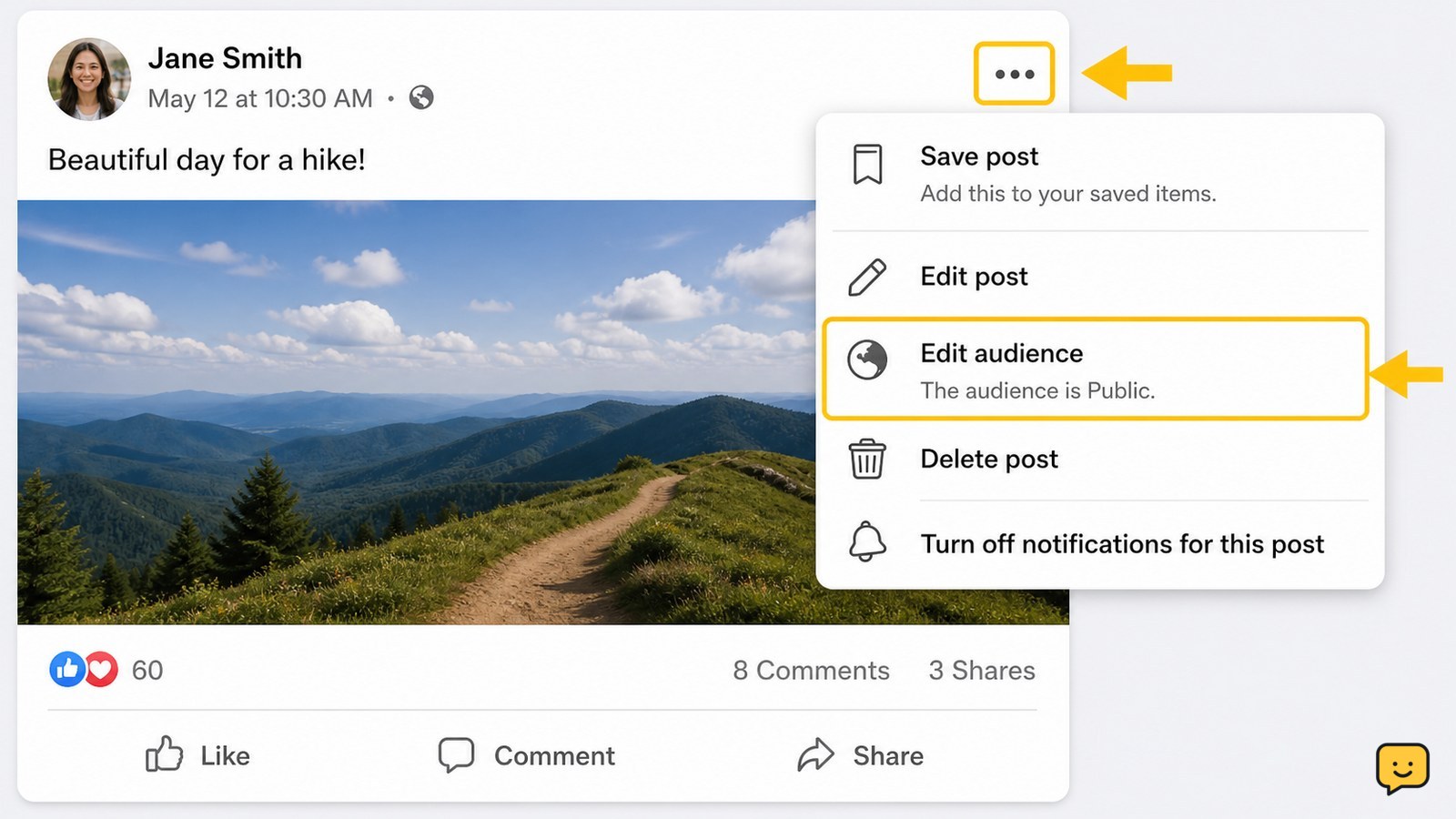
Change an existing Facebook post to Public
An existing Facebook post becomes broadly shareable when its audience is set to Public; the audience control is the setting that determines who can view and reshare the post.
- Open Facebook and find the post on your profile or in your activity history.
- Select the three-dot menu in the post’s upper-right corner.
- Choose Edit audience, Edit privacy, or Edit post, depending on the version of Facebook you see.
- Select Public, shown with a globe icon, and save or confirm the change.
Verify it: reopen the post menu or audience label and confirm that it says Public. A person who is not connected to you should be able to open the post and see sharing controls.
Set a new Facebook post to be shareable
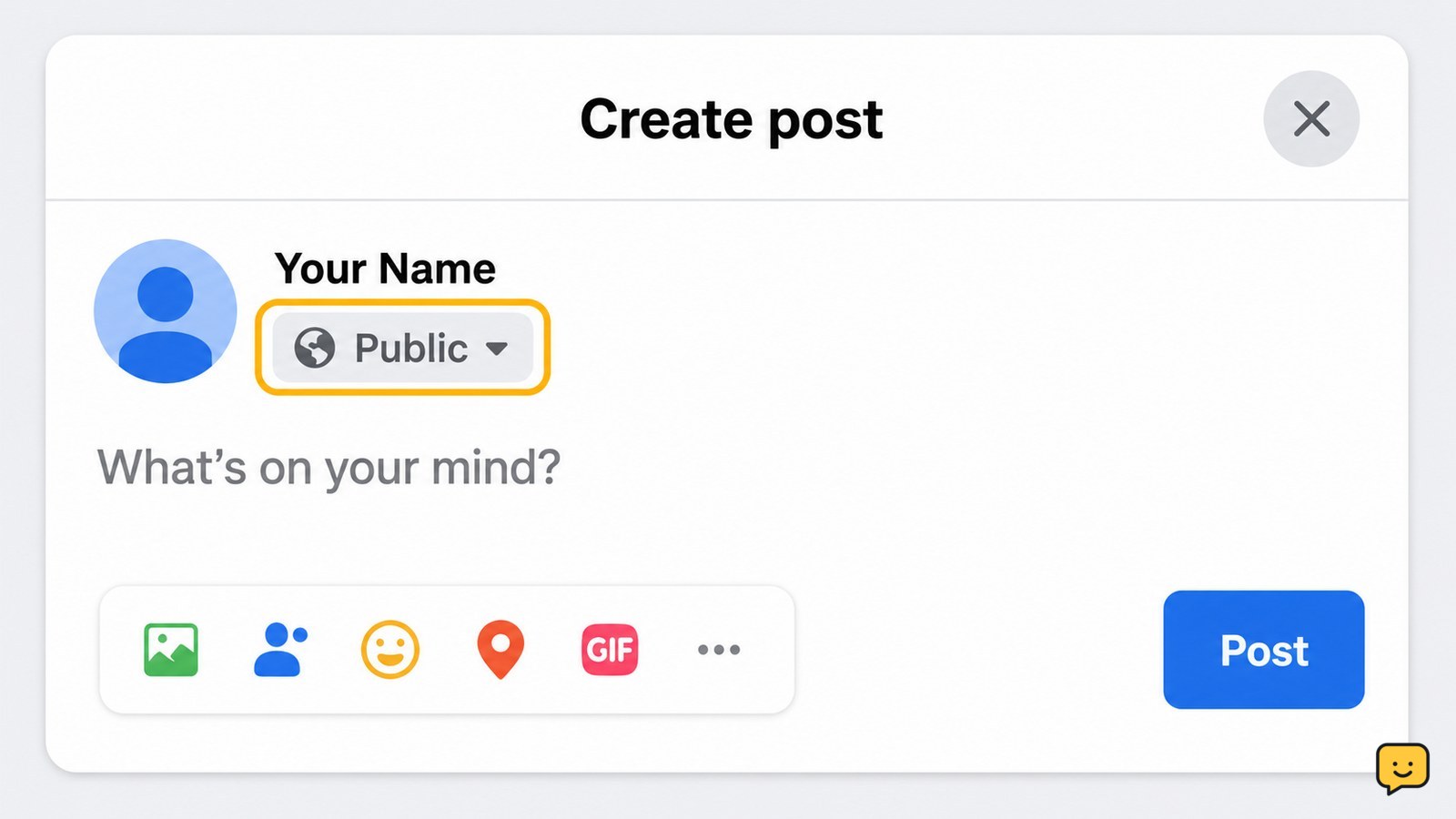
A new Facebook post can be made shareable before publishing by choosing Public in the audience selector next to your name.
- Start a new post from your profile.
- Before selecting Post, tap or click the audience label, such as Friends, Only me, or a custom audience.
- Choose Public.
- Review the text, photos, tags, and location, then publish the post.
Check the result: the audience label below your name should show the globe icon or the word Public. If the selector returns to Friends, do not publish until you have selected the intended audience again.
Check why the Share option is missing
A missing Share button usually means the post’s audience or location limits who can reshare it.
| What you see | Likely reason | Safest action |
|---|---|---|
| The post is visible only to Friends | The audience is restricted. | Edit the audience to Public if the content is safe to publish broadly. |
| The post is inside a private group | Group membership limits visibility. | Share the information as a new Public post only if you own the content and have permission to republish it. |
| You did not create the post | You cannot change another person’s audience setting. | Use the available sharing option or ask the original poster to make it Public. |
| The post is on a Page | Page permissions, post format, or audience restrictions may apply. | Check the Page’s post audience and publishing permissions, or ask a Page manager. |
Facebook’s audience controls determine who can see a post, so changing only the text or adding a “share this” request will not override a restricted audience. If no audience-editing control appears, leave the post unchanged rather than using an outside service.
Verify sharing without exposing private information
The safest verification is to inspect the post as someone outside your normal Facebook audience would see it.
- Copy the post link from the three-dot menu using Copy link.
- Open the link in a private browser window where you are not signed in, or ask a trusted person who is not connected to you to check it.
- Confirm that the post opens and that the Share control is available.
- Close the private window and review the audience setting again from your own account.
If the link cannot be viewed while signed out, the post is not publicly visible even if a Share option appears for you. If the post contains sensitive details, change the audience back to Friends or a custom audience instead of continuing to troubleshoot public sharing.
Keep future Facebook posts from using the wrong audience
Facebook can remember the audience used for previous posts, so review the audience selector each time before publishing something meant to be shareable.
- Begin a new post and inspect the audience label beside your profile name.
- Choose Public only for content that is appropriate for anyone who can access the link.
- After publishing, check the globe icon and test the link if broad visibility matters.
Changing a future-post preference does not necessarily change older posts. Review an existing post individually when its sharing audience matters.
Frequently asked questions
Why can’t my friends share my Facebook post?
Your friends may be unable to share it because the post audience is set to Friends, Only me, or a custom audience. Open the post’s three-dot menu, choose the available audience or privacy-editing option, and select Public if the content is safe for anyone to view. Posts in private groups and posts created by other people may remain limited even when you can see them.
Can I make a Facebook group post shareable?
You cannot always make a group post publicly shareable. A private group limits who can view its posts, so changing an individual post may not provide public visibility. If you own the content and have permission to repost it, create a separate Public post on your profile or Page. Do not copy someone else’s private group content without permission.
How do I make a Facebook post shareable after posting?
Open the published post, select its three-dot menu, and look for Edit audience, Edit privacy, or Edit post. Change the audience to Public and save. Confirm the globe icon appears beside the post and test the link while signed out. If Facebook does not offer an audience-editing control, the post type, group, Page permissions, or ownership may prevent the change.
Does making a Facebook post Public make it visible to everyone?
Public makes the post available to people beyond your friends list, but visibility can still depend on Facebook access, blocked accounts, group or Page rules, and the post’s format. Treat a Public post as broadly accessible. Remove private details before changing the audience, and return it to Friends or a custom audience if the content should not travel beyond your intended readers.
For more help with this topic, use the Privacy Online Safety guides.