To make an email group in Outlook, open People or Contacts, choose Home > New Contact Group, name the group, select Add Members, add each recipient, and save it. Start a new email, select To, search for the group name, and add it. Confirm the individual recipients appear before sending.
Choose a contact group instead of a Microsoft 365 group
An Outlook contact group is the right choice when you want one saved name to represent several email addresses. It does not create a shared mailbox, files area, calendar, or group conversation space.
Use a Microsoft 365 group only when people need shared resources and ongoing collaboration. In Outlook on the web, the Groups area and New group control refer to that broader group type, while New Contact Group creates the reusable email list described here.
Create the Outlook contact group
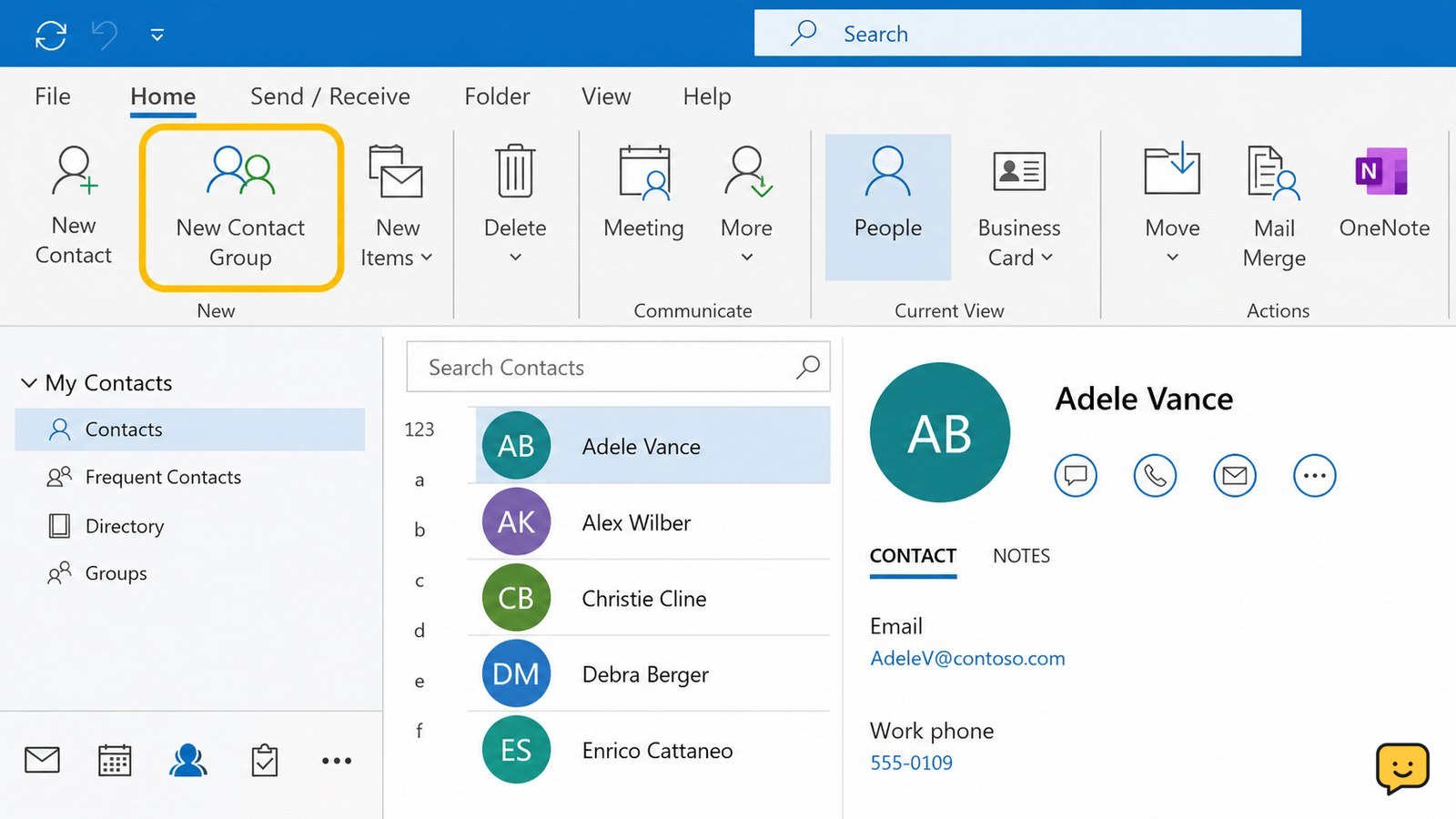
Outlook creates the reusable email list from the People or Contacts area, where the command is usually labeled New Contact Group.
- Open Outlook and select People or Contacts from the navigation area.
- Select Home, then choose New Contact Group. In some desktop layouts, the command may be available from the contact-management toolbar.
- Enter a clear name in the group-name field, such as Project Atlas or Family Updates.
- Select Add Members, then choose the available contact source, such as Outlook Contacts, Address Book, or a new email contact.
- Search for each person, select the correct result, and add the member. Check the displayed email address when similar names appear.
- When every intended recipient is listed, select Save & Close.
Success check: the contact group appears in your contacts list under the name you entered, and its member list contains the expected people.
Verify the group in a new email
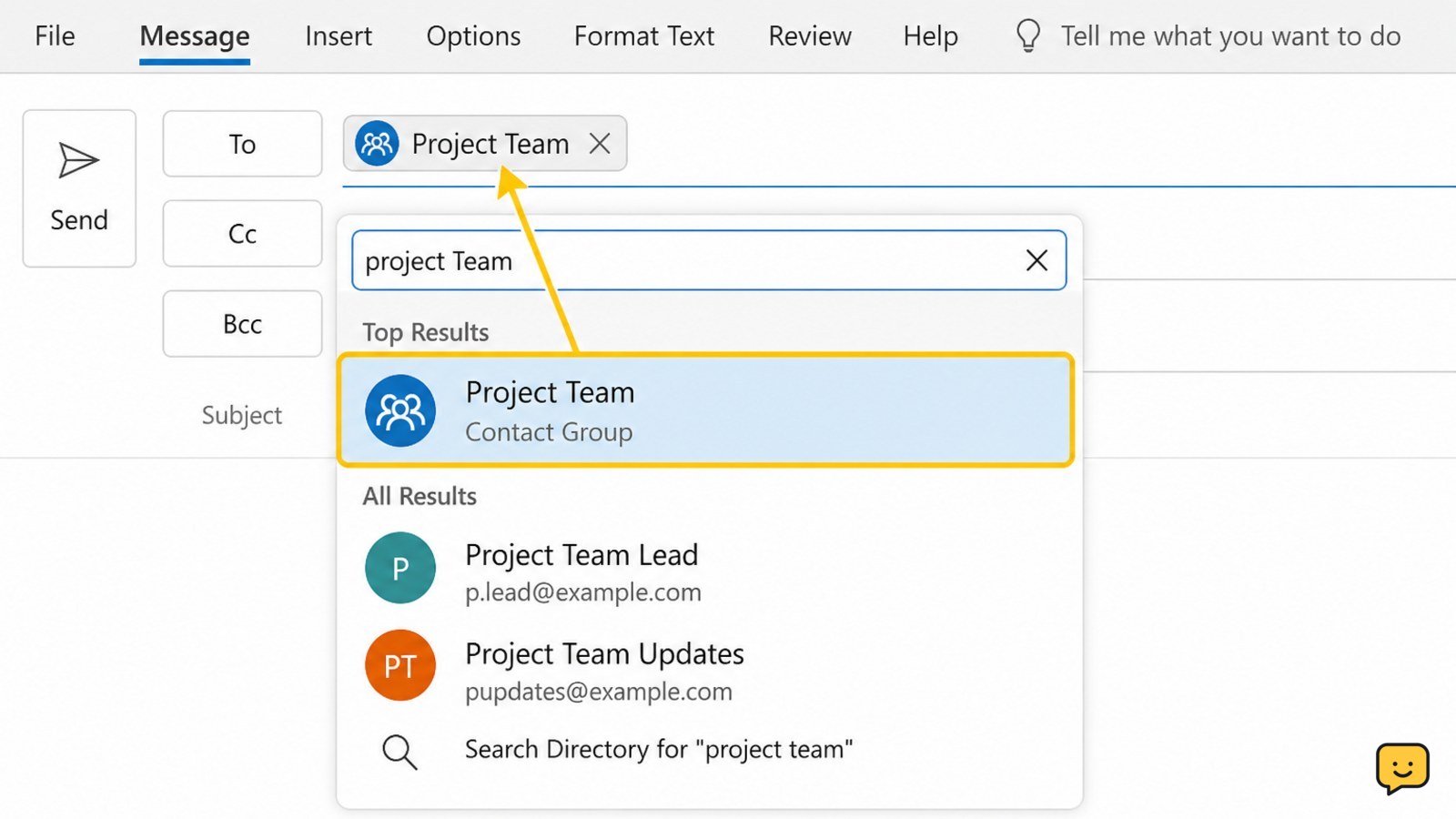
Outlook verifies a contact group when its saved name expands into the intended recipients in the message header.
- Select Home > New Email.
- Select To to open the address-book or recipient picker.
- In the search box, type the exact contact-group name.
- Double-click the group result or select it and choose To, then select OK.
- Review the recipients in the To field before adding a subject or sending the message.
The expected result is that the group name is accepted and the message shows the saved members as recipients. If privacy matters, use Bcc for the group instead of To so recipients are not shown to one another. Send only after checking the expanded list or recipient summary.
Add, remove, or rename group members safely
You can maintain an Outlook contact group from People or Contacts without creating a new group.
- Open People or Contacts and search for the saved group name.
- Open the group, then choose the member-management command such as Add Members, Remove Member, or Update.
- For a new recipient, search the address book and confirm the email address before adding it.
- For a departing or incorrect recipient, select the member and remove it.
- Change the group name only if needed, then select Save & Close.
Verify the change by opening a new email and searching for the group again. Do not assume an unsaved edit took effect; the updated member list should be visible before you use the group for a real message.
Fix a missing group or unexpected recipient
A missing Outlook group usually means you are viewing the wrong account, contact area, or group type rather than that the saved list has been deleted.
- The group does not appear in search: open People or Contacts in the same Outlook profile used to create it, then search the exact name rather than a partial phrase.
- New Group appears but New Contact Group does not: you may be in the Microsoft 365 Groups area. Return to People or Contacts for a simple email list.
- A member is missing: open the saved group, add the person again, save, and repeat the new-email verification.
- An old address appears: remove that member and add the current address from the official address book or a trusted contact record.
- The group name resolves incorrectly: stop before sending, remove the wrong entry, and select the exact saved group or individual recipients.
If the contact group still cannot be found after checking the correct account and contact area, do not recreate several versions with similar names. First confirm whether your organization manages contacts centrally or restricts address-book changes.
Frequently asked questions
What is the difference between an Outlook contact group and a Microsoft 365 group?
An Outlook contact group is a saved list of email recipients that helps you address messages quickly. A Microsoft 365 group is a broader collaboration space with shared conversations and other resources. Choose a contact group for repeated email distribution; choose a Microsoft 365 group when members need shared work features.
Can I email an Outlook contact group without showing every address?
Yes. Add the contact group to the Bcc field instead of To or Cc. Check the recipient summary before sending because some Outlook versions may show the group name until it expands. Bcc is useful when recipients should not see one another’s email addresses.
Why can’t I find the contact group I created in Outlook?
First check that you opened People or Contacts in the same Outlook account and profile used to create the list. Search the exact group name. If you are looking under Groups, you may be viewing Microsoft 365 groups instead of contact groups. Do not send a test message until the correct saved members appear.
How do I remove someone from an Outlook email group?
Open People or Contacts, search for the saved contact group, open it, select the unwanted member, and choose Remove Member or the equivalent edit command. Save the group, then open a new email and verify that the removed address no longer appears before sending.
For more help with this topic, use the Email Social Accounts guides.