
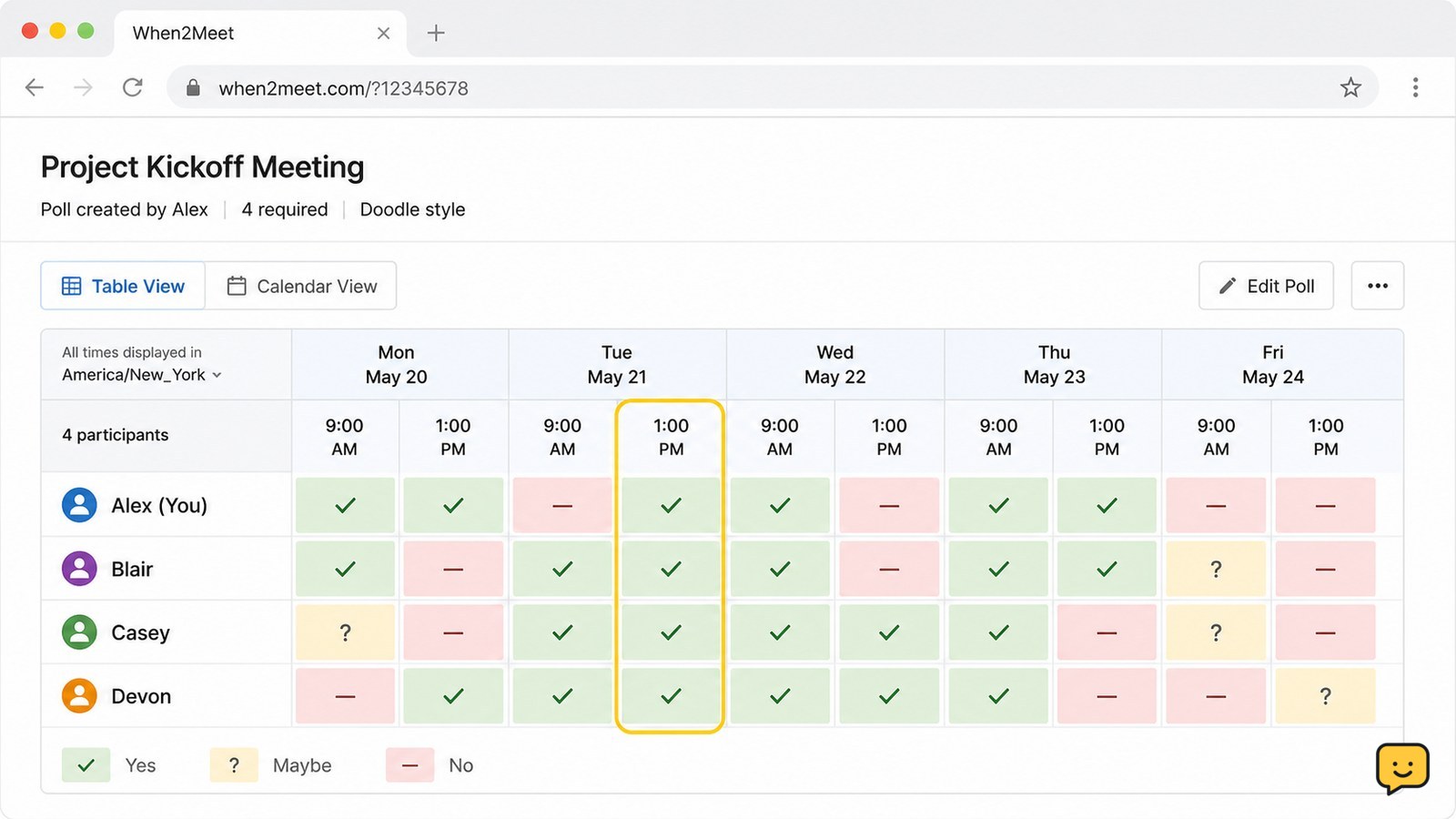
Open When2Meet in a current browser, create an event, choose the dates and time range, then share the generated link. Each participant opens that link and marks when they are available. The organizer compares the colored availability grid, selects a time with the strongest overlap, and confirms it through the group’s usual messaging or calendar system.
Browse more Computers & Internet guides
Check the dates, time zone, and meeting length first
When2Meet works best when the organizer defines the decision before creating the poll. Write down the possible dates, the earliest and latest acceptable times, the expected meeting length, and the time zone that the group will use.
Keep the poll window as narrow as practical. A smaller date range and reasonable daily hours make the availability grid easier to read and reduce accidental selections. Tell participants which time zone the displayed times represent, especially when the group is spread across regions.
Verification: You should be able to describe the poll in one sentence, such as “Choose a 45-minute meeting during the listed weekday afternoons in Eastern Time.”
Create a When2Meet scheduling poll
When2Meet lets you create a browser-based availability poll without requiring a traditional calendar booking page. The current interface may change its labels, but the setup flow follows the same basic sequence described by scheduling guides from Acuity Scheduling and Cal.com.
- Open the official When2Meet website in your browser.
- Enter a clear event name that participants will recognize.
- Select the dates or date range you want to compare.
- Set the daily start and end times for possible availability.
- Submit the event details to open the availability grid.
Verification: The new poll should display the event name, the selected dates, and a grid of selectable time blocks. If the dates or hours are wrong, stop before sharing the link and create or edit the poll with the correct range.
Share the poll link without exposing private details
After the poll opens, copy its web address and send it only to the intended participants. Add the meeting length and time zone in the message rather than assuming everyone will infer them from the grid.
A useful message includes the response deadline, the required attendees, and what will happen next: “Please mark every time you can attend by Thursday at noon. I’ll confirm the final slot afterward.” Acuity Scheduling describes When2Meet as a time-polling option, while Cal.com presents it as a group-scheduling tool rather than a full appointment-booking workflow.
Failure path: If the copied address returns an error, compare it with the link shown in the browser’s address bar and send the complete address again. Do not send a shortened or manually retyped link if the original is available.
Mark your availability on the When2Meet grid
Each participant should open the shared poll, enter an identifying name or label if requested, and select the time blocks when they can genuinely attend. Select all acceptable times, not only a preferred time, so the group has enough overlap to compare.
- Open the shared poll link.
- Enter the requested participant name or label.
- Review the displayed dates and time zone.
- Drag across the grid or use the available selection control to mark open periods.
- Review the highlighted blocks before leaving the page.
Verification: Your selected blocks should remain visibly marked after you release the pointer or finish tapping. If a selection disappears, try a smaller range and check that the page has finished responding before continuing.
Do not mark a time as available if travel, another appointment, or an unreliable connection makes attendance uncertain. If your schedule changes, reopen the same poll and update your selections rather than creating a duplicate response.
Read the overlap and confirm the final meeting time
When2Meet shows group availability as a combined grid. Look for a continuous block that covers the meeting length and includes every required participant. A visually busy or strongly highlighted area can identify promising overlap, but the organizer should still confirm the names and duration before announcing the choice.
- Wait until all required participants have responded or the response deadline passes.
- Identify candidate blocks that are long enough for the meeting.
- Check whether every required person is included in the overlap.
- Resolve ties using the group’s stated preference, such as the earliest time or the fewest conflicts.
- Send the final date, time zone, duration, and meeting location through the group’s normal communication channel.
Verification: The final message should contain one unambiguous time, including the time zone, and participants should be able to confirm whether it works. When2Meet helps compare availability; it does not replace a final calendar invitation or meeting link.
Fix a missing grid, wrong time, or unsaved response
When2Meet problems are usually identifiable from what is visible on the page. If the poll does not load, check the web address, reload once, and try a private browser window or another current browser. If the grid loads but times look wrong, stop and verify the time zone with the organizer before selecting anything.
If your availability is not visible after selecting it, wait for the page to respond, refresh the poll, and check whether the response is still present. If it is missing again, notify the organizer instead of repeatedly submitting conflicting entries.
If no common time exists, expand the date range only with the group’s agreement, widen the acceptable hours, shorten the meeting, or use a scheduling service with calendar integration. Acuity Scheduling and Cal.com both describe alternatives that add booking or calendar-oriented workflows, which may be more suitable when a simple poll cannot produce a workable overlap.
Frequently asked questions
Does When2Meet require an app?
No. When2Meet is designed as a browser-based scheduling tool, so participants can use a current browser on a computer or mobile device. If the page behaves poorly on one device, try another current browser rather than installing an unofficial app or extension.
What should I include when sharing a When2Meet link?
Include the meeting length, displayed time zone, response deadline, required participants, and the action you want people to take. This prevents someone from marking a short opening when the meeting actually needs a longer continuous block.
Can When2Meet send the final calendar invitation?
Treat When2Meet as an availability poll, not the final calendar system. After choosing a time, send the date, time zone, duration, location, and meeting link through your normal calendar or messaging service.
What if When2Meet shows no time that works for everyone?
First confirm that everyone used the same time zone and marked all genuinely acceptable periods. Then expand the dates or hours with the group’s agreement, shorten the meeting, or use a scheduling service with calendar integration if the poll remains inconclusive.


